> For the complete documentation index, see [llms.txt](https://support.vlex.com/llms.txt). Markdown versions of documentation pages are available by appending `.md` to page URLs; this page is available as [Markdown](https://support.vlex.com/docket-alarm/docket-alarm-home/search-and-discovery/how-to-search-for-a-case.md).
# How to Search for a Case
Learn how to use the basic search bar and filters to find cases by docket number, party, or judge.
### Summary
Learn the fundamental methods to locate a specific case in Docket Alarm using the Docket Number, Party Name, or Judge.
### Why This is Important
Docket Alarm’s search engine is powerful because it indexes two things simultaneously: **Docket Sheets** (the case metadata) and **Documents** (the full text of PDFs). Knowing how to filter between these two ensures you find the exact case you are looking for without wading through thousands of unrelated search results.
### Method 1: Searching by Docket Number (Most Accurate)
If you already know the case number, this is the fastest way to find your record.
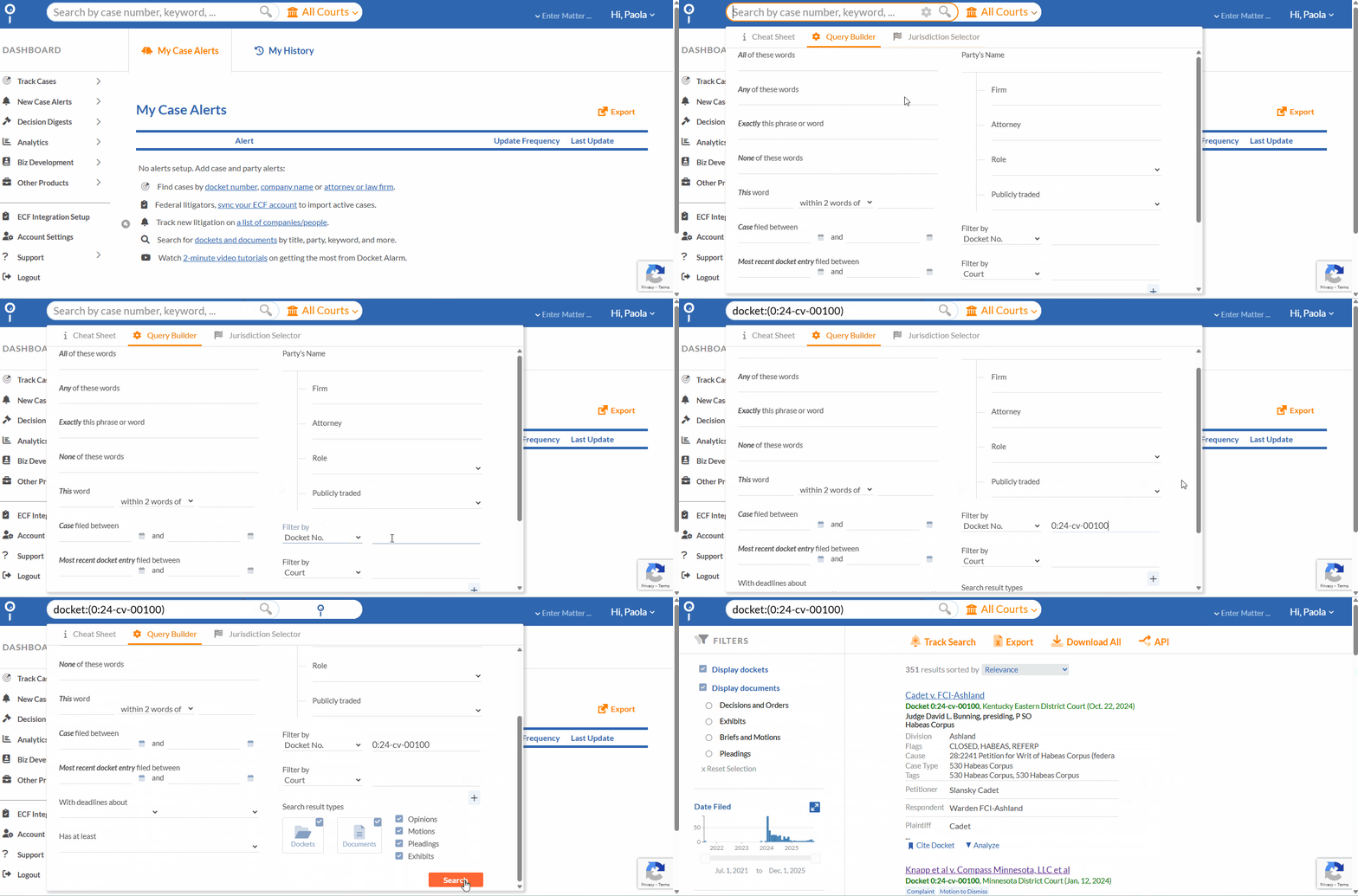
1. Click into the main **Search Bar** on the Dashboard.
2. Find the **Filter by** dropdown menu inside the query builder.
3. Enter the docket number in the **Docket No.** field. (e.g., `1:20-cv-04920`).
4. Enter the full or partial court name in the **Court** filter. (e.g., `Texas` ; `Texas Southern`; `Los Angeles County`)
5. **Important:** Uncheck the **Documents** box below the search bar (see the "Refining Your Search" section below).
6. Click **Search**.
Using the Docket No. filter is the most precise way to find a case.
### Method 2: Searching by Party Name
If you are looking for litigation involving a specific company or individual:
1. Click into the **Search Bar**.
2. From the **Filter** dropdown, select **Party**.
3. Type the name of the party (e.g., `Pfizer` or `Apple Inc.`).
4. (Optional) You can combine this with a **Judge** filter or a **Court** selection using the Jurisdiction Selector to narrow down results.
5. Uncheck the **Documents** box below the search bar.
6. Click **Search**.
### Refining Your Search: Dockets vs. Documents
By default, Docket Alarm searches **everything**. This means if you search for "Smith," you will get:
* Cases where "Smith" is a party (Plaintiff/Defendant).
* Cases where “Smith” is mentioned on the docket report (law firm, attorney, docket report, etc).
* **AND** every single PDF document (motion, order, exhibit) that contains the word "Smith" in the text.
**To find a case sheet quickly:**
* **Deselect the "Documents" checkbox** located under the search bar or in the filter menu.
* Ensure only **Dockets** is selected.
This tells the system: *"I am looking for the folder (the case), not a specific piece of paper inside the folder."*
{% hint style="info" %}
**Pro Tip:** Use the **Cheat Sheet** located to the left of the search bar to see available search commands. For example, you can use `party:Pfizer AND judge:Foley` to find specific cases where Pfizer appeared before Judge Foley.
{% endhint %}
### Related Articles
* [Using the Query Builder](/docket-alarm/docket-alarm-home/search-and-discovery/using-the-query-builder.md)
* [Using Supplemental Search](/docket-alarm/docket-alarm-home/search-and-discovery/using-supplemental-search.md)
### Need more help?
If you cannot find a case that you know exists, try using our **Supplemental Search** tool to query the court directly.
**What's Your Next Step?**
| **New to** vLex Library **?** | **Already a** vLex Library **Customer?** |
| --------------------------------------------------------------------------------------------------------------------------------------------------------------------------------------------------------------- | ---------------------------------------------------------------------------------------------------------------------------------------------------------- |
| [See how vLex Library can transform your practice. **Request a personalized demo**.](https://vlex.com/book-a-demo?utm_source=website\&utm_medium=organic\&utm_campaign=web_trial_homepage\&campaign_id=4270741) | [If you still have questions or need help with a specific feature, our team is here to assist. **Contact our Support team**.](https://vlex.com/contact-us) |
.png?alt=media&token=8a008e4b-bc01-4ec0-b59f-8eb35b32f7a0)