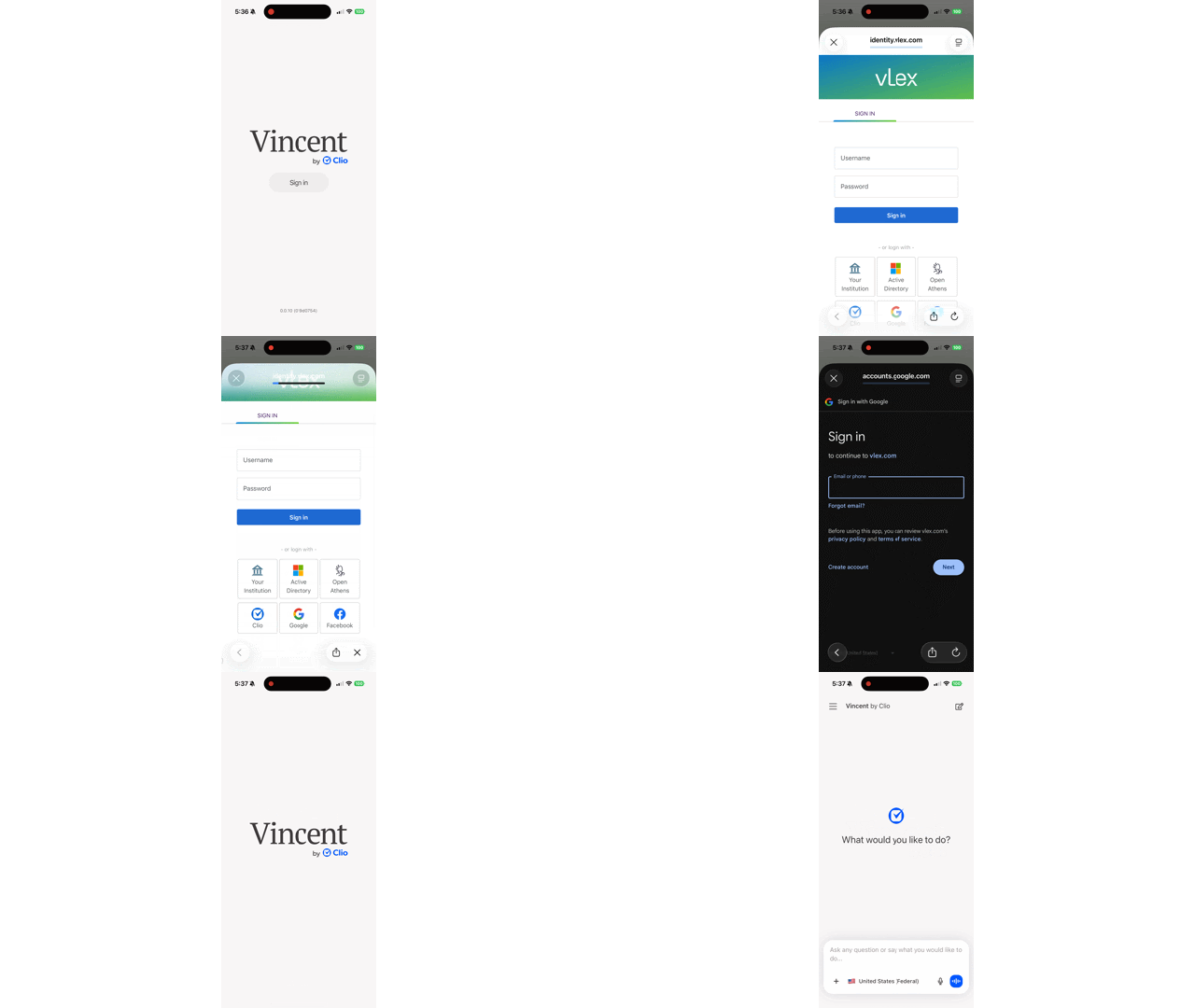
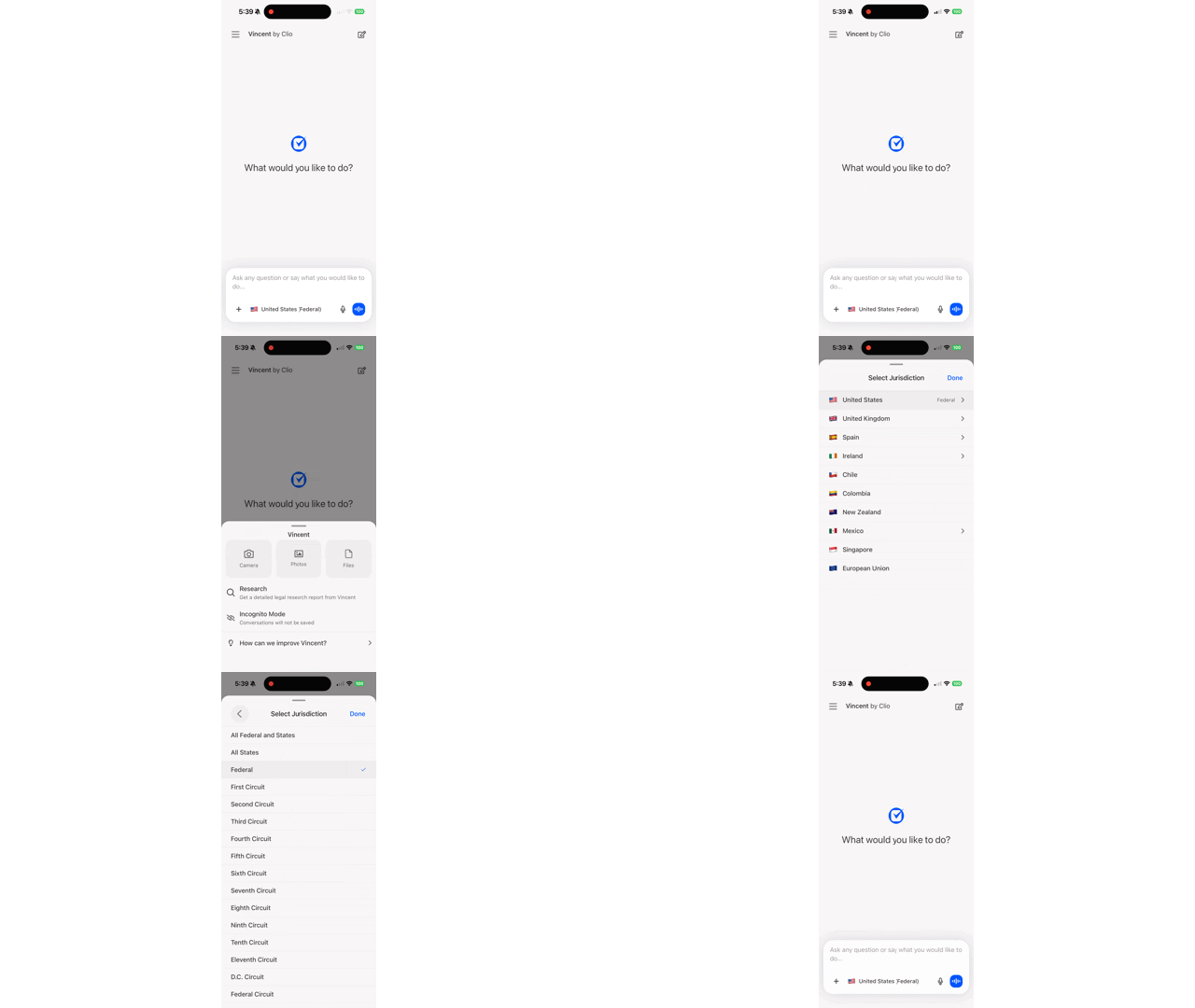
> This is part 1 of 4 of the full documentation (pages 1–100 of 301).
> The content is paginated: fetch every part to see all of it.
> Next part: https://support.vlex.com/llms-full.txt/1
> Page index: https://support.vlex.com/llms.txt

# Home

Your complete guide to mastering legal research. Here you will find everything you need to unlock the full potential of Vincent AI and the vLex Library.

**Welcome to the vLex Knowledge Center!**

**Either select an option from the cards below or search for an article using the search bar on the top-right of your screen.**&#x20;

<table data-card-size="large" data-view="cards"><thead><tr><th></th><th></th><th data-hidden data-card-target data-type="content-ref"></th></tr></thead><tbody><tr><td>Vincent</td><td></td><td><a href="/vincent-by-vlex/vincent">Vincent Home</a></td></tr><tr><td>Vincent Studio</td><td></td><td><a href="/vincent-by-vlex-1/vincent-studio">Studio Home</a></td></tr><tr><td>vLex Library</td><td></td><td><a href="/vlex-library/vlex-library-home">vLex Library Home</a></td></tr><tr><td>Docket Alarm</td><td></td><td><a href="/docket-alarm/docket-alarm-home">Docket Alarm Home</a></td></tr></tbody></table>

#### **Mastering Vincent**

Learn how to leverage the power of generative AI for your legal practice. These guides cover everything from asking your first question to performing complex document analysis.

* [**Getting Started with Vincent**](/vincent-by-vlex/vincent/getting-started-with-vincent)**:** Your first steps to transforming legal research.
* [**Asking Effective Questions**](/vincent-by-vlex/vincent/core-workflows)**:** Learn how to craft prompts that deliver precise, reliable answers.
* [**Analyzing Your Documents**](/vincent-by-vlex/vincent/core-workflows/analyze-a-contract)**:** Upload and analyze case files, contracts, and evidence with AI.
* [**Drafting and Summarizing**](/vincent-by-vlex/vincent/core-workflows/summarize-documents)**:** Use Vincent to create arguments, summarize key points, and accelerate your writing.

#### **Navigating the vLex Library**

Explore the world's largest collection of legal and regulatory information. These articles will help you optimize your traditional search, organize your findings, and stay current on the law.

* [**Optimizing Your Search**](/vlex-library/vlex-library-home/getting-started/how-to-use-advanced-search-for-precision-queries)**:** Go beyond basic keywords with advanced search techniques and filters.
* [**Organizing Your Research**](/vlex-library/vlex-library-home/workflows-and-productivity-tools/how-to-organize-your-research-with-folders-notes-and-highlights)**:** Use folders, notes, and highlights to manage your work efficiently.
* [**Staying Up-to-Date**](/vlex-library/vlex-library-home/workflows-and-productivity-tools/how-to-stay-updated-on-legal-developments)**:** Set up alerts and follow publications to never miss a critical update.

#### **Managing Your Account & Organization**

Find all the information you need to configure your personal settings or administer your entire organization's account.

* [**Configuring Your Personal Settings**](/vlex-library/vlex-library-home/account-and-admin-management/how-to-manage-your-personal-account-settings)**:** Customize your experience, from default jurisdictions to password resets.
* [**Administering Your Team**](/vlex-library/vlex-library-home/account-and-admin-management/a-guide-for-administrators-managing-your-corporate-account)**:** Learn to manage users, view usage statistics, and configure access methods like SSO and IP authentication for your firm.

#### **Security & Compliance**

Your trust is our top priority. Learn about our commitment to data security, privacy, and the certifications that protect your information.

* [**Understanding Our Security Measures**](/vincent-by-vlex/vincent/security-privacy-and-compliance/reviewing-our-core-security-measures)**:** An overview of the protocols we use to keep your data safe.
* [**Reviewing Our Certifications**](https://support.vlex.com/pages/Gu1AWg9n0bDR3Lpt8iLo#id-3.-compliance-and-third-party-verification)**:** Information on our compliance with global standards.

***

#### **Can't Find What You're Looking For?**

If you still have questions, our team is here to assist. You  [contact support](https://vlex.com/contact-us) or [set up a training session](https://vlex.com/training).


# Home

Your complete guide to mastering legal research. Here you will find everything you need to unlock the full potential of Vincent AI and the vLex Library.

**Welcome to the vLex Knowledge Center!**

**Either select an option from the cards below or search for an article using the search bar on the top-right of your screen.**&#x20;

<table data-card-size="large" data-view="cards"><thead><tr><th></th><th></th><th data-type="content-ref"></th><th data-hidden data-card-target data-type="content-ref"></th></tr></thead><tbody><tr><td>Vincent</td><td></td><td></td><td><a href="/vincent-by-vlex/vincent">Vincent Home</a></td></tr><tr><td>Vincent Studio</td><td></td><td></td><td><a href="/vincent-by-vlex-1/vincent-studio">Studio Home</a></td></tr><tr><td>vLex Library</td><td></td><td></td><td><a href="https://support.vlex.com/vlex-library/vlex-library-home">https://support.vlex.com/vlex-library/vlex-library-home</a></td></tr><tr><td>Docket Alarm</td><td></td><td><a href="/docket-alarm/docket-alarm-home">Docket Alarm</a></td><td></td></tr></tbody></table>

#### **Mastering Vincent**

Learn how to leverage the power of generative AI for your legal practice. These guides cover everything from asking your first question to performing complex document analysis.

* [**Getting Started with Vincent**](/vincent-by-vlex/vincent/getting-started-with-vincent)**:** Your first steps to transforming legal research.
* [**Asking Effective Questions**](/vincent-by-vlex/vincent/core-workflows)**:** Learn how to craft prompts that deliver precise, reliable answers.
* [**Analyzing Your Documents**](/vincent-by-vlex/vincent/core-workflows/analyze-a-contract)**:** Upload and analyze case files, contracts, and evidence with AI.
* [**Drafting and Summarizing**](/vincent-by-vlex/vincent/core-workflows/summarize-documents)**:** Use Vincent to create arguments, summarize key points, and accelerate your writing.

#### **Navigating the vLex Library**

Explore the world's largest collection of legal and regulatory information. These articles will help you optimize your traditional search, organize your findings, and stay current on the law.

* [**Optimizing Your Search**](/vlex-library/vlex-library-home/getting-started/how-to-use-advanced-search-for-precision-queries)**:** Go beyond basic keywords with advanced search techniques and filters.
* [**Organizing Your Research**](/vlex-library/vlex-library-home/workflows-and-productivity-tools/how-to-organize-your-research-with-folders-notes-and-highlights)**:** Use folders, notes, and highlights to manage your work efficiently.
* [**Staying Up-to-Date**](/vlex-library/vlex-library-home/workflows-and-productivity-tools/how-to-stay-updated-on-legal-developments)**:** Set up alerts and follow publications to never miss a critical update.

#### **Managing Your Account & Organization**

Find all the information you need to configure your personal settings or administer your entire organization's account.

* [**Configuring Your Personal Settings**](/vlex-library/vlex-library-home/account-and-admin-management/how-to-manage-your-personal-account-settings)**:** Customize your experience, from default jurisdictions to password resets.
* [**Administering Your Team**](/vlex-library/vlex-library-home/account-and-admin-management/a-guide-for-administrators-managing-your-corporate-account)**:** Learn to manage users, view usage statistics, and configure access methods like SSO and IP authentication for your firm.

#### **Security & Compliance**

Your trust is our top priority. Learn about our commitment to data security, privacy, and the certifications that protect your information.

* [**Understanding Our Security Measures**](/vincent-by-vlex/vincent/security-privacy-and-compliance/reviewing-our-core-security-measures)**:** An overview of the protocols we use to keep your data safe.
* [**Reviewing Our Certifications**](https://support.vlex.com/pages/Gu1AWg9n0bDR3Lpt8iLo#id-3.-compliance-and-third-party-verification)**:** Information on our compliance with global standards.

***

#### **Can't Find What You're Looking For?**

If you still have questions, our team is here to assist. You  [contact support](https://vlex.com/contact-us) or [set up a training session](https://vlex.com/training).


# Vincent Home

Vincent is vLex's award-winning, legal intelligence platform. Experience efficiency, accuracy, and comprehensive legal insights like never before.

<table data-card-size="large" data-view="cards" data-full-width="true"><thead><tr><th data-type="content-ref"></th><th></th></tr></thead><tbody><tr><td><a href="/vincent-by-vlex/vincent/getting-started-with-vincent">Getting Started with Vincent</a></td><td>Welcome to Vincent! This section is your starting point for understanding our powerful legal AI platform. Whether you are a new user exploring its capabilities or a prospect evaluating our tools, these articles will answer your most important initial questions: what Vincent is, how it works, and how it can transform your legal practice.</td></tr><tr><td><a href="/vincent-by-vlex/vincent/core-workflows">Core Workflows</a></td><td>This is your hands-on playbook for the core tasks you will perform in Vincent. Here you will find detailed, step-by-step instructions for our most powerful workflows, from building a legal argument to analyzing a contract. Use these practical guides to integrate Vincent seamlessly into your daily work and achieve results with confidence.</td></tr><tr><td><a href="/vincent-by-vlex/vincent/solutions-for-your-practice">Solutions for Your Practice</a></td><td>Discover how Vincent can be tailored to your specific area of law. This section provides strategic applications and real-world examples for different legal practices. Whether you are a litigator, a corporate counsel, or a solo practitioner, find the insights you need to adapt Vincent to your unique challenges.</td></tr><tr><td><a href="/vincent-by-vlex/vincent/security-privacy-and-compliance">Security, Privacy &amp; Compliance</a></td><td>Trust and transparency are the foundation of Vincent. This section provides definitive, in-depth answers to the most critical questions about our security, data privacy, and compliance standards. This content is essential for any firm conducting due diligence and provides peace of mind for all users.</td></tr><tr><td><a href="/vincent-by-vlex/vincent/support-and-account-administration">Support &amp; Account Administration</a></td><td>Find quick answers to common administrative and technical questions. This section is designed to empower you to manage your account and resolve issues independently. Browse articles on system requirements, account settings, licensing, and how to provide feedback to help us improve.</td></tr><tr><td><a href="/vincent-by-vlex/vincent/training-and-resources-hub">Training &amp; Resources Hub</a></td><td>Go beyond the basics and become a Vincent power user. This is your central location for all training materials and advanced learning resources. Here you will find expert-led video tutorials, on-demand webinars, and a library of best practices to help you unlock the full potential of the platform.</td></tr><tr><td><a href="/vincent-by-vlex/vincent/whats-new-release-notes-and-updates">What's New: Release Notes &amp; Updates</a></td><td>Vincent is constantly evolving. This section is your official source for all product updates, ensuring you are always aware of the latest features, enhancements, and improvements. Check back often to see how we're making Vincent AI even more powerful for your practice.</td></tr><tr><td><a href="/vincent-by-vlex/vincent/contribute-to-the-knowledge-base">Contribute to the Knowledge Base</a></td><td>This is the central hub for requesting new articles or suggesting updates to our internal and external Knowledge Bases. Your expertise and insights from the front lines are invaluable for keeping our content accurate, relevant, and truly helpful for our customers and our teams.</td></tr></tbody></table>


# Getting Started with Vincent

Learn what is AI legal research and discover the benefits of AI in legal research. Our Getting Started Guide explains how the Vincent legal assistant works.

{% content-ref url="/pages/fnBvM5CysTqPI9AyeclJ" %}
[Accessing Vincent and Navigating the Interface](/vincent-by-vlex/vincent/getting-started-with-vincent/accessing-vincent-and-navigating-the-interface)
{% endcontent-ref %}

{% content-ref url="/pages/H5kIJhmVw0trZGhRlkwh" %}
[Getting Answers without Prompting](/vincent-by-vlex/vincent/getting-started-with-vincent/getting-answers-without-prompting)
{% endcontent-ref %}

{% content-ref url="/pages/Mt9MGgKk59yS0db9cBhZ" %}
[Get Started with Vincent in Microsoft Word](/vincent-by-vlex/vincent/getting-started-with-vincent/get-started-with-vincent-in-microsoft-word)
{% endcontent-ref %}

{% content-ref url="/pages/HcwL2eCxNtmIpK5VTseB" %}
[Managing Supported Languages](/vincent-by-vlex/vincent/getting-started-with-vincent/managing-supported-languages)
{% endcontent-ref %}

{% content-ref url="/pages/mRPVLTceeaTr4KK100UI" %}
[Optimizing Your Conversations: Understanding Context Windows](/vincent-by-vlex/vincent/getting-started-with-vincent/optimizing-your-conversations-understanding-context-windows)
{% endcontent-ref %}

{% content-ref url="/pages/89a2mqL0kj6X4ExXLaW5" %}
[Understanding Vincent's Unique Features](/vincent-by-vlex/vincent/getting-started-with-vincent/understanding-vincents-unique-features)
{% endcontent-ref %}

{% content-ref url="/pages/XtzdgaGZgGaiFs1zdVwS" %}
[Understanding How Vincent Uses Agentic AI](/vincent-by-vlex/vincent/getting-started-with-vincent/understanding-how-vincent-uses-agentic-ai)
{% endcontent-ref %}

{% content-ref url="/pages/X9mYvKkR8acFXQaHgZjg" %}
[Viewing Vincent Coverage by Jurisdiction](/vincent-by-vlex/vincent/getting-started-with-vincent/viewing-vincent-coverage-by-jurisdiction)
{% endcontent-ref %}

{% content-ref url="/pages/bci56VgD047c8uAKBuNf" %}
[What is Vincent?](/vincent-by-vlex/vincent/getting-started-with-vincent/understanding-what-vincent-is)
{% endcontent-ref %}

{% content-ref url="/pages/JhpXfvDTObjYPiqN08vB" %}
[Your First Analysis: Asking a Research Question](/vincent-by-vlex/vincent/getting-started-with-vincent/your-first-analysis-asking-a-research-question)
{% endcontent-ref %}


# What is Vincent?

Learn what is Vincent, the legal AI engineered for lawyers. Vincent combines vLex's global database with AI to handle complex vLex legal research and automate workflows.

### Summary

Learn **what is Vincent**, the legal AI engineered for lawyers. Vincent combines vLex's global database with cutting-edge AI to handle complex **legal research** and automate workflows, adapting to your needs to deliver insights engineered for you.

### Why This is Important

Legal professionals need more than basic research tools, you need intelligence that discovers what others miss and delivers authoritative answers fast. Vincent is an **AI engineered for lawyers**. It transforms your legal work by automating complex tasks and delivering strategic intelligence across the entire case lifecycle.

### What Vincent Can Do for Your Practice

Vincent is a comprehensive legal AI solution that adapts to your workflows to enhance your productivity in four key areas:

#### Transform Your Legal Research

Go beyond simple search. Vincent leverages vLex Library of over one billion documents to convert your natural language questions into comprehensive legal answers with full citations, build persuasive arguments, and [compare jurisdictions](/vincent-by-vlex/vincent/core-workflows/compare-jurisdictions) seamlessly.

#### Transform Your Litigation Workflows

Gain a competitive edge with AI-powered intelligence. Vincent optimizes litigation workflows by automatically [analyzing complaints](/vincent-by-vlex/vincent/core-workflows/analyze-a-complaint), [analyzing pleadings](/vincent-by-vlex/vincent/core-workflows/analyze-pleadings), and profiling litigation stakeholders (judges, opposing counsel, and parties) using data from millions of court documents.

#### Unlock Document Intelligence

Extract valuable insights from complex legal materials. Vincent revolutionizes document review by creating automated timeline extractions, generating comprehensive summaries, and discovering similar materials by connecting your work to relevant precedents in [vLex Library.](https://vlex.com/vlex-library)

#### Accelerate Your Transactional Practice

Close deals faster without missing critical details. Vincent enhances transactional work by [analyzing contracts](/vincent-by-vlex/vincent/core-workflows/analyze-a-contract) to identify legal risks, [performing redline analysis](/vincent-by-vlex/vincent/core-workflows/performing-a-redline-analysis) with legal context, and creating side-by-side document comparisons to reduce back-and-forth clarifications.

{% hint style="info" %}
**Powered by a Global Database:** All of Vincent's capabilities are grounded in vLex's trusted, global collection of legal information, ensuring the insights you receive are both intelligent and authoritative.
{% endhint %}

### A Look at Vincent's Core Workflows

Vincent is equipped with a powerful library of pre-built workflows designed to handle specific legal tasks. Here is a look at some of the key capabilities available:

#### Legal Research & Strategy

* [Ask a Research Question](/vincent-by-vlex/vincent/core-workflows/ask-a-research-question)
* [Build an Argument](/vincent-by-vlex/vincent/core-workflows/build-an-argument)
* [Explore a Legal Proposition](/vincent-by-vlex/vincent/core-workflows/explore-a-legal-proposition)
* [Compare Jurisdictions](/vincent-by-vlex/vincent/core-workflows/compare-jurisdictions)
* [50-State Survey](/vincent-by-vlex/vincent/core-workflows/50-state-survey)

#### Document Analysis & Review

* [Summarize Documents](/vincent-by-vlex/vincent/core-workflows/summarize-documents)
* [Compare Documents](/vincent-by-vlex/vincent/core-workflows/compare-documents)
* [Create a Timeline](/vincent-by-vlex/vincent/core-workflows/create-a-timeline)
* [Find Related Documents](/vincent-by-vlex/vincent/core-workflows/find-related-documents)
* [Anonymize Documents](/vincent-by-vlex/vincent/core-workflows/anonymise-documents)
* [Document Review with Vincent Tables](/vincent-by-vlex/vincent/core-workflows/tabular-review)
* [Explore a Collection](/vincent-by-vlex/vincent/core-workflows/integrating-your-firms-data-with-vincent)

#### Litigation Workflows

* [Analyze a Complaint](/vincent-by-vlex/vincent/core-workflows/analyze-a-complaint)
* [Analyze Pleadings](/vincent-by-vlex/vincent/core-workflows/analyze-pleadings)
* [Analyze a Deposition](/vincent-by-vlex/vincent/core-workflows/analyze-a-deposition)
* [Analyze Judicial Proceedings (Audio & Video)](/vincent-by-vlex/vincent/core-workflows/analyse-judicial-proceedings)
* [Find Litigation Precedents](/vincent-by-vlex/vincent/core-workflows/find-litigation-precedents)
* [Find Similar Matters](/vincent-by-vlex/vincent/core-workflows/find-similar-matters)

#### Transactional Workflows

* [Analyze a Contract](/vincent-by-vlex/vincent/core-workflows/analyze-a-contract)
* [Redline Analysis](/vincent-by-vlex/vincent/core-workflows/performing-a-redline-analysis)

#### Litigation Intelligence (US Only)

* [Docket Research](/vincent-by-vlex/vincent/core-workflows/docket-research)
* [Profile a Party](/vincent-by-vlex/vincent/core-workflows/profile-a-party)
* [Profile a Lawyer](/vincent-by-vlex/vincent/core-workflows/profile-a-lawyer)
* [Profile a Law Firm](/vincent-by-vlex/vincent/core-workflows/profile-a-law-firm)
* [Profile a Judge](/vincent-by-vlex/vincent/core-workflows/profile-a-judge)

{% hint style="info" %}
**An Ever-Evolving Collection of Workflows:** This is a snapshot of our core workflows. We are constantly adding new capabilities to Vincent. For the most up-to-date list and detailed guides on each workflow, please visit our [Core Workflows](/vincent-by-vlex/vincent/core-workflows) section.
{% endhint %}

### Best Practices & Pro Tips

* **Think in Tasks, Not Keywords:** Instead of searching for keywords, think about the task you want to accomplish (e.g., "Analyze this contract for risks") and choose the appropriate workflow.
* **Combine Workflows:** Use multiple workflows together. For example, after using [**`Analyze a Complaint`**](/vincent-by-vlex/vincent/core-workflows/analyze-a-complaint), use [**`Ask a Research Question`**](/vincent-by-vlex/vincent/core-workflows/ask-a-research-question) to explore the legal issues it uncovered.

### Relevant Video Content

{% embed url="<https://vimeo.com/1141103665?fe=ci&fl=cl&share=copy>" %}

### Related Articles

* [Accessing Vincent and Navigating the Interface](/vincent-by-vlex/vincent/getting-started-with-vincent/accessing-vincent-and-navigating-the-interface)
* [Understanding Vincent's unique features](/vincent-by-vlex/vincent/getting-started-with-vincent/understanding-vincents-unique-features)

**What's Your Next Step?**

| **New to Vincent?**                                                                                                                                                                                        | **Already a Vincent Customer?**                                                                                                                            |
| ---------------------------------------------------------------------------------------------------------------------------------------------------------------------------------------------------------- | ---------------------------------------------------------------------------------------------------------------------------------------------------------- |
| [See how Vincent can transform your practice. **Request a personalized demo**.](https://vlex.com/book-a-demo?utm_source=website\&utm_medium=organic\&utm_campaign=web_trial_homepage\&campaign_id=4270741) | [If you still have questions or need help with a specific feature, our team is here to assist. **Contact our Support team**.](https://vlex.com/contact-us) |


# Accessing Vincent and Navigating the Interface

Learn how to start accessing Vincent after your vLex login. This guide shows you where to find the Vincent interface and how to navigate the main Vincent workflows screen.

### Summary

Learn how to start **accessing Vincent** after your **vLex Library login**. This guide shows you the two primary ways to find the Vincent interface and provides a quick tour of the main screen, including the **Vincent workflows** library and your history panel.

### Why This is Important

Getting started with any new tool should be fast and intuitive. This guide will show you exactly where to go and what to expect when you open Vincent for the first time, so you can begin your first analysis in seconds.

### Step-by-Step Guide

#### Step 1: Signing In to vLex

First, sign in to your vLex account. On the [**vlex.com**](https://vlex.com/) website, click **Sign in** and enter your credentials.

{% tabs %}
{% tab title="English Interface " %}

<figure><img src="https://1556743161-files.gitbook.io/~/files/v0/b/gitbook-x-prod.appspot.com/o/spaces%2F-MS8Dq_iqEIflAmbaOkI-887967055%2Fuploads%2FdXt6U34Lhjeg8Hj2W6UO%2FGrabacio%CC%81n%20de%20pantalla%202026-01-13%20a%20las%2015.27.39.gif?alt=media&amp;token=fde72ef8-3126-4c07-b903-a3ab80c0d284" alt=""><figcaption><p>Sign in to your vLex Library account.</p></figcaption></figure>
{% endtab %}

{% tab title="Interfaz en Español" %}

<figure><img src="https://1556743161-files.gitbook.io/~/files/v0/b/gitbook-x-prod.appspot.com/o/spaces%2F-MS8Dq_iqEIflAmbaOkI-887967055%2Fuploads%2F8P3rsgMmCBlLbHKGvxyY%2FGrabacio%CC%81n%20de%20pantalla%202026-01-13%20a%20las%2015.27.39.gif?alt=media&amp;token=7c6cae6a-b97c-45b9-a9ea-d9884321d23e" alt=""><figcaption><p>Inicia sesión en tu cuenta de la Biblioteca vLex.</p></figcaption></figure>
{% endtab %}
{% endtabs %}

{% hint style="info" %}
**Multiple Sign-In Options Supported**

vLex supports a wide range of sign-in methods to accommodate different users and organizations, including:

* Username and Password
* IP recognition
* Microsoft Active Directory
* OpenAthens
* EZProxy or WAM Proxy
* Social login (Google and Facebook)
* Other standard institutional login portals (Via your institution)
  {% endhint %}

#### Step 2: Accessing the Vincent Interface

Once you are logged into the main vLex platform, there are two easy ways to open Vincent:

1. **The Left-Hand Menu:** Click on the **Vincent** icon in the main navigation panel on the left side of your screen.
2. **The Top-Right Button:** Click on the large blue **Vincent** button located in the top right corner of the screen, next to your profile icon.

{% tabs %}
{% tab title="English Interface " %}

<figure><img src="https://1556743161-files.gitbook.io/~/files/v0/b/gitbook-x-prod.appspot.com/o/spaces%2F-MS8Dq_iqEIflAmbaOkI-887967055%2Fuploads%2FpW7C8NSZxY8zUDc3FIZD%2Fimage1.gif?alt=media&amp;token=ace88c12-16a0-431e-8b5d-64aa76a53533" alt=""><figcaption><p>You can access Vincent from the left-hand menu or the top-right button.</p></figcaption></figure>
{% endtab %}

{% tab title="Interfaz en Español" %}

<figure><img src="https://1556743161-files.gitbook.io/~/files/v0/b/gitbook-x-prod.appspot.com/o/spaces%2F-MS8Dq_iqEIflAmbaOkI-887967055%2Fuploads%2FOCgErLfs3zxwvRNJ73ms%2FGrabacio%CC%81n%20de%20pantalla%202026-01-13%20a%20las%2015.33.20.gif?alt=media&amp;token=2ff75139-1f5c-4755-a3ed-17baf1f325ab" alt=""><figcaption><p>Puedes acceder a Vincent desde el menú lateral izquierdo o desde el botón superior derecho.</p></figcaption></figure>
{% endtab %}
{% endtabs %}

#### Step 3: Navigating the Main Screen

Both options will take you to the main Vincent landing page. Here is a quick tour of what you will see:

* **Workflow Library (Center):** This is the heart of Vincent. In the center of the screen, you will find the library of all available workflows, such as [**`Ask a Research Question`**](/vincent-by-vlex/vincent/core-workflows/ask-a-research-question) or [**`Analyze a Contract`**](/vincent-by-vlex/vincent/core-workflows/analyze-a-contract).
* **History Panel (Left):** Your previous conversations and analyses are stored here. You can click on any past item to view the results without having to run the search again. Every conversation also carries a **status indicator** so you can tell at a glance what is still running, what is ready to read, and what needs your attention, see Understanding Conversation Statuses below.
* **Question Bar (Top):** At the top, you will see the main input box where you can type a question or start a workflow.

{% tabs %}
{% tab title="English Interface " %}

<figure><img src="https://1556743161-files.gitbook.io/~/files/v0/b/gitbook-x-prod.appspot.com/o/spaces%2F-MS8Dq_iqEIflAmbaOkI-887967055%2Fuploads%2F3JKPXUAuFz9yeOKaDoeE%2FThe%20main%20Vincent%20screen%20gives%20you%20access%20to%20the%20workflow%20library%20and%20your%20history.gif?alt=media&amp;token=073836ee-c6e1-4664-8abc-801e85f5b022" alt=""><figcaption><p>The main Vincent screen gives you access to the workflow library and your history.</p></figcaption></figure>
{% endtab %}

{% tab title="Interfaz en Español" %}

<figure><img src="https://1556743161-files.gitbook.io/~/files/v0/b/gitbook-x-prod.appspot.com/o/spaces%2F-MS8Dq_iqEIflAmbaOkI-887967055%2Fuploads%2F0LMt7gau75p3fON2blJw%2FGrabacio%CC%81n%20de%20pantalla%202026-01-13%20a%20las%2015.57.40.gif?alt=media&amp;token=694c073b-db49-473d-b5ea-d319926b079b" alt=""><figcaption><p>La pantalla principal de Vincent te da acceso a la biblioteca de flujos de trabajo y a tu historial.</p></figcaption></figure>
{% endtab %}
{% endtabs %}

#### Understanding Conversation Statuses

Every conversation in your History Panel displays a status indicator, so you never have to open a conversation to find out whether Vincent has finished with it.&#x20;

| Indicator         | Status                 | What it means                                                                                                                                      | What to do                                                                                                      |
| ----------------- | ---------------------- | -------------------------------------------------------------------------------------------------------------------------------------------------- | --------------------------------------------------------------------------------------------------------------- |
| Spinning wheel    | **In progress**        | Vincent is still working. Longer analyses, such as a multi-state comparison, can take several minutes.                                             | Nothing. You can navigate away or start another conversation, your answer will be waiting in the History Panel. |
| Solid blue circle | **Completed & Unread** | Vincent has finished and you have not opened the result yet.                                                                                       | Open the conversation to review the answer.                                                                     |
| Empty circle      | **Completed & Read**   | Vincent has finished and you have already reviewed the result.                                                                                     | Nothing. The conversation stays available for reference.                                                        |
| Question mark     | **Action Required**    | Vincent needs something from you before it can continue, for example, an answer to a clarifying question, or a document you have not uploaded yet. | Open the conversation and reply to what Vincent is asking for.                                                  |
| Exclamation mark  | **Error encountered**  | Vincent could not complete the conversation.                                                                                                       | Open the conversation and run your query again.                                                                 |

### Best Practices & Pro Tips

* **Start with a Workflow:** The easiest way to get started is to choose one of the pre-built workflows from the central library.
* **Use Your History:** Your history panel is a great way to save time. If you need to refer back to a previous analysis, always check your history first.
* **Work your blue circles first:** Treat **Completed & Unread** as your inbox. Starting your day by clearing the solid blue circles means no completed analysis sits unreviewed while a filing deadline approaches, and a **Question Mark** tells you immediately which matter is waiting on you rather than on Vincent.

### Related Articles

* [Running Your First Analysis: Asking a Research Question](/vincent-by-vlex/vincent/getting-started-with-vincent/your-first-analysis-asking-a-research-question)
* [Managing your default jurisdictions](/vincent-by-vlex/vincent/support-and-account-administration/managing-your-default-jurisdictions)

**What's Your Next Step?**

| **New to Vincent?**                                                                                                                                                                                        | **Already a Vincent Customer?**                                                                                                                            |
| ---------------------------------------------------------------------------------------------------------------------------------------------------------------------------------------------------------- | ---------------------------------------------------------------------------------------------------------------------------------------------------------- |
| [See how Vincent can transform your practice. **Request a personalized demo**.](https://vlex.com/book-a-demo?utm_source=website\&utm_medium=organic\&utm_campaign=web_trial_homepage\&campaign_id=4270741) | [If you still have questions or need help with a specific feature, our team is here to assist. **Contact our Support team**.](https://vlex.com/contact-us) |


# Getting Answers without Prompting

Vincent is an easy legal AI tool, requiring no special prompt engineering skills. It works intuitively by automatically analyzing your documents and suggesting the most relevant workflows.

### Summary

Vincent is designed to be an exceptionally **easy legal AI** tool, requiring no special *prompt engineering* skills. The platform works intuitively by automatically analyzing your documents and suggesting the most relevant workflows, meaning you can get valuable insights from your first day with **no prompt legal research** required.

### Why This is Important

Your time is best spent on legal strategy, not on learning complex software. This "zero-prompt" approach means you can get valuable insights from your first day without a steep learning curve. It removes the guesswork and frustration often associated with AI, allowing you to benefit from powerful analysis immediately and confidently.

### How It Works: A Two-Fold Approach

Vincent AI offers a simple yet powerful experience by operating in two complementary ways:

#### The Automatic, Zero-Prompt Workflow

This is the primary and most efficient way to use Vincent AI. The solution is designed to do the heavy lifting for you. Simply upload a document, and Vincent AI intelligently detects the document type and content, then proactively suggests the most relevant, pre-built workflows (e.g., "Analyze a Complaint," "Create a Timeline"). This is the core of our **no prompt legal research** philosophy.

#### The User-Directed Prompt

Of course, you always have full control. If you have a specific question you want to ask a document, you can simply type it into the user prompt, just as you would with other AI solutions. This gives you the flexibility to guide the analysis whenever you need to.

### Best Practices & Pro Tips

{% hint style="info" %}
**Trust the Suggestions**: For the fastest results, always start by reviewing the workflows Vincent AI automatically suggests. They are designed to be the most relevant starting points for your analysis.
{% endhint %}

### Relevant Video Content

{% embed url="<https://vimeo.com/1101231734?share=copy>" %}

### Related Articles

* [What is Vincent AI?](/vincent-by-vlex/vincent/getting-started-with-vincent/understanding-what-vincent-is)
* [Your First Analysis: Asking a Research Question](/vincent-by-vlex/vincent/getting-started-with-vincent/your-first-analysis-asking-a-research-question)


# Get Started with Vincent in Microsoft Word

Vincent is now available directly inside Microsoft Word, letting you draft, analyze, edit, and conduct legal research without leaving your document.

### Summary

Vincent is now available directly inside Microsoft Word, letting you draft, analyze, edit, and conduct legal research without leaving your document. This guide walks you through installing the Clio for Microsoft Word add-in and using Vincent's core drafting capabilities in Word.

### Why This is Important

Microsoft Word is the daily drafting environment for the overwhelming majority of US-based legal professionals. In many practice areas, Word is not just the preferred tool, it is a requirement, with courts and counterparties frequently mandating .docx format with specific formatting standards.

Before Vincent was available inside Word, attorneys who wanted AI-assisted drafting had to work in a separate web interface and then manually transfer their output into Word, spending real time every day on copying, pasting, and reformatting. Bringing Vincent into Word closes that gap. You can now ideate, draft, analyze, and research where you already do your most important work, and every change Vincent suggests appears as a native Word Track Change (redline) that you review and approve, so you remain in full control of every word that ends up in your final document.

### How to Install the Add-In

The add-in is installed through Microsoft and authenticated with your Vincent credentials. There is no separate installer to download.

1. Open Microsoft Word on desktop (Windows or Mac) or in the browser via Microsoft 365.
2. From the **Insert** menu, select **Get Add-ins** (or **More Add-ins**, depending on your version of Word).

{% hint style="info" %}
**Don't see it there?** The exact location varies by Word version:

* Microsoft 365 and Word 2024/2025: also available under **Home > Add-ins**.
* Word for the web: **Home > Add-ins**.
* Older versions (Word 2016/2019): **Insert > Get Add-ins** or **Insert > My Add-ins**.
  {% endhint %}

3. Search the Microsoft Marketplace for **Clio for Microsoft Word** (the add-in is listed under this name) and click **Add**.
4. Fully close and re-open Microsoft Word to ensure the add-in loads correctly.
5. Open the add-in from the **Home** ribbon and sign in with your Vincent credentials provisioned through vLex.

<figure><img src="https://1556743161-files.gitbook.io/~/files/v0/b/gitbook-x-prod.appspot.com/o/spaces%2F-MS8Dq_iqEIflAmbaOkI-887967055%2Fuploads%2FIfqejDcTIy7HyVBLxQGC%2FInstall%20the%20Clio%20for%20Word%20(1).gif?alt=media&amp;token=11352d4c-5f5e-419a-a018-f6b2221e9a59" alt=""><figcaption></figcaption></figure>

Once you sign in, the add-in automatically loads Vincent's drafting and research experience. No additional configuration is required.

{% hint style="info" %}
**Supported platforms:** Word desktop (Windows and Mac) and Word for the web via Microsoft 365. The add-in is not available on mobile devices and is currently configured for English (US) only.
{% endhint %}

### What Vincent Can Do in Word

Once the add-in is open, Vincent appears as a sidebar alongside your document. From there, Vincent can:

#### Read and Understand the Active Document

Vincent reads the full contents of the open document, including existing Track Changes, comments, tables, headers, and footnotes. There is no need to upload, paste, or re-sync your document, Vincent stays current with the live state of the file as you make edits between requests.

This makes the add-in particularly useful for the "final reviewer" workflow: opening a heavily redlined draft, asking Vincent to surface risks and propose resolutions, and accepting or declining each suggestion individually.

#### Propose Changes as Track Changes

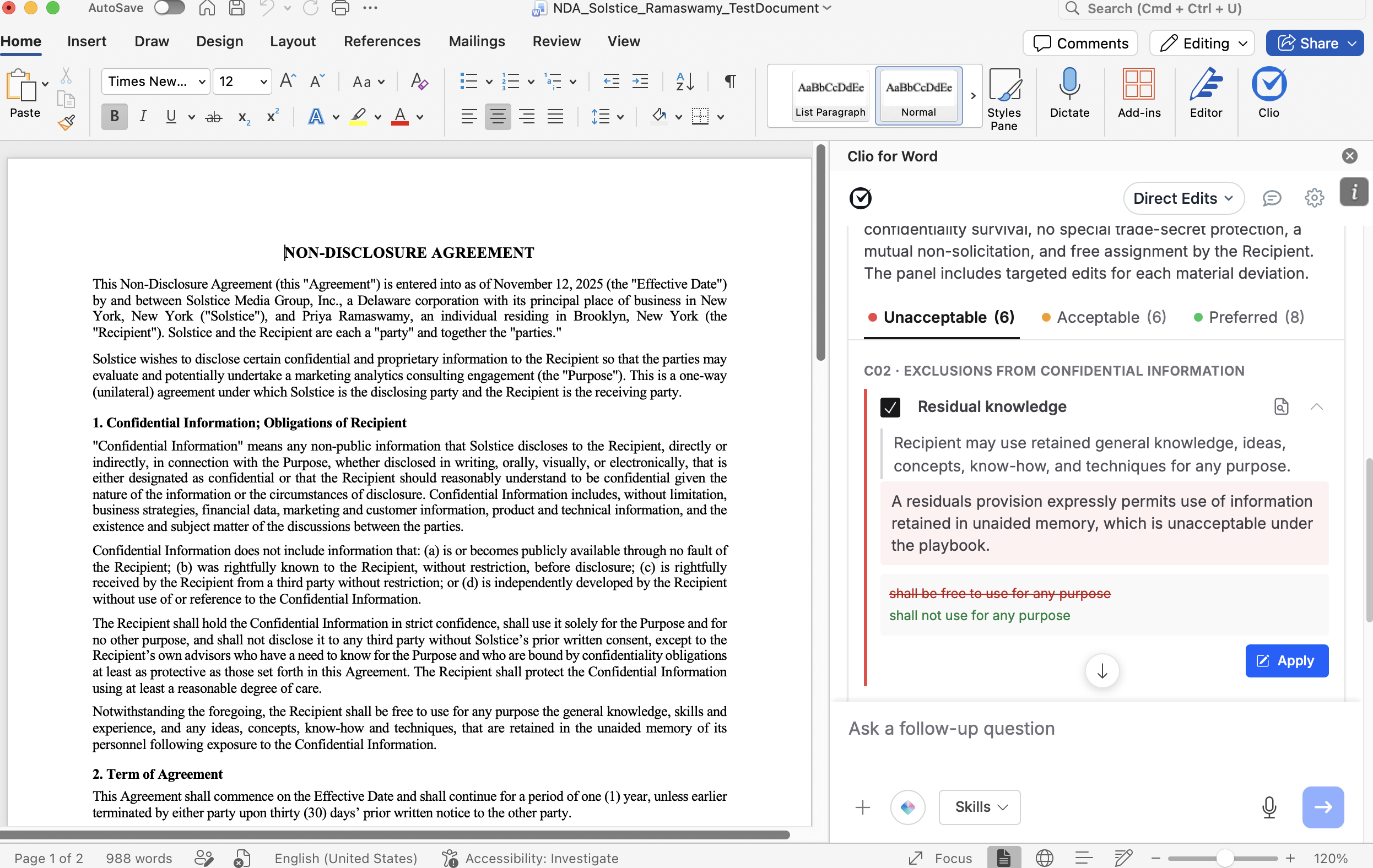
When set to “Tracked Changes,” Vincent implements revisions as Word-native redlines, not just text in the chat panel. You may review each proposed change and accept or reject it, individually or all at once, the same way you already work with redlines from colleagues or opposing counsel.

When set to “Tracked Changes,” Vincent does not make destructive edits. Every change is visible, attributable, and subject to your explicit approval.

#### Analyze a Document with One Click

When you open a document with the add-in active, Vincent can review it and suggests where it can help, flagging risks, identifying inconsistencies, proposing structural improvements, and recommending next steps. You can re-run this analysis at any point by clicking the **Analyze** button. Think of it as a "what’s next?" button to continually surface proposed improvements.

<figure><img src="https://1556743161-files.gitbook.io/~/files/v0/b/gitbook-x-prod.appspot.com/o/spaces%2F-MS8Dq_iqEIflAmbaOkI-887967055%2Fuploads%2FvohzUcfwmxRDZqZTgXk3%2FAnalyze%20a%20Document%20with%20One%20Click%20(1).gif?alt=media&amp;token=1ac15a90-8fc6-4458-881a-c8f044d3b2e4" alt=""><figcaption></figcaption></figure>

#### Draft from a Blank Page

Describe your situation in plain English. Vincent will recommend an appropriate document type, generate an outline or first-pass draft directly in Word, and refine the result through natural conversation about tone, structure, risk posture, and clarity. Vincent can also explain the rationale behind specific provisions as it drafts.

#### Adapt an Existing Document

Open a document that is roughly 70% of the way to what you need, and ask Vincent to transform the remaining sections, adapting prior work product to a new matter while preserving language you want to keep. Vincent can also synthesize a new draft from multiple uploaded reference documents, pulling forward shared patterns and preferred phrasing.

#### Upload Documents as Context

You can attach external documents to your conversation in two ways:

* **As context only:** for example, uploading a client interview transcript and asking Vincent to draft a Statement of Facts grounded in those details, without treating the transcript as a stylistic template.
* **As examples:** to synthesize a new draft from multiple prior documents, or to adapt a single uploaded document as a starting point.

<figure><img src="https://1556743161-files.gitbook.io/~/files/v0/b/gitbook-x-prod.appspot.com/o/spaces%2F-MS8Dq_iqEIflAmbaOkI-887967055%2Fuploads%2FaprgR6WbcUuSxeQJ1rtr%2FUpload%20Documents%20as%20Context%20(1).gif?alt=media&amp;token=38665be6-feb7-4051-b84c-6a838ac00f36" alt=""><figcaption></figcaption></figure>

#### Make Targeted or Whole-Document Edits

Highlight a specific paragraph, clause, or section and ask Vincent to rewrite it, or ask Vincent to restructure the document as a whole. Both selection-based edits and full-document refactors flow through Track Changes, keeping every modification reviewable.

#### Conduct Legal Research

Vincent offers two tiers of research directly inside the add-in:

* **Fast research** runs inside your conversation. Vincent automatically retrieves relevant authorities from the vLex Library to ground its answers, without you needing to leave Word.
* **Full research** generates a comprehensive legal research memo with dozens of sources. The memo opens in a new browser tab for review, and the core findings are stored back in your add-in conversation, so Vincent can apply those insights to your subsequent drafting without you re-explaining anything.

### How Your Conversations Are Saved

Every conversation you have with Vincent inside Word is tied to the specific document through a unique conversation ID. The conversation persists and reloads automatically each time you reopen that file.

If you begin a drafting session on Friday and close the document for the weekend, your full conversation, including any research findings, will be waiting when you reopen the file on Monday. Vincent picks up exactly where you left off, with full awareness of the prior work.

{% hint style="info" %}
Conversations started inside the Word add-in stay inside the Word add-in. They are not accessible from the vLex web interface, and conversations from the web interface do not transfer into Word.
{% endhint %}

### Best Practices & Pro Tips

* **Treat Vincent's output the way you would treat a draft from a junior associate.** Every proposed edit appears as a Track Change for your review, so you remain the final decision-maker on every word in the document. Always verify citations and legal assertions independently before relying on them in a filing, client advice, or any other professional context, your professional judgment is the layer Vincent supports, not the layer it replaces.
* **Use the Analyze button whenever you lose momentum.** During long drafting sessions on lengthy motions or complex agreements, it is easy to lose track of what still needs attention. Clicking **Analyze** has Vincent re-read the current state of the document and propose the most logical next steps, it is the fastest way to recover momentum without retracing your own work.
* **Ask Vincent to link cited authorities.** Vincent can search and link authorities to the vLex library, allowing you to insert vetted authorities or verify authorities in opposing filings.

### Related Articles

* [What is Vincent AI?](/vincent-by-vlex/vincent/getting-started-with-vincent/understanding-what-vincent-is)
* [Your First Analysis: Asking a Research Question](/vincent-by-vlex/vincent/getting-started-with-vincent/your-first-analysis-asking-a-research-question)


# Managing Supported Languages

Learn about Vincent supported languages and how to manage your vLex translation settings. Customize your interface language and automatic translation preferences.

### Summary

Learn about **Vincent supported languages** and how to manage your **translation settings**. This guide shows you how to customize your interface language and configure automatic translation preferences to streamline your multi-lingual and **multi-jurisdictional legal research**.

### Why This is Important

Working across different languages is a reality for many legal professionals. Vincent provides powerful tools to customize your language experience, ensuring the interface is comfortable for you to use and that you can efficiently work with legal documents from around the world.

### Step-by-Step Guide

You can control two main language settings in your Vincent account.

#### 1. Customizing Your Interface Language

This setting changes the language of the Vincent interface itself (menus, buttons, etc.).

1. Click on your **Profile** icon in the top right corner of the screen.
2. From the dropdown menu, select **Language Settings**.
3. Under the **Select your language** section, choose your preferred interface language from the list.
4. Click **Save**.

{% tabs %}
{% tab title="English Interface" %}
![Choose your preferred language for the Vincent interface.](https://1556743161-files.gitbook.io/~/files/v0/b/gitbook-x-prod.appspot.com/o/spaces%2F-MS8Dq_iqEIflAmbaOkI-887967055%2Fuploads%2F88urJDni8VyKrqQcgshI%2FChoose%20your%20preferred%20language%20for%20the%20Vincent%20interface.gif?alt=media\&token=b06ef3e1-04d6-485e-8c48-62cfe4da3c19)
{% endtab %}

{% tab title="Interfaz en Español" %}

<figure><img src="https://1556743161-files.gitbook.io/~/files/v0/b/gitbook-x-prod.appspot.com/o/spaces%2F-MS8Dq_iqEIflAmbaOkI-887967055%2Fuploads%2FcTu82IK9fs29l6DfCmvd%2FElige%20tu%20idioma%20preferido%20para%20la%20interfaz%20de%20Vincent..gif?alt=media&amp;token=3556ec5e-8ebe-4179-bd9c-f87036192e39" alt=""><figcaption><p>Elige tu idioma preferido para la interfaz de Vincent.</p></figcaption></figure>
{% endtab %}
{% endtabs %}

#### 2. Configuring Automatic Translation

These settings control how Vincent handles documents that are in a different language from your interface.

1. Navigate to the **Language Settings** menu as described above.
2. Scroll down to the **Automatic translation** section.
3. Here you can configure your preferences:
   * **Suggest translating content:** Vincent will ask you if you want to translate a document.
   * **Automatically translate content:** Vincent will translate all foreign-language documents automatically.
   * **Preferred language:** Choose the language you want documents to be translated *into*.
   * **Visualization options:** Choose to show the translation and the original document side-by-side by default.
4. Click **Save** to apply your changes.

{% tabs %}
{% tab title="English Interface" %}
![Configure how you want Vincent to handle automatic translation of documents.](https://1556743161-files.gitbook.io/~/files/v0/b/gitbook-x-prod.appspot.com/o/spaces%2F-MS8Dq_iqEIflAmbaOkI-887967055%2Fuploads%2FjXesAcFO9SVzNkhLCvTS%2FConfigure%20how%20you%20want%20Vincent%20to%20handle%20automatic%20translation%20of%20documents.gif?alt=media\&token=2a95d68a-a0df-4d90-b314-45bba1245384)
{% endtab %}

{% tab title="Interfaz en Español" %}

<figure><img src="https://1556743161-files.gitbook.io/~/files/v0/b/gitbook-x-prod.appspot.com/o/spaces%2F-MS8Dq_iqEIflAmbaOkI-887967055%2Fuploads%2FqpQ59bLnwhjvsSgJv3et%2FElige%20tu%20idioma%20preferido%20para%20la%20interfaz%20de%20Vincent.%20(1).gif?alt=media&amp;token=ed29ec93-67b8-44fc-a25a-1befbb1b8ecc" alt=""><figcaption><p>Configura cómo quieres que Vincent maneje la traducción automática de documentos.</p></figcaption></figure>
{% endtab %}
{% endtabs %}

### Best Practices & Pro Tips

* **Side-by-Side View:** For detailed legal analysis, we recommend enabling the **Show translation and original side-by-side by default** option. This allows you to read the convenient translation while still being able to verify the original legal text.

### Related Articles

* [Providing Feedback & Suggestions](/vincent-by-vlex/vincent/support-and-account-administration/providing-feedback-and-suggestions)
* [Troubleshooting & FAQ](/vincent-by-vlex/vincent/support-and-account-administration/troubleshooting-and-faq)

**What's Your Next Step?**

| **New to Vincent?**                                                                                                                                                                                        | **Already a Vincent Customer?**                                                                                                                            |
| ---------------------------------------------------------------------------------------------------------------------------------------------------------------------------------------------------------- | ---------------------------------------------------------------------------------------------------------------------------------------------------------- |
| [See how Vincent can transform your practice. **Request a personalized demo**.](https://vlex.com/book-a-demo?utm_source=website\&utm_medium=organic\&utm_campaign=web_trial_homepage\&campaign_id=4270741) | [If you still have questions or need help with a specific feature, our team is here to assist. **Contact our Support team**.](https://vlex.com/contact-us) |


# Improve Your Prompt for Better Answers in Vincent

Use the Improve button to sharpen a rough request into a specific prompt. The Vincent legal assistant rewrites your draft in one click for a better answer.

#### **Summary**

The **Improve** button rewrites a rough request into a clearer, more specific prompt before you send it. Type the quick version of what you need, click **Improve**, and Vincent tightens the wording for you. You get a better first answer and spend fewer rounds rephrasing.

**Why This is Important**

The quality of an answer depends heavily on the quality of the question. A vague request such as "indemnity in these contracts" leaves Vincent guessing at what you actually want: a summary of each clause, a comparison across the set, a risk flag, or a redraft.

Writing a precise prompt is a real skill, and you should not have to learn it before Vincent is useful to you. The Improve button closes that gap. Instead of training yourself to phrase requests well, you write the rough version and let Vincent sharpen it, which means fewer wasted rounds and a usable answer sooner.

#### **Step-by-Step Guide**

**Step 1: Open a Conversation**

Start a new conversation in Vincent, or continue an existing one. If your request is about specific documents, upload or attach them first so Vincent has the context.

**Step 2: Type the Rough Version**

In the input area, type what you want in your own words. You do not need to structure it carefully. A short phrase is enough to work with.

<figure><img src="https://1556743161-files.gitbook.io/~/files/v0/b/gitbook-x-prod.appspot.com/o/spaces%2F-MS8Dq_iqEIflAmbaOkI-887967055%2Fuploads%2FYJvRBFai8a5bhpvLETSn%2Fimprove-your-prompt-01.png?alt=media&amp;token=f2322123-59c1-44d4-88fa-de1bea0c1c7f" alt=""><figcaption></figcaption></figure>

**Step 3: Click Improve**

Click the **Improve** button in the input area, alongside the attachment, **Skills**, and jurisdiction controls. Vincent rewrites your text in place.

<figure><img src="https://1556743161-files.gitbook.io/~/files/v0/b/gitbook-x-prod.appspot.com/o/spaces%2F-MS8Dq_iqEIflAmbaOkI-887967055%2Fuploads%2FkQo58CHoKq2aqlch5VwR%2FWhere%20the%20Improve%20Button%20is%20Available.gif?alt=media&amp;token=9a9ff543-291f-47e0-a511-16ad900f4941" alt=""><figcaption><p>Type a rough request and click Improve Prompt to rewrite it.</p></figcaption></figure>

**Step 4: Review Before Sending**

Read the rewritten prompt in the input box. It is fully editable, so adjust anything Vincent assumed incorrectly, then send it.

<figure><img src="https://1556743161-files.gitbook.io/~/files/v0/b/gitbook-x-prod.appspot.com/o/spaces%2F-MS8Dq_iqEIflAmbaOkI-887967055%2Fuploads%2FfmEdPJQbPTxw2QCABn6N%2Fimprove-your-prompt-03.png?alt=media&amp;token=e6577115-2570-4978-958b-5e652fe2fde2" alt=""><figcaption><p>The improved prompt in the Vincent input box, ready to review and send.</p></figcaption></figure>

{% hint style="info" %}
**There is no undo.** If a rewrite fails, your original draft is restored automatically. But once a rewrite succeeds, you cannot revert to your original wording. If the exact phrasing matters to you, copy it before clicking **Improve**.
{% endhint %}

**Where the Improve Button is Available**

| Surface                       | Availability      |
| ----------------------------- | ----------------- |
| **Vincent**                   | Available         |
| **Vincent in Microsoft Word** | Available         |
| **Tabular Review**            | Not yet available |

#### **Best Practices & Pro Tips**

* **Give Improve something to work with.** A rewrite can only sharpen what you supply. Naming the document type, the jurisdiction, and what you want out of the analysis ("flag the indemnity clauses that are client-hostile across these three supply agreements") produces a far stronger rewrite than a bare noun phrase. Improve adds precision; it does not add facts you left out.
* **Read the rewrite as a template, not just a fix.** Notice what Vincent adds: scope, output format, jurisdiction, and the standard to apply. That is the anatomy of a good prompt, and it is the same anatomy that makes a good Skill. If you find yourself improving the same kind of request every week, that request is a candidate for a reusable Skill instead.
* **Improve sharpens wording, not settings.** It will not change your selected jurisdiction or the documents attached to the conversation. Check those separately before you send.

### Related Articles

* [Providing Feedback & Suggestions](/vincent-by-vlex/vincent/support-and-account-administration/providing-feedback-and-suggestions)
* [Troubleshooting & FAQ](/vincent-by-vlex/vincent/support-and-account-administration/troubleshooting-and-faq)

**What's Your Next Step?**

| **New to Vincent?**                                                                                                                                                                                        | **Already a Vincent Customer?**                                                                                                                            |
| ---------------------------------------------------------------------------------------------------------------------------------------------------------------------------------------------------------- | ---------------------------------------------------------------------------------------------------------------------------------------------------------- |
| [See how Vincent can transform your practice. **Request a personalized demo**.](https://vlex.com/book-a-demo?utm_source=website\&utm_medium=organic\&utm_campaign=web_trial_homepage\&campaign_id=4270741) | [If you still have questions or need help with a specific feature, our team is here to assist. **Contact our Support team**.](https://vlex.com/contact-us) |


# Optimizing Your Conversations: Understanding Context Windows

Maximize Vincent's accuracy. This guide explains Context Windows and when to start new conversations for optimal memory and performance.

### Summary

Learn how **Context Window** affect Vincent's memory and performance. This guide explains when to keep working in a single conversation thread and when to start a new one to ensure you always get the most accurate and relevant results.

#### Why This is Important

Just like a human brain, AI models have a limit on how much information they can hold in their "working memory" at one time. Understanding this limit, called the **Context Window,** helps you structure your research more effectively. By managing your conversations correctly, you prevent the AI from getting "overwhelmed," ensuring faster responses and higher-quality analysis.

#### What is a Context Window?

A context window is the maximum amount of text (measured in tokens) that an AI model can process and remember in a single conversation. Vincent connects to leading models (such as GPT and Claude) that offer massive memory capacities.

* **Current Capacity:** Leading models used by Vincent (like GPT and Claude) support massive context windows, equivalent to hundreds of pages of text. Most models currently support context windows ranging from **128k to 256k tokens**. Some advanced models extend all the way toward **1 million tokens.**
* **The Limit:** Despite this large capacity, it is still finite. If a conversation becomes too long or complex, the model may struggle to retrieve older details accurately, leading to "context wear."

{% hint style="info" %}
**How Vincent Helps:** Vincent automatically enhances performance by intelligently splitting and matching information across multiple context windows. This ensures the model focuses on the most relevant data, but it is still ultimately bound by the model's limits.&#x20;
{% endhint %}

### When to Start a New Conversation

Deciding whether to continue a chat or start fresh is key to maintaining high performance. Use this simple rule of thumb: **If you move to a different "neighborhood" of your case, start a new conversation.**

#### Stay in the Same Conversation

Do this when you are drilling down into a specific topic or refining an idea.

* **Scenario:** You are researching a specific legal argument and want to ask follow-up questions or refine the initial answer.
* **Benefit:** The model builds on prior exchanges to provide more consistent and tailored outputs.

#### Start a New Conversation

Do this when you shift focus to a distinct, unrelated part of your project.

* **Scenario:** You have finished analyzing "Argument A" of a brief and are now ready to tackle "Argument B," which involves different facts and case law.
* **Benefit:** This gives the new topic a "clean slate" and dedicated memory, preventing confusion with unrelated context from the previous topic.

#### A Useful Analogy

Think of context windows like your computer’s **RAM (Random Access Memory)**. If you open too many browser tabs or heavy programs at once, your computer slows down and becomes less efficient. Similarly, filling a conversation with too many unrelated topics clutters the AI's "RAM," making it harder for it to find the right information quickly.

### Related Articles

* [Providing Feedback & Suggestions](/vincent-by-vlex/vincent/support-and-account-administration/providing-feedback-and-suggestions)
* [Troubleshooting & FAQ](/vincent-by-vlex/vincent/support-and-account-administration/troubleshooting-and-faq)

**What's Your Next Step?**

| **New to Vincent?**                                                                                                                                                                                        | **Already a Vincent Customer?**                                                                                                                            |
| ---------------------------------------------------------------------------------------------------------------------------------------------------------------------------------------------------------- | ---------------------------------------------------------------------------------------------------------------------------------------------------------- |
| [See how Vincent can transform your practice. **Request a personalized demo**.](https://vlex.com/book-a-demo?utm_source=website\&utm_medium=organic\&utm_campaign=web_trial_homepage\&campaign_id=4270741) | [If you still have questions or need help with a specific feature, our team is here to assist. **Contact our Support team**.](https://vlex.com/contact-us) |


# Searching the Web with Vincent: How to Find Supporting Legal Materials Online

Vincent's web search lets you find law firm briefings, research papers, and commentary online, alongside your vLex Library results, in one conversation.

### Summary

Vincent's web search feature lets you go beyond vLex Library to find online materials, including law firm briefings, research papers, news articles, and commentary, directly within your conversation. Web sources appear alongside your library results in the Cited Sources Tray, keeping your research in one place.

### Why This is Important

Legal research rarely relies on primary authority alone. Practitioners often need to consult agency guidance, academic commentary, industry briefings, or news coverage to build a complete picture of a legal issue. Previously, finding these materials meant leaving Vincent and searching separately. With web search, you can retrieve this supporting context as part of your existing research conversation, without breaking your workflow.

### How to Use Web Search in Vincent

#### Enabling Web Search

1. Open a conversation in the **Default Workflow**.
2. Locate the **web search toggle** in the Vincent interface and switch it **on**.
3. When prompted during the conversation, confirm that you would like web sources included in your results.

<figure><img src="https://1556743161-files.gitbook.io/~/files/v0/b/gitbook-x-prod.appspot.com/o/spaces%2F-MS8Dq_iqEIflAmbaOkI-887967055%2Fuploads%2Ff5DpFwvdbOd0GKEfaL1H%2FWeb%20Search%2C%20activated.%20Two%20steps%20to%20bring%20the%20entire%20web%20into%20your%20Vincent%20research%20flow..gif?alt=media&amp;token=7a251be9-8759-4fce-91f4-7076e49fb614" alt=""><figcaption><p>Web Search, activated. Two steps to bring the entire web into your Vincent research flow.</p></figcaption></figure>

{% hint style="info" %}
Web search is opt-in. If you do not enable the toggle, Vincent will retrieve results exclusively from vLex Library.
{% endhint %}

#### Running a Search That Includes Web Sources

1. With the web search toggle enabled, type your research question as normal, for example: *"Find SEC guidance on material nonpublic information and insider trading obligations"* or *"What is the latest commentary on non-compete enforceability after the FTC rule?"*
2. Vincent will search vLex Library **first**, then supplement results with relevant web sources.
3. Once Vincent responds, look for the **Cited Sources** indicator beneath the response. This will show source type pills such as **Web Sources** and **Secondary**.
4. Click the **Cited Sources** button or the **Cited Sources margin flag** on the right of the page to open the tray.

#### Reviewing Web Sources in the Cited Sources Tray

1. Open the **Cited Sources Tray** from the button at the end of the response or the margin flag.
2. Select the **Web Sources** pill to filter and view only web results.
3. Click on any web source to open it directly via its link.
4. Use the **Search within results** field to find a specific source by name.
5. Sources can be sorted alphabetically using the sort control in the tray.

<figure><img src="https://1556743161-files.gitbook.io/~/files/v0/b/gitbook-x-prod.appspot.com/o/spaces%2F-MS8Dq_iqEIflAmbaOkI-887967055%2Fuploads%2FAzvnAd8cDJbYPDn6oYy3%2FOpen%20it.%20Filter%20it.%20Click%20through.%20The%20Cited%20Sources%20Tray%20puts%20every%20web%20source%20Vincent%20found%20one%20tap%20away%2C%20searchable%2C%20sortable%2C%20yours..gif?alt=media&amp;token=109197d9-da26-4bc2-a1b9-1f904695bf02" alt=""><figcaption><p>Open it. Filter it. Click through. The Cited Sources Tray puts every web source Vincent found one tap away, searchable, sortable, yours.</p></figcaption></figure>

#### Switching Web Search Off

1. Use the **web search toggle** at any point during your conversation to turn web search off.
2. Subsequent questions in the same conversation will then retrieve only library materials.

{% hint style="info" %}
You can toggle web search on and off at any point to tailor results to the nature of your query and the intended use of your output.
{% endhint %}

### Best Practices & Pro Tips

**Use web search for supporting materials, not primary authority.** Web search is most valuable when you need contextual or explanatory materials, federal agency guidance, academic papers, law firm client alerts, or news items, to complement the primary cases and statutes you have already found in vLex Library. For example, after researching the statutory framework of the Americans with Disabilities Act, you might use web search to find recent EEOC guidance or law firm commentary on emerging enforcement trends. For client-facing work, always ground your primary legal analysis in Library sources.

**Use specific, topic-focused queries to surface relevant commentary.** When researching an area with active regulatory or legislative development, such as data privacy, AI liability, or antitrust enforcement, include the agency name or statutory reference in your prompt. For example: *"Find commentary on CFPB rulemaking on open banking and consumer data rights"* or *"What are law firm perspectives on FTC merger review changes in 2025?"*. This helps Vincent return the most relevant web materials rather than generic results.

### Related Articles

* [Understanding Data Protection](/vincent-by-vlex/vincent/security-privacy-and-compliance/understanding-data-protection)
* [Requesting a Demo or Trial of Vincent](/vincent-by-vlex/vincent/support-and-account-administration/requesting-a-demo-or-trial-of-vincent)

**What's Your Next Step?**

| **New to Vincent?**                                                                                                                                                                                        | **Already a Vincent Customer?**                                                                                                                            |
| ---------------------------------------------------------------------------------------------------------------------------------------------------------------------------------------------------------- | ---------------------------------------------------------------------------------------------------------------------------------------------------------- |
| [See how Vincent can transform your practice. **Request a personalized demo**.](https://vlex.com/book-a-demo?utm_source=website\&utm_medium=organic\&utm_campaign=web_trial_homepage\&campaign_id=4270741) | [If you still have questions or need help with a specific feature, our team is here to assist. **Contact our Support team**.](https://vlex.com/contact-us) |


# Understanding Vincent's Unique Features

Discover Vincent's unique features. Unlike other tools, our superior legal research workflows use deep citation analysis for more reliable, verifiable answers.

### Summary

Discover Vincent's unique features. Unlike other tools, our superior **legal research** workflows use deep citation analysis for a more reliable, verifiable **legal AI comparison**. This ensures you get trustworthy answers grounded in authoritative sources.

### Why This is important

In the world of legal AI, getting a trustworthy answer is critical. While many tools can provide a response, Vincent is designed to provide a *defensible* one. This unique approach saves you time, reduces the risk of relying on inaccurate AI-generated information (*hallucinations*), and gives you full confidence in your work product by showing you exactly how the answer was constructed.

### Our unique approach: The three pillars of superior research

Vincent's research workflow is built on three key differentiators that work together to deliver unparalleled results.

#### 1. Expert-Level citation analysis

Our technology doesn't just find keywords; it understands the relationships between legal documents. Vincent performs both *"up-the-tree"* and *"down-the-tree"* citation analysis, meaning it checks the cases that a source cites and the cases that have cited that source. This mimics what the best legal researchers do to verify the strength and validity of an authority, ensuring you get a complete picture of the legal landscape.

#### 2. A Trust but Verify User Experience

We believe you should always be in control. Vincent provides superior visibility into the sources used for every answer. You can easily click through to the underlying case law or statute, allowing you to quickly verify the information for yourself. This transparent experience is fundamental to using AI responsibly and effectively in your practice.

#### 3. Exclusive data integration

{% hint style="info" %}
**Note for US Customers**: Vincent is deeply integrated with **Docket Alarm**, the most extensive collection of US litigation data available. This allows Vincent to draw insights not just from published case law, but from the millions of dockets and filings that provide the full context of a legal dispute.
{% endhint %}

### Best Practices & Pro Tips

* **Always Leverage the Sources:** The list of authorities next to each answer is your most powerful tool. Before relying on any statement, take a moment to click through to the primary source to confirm the context and application.
* **Think Like a Partner:** Use Vincent not just as a search engine, but as a research partner. Ask it to [*build an argument*](/vincent-by-vlex/vincent/core-workflows/build-an-argument) or [*compare jurisdictions*](/vincent-by-vlex/vincent/core-workflows/compare-jurisdictions) to unlock its more advanced analytical capabilities.

### Related Articles

* [Understanding Data Protection](/vincent-by-vlex/vincent/security-privacy-and-compliance/understanding-data-protection)
* [Requesting a Demo or Trial of Vincent](/vincent-by-vlex/vincent/support-and-account-administration/requesting-a-demo-or-trial-of-vincent)

**What's Your Next Step?**

| **New to Vincent?**                                                                                                                                                                                        | **Already a Vincent Customer?**                                                                                                                            |
| ---------------------------------------------------------------------------------------------------------------------------------------------------------------------------------------------------------- | ---------------------------------------------------------------------------------------------------------------------------------------------------------- |
| [See how Vincent can transform your practice. **Request a personalized demo**.](https://vlex.com/book-a-demo?utm_source=website\&utm_medium=organic\&utm_campaign=web_trial_homepage\&campaign_id=4270741) | [If you still have questions or need help with a specific feature, our team is here to assist. **Contact our Support team**.](https://vlex.com/contact-us) |


# Understanding How Vincent Uses Agentic AI

Learn what agentic AI is and how does generative ai help lawyers. This guide explains how Vincent uses multi-step reasoning for AI legal workflow automation.

### Summary

Learn what **Agentic AI** is and **how does generative ai help lawyers** work more efficiently. This guide explains how Vincent uses multi-step reasoning and a library of powerful tools to perform complex **AI legal workflow automation**, acting like an expert colleague rather than just a simple tool.

### Why This is Important

Under ABA Model Rule 1.1, lawyers must maintain competence, including comprehending “the benefits and risks associated with relevant technology.” As AI becomes essential to legal practice, understanding the difference between standard AI and more advanced **agentic AI** will help you make informed decisions about which platforms truly enhance your capabilities.

### What Makes AI "Agentic"?

The key difference is **multi-step reasoning**.

* **Traditional AI** is like a smart intern who follows exact instructions. You need to tell it precisely what to do, step-by-step.
* **Agentic AI** is like an experienced paralegal. You can give it a complex goal, and it will figure out the necessary steps, choose the right tools, and execute the plan for you.

An agentic AI must have two essential qualities: it must be equipped with **tools** to perform actions, and it must have the ability to **reason** about how to use those tools in the right order.

{% hint style="info" %}
**No Prompt Engineering Required:** The power of an agentic system is that it handles the complexity behind the scenes. As a user, you don't need to be a "prompt engineer." You can focus on your legal objectives, and Vincent figures out the best way to achieve them.
{% endhint %}

### How Vincent Uses Agentic AI

Vincent strategically deploys agentic capabilities where they provide the most value, transforming complex tasks into simple interactions.

#### 1. Automatic Workflow and Tool Selection

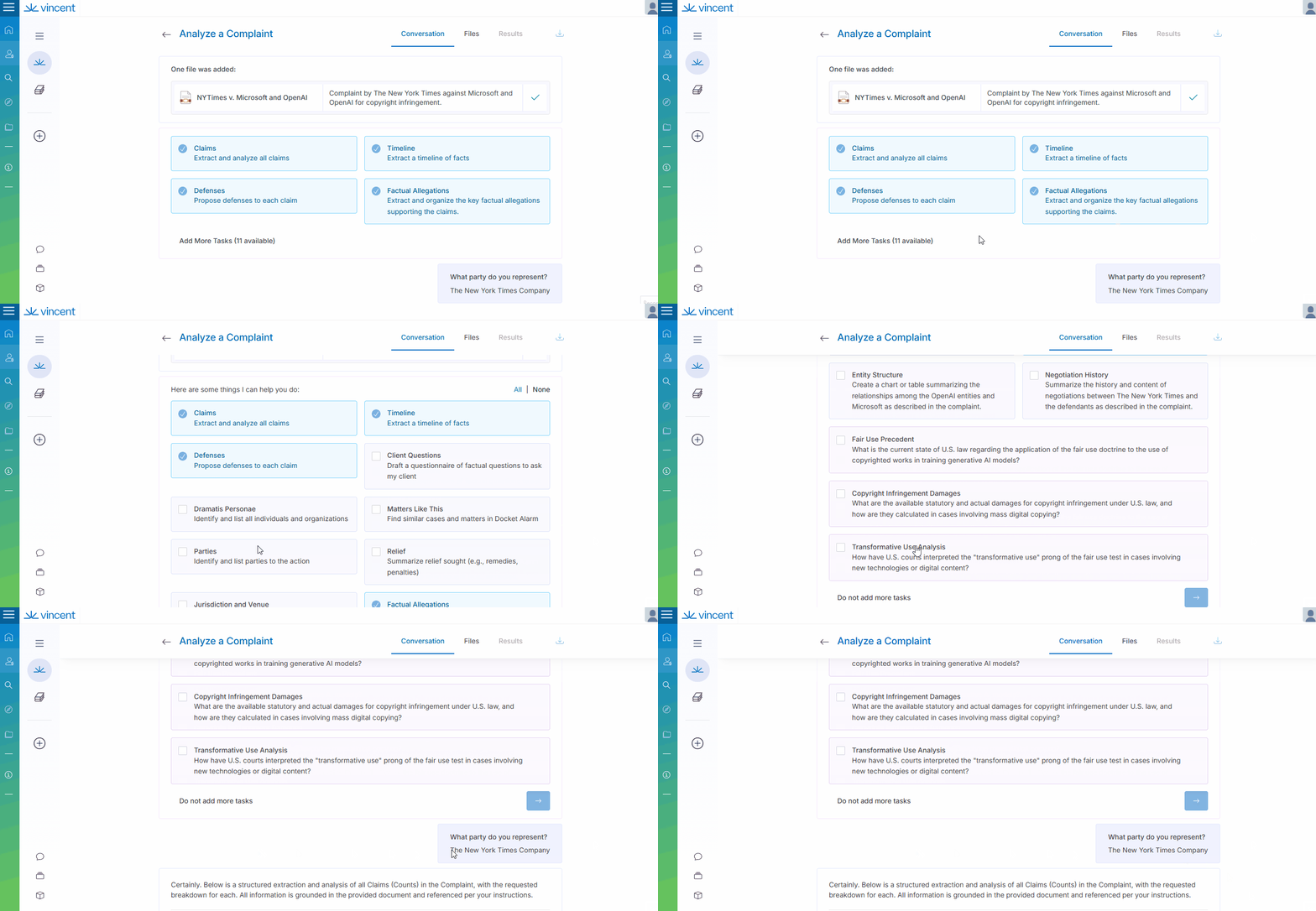
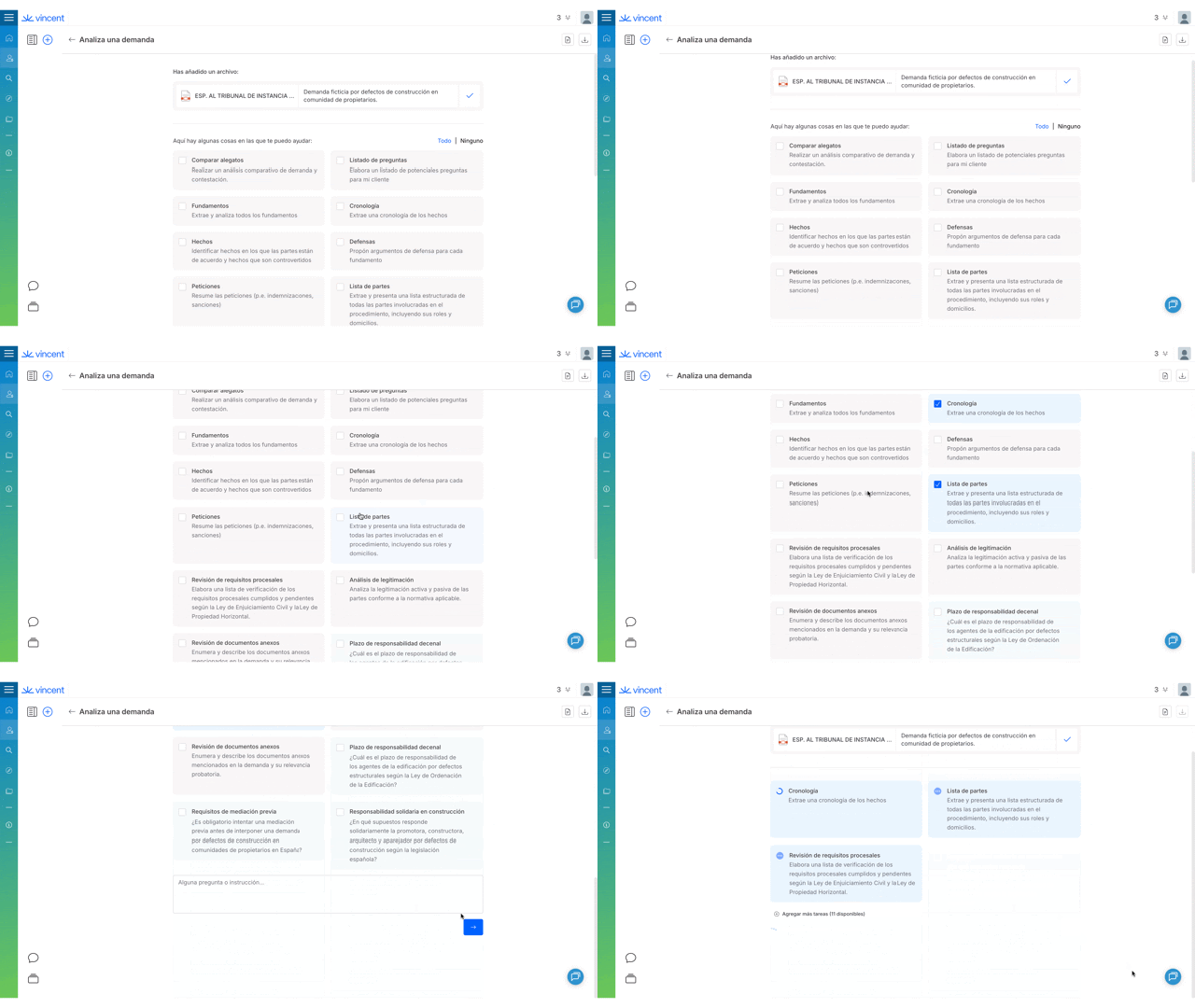
When you upload any document to Vincent’s main interface, the system analyzes what you’ve provided and automatically suggests the most relevant tools and workflows.

* Upload a **contract**, and Vincent recognizes it and offers contract-specific analysis options.
* Upload a **complaint**, and it suggests litigation-focused options.

This happens without you needing to navigate through menus, Vincent reasons about how to best help you based on your document.

{% tabs %}
{% tab title="English Interface" %}

<figure><img src="https://1556743161-files.gitbook.io/~/files/v0/b/gitbook-x-prod.appspot.com/o/spaces%2F-MS8Dq_iqEIflAmbaOkI-887967055%2Fuploads%2FnnbBsJJpVQftV6xfDWVl%2FVincent%20analyzes%20your%20document%20and%20automatically%20suggests%20the%20most%20relevant%20workflows..gif?alt=media&amp;token=443b789c-a3bd-4025-9dc5-858f52ce2bf3" alt=""><figcaption><p>Vincent analyzes your document and automatically suggests the most relevant workflows.</p></figcaption></figure>
{% endtab %}

{% tab title="Interfaz en Español" %}

<figure><img src="https://1556743161-files.gitbook.io/~/files/v0/b/gitbook-x-prod.appspot.com/o/spaces%2F-MS8Dq_iqEIflAmbaOkI-887967055%2Fuploads%2FO1L8uN2FGQ6dnwADiDBq%2FVincent%20analiza%20tu%20documento%20y%20sugiere%20automa%CC%81ticamente%20los%20flujos%20de%20trabajo%20ma%CC%81s%20relevantes..gif?alt=media&amp;token=8150b145-2cef-426d-8bf2-92940330b768" alt=""><figcaption><p>Vincent analiza tu documento y sugiere automáticamente los flujos de trabajo más relevantes.</p></figcaption></figure>
{% endtab %}
{% endtabs %}

#### 2. Intelligent Task Generation

Beyond suggesting standard workflows, Vincent uses its Agentic AI capabilities to generate **custom tasks** based on your specific document. It analyzes your content and proposes additional, unique ways it can assist with that particular legal matter.

#### 3. Adaptive Analysis in Vincent Tables

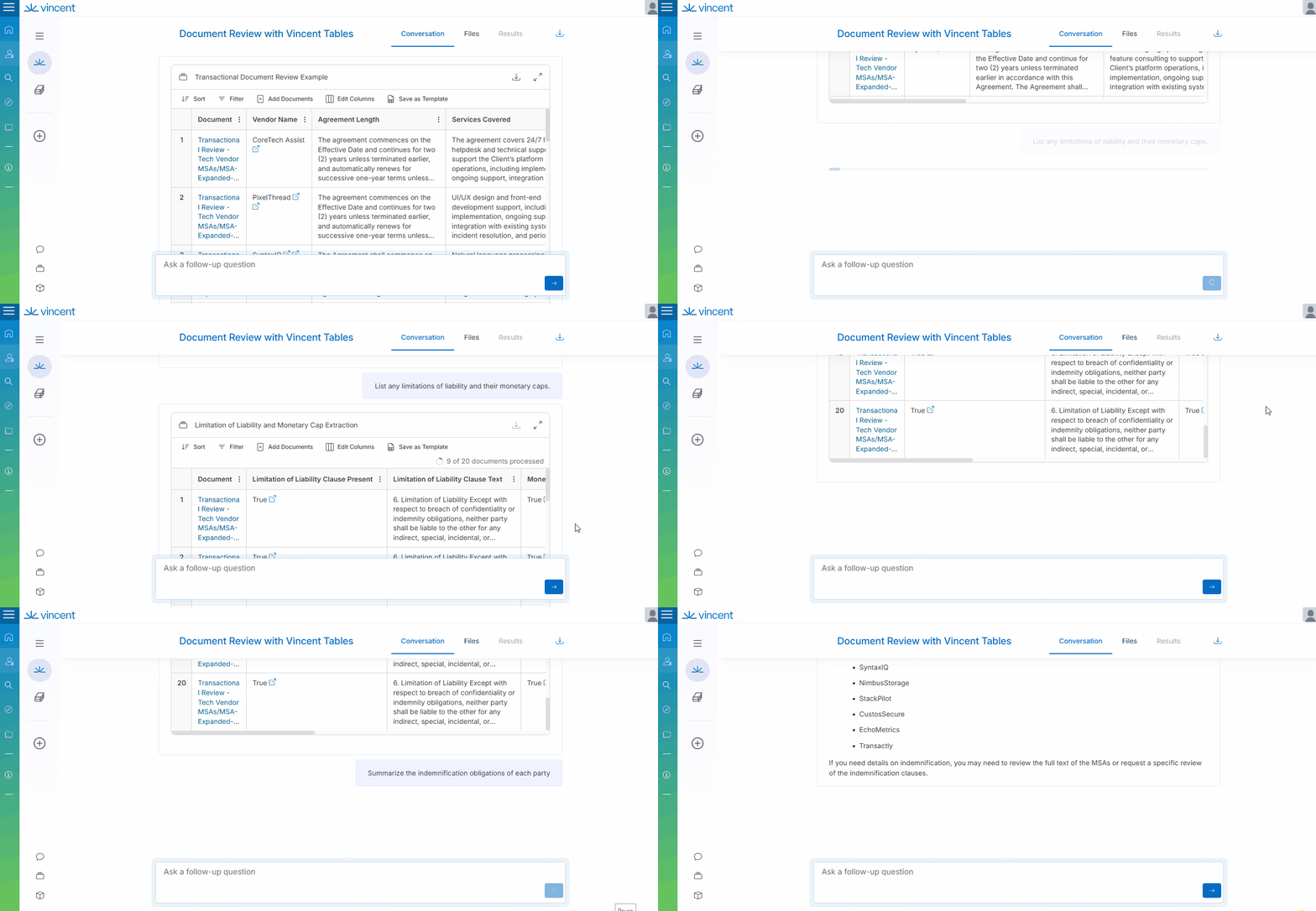
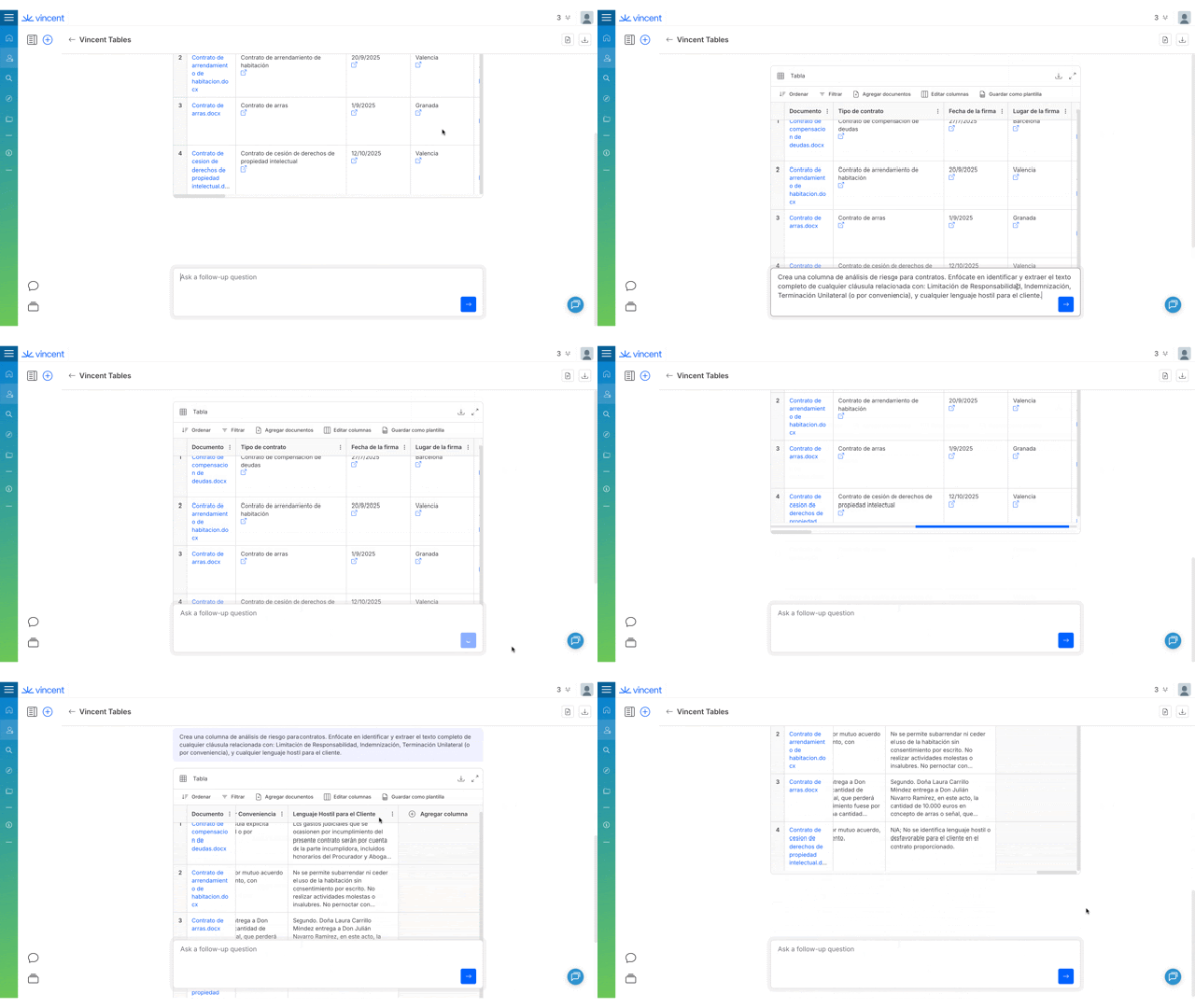
In features like the **Vincent Tables** workflow, you can provide a general, plain-language description of your goal (e.g., *"review these credit agreements for negative covenants"*). Vincent then uses its reasoning to determine the most useful questions to ask and automatically builds the analytical framework to accomplish your goal.

{% tabs %}
{% tab title="English Interface" %}

<figure><img src="https://1556743161-files.gitbook.io/~/files/v0/b/gitbook-x-prod.appspot.com/o/spaces%2F-MS8Dq_iqEIflAmbaOkI-887967055%2Fuploads%2FXE9MUvPel5LpP0tKgj2n%2F_You%20describe%20your%20goal%2C%20and%20Vincent's%20agentic%20AI%20builds%20the%20analytical%20table%20for%20you..gif?alt=media&amp;token=219a150e-a839-40a4-b7df-127f8f2b9063" alt=""><figcaption><p>You describe your goal, and Vincent's agentic AI builds the analytical table for you.</p></figcaption></figure>
{% endtab %}

{% tab title="Interfaz en Español" %}

<figure><img src="https://1556743161-files.gitbook.io/~/files/v0/b/gitbook-x-prod.appspot.com/o/spaces%2F-MS8Dq_iqEIflAmbaOkI-887967055%2Fuploads%2FFT6usj7G5hOQHtapiPH9%2FDescribes%20tu%20objetivo%2C%20y%20la%20IA%20agentica%20de%20Vincent%20construye%20la%20tabla%20anali%CC%81tica%20por%20ti..gif?alt=media&amp;token=df015455-c5c6-4280-991f-031762a06883" alt=""><figcaption><p>Describes tu objetivo, y la IA agentica de Vincent construye la tabla analítica por ti.</p></figcaption></figure>
{% endtab %}
{% endtabs %}

### Best Practices & Pro Tips

* **Trust the Initial Prompt:** When you're not sure where to start, simply upload your core document to Vincent's main interface. Let its agentic capabilities guide you by suggesting the most relevant first steps.
* **Use Natural Language:** Speak to Vincent as you would a colleague. Its agentic reasoning is designed to understand your goals, not just specific commands.

### Related Articles

* [Understanding Data Protection](/vincent-by-vlex/vincent/security-privacy-and-compliance/understanding-data-protection)
* [Requesting a Demo or Trial of Vincent](/vincent-by-vlex/vincent/support-and-account-administration/requesting-a-demo-or-trial-of-vincent)

**What's Your Next Step?**

| **New to Vincent?**                                                                                                                                                                                        | **Already a Vincent Customer?**                                                                                                                            |
| ---------------------------------------------------------------------------------------------------------------------------------------------------------------------------------------------------------- | ---------------------------------------------------------------------------------------------------------------------------------------------------------- |
| [See how Vincent can transform your practice. **Request a personalized demo**.](https://vlex.com/book-a-demo?utm_source=website\&utm_medium=organic\&utm_campaign=web_trial_homepage\&campaign_id=4270741) | [If you still have questions or need help with a specific feature, our team is here to assist. **Contact our Support team**.](https://vlex.com/contact-us) |


# Use Agentic Mode to Complete Complex Legal Workflows in Vincent

Agentic Mode lets you describe the outcome you need, and Vincent plans and executes the full workflow, research, analysis, and drafting, in one result.

### Summary

Agentic Mode lets you describe the outcome you need, and Vincent autonomously plans and executes the full workflow, research, analysis, and drafting, returning a single, structured result.

### Why This is Important

Legal work often involves multi-step processes: researching a legal question, analyzing the facts, and drafting a document based on the results. Previously, you had to guide Vincent through each of these steps individually. With Agentic Mode, you describe the end result you want, and Vincent handles the entire workflow for you, saving time and delivering more complete, cohesive outputs.

This means less back-and-forth, fewer manual steps, and faster turnaround from question to usable work product.

### Understanding Agentic Mode

Agentic Mode is a new way of working with Vincent that shifts the experience from step-by-step interaction to outcome-driven collaboration. Instead of asking individual questions and manually guiding the process, you can now make a single request and receive a complete, structured response.

#### What Changes with Agentic Mode

* **Outcome-driven prompting:** Tell Vincent what you need as a final result, such as "Build a defense strategy for this case", and Vincent determines and executes the steps required.
* **End-to-end task execution:** Request complex, multi-step workflows (research, analysis, drafting) in a single prompt. Vincent handles the sequencing automatically.
* **One unified answer:** Instead of multiple disconnected responses, Vincent delivers a single cohesive output that combines research, reasoning, and drafting.
* **Thinking traces:** See Vincent's progress in real time as it plans, searches, reviews, and drafts. Status messages such as "Creating plan…" and "Searching matter documents…" keep you informed at every stage.

{% hint style="info" %}
Thinking traces describe what Vincent is doing *inside* a running conversation. The indicator next to that conversation in your History Panel is a separate signal, see [Understanding Conversation Statuses.](/vincent-by-vlex/vincent/getting-started-with-vincent/accessing-vincent-and-navigating-the-interface)
{% endhint %}

* **Extended conversations with memory:** Refine outputs naturally across multiple turns. Ask Vincent to make a response more concise, adjust the tone, or apply the same approach to a new matter, all without restarting.
* **Interrupt and redirect:** Use the **Stop** button to interrupt Vincent mid-response and immediately rephrase or redirect your request.

{% hint style="info" %}
Agentic Mode only affects the **default workflow**. All other workflows, including those built in Vincent Studio, continue to function as they always have.
{% endhint %}

#### What Stays the Same

* You can still ask single, straightforward questions just as you did in Classic Vincent.
* You can explicitly request a research memo at any time.
* All existing workflows and Vincent Studio workflows remain unchanged.
* Vincent continues to search the vLex Library, ensuring results are drawn from verified source materials.

### Enabling Agentic Mode

Agentic Mode is disabled by default. To enable it:

1. Open Vincent in Clio Work.
2. Click the **+** button in the input area.
3. Locate the **Agentic Mode** toggle.
4. Switch the toggle **off** to revert to Classic Vincent.

<figure><img src="https://1556743161-files.gitbook.io/~/files/v0/b/gitbook-x-prod.appspot.com/o/spaces%2F-MS8Dq_iqEIflAmbaOkI-887967055%2Fuploads%2F0Hykmur8a79F6djyKW1t%2FYou%20can%20switch%20the%20toggle%20back%20on%20at%20any%20time%20to%20return%20to%20Agentic%20Mode..gif?alt=media&amp;token=24291c79-6a7f-4b27-917b-ee1a3ac8d199" alt=""><figcaption><p>You can switch the toggle back off at any time to revert to Classic Vincent.</p></figcaption></figure>

### How to Get the Best Results with Agentic Mode

Agentic Mode works best when you describe the outcome you want rather than the individual steps. Here are examples of effective prompts:

#### Building a Case Strategy

Tell Vincent the facts and the result you need:

> "Build me a defense strategy for this case based on these facts."

Vincent will create a plan, conduct research, analyse the facts, and return a complete structured strategy.

#### Summarizing and Drafting Communications

Combine multiple tasks in a single request:

> "Summarize this matter and draft an email I can send to the client."

Vincent searches relevant documents, synthesises key facts, and produces both a summary and a ready-to-send email draft.

#### Preparing Internal Memos

Request analysis and formatted output together:

> "Analyse the strengths and weaknesses of our legal position and draft a strategic memo I can share internally."

Vincent executes the research, analysis, and drafting, then delivers a structured memo.

#### Iterative Refinement

After receiving an initial output, refine it naturally:

> "Make that more concise." "Adjust this for a client audience instead of internal use." "Apply the same approach to this new matter."

Vincent retains context across turns and adjusts without requiring you to restart.

### How Research Works in Agentic Mode

Vincent always performs research when answering legal questions. In Agentic Mode, the depth of research adapts to the complexity of your question:

* **For simpler questions**, Vincent provides quick answers with source links (blue hyperlinks) visible in the response.
* **For complex research tasks**, Vincent automatically produces a full research memo with deeper analysis.
* **You can always explicitly request a research memo** if you prefer that format regardless of complexity.

{% hint style="info" %}
**Research Fallback:** For extremely complex research tasks, Vincent may automatically revert to the classic **Research Memo** format to ensure the highest level of analytical depth.
{% endhint %}

### Best Practices & Pro Tips

**Describe outcomes, not steps.** The more clearly you describe the end result you need, including format, audience, and purpose, the better Vincent can plan and execute the full workflow in a single pass. For example, instead of "Research negligence law," try "Build a defense strategy for a slip-and-fall case based on these facts and format it so I can share it with my team."

**Use iterative refinement to your advantage.** Agentic Mode retains context across your conversation, so treat it as a working session. Start with a broad request, review the output, then ask Vincent to adjust tone, length, audience, or scope. This is often faster than trying to craft the perfect prompt on your first attempt.

**Verify Citations:** While Vincent searches the verified **vLex library**, always use the provided blue hyperlinks to independently verify legal authorities.

### Related Articles

* [Understanding Data Protection](/vincent-by-vlex/vincent/security-privacy-and-compliance/understanding-data-protection)
* [Requesting a Demo or Trial of Vincent](/vincent-by-vlex/vincent/support-and-account-administration/requesting-a-demo-or-trial-of-vincent)

**What's Your Next Step?**

| **New to Vincent?**                                                                                                                                                                                        | **Already a Vincent Customer?**                                                                                                                            |
| ---------------------------------------------------------------------------------------------------------------------------------------------------------------------------------------------------------- | ---------------------------------------------------------------------------------------------------------------------------------------------------------- |
| [See how Vincent can transform your practice. **Request a personalized demo**.](https://vlex.com/book-a-demo?utm_source=website\&utm_medium=organic\&utm_campaign=web_trial_homepage\&campaign_id=4270741) | [If you still have questions or need help with a specific feature, our team is here to assist. **Contact our Support team**.](https://vlex.com/contact-us) |


# Understand Persistent Memory in Vincent

The Vincent legal assistant uses persistent memory to retain matter facts, your preferences, and prior work across sessions.

### Summary

The Vincent legal assistant retains your preferences and prior work across sessions through persistent memory, following your account's data retention policy.

### Why This is Important

Without memory, you'd need to re-explain your working preferences and formatting conventions every time you start a new conversation with Vincent. Persistent memory removes that friction: once you tell Vincent how you like to work, it remembers, for as long as your account's retention policy allows, so you don't have to repeat yourself. This means:

* Less time spent restating drafting style, tone, and formatting instructions in every new conversation.
* More consistent output across matters, without re-establishing preferences each time.
* Conversation details you confirm in a session carry forward into your standing preferences, instead of disappearing once you close the chat.

{% hint style="info" %}
**Persistent memory is not the same as your current conversation.** The context window only covers what's visible in your active session. Persistent memory is what carries forward afterward.
{% endhint %}

### How Vincent's Memory Works

Vincent's persistent memory works across two layers:

* **User memory** — Your individual working preferences: drafting style, tone, formatting conventions, and instructions you tend to repeat. These apply across every matter and conversation, not just one case.
* **Conversation memory** — The decisions, outputs, and confirmed facts from your current working session. At the end of the session, the relevant parts are carried forward into your user memory, so nothing gets lost between conversations.

### Data Retention

Memory follows your account's data retention policy. Retention is applied to each memory individually, based on when it was created, so memories expire on a rolling basis rather than all at once.

For example: if your account's retention period is one year, and you tell Vincent today to keep your emails brief, that preference lasts for one year from today. If you add a new preference six months later, that second memory lasts one year from that later date, so the first preference could expire while the second one remains active.

{% hint style="info" %}
**Retention periods are account-level.** Check with your firm's administrator to confirm the retention period configured for your account.
{% endhint %}

### Best Practices & Pro Tips

* **Set your preferences early.** Establish your preferred drafting style, tone, and formatting conventions in one of your first conversations with Vincent. Once stored in memory, they apply automatically going forward, so you don't have to repeat them every time.
* **Restate preferences that matter most before they expire.** Because memory follows a rolling retention window, a standing instruction you set months ago could expire while a more recent one remains active. If a preference is critical to how you work, revisit it periodically rather than assuming it will persist indefinitely.

### Related Articles

* [Understanding Data Protection](/vincent-by-vlex/vincent/security-privacy-and-compliance/understanding-data-protection)
* [Requesting a Demo or Trial of Vincent](/vincent-by-vlex/vincent/support-and-account-administration/requesting-a-demo-or-trial-of-vincent)

**What's Your Next Step?**

| **New to Vincent?**                                                                                                                                                                                        | **Already a Vincent Customer?**                                                                                                                            |
| ---------------------------------------------------------------------------------------------------------------------------------------------------------------------------------------------------------- | ---------------------------------------------------------------------------------------------------------------------------------------------------------- |
| [See how Vincent can transform your practice. **Request a personalized demo**.](https://vlex.com/book-a-demo?utm_source=website\&utm_medium=organic\&utm_campaign=web_trial_homepage\&campaign_id=4270741) | [If you still have questions or need help with a specific feature, our team is here to assist. **Contact our Support team**.](https://vlex.com/contact-us) |


# Viewing Vincent Coverage by Jurisdiction

View Vincent's jurisdiction coverage. Our legal research workflows are optimized for the US, UK, EU, and more. Check the full list of supported countries.

### Summary

Our legal research workflows are optimized for the US, UK, EU, LATAM, and more. Check the full list of [Vincent supported countries](https://explore.vlex.com/#/vincent/en) to ensure the tool meets the needs of your legal practice.

### Why This is Important

Knowing which jurisdictions are specifically supported by Vincent's advanced research workflows is crucial for getting the most accurate and relevant results. This information helps you work with confidence, knowing that the AI is leveraging content that is directly applicable to your case or legal question.

### Supported Jurisdictions

* [Brazil](https://explore.vlex.com/#/vincent/en/BR)
* [Chile](https://explore.vlex.com/#/vincent/en/CL)
* [Colombia](https://explore.vlex.com/#/vincent/en/CO)
* [Ecuador](https://explore.vlex.com/#/vincent/en/EC)
* [European Union](https://explore.vlex.com/#/vincent/en/EU)
* [France](https://explore.vlex.com/#/vincent/en/FR)
* [Hong Kong](https://explore.vlex.com/#/vincent/en/HK)
* [Ireland](https://explore.vlex.com/#/vincent/en/IE)
* [Italy](https://explore.vlex.com/#/vincent/en/IT)
* [Mexico](https://explore.vlex.com/#/vincent/en/MX)
* [New Zealand](https://explore.vlex.com/#/vincent/en/NZ)
* [Peru](https://explore.vlex.com/#/vincent/en/PE)
* [Portugal](https://explore.vlex.com/#/vincent/en/PT)
* [Singapore](https://explore.vlex.com/#/vincent/en/SG)
* [Spain](https://explore.vlex.com/#/vincent/en/ES)
* [United Kingdom](https://explore.vlex.com/#/vincent/en/GB)
* [United States](https://explore.vlex.com/#/vincent/en/US)

#### Document-Based Workflows

Workflows that operate on documents you upload (e.g., Analyze a Document, Summarize Documents) are not limited by jurisdiction and can be used with documents from any country.

#### United States Coverage

For the **United States**, our coverage includes both **Federal** and all **US State** jurisdictions.

{% hint style="warning" %}
**Our coverage is constantly expanding**. The list above reflects our core supported jurisdictions. For the most current and detailed information on content availability in a specific region, we always recommend speaking with a product specialist.
{% endhint %}

### Best Practices & Pro Tips

* Before starting a new research session, always ensure you have the correct jurisdiction selected in the main Vincent search interface to get the most relevant results.

![Always make sure the correct jurisdiction is selected in Vincent’s main search interface.](https://1556743161-files.gitbook.io/~/files/v0/b/gitbook-x-prod.appspot.com/o/spaces%2F-MS8Dq_iqEIflAmbaOkI-887967055%2Fuploads%2FtVT1qA1uv0bmYVUqwR1E%2FAlways%20make%20sure%20the%20correct%20jurisdiction%20is%20selected%20in%20Vincent%E2%80%99s%20main%20search%20interface.gif?alt=media\&token=1509cfbe-956b-48ae-916b-9eed38006296)

### **Explore the Content Powering Vincent**

Vincent's intelligence is powered by vLex's vast and continuously updated global library. For a deeper look at the specific breadth of content that Vincent uses to answer your questions across all supported jurisdictions, you can explore our [*vLex Content Explorer*.](https://explore.vlex.com/#/en) This allows you to see the full scope of the authoritative sources from case law to legislation and secondary materials that are available to Vincent for its analysis.

* [View the content available to Vincent in the vLex Content Explorer](https://explore.vlex.com/#/vincent/en)

### Related Articles

* [What is Vincent?](/vincent-by-vlex/vincent/getting-started-with-vincent/understanding-what-vincent-is)
* [Managing Supported Languages](/vincent-by-vlex/vincent/getting-started-with-vincent/managing-supported-languages)

**What's Your Next Step?**

| **New to Vincent?**                                                                                                                                                                                        | **Already a Vincent Customer?**                                                                                                                            |
| ---------------------------------------------------------------------------------------------------------------------------------------------------------------------------------------------------------- | ---------------------------------------------------------------------------------------------------------------------------------------------------------- |
| [See how Vincent can transform your practice. **Request a personalized demo**.](https://vlex.com/book-a-demo?utm_source=website\&utm_medium=organic\&utm_campaign=web_trial_homepage\&campaign_id=4270741) | [If you still have questions or need help with a specific feature, our team is here to assist. **Contact our Support team**.](https://vlex.com/contact-us) |


# Your First Analysis: Asking a Research Question

Run your first analysis with Vincent. This beginner's guide shows you how to ask a research question and get your first AI legal memo generator result in minutes.

### Summary

Run your first analysis with Vincent. This beginner's guide shows you how to **Ask a research question** the most common workflow and get your first result from our **AI legal memo generator** in just a few simple steps.

### Why This is Important

The best way to understand the power of Vincent is to see it in action. Asking a Research Question is one of Vincent's most powerful workflows, and it's the perfect place to start. This guide will walk you through the simple process of turning a question into a comprehensive, fully-cited legal memo.

### Step-by-Step Guide

#### Step 1: Start the Workflow

From the main Vincent landing page, select **Ask a Research Question** from the list of workflows.

{% tabs %}
{% tab title="English Interface " %}

<figure><img src="https://1556743161-files.gitbook.io/~/files/v0/b/gitbook-x-prod.appspot.com/o/spaces%2F-MS8Dq_iqEIflAmbaOkI-887967055%2Fuploads%2Fhp9F3PZadVV7MwmMcSKs%2Fimage%20(11).png?alt=media&amp;token=b577454a-f4e1-4261-8864-a39f874209b6" alt=""><figcaption><p>Select the Ask a Research Question workflow in Vincent.</p></figcaption></figure>
{% endtab %}

{% tab title="Interfaz en Español" %}

<figure><img src="https://1556743161-files.gitbook.io/~/files/v0/b/gitbook-x-prod.appspot.com/o/spaces%2F-MS8Dq_iqEIflAmbaOkI-887967055%2Fuploads%2FIhQnygOSvbrGddrPPWDw%2FSelecciona%20el%20flujo%20de%20trabajo%20Hacer%20una%20pregunta%20de%20investigacio%CC%81n%20en%20Vincent..gif?alt=media&amp;token=8484b916-89f1-4442-a188-d705a292ea78" alt=""><figcaption><p>Selecciona el flujo de trabajo Hacer una pregunta de investigación en Vincent.</p></figcaption></figure>
{% endtab %}
{% endtabs %}

#### Step 2: Ask Your Question and Select a Jurisdiction

In the input screen, you will need to provide two key pieces of information:

1. **Your Legal Question:** Type your question directly into the box at the top of the page.
2. **Your Jurisdiction:** Use the **jurisdiction selector** below the question box to choose the specific jurisdiction(s) for your research.
3. When you are ready, press the **blue arrow** to start your query.

{% tabs %}
{% tab title="English Interface" %}

<figure><img src="https://1556743161-files.gitbook.io/~/files/v0/b/gitbook-x-prod.appspot.com/o/spaces%2F-MS8Dq_iqEIflAmbaOkI-887967055%2Fuploads%2FbtGyMiAZRW3cdR3gcAoC%2Fimage%20(1).gif?alt=media&amp;token=56e0c6ca-1c0e-4d95-a64a-04ed7164b378" alt=""><figcaption><p>Enter your question and select the relevant jurisdiction.</p></figcaption></figure>
{% endtab %}

{% tab title="Interfaz en Español" %}

<figure><img src="https://1556743161-files.gitbook.io/~/files/v0/b/gitbook-x-prod.appspot.com/o/spaces%2F-MS8Dq_iqEIflAmbaOkI-887967055%2Fuploads%2FV1jzNiu2I7aIkGB6JzSv%2FUntitled%20video.gif?alt=media&amp;token=3e27b14c-e332-4fed-9692-08c93e798e12" alt=""><figcaption><p>Introduce tu pregunta y selecciona la jurisdicción relevante.</p></figcaption></figure>
{% endtab %}
{% endtabs %}

#### Step 3: Review Your Results

The answer may take a minute or two to generate. Once complete, your answer will be displayed on the left, with a full list of the authorities Vincent cited on the right. The generated memo is structured into three key parts:

* **Short Response:** A concise, one-paragraph answer to your question is placed right at the top.
* **Detailed Analysis:** Vincent then "shows its work" by providing a detailed breakdown of the sources it used.
* **Exceptions and Limitations:** Crucially, Vincent includes a section detailing any counterarguments or limitations.

{% tabs %}
{% tab title="English Interface " %}

<figure><img src="https://1556743161-files.gitbook.io/~/files/v0/b/gitbook-x-prod.appspot.com/o/spaces%2F-MS8Dq_iqEIflAmbaOkI-887967055%2Fuploads%2Fob24PViNn00UjFjboI5T%2FReview%20the%20generated%20memo%20and%20the%20supporting%20authorities.gif?alt=media&amp;token=e6924dfe-390d-425a-989d-3b40c1e93cd9" alt=""><figcaption><p>Review the generated memo and the supporting authorities.</p></figcaption></figure>
{% endtab %}

{% tab title="Interfaz en Español " %}

<figure><img src="https://1556743161-files.gitbook.io/~/files/v0/b/gitbook-x-prod.appspot.com/o/spaces%2F-MS8Dq_iqEIflAmbaOkI-887967055%2Fuploads%2F55cvEl9burZmCGgQrTk0%2FRevisa%20el%20memorando%20generado%20y%20las%20autoridades%20de%20respaldo..gif?alt=media&amp;token=f06c2e2b-7511-496a-b20b-b917bdee4ac4" alt=""><figcaption><p>Revisa el memorando generado y las autoridades de respaldo.</p></figcaption></figure>
{% endtab %}
{% endtabs %}

{% hint style="info" %}
**How Vincent Thinks: More Than Just a Keyword Search**&#x20;

When you ask a question, Vincent mimics an expert legal researcher. It understands the legal concepts behind your words and verifies the full citation history of a case to ensure the precedent is still good law, giving you a comprehensive and reliable result.
{% endhint %}

### Best Practices & Pro Tips

* **Be Specific:** The more specific your question, the more targeted your results will be. Include key facts and legal terms.
* **Trust but Verify:** Use the list of authorities on the right to click through and review the source documents for yourself.

### Relevant Video Content

{% tabs %}
{% tab title="English Version" %}
{% embed url="<https://vimeo.com/1036077122?share=copy>" %}

{% endtab %}

{% tab title="Versión en Español" %}
{% embed url="<https://vimeo.com/1023993557?share=copy>" %}

{% endtab %}

{% tab title="Caso de Uso: Colecciones (Video)" %}
{% embed url="<https://vimeo.com/1027580758?share=copy>" %}

{% endtab %}
{% endtabs %}

### Related Articles

* [Vincent for Litigation Attorneys](/vincent-by-vlex/vincent/solutions-for-your-practice/vincent-for-litigation-attorneys)
* [Viewing Vincent coverage by jurisdiction](/vincent-by-vlex/vincent/getting-started-with-vincent/viewing-vincent-coverage-by-jurisdiction)

**What's Your Next Step?**

| **New to Vincent?**                                                                                                                                                                                        | **Already a Vincent Customer?**                                                                                                                            |
| ---------------------------------------------------------------------------------------------------------------------------------------------------------------------------------------------------------- | ---------------------------------------------------------------------------------------------------------------------------------------------------------- |
| [See how Vincent can transform your practice. **Request a personalized demo**.](https://vlex.com/book-a-demo?utm_source=website\&utm_medium=organic\&utm_campaign=web_trial_homepage\&campaign_id=4270741) | [If you still have questions or need help with a specific feature, our team is here to assist. **Contact our Support team**.](https://vlex.com/contact-us) |


# Core Workflows

Master AI legal workflow automation with Vincent. Find step-by-step guides for tasks like our Contract Review AI workflow or using the AI Legal Memo Generator.


# Analyze a Complaint

Learn how to analyze a complaint with Vincent. This guide shows you how to use our legal document analysis tool to extract facts, build timelines, and propose defenses.

### Summary

Learn how to **analyze a complaint** with Vincent. This guide shows you how to upload a document and use our **legal document analysis** tool to extract key allegations, create a timeline of facts, and even draft potential defenses for your case.

### Why This is Important

Reviewing a new complaint is a critical first step in any litigation, but it can be a time-consuming manual process. Vincent accelerates this process, helping you instantly identify the core issues, understand the factual timeline, and begin strategizing your response, saving you valuable time and ensuring you don't miss a critical detail.

### Step-by-Step Guide

#### Step 1: Upload Your Complaint

Begin by uploading the complaint document. You can drag and drop the file or select it from your computer. Vincent supports .doc, .docx, .eml, .html, .htm, .msg, .jpeg, .jpg, .odt, .pdf, .png, .txt, .zip, .pptx, .xlsx, .xls, .csv formats.

#### Step 2: Review Vincent's Suggested Workflows

Once Vincent has read your document, it will intelligently assess the content and suggest a number of relevant workflows. For a complaint, these may include:

* **Extract Key Allegations:** Get a clean, bulleted list of all allegations made by the Claimant.
* **Draft Response:** Generate a potential draft response to the claim for the Defendant.
* **Create a Checklist:** Build a checklist of evidence needed to support or refute the Claimant's allegations.
* **Propose Defenses:** Generate a table of potential defenses for each claim in the complaint.
* **Create a Timeline:** Automatically extract a timeline of events based on the facts in the document.
* **Summarize:** Create a concise summary of the entire complaint.

{% tabs %}
{% tab title="English Interface" %}
![Vincent suggests relevant workflows based on your document's content.](https://1556743161-files.gitbook.io/~/files/v0/b/gitbook-x-prod.appspot.com/o/spaces%2F-MS8Dq_iqEIflAmbaOkI-887967055%2Fuploads%2F5vUxKRR3JREYJZms2jka%2Fimage%20\(6\).png?alt=media\&token=77dc7022-f2a9-4305-9a6f-a7208da91bea)
{% endtab %}

{% tab title="Interfaz en Español " %}

<figure><img src="https://1556743161-files.gitbook.io/~/files/v0/b/gitbook-x-prod.appspot.com/o/spaces%2F-MS8Dq_iqEIflAmbaOkI-887967055%2Fuploads%2FOSnt5wZKsAl16VotgsO5%2FVincent%20sugiere%20flujos%20de%20trabajo%20relevantes%20basados%20en%20el%20contenido%20de%20su%20documento..gif?alt=media&amp;token=6fb83de8-8a5c-4d43-8016-fb301fb591ad" alt=""><figcaption><p>Vincent sugiere flujos de trabajo relevantes basados en el contenido de su documento.</p></figcaption></figure>
{% endtab %}
{% endtabs %}

#### Step 3: Run Your Analysis

Select one or more of the suggested workflows and click the **enter button** to begin. You can also type your own custom instructions in the text box.

{% tabs %}
{% tab title="English Interface" %}
![Select one or more workflows to run your analysis.](https://1556743161-files.gitbook.io/~/files/v0/b/gitbook-x-prod.appspot.com/o/spaces%2F-MS8Dq_iqEIflAmbaOkI-887967055%2Fuploads%2FZ43cfccNSWuwUYUb4mn2%2FSelect-workflows-to-run-your-analysis.gif?alt=media\&token=cbee0631-d2f3-4fb2-9e0b-b178ea3821d0)
{% endtab %}

{% tab title="Interfaz en Español" %}

<figure><img src="https://1556743161-files.gitbook.io/~/files/v0/b/gitbook-x-prod.appspot.com/o/spaces%2F-MS8Dq_iqEIflAmbaOkI-887967055%2Fuploads%2FCzKh8smAXv7iQ4q9E47q%2FSelecciona%20uno%20o%20ma%CC%81s%20flujos%20de%20trabajo%20para%20ejecutar%20tu%20ana%CC%81lisis..gif?alt=media&amp;token=208e3e63-16aa-4020-bba9-c4a5a9c17f6f" alt=""><figcaption><p>Selecciona uno o más flujos de trabajo para ejecutar tu análisis.</p></figcaption></figure>
{% endtab %}
{% endtabs %}

{% hint style="info" %}
If Vincent needs more information to proceed (for example, to confirm which party you are representing), it will ask you before running the workflow.
{% endhint %}

{% tabs %}
{% tab title="English Interface " %}
![Confirm which party you are representing.](https://1556743161-files.gitbook.io/~/files/v0/b/gitbook-x-prod.appspot.com/o/spaces%2F-MS8Dq_iqEIflAmbaOkI-887967055%2Fuploads%2Fmr2V9K9iDMmZZyvEQ8Q2%2Fimage%20\(7\).png?alt=media\&token=ee57dada-ca14-4061-8ffe-9f2ebaa3141c)
{% endtab %}

{% tab title="Interfaz en Español " %}

<figure><img src="https://1556743161-files.gitbook.io/~/files/v0/b/gitbook-x-prod.appspot.com/o/spaces%2F-MS8Dq_iqEIflAmbaOkI-887967055%2Fuploads%2FHQOYTIxOi20JnQS1GN3Y%2FConfirme%20a%20que%CC%81%20parte%20esta%CC%81%20representando..gif?alt=media&amp;token=ddbd5246-f9bb-4897-b017-621d789491d7" alt=""><figcaption><p>Confirme a qué parte está representando.</p></figcaption></figure>
{% endtab %}
{% endtabs %}

#### Step 4: Interact with the Results

Vincent will generate the output for your selected workflow. You can easily copy the answer to your clipboard using the **copy icon**. If you have further questions, you can simply ask follow-up questions in the chat to continue your analysis.

{% tabs %}
{% tab title="English Interface " %}
![Review the generated output and copy it for use in your work product.](https://1556743161-files.gitbook.io/~/files/v0/b/gitbook-x-prod.appspot.com/o/spaces%2F-MS8Dq_iqEIflAmbaOkI-887967055%2Fuploads%2FQlpuSQSENygpsL3WhisF%2FReview-generated-output.gif?alt=media\&token=1f7e748a-7054-4efc-916e-3d8887ad0d3d)
{% endtab %}

{% tab title="Interfaz en Español " %}

<figure><img src="https://1556743161-files.gitbook.io/~/files/v0/b/gitbook-x-prod.appspot.com/o/spaces%2F-MS8Dq_iqEIflAmbaOkI-887967055%2Fuploads%2Fxwnvl1HQP44lossoDr2P%2FRevise%20la%20salida%20generada%20y%20co%CC%81piela%20para%20usarla%20en%20su%20trabajo..gif?alt=media&amp;token=37912279-463b-4d0f-8176-e6da71abf949" alt=""><figcaption><p>Revise la salida generada y cópiela para usarla en su trabajo.</p></figcaption></figure>
{% endtab %}
{% endtabs %}

{% hint style="success" %}
**Building Confidence with Enhanced References**: Vincent is built on transparency. You can instantly verify any source by hovering over the blue highlighted text to see the original quote, or clicking to view the full document in context.
{% endhint %}

### Best Practices & Pro Tips

* **Combine Workflows:** Don't be afraid to run multiple workflows on the same document. Start by **Extracting Key Allegations** and then run **Propose Defenses** to build a comprehensive response strategy.
* **Edit Suggested Questions:** If you select a research question suggested by Vincent, you can click the **pencil icon** to edit and refine it before submitting.

### Relevant Video Content

{% tabs %}
{% tab title="English Version" %}
{% embed url="<https://vimeo.com/1029629219?share=copy>" %}
{% endtab %}

{% tab title="Versión en Español" %}
{% embed url="<https://vimeo.com/1024672660?share=copy>" %}
{% endtab %}
{% endtabs %}

### Related Articles

* [Asking a Research Question](/vincent-by-vlex/vincent/core-workflows/ask-a-research-question)
* [Supported File Formats for Analysis](/vincent-by-vlex/vincent/support-and-account-administration/supported-file-formats-for-analysis)

**What's Your Next Step?**

| **New to Vincent?**                                                                                                                                                                                        | **Already a Vincent Customer?**                                                                                                                            |
| ---------------------------------------------------------------------------------------------------------------------------------------------------------------------------------------------------------- | ---------------------------------------------------------------------------------------------------------------------------------------------------------- |
| [See how Vincent can transform your practice. **Request a personalized demo**.](https://vlex.com/book-a-demo?utm_source=website\&utm_medium=organic\&utm_campaign=web_trial_homepage\&campaign_id=4270741) | [If you still have questions or need help with a specific feature, our team is here to assist. **Contact our Support team**.](https://vlex.com/contact-us) |


# Analyze a Contract

Learn how to analyze a contract with Vincent. This guide shows how our AI contract review tool can identify risks, overlaps, and client-hostile language.

### Summary

Learn how to **Analyze a Contract** with Vincent. This guide shows how our **AI contract review** tool can automatically identify potential risks, inconsistent definitions, and client-hostile language, helping you accelerate your **legal document analysis**.

### Why This is Important

Contract review is a meticulous and high-stakes process. The Analyze a Contract workflow acts as your intelligent assistant, automating the initial review to flag potential issues. This allows you to focus your valuable time on strategic analysis and negotiation, rather than on the manual search for problematic clauses.

### Step-by-Step Guide

#### Step 1: Start the Workflow and Upload Your Contract

To begin, select **Analyze a Contract** from the list of workflows on the Vincent landing page. You can then upload the contract you wish to review.

{% tabs %}
{% tab title="English Interface" %}
![Select the workflow and upload your contract to begin.](https://1556743161-files.gitbook.io/~/files/v0/b/gitbook-x-prod.appspot.com/o/spaces%2F-MS8Dq_iqEIflAmbaOkI-887967055%2Fuploads%2FEqh9I6aFFINseWnCxHw9%2FSelect%20the%20workflow%20and%20upload%20your%20contract%20to%20begin.gif?alt=media\&token=0a34c2c2-0628-4280-9cc5-059b5ab7e765)
{% endtab %}

{% tab title="Interfaz en Español" %}

<figure><img src="https://1556743161-files.gitbook.io/~/files/v0/b/gitbook-x-prod.appspot.com/o/spaces%2F-MS8Dq_iqEIflAmbaOkI-887967055%2Fuploads%2FyQ7iZpMTOGkNlzWbq1GE%2FSelecciona%20el%20flujo%20de%20trabajo%20y%20sube%20tu%20contrato%20para%20comenzar..gif?alt=media&amp;token=f4470b76-0bcf-4a93-99f2-472a2b5be7de" alt=""><figcaption><p>Selecciona el flujo de trabajo y sube tu contrato para comenzar.</p></figcaption></figure>
{% endtab %}
{% endtabs %}

{% hint style="info" %}
**Supported File Formats:** We support a wide range of formats, including .doc, .docx, .eml, .html, .htm, .msg, .jpeg, .jpg, .odt, .pdf, .png, .txt, .zip, .pptx, .xlsx, .xls, .csv
{% endhint %}

#### Step 2: Review Vincent's Suggested Workflows

Once Vincent has read your contract, it will intelligently suggest a number of powerful analytical workflows tailored for contract review. This is the core of the feature.

Your list of suggestions may include:

* **Risk Mitigation:** Identify and list the agreement's potential risks and propose mitigations.
* **Language:** Identify client-hostile language.
* **Overlaps:** Identify inconsistencies, ambiguities, and overlapping clauses.
* **Definitions:** Extract all definitions and verify that all used terms are properly defined.
* **Obligations:** Identify, list, and assess all post-closing obligations.
* **Strategy:** Develop a negotiation strategy for your client, including key objectives and fallback positions.
* **Compliance Checklist:** Create a checklist to ensure all contractual and regulatory requirements are met.
* **Summarize:** Create a concise summary of the entire contract.
* **Timeline:** Create a timeline of key dates and deliverables.

{% tabs %}
{% tab title="English Interface " %}
![Vincent suggests a powerful list of analytical tasks based on your contract.](https://1556743161-files.gitbook.io/~/files/v0/b/gitbook-x-prod.appspot.com/o/spaces%2F-MS8Dq_iqEIflAmbaOkI-887967055%2Fuploads%2F6Q0Io5UfECTlv9bvpnqE%2FVincent%20AI%20suggests%20a%20powerful%20list%20of%20analytical%20tasks%20based%20on%20your%20contract.gif?alt=media\&token=50ad5124-781a-4916-af8e-e7d7cf8a68f5)
{% endtab %}

{% tab title="Interfaz en Español" %}

<figure><img src="https://1556743161-files.gitbook.io/~/files/v0/b/gitbook-x-prod.appspot.com/o/spaces%2F-MS8Dq_iqEIflAmbaOkI-887967055%2Fuploads%2FtAeDgXsmhwfYwnVd7iar%2FVincent%20sugiere%20una%20lista%20potente%20de%20tareas%20anali%CC%81ticas%20basadas%20en%20tu%20contrato..gif?alt=media&amp;token=d6b60320-97cc-4ab8-908c-cfe0a0bae00e" alt=""><figcaption><p>Vincent sugiere una lista potente de tareas analíticas basadas en tu contrato.</p></figcaption></figure>
{% endtab %}
{% endtabs %}

Vincent suggests a powerful list of analytical tasks based on your contract.

#### Step 3: Run Your Analysis

Select one or more of the suggested workflows and click the **enter button** to begin. You can also type your own custom instructions in the text box at the bottom of the page.

#### Step 4: Interact with the Results

Once the tasks are complete, you can review the full output.

* **Ask Follow-Up Questions:** Use the chat box at the bottom to ask additional questions and continue your analysis.
* **Copy Results:** Use the **copy icon** at the top right of each completed task to copy the text for use in your work product.

{% tabs %}
{% tab title="English Interface " %}
![Ask follow-up questions or copy the results.](https://1556743161-files.gitbook.io/~/files/v0/b/gitbook-x-prod.appspot.com/o/spaces%2F-MS8Dq_iqEIflAmbaOkI-887967055%2Fuploads%2Fh1VKKv2ZA3lmJE30BcdV%2FAsk%20follow-up%20questions%20or%20copy%20the%20results.gif?alt=media\&token=c66588a9-a4bb-4b77-8155-1e4d306d8025)
{% endtab %}

{% tab title="Interfaz en Español" %}

<figure><img src="https://1556743161-files.gitbook.io/~/files/v0/b/gitbook-x-prod.appspot.com/o/spaces%2F-MS8Dq_iqEIflAmbaOkI-887967055%2Fuploads%2F46wmdsEnDep78MYpC7rl%2FUntitled%20video%20(2).gif?alt=media&amp;token=fc8189be-35fb-4ea9-a083-9b19857a563d" alt=""><figcaption><p>Haz preguntas de seguimiento o copia los resultados.</p></figcaption></figure>
{% endtab %}
{% endtabs %}

{% hint style="success" %}
**Building Confidence with Enhanced References:** Vincent is built on transparency. You can instantly verify any source by hovering over the blue highlighted text to see the original quote, or clicking to view the full document in context.
{% endhint %}

### Best Practices & Pro Tips

* **Layer Your Analysis:** Start with a broad workflow like **Summarize** to get a general overview, then run more specific workflows like **Risk Mitigation** or **Overlaps** to dive deeper into the details.
* **Combine with Redline Analysis:** If you have multiple versions of a contract, use the [Performing a Redline Analysis](/vincent-by-vlex/vincent/core-workflows/performing-a-redline-analysis) workflow first to identify the changes, then use this workflow to analyze the impact of those changes.

### Relevant Video Content

{% tabs %}
{% tab title="English Version" %}
{% embed url="<https://vimeo.com/1029628185?share=copy>" %}

{% endtab %}

{% tab title="Versión en Español" %}
{% embed url="<https://vimeo.com/1023990960?share=copy>" %}

{% endtab %}
{% endtabs %}

### Related Articles

* [Performing a Redline Analysis](/vincent-by-vlex/vincent/core-workflows/performing-a-redline-analysis)
* [Managing Supported Languages](/vincent-by-vlex/vincent/getting-started-with-vincent/managing-supported-languages)

**What's Your Next Step?**

| **New to Vincent?**                                                                                                                                                                                        | **Already a Vincent Customer?**                                                                                                                            |
| ---------------------------------------------------------------------------------------------------------------------------------------------------------------------------------------------------------- | ---------------------------------------------------------------------------------------------------------------------------------------------------------- |
| [See how Vincent can transform your practice. **Request a personalized demo**.](https://vlex.com/book-a-demo?utm_source=website\&utm_medium=organic\&utm_campaign=web_trial_homepage\&campaign_id=4270741) | [If you still have questions or need help with a specific feature, our team is here to assist. **Contact our Support team**.](https://vlex.com/contact-us) |


# Analyze a Deposition

Learn how to analyze a deposition with Vincent. Our deposition summary tool helps you extract facts, build timelines, and categorize testimony for your AI for litigation support.

### Summary

Learn how to **Analyze a Deposition** with Vincent. Our powerful **deposition summary tool** helps you extract key facts, build timelines, and categorize testimony, providing essential **AI for litigation support** to accelerate your case preparation.

### Why This is Important

Reviewing deposition transcripts is a critical but time-consuming part of litigation. The Analyze a Deposition workflow is designed to help you rapidly identify the key themes in a testimony and understand how it relates to, overlaps with, or contradicts other documents in your case. This allows you to quickly gain insights that can guide and target your deeper review.

### Step-by-Step Guide

#### Step 1: Start the Workflow and Upload Your Deposition

To begin, select **Analyze a Deposition** from the list of workflows on the Vincent landing page. You can then upload one or more deposition transcripts.

![Select 'Analyze a Deposition' and upload your transcript(s).](https://1556743161-files.gitbook.io/~/files/v0/b/gitbook-x-prod.appspot.com/o/spaces%2F-MS8Dq_iqEIflAmbaOkI-887967055%2Fuploads%2Fs4iBRxY9IwosWMlg4ayX%2FSelect%20Analyze%20a%20Deposition%20and%20upload%20your%20transcripts.gif?alt=media\&token=86e80729-9033-4a47-9679-d98e50e1ee55)

#### Step 2: Review Vincent's Suggested Workflows

Once Vincent has read your deposition, it will intelligently suggest a number of powerful analytical workflows. This is the core of the feature.

Your list of suggestions may include:

* **Categorize Deposition Testimony to Claims:** Match the testimony in the deposition to the specific claims in a complaint.
* **Timeline:** Automatically extract a timeline of key facts from the testimony.
* **Summarize:** Create a concise summary of the entire deposition.
* **Cross-reference other documents:** Compare the testimony to other documents in your case.

![Vincent suggests a powerful list of analytical tasks based on your deposition.](https://1556743161-files.gitbook.io/~/files/v0/b/gitbook-x-prod.appspot.com/o/spaces%2F-MS8Dq_iqEIflAmbaOkI-887967055%2Fuploads%2F1J4Kc7QScIP7GwyI1xbl%2FVincent%20suggests%20a%20powerful%20list%20of%20analytical%20tasks%20based%20on%20your%20deposition.gif?alt=media\&token=ab9b73e3-20fd-426f-9278-eea41f36e23d)

#### Step 3: Run Your Analysis

Select one or more of the suggested workflows and click the **enter button** to begin. Vincent may ask for additional information, such as another document to cross-reference.

![Select one or more workflows to run your analysis.](https://1556743161-files.gitbook.io/~/files/v0/b/gitbook-x-prod.appspot.com/o/spaces%2F-MS8Dq_iqEIflAmbaOkI-887967055%2Fuploads%2FYTxW5ABWq0ODRncGSI5Y%2Fimage%20\(8\).png?alt=media\&token=01f16cf4-f538-4559-8b03-e5f0c254d4e2)

#### Step 4: Interact with and Export Your Results

Once the tasks are complete, you can review the full output.

* **Ask Follow-Up Questions:** Use the chat box at the bottom to ask additional questions and continue your analysis.
* **Download Tables:** Any tables generated by the analysis can be downloaded in **Excel** or **CSV** format.
* **Copy Results:** Use the **copy icon** at the top right of any completed task to copy the text for use in your work product.

![Ask follow-up questions or export your results.](https://1556743161-files.gitbook.io/~/files/v0/b/gitbook-x-prod.appspot.com/o/spaces%2F-MS8Dq_iqEIflAmbaOkI-887967055%2Fuploads%2Ft1855oLD5aew1IG6f53r%2FAsk%20follow-up%20questions%20or%20export%20your%20results.gif?alt=media\&token=cf3fcf69-5009-42e1-9a69-2168d4f47eef)

{% hint style="success" %}
**Building Confidence with Enhanced References**: Vincent is built on transparency. You can instantly verify any source by hovering over the blue highlighted text to see the original quote, or clicking to view the full document in context.
{% endhint %}

### Best Practices & Pro Tips

* **Analyze Multiple Depositions:** This workflow is even more powerful when you upload multiple deposition transcripts at once to identify common themes or contradictions.
* **Use the Categorize to Claims Workflow:** For the most strategic insights, always run the **Categorize Deposition Testimony to Claims** workflow. This directly connects the testimony to the core issues of your case.

### Relevant Video Content

{% embed url="<https://vimeo.com/1029629465?share=copy>" %}

### Related Articles

* [Analyzing Pleadings](/vincent-by-vlex/vincent/core-workflows/analyze-pleadings)
* [Creating a Timeline](/vincent-by-vlex/vincent/core-workflows/create-a-timeline)

**What's Your Next Step?**

| **New to Vincent?**                                                                                                                                                                                        | **Already a Vincent Customer?**                                                                                                                            |
| ---------------------------------------------------------------------------------------------------------------------------------------------------------------------------------------------------------- | ---------------------------------------------------------------------------------------------------------------------------------------------------------- |
| [See how Vincent can transform your practice. **Request a personalized demo**.](https://vlex.com/book-a-demo?utm_source=website\&utm_medium=organic\&utm_campaign=web_trial_homepage\&campaign_id=4270741) | [If you still have questions or need help with a specific feature, our team is here to assist. **Contact our Support team**.](https://vlex.com/contact-us) |


# Analyzing Individual Cases with Case-Specific Analysis

Learn how to use Vincent AI to generate reliable summaries and in-depth analyses of individual cases.

### Summary

Learn how to use Vincent AI to generate reliable summaries and in-depth analyses of individual cases. By providing a specific citation, Vincent retrieves the full judgment text to provide accurate insights, flexible summaries, and lists of referenced authorities.

### Why This is Important

Sometimes you don't need a broad research memo; you just need to understand a single, specific judgment quickly. **Case-Specific Analysis** allows Vincent to retrieve the full text of a case from the vLex library and analyze it in isolation. This ensures your summary is based on the actual court document, not just general AI knowledge, providing you with accurate, hallucination-free insights tailored to your specific needs.

### How to Use Case-Specific Analysis

Vincent automatically switches to this mode when it detects a specific case citation within the **Ask a Research Question** or **Default** workflows.

### 1. Enter Your Query with a Full Citation

To trigger this feature, you must be specific. While Vincent knows famous cases by name, providing the full citation (Reporter and Year) ensures it retrieves the exact document you need.

* **Too Vague:** "Summarize Brown v. Board of Education"
* **Correct:** "Summarize Brown v. Board of Education, 347 U.S. 483 (1954)"

{% tabs %}
{% tab title="English Interface" %}

<figure><img src="https://1556743161-files.gitbook.io/~/files/v0/b/gitbook-x-prod.appspot.com/o/spaces%2F-MS8Dq_iqEIflAmbaOkI-887967055%2Fuploads%2FgaEkWDisT5PbfEC04sp7%2FCaptura%20de%20pantalla%202025-12-09%20a%20las%2012.05.39%E2%80%AFp.%E2%80%AFm..png?alt=media&amp;token=5c59c1b0-05fa-41c2-b717-ac89d47911de" alt=""><figcaption><p>To trigger Case-Specific Analysis, include the full citation including the reporter and year.</p></figcaption></figure>
{% endtab %}

{% tab title="Interfaz en Español" %}

<figure><img src="https://1556743161-files.gitbook.io/~/files/v0/b/gitbook-x-prod.appspot.com/o/spaces%2F-MS8Dq_iqEIflAmbaOkI-887967055%2Fuploads%2F0RaJ3jxEAWoziryCJV0i%2FPara%20activar%20el%20Ana%CC%81lisis%20Especi%CC%81fico%20de%20Casos%2C%20incluye%20la%20cita%20completa%20incluida%20la%20publicacio%CC%81n%20y%20el%20an%CC%83o..gif?alt=media&amp;token=36d6d36c-c70c-4202-a902-4f7fc2940736" alt=""><figcaption><p>Para activar el Análisis Específico de Casos, incluye la cita completa incluida la publicación y el año.</p></figcaption></figure>
{% endtab %}
{% endtabs %}

### 2. Vincent Retrieves and Analyzes

Once you submit the prompt:

1. **Identification:** Vincent confirms the query points to a single, identifiable case.
2. **Retrieval:** It pulls the full text of that case directly from the vLex library.
3. **Analysis:** It generates a structured response based *only* on that document.

### Tailoring Your Output

One of the most powerful aspects of this feature is flexibility. Because Vincent is reading the full text, you can ask it to format the output to suit your specific audience or goal.

Try prompts like these:

* **For Client Communication:**

  *"Please summarize the Supreme Court's ruling in United States v. Salerno, 481 U.S. 739 (1987) in a way that is suitable for my client who has low comprehension skills and a limited vocabulary."*
* **For Quick Review:**

  *"Please summarize the ruling in United States v. Salerno, 481 U.S. 739 (1987) in one single sentence."*
* **For Citations Checks:**

  *"Please provide a list of all the cases that United States v. Salerno, 481 U.S. 739 (1987) referenced."*

{% hint style="info" %}
**Note on Citations:** Vincent reads citations directly from the body of the case text. Even if vLex does not host the full text of a referenced case, Vincent will still list it for you if it appears in the judgment.
{% endhint %}

### Supported Jurisdictions

This capability currently supports cases from the following regions (working in both UK and US English settings):

* United States
* United Kingdom
* Ireland
* New Zealand

### Best Practices & Limitations

* **Be Specific:** Always include the reporter and year. If you only use the case name (e.g., "NYT v. Sullivan"), Vincent may rely on its general training data rather than retrieving the specific file from the database.

### Related Articles

* [Analyzing Pleadings](/vincent-by-vlex/vincent/core-workflows/analyze-pleadings)
* [Creating a Timeline](/vincent-by-vlex/vincent/core-workflows/create-a-timeline)

**What's Your Next Step?**

| **New to Vincent?**                                                                                                                                                                                        | **Already a Vincent Customer?**                                                                                                                            |
| ---------------------------------------------------------------------------------------------------------------------------------------------------------------------------------------------------------- | ---------------------------------------------------------------------------------------------------------------------------------------------------------- |
| [See how Vincent can transform your practice. **Request a personalized demo**.](https://vlex.com/book-a-demo?utm_source=website\&utm_medium=organic\&utm_campaign=web_trial_homepage\&campaign_id=4270741) | [If you still have questions or need help with a specific feature, our team is here to assist. **Contact our Support team**.](https://vlex.com/contact-us) |


# Analyse Judicial Proceedings

Learn how to analyze judicial proceedings with Vincent. Our tool can transcribe legal audio and video, then perform AI video analysis to summarize content and find key arguments.

### Summary

Learn how to analyze judicial proceedings with Vincent. Our powerful workflow can transcribe legal audio and video files, then perform AI video analysis to summarize content, extract key arguments, and identify strategic insights, saving you hours of manual review.

### Why This is Important

Reviewing hours of recorded depositions, hearings, or oral arguments is a time-consuming but critical task. The Analyze Judicial Proceedings workflow streamlines this entire process. It automates transcription and then leverages Vincent's powerful analytical tools to help you quickly grasp the crucial details and strategic nuances of any recorded proceeding.

### Step-by-Step Guide

#### Step 1: Start the Workflow

To begin, select **Analyze Judicial Proceedings** from the list of workflows on the Vincent landing page.

{% tabs %}
{% tab title="English Interface" %}
![Select 'Analyze Judicial Proceedings' from the workflow library.](https://1556743161-files.gitbook.io/~/files/v0/b/gitbook-x-prod.appspot.com/o/spaces%2F-MS8Dq_iqEIflAmbaOkI-887967055%2Fuploads%2Fyr3uhUDMNcRIfup8pOVJ%2FSelect%20Analyze%20Judicial%20Proceedings%20from%20the%20workflow%20library.gif?alt=media\&token=abada549-0021-49d0-89e8-a5ce55361a3c)
{% endtab %}

{% tab title="Interfaz en Español" %}

<figure><img src="https://1556743161-files.gitbook.io/~/files/v0/b/gitbook-x-prod.appspot.com/o/spaces%2F-MS8Dq_iqEIflAmbaOkI-887967055%2Fuploads%2FAaHyDhn1UTGk5eAVDd6o%2FSelecciona%20'Analiza%20una%20vista%20judicial'%20en%20la%20biblioteca%20de%20flujos%20de%20trabajo..gif?alt=media&amp;token=e8a9b338-dd1d-4b9a-9a54-14514518810b" alt=""><figcaption><p>Selecciona 'Analiza una vista judicial' en la biblioteca de flujos de trabajo.</p></figcaption></figure>
{% endtab %}
{% endtabs %}

#### Step 2: Upload Your Audio or Video File

You can upload your recording by dragging and dropping the file or by selecting it from your computer.

* **Supported File Formats:** **MP3**, **MP4**, and **MKV**.
* **Maximum Length:** Files up to **4 hours** in length are supported.

{% tabs %}
{% tab title="English Interface" %}
![Upload your audio or video file for analysis.](https://1556743161-files.gitbook.io/~/files/v0/b/gitbook-x-prod.appspot.com/o/spaces%2F-MS8Dq_iqEIflAmbaOkI-887967055%2Fuploads%2FJA6s9mKsgQCdQKoeNUQO%2FUpload%20your%20audio%20or%20video%20file%20for%20analysis.gif?alt=media\&token=57b34b90-e40b-4270-842f-3aff877b779e)
{% endtab %}

{% tab title="Interfaz en Español" %}

<figure><img src="https://1556743161-files.gitbook.io/~/files/v0/b/gitbook-x-prod.appspot.com/o/spaces%2F-MS8Dq_iqEIflAmbaOkI-887967055%2Fuploads%2Fb96TJCm8sE5vQvkVJvp5%2FCarga%20tu%20archivo%20de%20audio%20o%20video%20para%20su%20ana%CC%81lisis..gif?alt=media&amp;token=8d0851c2-13b3-4875-99b7-849c79c19822" alt=""><figcaption><p>Carga tu archivo de audio o video para su análisis.</p></figcaption></figure>
{% endtab %}
{% endtabs %}

#### Step 3: Automatic Transcription

Once uploaded, Vincent will automatically begin transcribing your audio or video file into searchable text. This process may take a few minutes for longer recordings. You can view the full transcript at the top of the results page once it's complete.

{% tabs %}
{% tab title="English Interface" %}
![Vincent automatically transcribes your recording into text.](https://1556743161-files.gitbook.io/~/files/v0/b/gitbook-x-prod.appspot.com/o/spaces%2F-MS8Dq_iqEIflAmbaOkI-887967055%2Fuploads%2FknAYFL99VpmNoPc7woFu%2Fimage%20\(9\).png?alt=media\&token=96623a18-53f2-4cf3-85bb-72bbb863776b)
{% endtab %}

{% tab title="Interfaz en Español" %}

<figure><img src="https://1556743161-files.gitbook.io/~/files/v0/b/gitbook-x-prod.appspot.com/o/spaces%2F-MS8Dq_iqEIflAmbaOkI-887967055%2Fuploads%2F7nFZbQ1H4C3hcAI4nHM9%2FVincent%20transcribe%20automa%CC%81ticamente%20tu%20grabacio%CC%81n%20a%20texto..gif?alt=media&amp;token=04e62c6c-8f1c-408f-a7e2-10ba53671c15" alt=""><figcaption><p>Vincent transcribe automáticamente tu grabación a texto.</p></figcaption></figure>
{% endtab %}
{% endtabs %}

#### Step 4: Review and Select Suggested Workflows

After the transcription is complete, Vincent will suggest several relevant analytical tasks based on the content. These often include:

* **Summarize the proceedings**
* **Identify the key legal issues**
* **Get advice on next steps** for your case
* **Ask specific legal research questions** related to the content

Select the tasks you find most helpful to continue your analysis.

{% tabs %}
{% tab title="English Interface" %}
![Choose from a list of suggested tasks to analyze the transcript.](https://1556743161-files.gitbook.io/~/files/v0/b/gitbook-x-prod.appspot.com/o/spaces%2F-MS8Dq_iqEIflAmbaOkI-887967055%2Fuploads%2Fs19l7tQbrEJ8q9dj62XJ%2FChoose%20from%20a%20list%20of%20suggested%20tasks%20to%20analyze%20the%20transcript.gif?alt=media\&token=3dbe85a7-8101-4221-8779-bf69c587ff8c)
{% endtab %}

{% tab title="Interfaz en Español" %}

<figure><img src="https://1556743161-files.gitbook.io/~/files/v0/b/gitbook-x-prod.appspot.com/o/spaces%2F-MS8Dq_iqEIflAmbaOkI-887967055%2Fuploads%2FgPmtzBDJCTbVQrI5nP4W%2FElige%20de%20una%20lista%20de%20tareas%20sugeridas%20para%20analizar%20la%20transcripcio%CC%81n..gif?alt=media&amp;token=574b343e-51f9-4890-ba0e-8ca6f96223ab" alt=""><figcaption><p>Elige de una lista de tareas sugeridas para analizar la transcripción.</p></figcaption></figure>
{% endtab %}
{% endtabs %}

#### Step 5: Review the Comprehensive Analysis

After you submit your selections, Vincent will generate a comprehensive and highly structured analysis of the proceeding. The output is designed like a detailed memo, breaking down the content into clear, easy-to-navigate themes.

Your analysis may include sections such as:

* **Key Case Information:** Identifies the court, parties, and date of the proceeding.
* **Key Points Organized by Theme:** Groups the discussion into logical themes, such as "Investigation Procedures," "Medical Condition and Competency," or "Procedural Issues."
* **Classification Table:** Provides a high-level table classifying topics as common or unique to the document.
* **Comprehensive Narrative Summary:** A detailed summary that weaves together all the key points into a coherent narrative.

{% hint style="info" %}
**Hover for Instant Verification:** As you review the analysis, you can hover your mouse over the blue highlighted text. A pop-up will appear showing you the exact quote from the transcript and the source, allowing for instant "trust but verify" fact-checking
{% endhint %}

{% tabs %}
{% tab title="English Interface" %}
![Review the comprehensive analysis generated by Vincent.](https://1556743161-files.gitbook.io/~/files/v0/b/gitbook-x-prod.appspot.com/o/spaces%2F-MS8Dq_iqEIflAmbaOkI-887967055%2Fuploads%2FL9krf5q95v7XuVTWJ2EI%2FReview%20the%20comprehensive%20analysis%20generated%20by%20Vincent%20AI.gif?alt=media\&token=bc1bd812-9eaa-4bbf-b059-e29901382f2c)
{% endtab %}

{% tab title="Interfaz en Español" %}

<figure><img src="https://1556743161-files.gitbook.io/~/files/v0/b/gitbook-x-prod.appspot.com/o/spaces%2F-MS8Dq_iqEIflAmbaOkI-887967055%2Fuploads%2FqZzoiv2IGxkGtaK5cYMW%2FRevisa%20el%20ana%CC%81lisis%20exhaustivo%20generado%20por%20Vincent..gif?alt=media&amp;token=f29072af-28f2-4770-9688-6dc24b0994f9" alt=""><figcaption><p>Revisa el análisis exhaustivo generado por Vincent.</p></figcaption></figure>
{% endtab %}
{% endtabs %}

{% hint style="success" %}
**Building Confidence with Enhanced References:** Vincent is built on transparency. You can instantly verify any source by hovering over the blue highlighted text to see the original quote, or clicking to view the full document in context.
{% endhint %}

### Best Practices & Pro Tips

{% hint style="info" %}
**Clarity is Key:** The transcription quality depends on the clarity of the audio. For best results, use recordings with minimal background noise and clear speakers. The system analyzes spoken content only and cannot analyze visual elements in video files.
{% endhint %}

* **Introduce Speakers:** For recordings with multiple speakers, having them introduce themselves verbally at the beginning can help you more easily identify who is speaking in the final transcript.

### Relevant Video Content

{% tabs %}
{% tab title="English Version" %}
{% embed url="<https://vimeo.com/1061264631?share=copy>" %}
{% endtab %}

{% tab title="Versión en Español" %}
{% embed url="<https://vimeo.com/1046795365?share=copy>" %}
{% endtab %}
{% endtabs %}

### Related Articles

* [Supported File Formats for Analysis](/vincent-by-vlex/vincent/support-and-account-administration/supported-file-formats-for-analysis)

**What's Your Next Step?**

| **New to Vincent?**                                                                                                                                                                                        | **Already a Vincent Customer?**                                                                                                                            |
| ---------------------------------------------------------------------------------------------------------------------------------------------------------------------------------------------------------- | ---------------------------------------------------------------------------------------------------------------------------------------------------------- |
| [See how Vincent can transform your practice. **Request a personalized demo**.](https://vlex.com/book-a-demo?utm_source=website\&utm_medium=organic\&utm_campaign=web_trial_homepage\&campaign_id=4270741) | [If you still have questions or need help with a specific feature, our team is here to assist. **Contact our Support team**.](https://vlex.com/contact-us) |


# Analyze Pleadings

Learn how to analyze pleadings with Vincent. This guide shows how our AI for litigation tool helps you compare complaints and answers for your legal document review.

### Summary

Learn how to **Analyze Pleadings** with Vincent. This guide shows how our **AI for litigation** tool helps you compare complaints and answers, extract key facts, and accelerate your **legal document review** to build a winning case strategy from day one.

### Why This is Important

Analyzing the initial pleadings is a foundational step in any litigation. The "Analyze Pleadings" workflow automates this critical process, allowing you to perform side-by-side comparisons of claims and defenses, extract factual timelines, and identify key issues in a fraction of the time it would take manually.

### Step-by-Step Guide

#### Step 1: Start the Workflow and Upload Your Documents

To begin, select **Analyze Pleadings** from the list of workflows on the Vincent landing page. You can then upload one or more documents, such as a complaint and its corresponding answer.

![Select the workflow and upload your complaint, answer, or other pleadings.](https://1556743161-files.gitbook.io/~/files/v0/b/gitbook-x-prod.appspot.com/o/spaces%2F-MS8Dq_iqEIflAmbaOkI-887967055%2Fuploads%2FiX5sTTflcwbNiZgQiUrm%2FSelect%20the%20workflow%20and%20upload%20your%20complaint%20answer%20or%20other%20pleadings.gif?alt=media\&token=b0742a60-13a0-4ff2-907c-64d2b3d0c848)

{% hint style="info" %}
**Supported File Formats:** We support a wide range of formats, including .doc, .docx, .pdf, .txt, .zip, .eml, .msg, .pptx, .xlsx, and more.
{% endhint %}

#### Step 2: Review Vincent's Suggested Workflows

Once Vincent has read your documents, it will intelligently suggest a number of relevant workflows to help you begin your analysis. Common suggestions for pleadings include:

* **Compare Pleadings:** Perform a side-by-side analysis of the claims in the complaint and the responses in the answer.
* **Timeline:** Automatically extract a timeline of key facts from the documents.
* **Extract Key Allegations:** Get a clean, bulleted list of all allegations.
* **Dramatis Personae:** Identify and list all individuals and organizations.

![Vincent suggests relevant workflows based on your documents.](https://1556743161-files.gitbook.io/~/files/v0/b/gitbook-x-prod.appspot.com/o/spaces%2F-MS8Dq_iqEIflAmbaOkI-887967055%2Fuploads%2FVZM3PI0Ipo2jzkN12vor%2Fimage%20\(4\).png?alt=media\&token=e91d3bb9-0e4d-4f6c-af9d-b40ce92d3ad0)

#### Step 3: Run Your Analysis

Select one or more of the suggested workflows and click the **enter button** to begin. You can also type your own custom instructions in the text box at the bottom of the page. Vincent will begin the tasks in real-time, and you can observe as it populates the results.

#### Step 4: Interact with the Results

Once the tasks are complete, you can review the full output.

* **Ask Follow-Up Questions:** Use the chat box at the bottom to ask additional questions and continue your analysis.
* **Download Tables:** Any tables generated by the analysis can be downloaded in **Excel** or **CSV** format.
* **Copy Results:** Use the **copy icon** at the top right of the answer to copy the text for use in your work product.

![Ask follow-up questions or export your results.](https://1556743161-files.gitbook.io/~/files/v0/b/gitbook-x-prod.appspot.com/o/spaces%2F-MS8Dq_iqEIflAmbaOkI-887967055%2Fuploads%2FM49CJ7VWhS8m9pTOk4NB%2FAsk%20follow-up%20questions%20or%20export%20your%20results.gif?alt=media\&token=491ae883-715c-4bbc-a1f7-220859675363)

{% hint style="success" %}
**Building Confidence with Enhanced References:** Vincent is built on transparency. You can instantly verify any source by hovering over the blue highlighted text to see the original quote, or clicking to view the full document in context.
{% endhint %}

### Best Practices & Pro Tips

* **Upload Both Sides:** For the most powerful analysis, upload both the complaint and the answer together. This allows the Compare Pleadings workflow to provide a comprehensive side-by-side view.

### Relevant Video Content

{% embed url="<https://vimeo.com/1029628612?share=copy>" %}

### Related Articles

* [Analyzing a Complaint](/vincent-by-vlex/vincent/core-workflows/analyze-a-complaint)
* [Creating a Timeline](/vincent-by-vlex/vincent/core-workflows/create-a-timeline)

**What's Your Next Step?**

| **New to Vincent?**                                                                                                                                                                                        | **Already a Vincent Customer?**                                                                                                                            |
| ---------------------------------------------------------------------------------------------------------------------------------------------------------------------------------------------------------- | ---------------------------------------------------------------------------------------------------------------------------------------------------------- |
| [See how Vincent can transform your practice. **Request a personalized demo**.](https://vlex.com/book-a-demo?utm_source=website\&utm_medium=organic\&utm_campaign=web_trial_homepage\&campaign_id=4270741) | [If you still have questions or need help with a specific feature, our team is here to assist. **Contact our Support team**.](https://vlex.com/contact-us) |


# Anonymise Documents

Learn how to anonymize documents with Vincent. Our PII removal tool helps you automatically redact legal documents to protect confidential client information.

### Summary

Learn how to **Anonymize Documents** with Vincent. Our powerful **PII removal tool** helps you automatically **redact legal documents** by removing confidential information, making them safe to share or use for internal knowledge management.

### Why This is Important

Protecting client confidentiality is a paramount ethical obligation. The "Anonymize Documents" workflow allows you to leverage the valuable information within sensitive documents without exposing personally identifiable information (PII). This is perfect for creating internal training materials, building a firm-wide knowledge base, or sharing case insights with your team while maintaining strict confidentiality.

### Step-by-Step Guide

#### Step 1: Start the Workflow and Upload Your Document

To begin, select **Anonymize Documents** from the list of workflows. You can then upload the confidential document you wish to process.

{% tabs %}
{% tab title="English Interface" %}
![Upload the confidential document you need to anonymize.](https://1556743161-files.gitbook.io/~/files/v0/b/gitbook-x-prod.appspot.com/o/spaces%2F-MS8Dq_iqEIflAmbaOkI-887967055%2Fuploads%2FG9Y1ICBEPhNNq7NNuEDb%2FUpload%20the%20confidential%20document%20you%20need%20to%20anonymize.gif?alt=media\&token=3c1404e9-dc1a-42bb-8683-70d4d9d9f4d5)
{% endtab %}

{% tab title="Interfaz en Español" %}

<figure><img src="https://1556743161-files.gitbook.io/~/files/v0/b/gitbook-x-prod.appspot.com/o/spaces%2F-MS8Dq_iqEIflAmbaOkI-887967055%2Fuploads%2F6f4cghtYMi10RRIC1Ed4%2FCarga%20el%20documento%20confidencial%20que%20necesitas%20anonimizar..gif?alt=media&amp;token=e3dff45e-1558-4d46-8efa-85d0325b29b5" alt=""><figcaption><p>Carga el documento confidencial que necesitas anonimizar.</p></figcaption></figure>
{% endtab %}
{% endtabs %}

#### Step 2: Review the Anonymized Version

Vincent will read your document and automatically identify and redact confidential information. This can include:

* Names of individuals
* Healthcare information
* Specific dates
* Other potentially identifiable data
* Suggestions for next steps, such as other workflows you can run with the anonymized document, related questions you can ask, or additional instructions you can provide.

The redacted version of the text will be presented to you for review.

{% tabs %}
{% tab title="English Interface" %}
![Vincent automatically redacts personally identifiable information.](https://1556743161-files.gitbook.io/~/files/v0/b/gitbook-x-prod.appspot.com/o/spaces%2F-MS8Dq_iqEIflAmbaOkI-887967055%2Fuploads%2F5p3wNNnG3uy8XOJjk556%2FVincent%20automatically%20redacts%20personally%20identifiable%20information.gif?alt=media\&token=4acdeb4d-c0d6-4f9a-8518-621d38729dc4)
{% endtab %}

{% tab title="Interfaz en Español" %}

<figure><img src="https://1556743161-files.gitbook.io/~/files/v0/b/gitbook-x-prod.appspot.com/o/spaces%2F-MS8Dq_iqEIflAmbaOkI-887967055%2Fuploads%2FO5GUd806ozcKb1ZcYKpV%2FVincent%20oculta%20automa%CC%81ticamente%20la%20informacio%CC%81n%20de%20identificacio%CC%81n%20personal..gif?alt=media&amp;token=bf4d280e-4ec5-48bc-bb74-986a4e8f6e08" alt=""><figcaption><p>Vincent oculta automáticamente la información de identificación personal.</p></figcaption></figure>
{% endtab %}
{% endtabs %}

#### Step 3: Use the Anonymized Content

Once the information has been anonymized, it is suitable for ingestion into other systems. You can use the **copy icon** to copy the safe, redacted text and paste it into your internal knowledge base, training materials, or other documents.

{% tabs %}
{% tab title="English Interface" %}
![Copy the safe, anonymized text for use in other systems.](https://1556743161-files.gitbook.io/~/files/v0/b/gitbook-x-prod.appspot.com/o/spaces%2F-MS8Dq_iqEIflAmbaOkI-887967055%2Fuploads%2FNf9JlbYIZrcZ5joqKXd1%2FCopy%20the%20safe%2C%20anonymized%20text%20for%20use%20in%20other%20systems.gif?alt=media\&token=e6012571-d9ec-438c-961a-362e7be5c4f8)
{% endtab %}

{% tab title="Interfaz en Español" %}

<figure><img src="https://1556743161-files.gitbook.io/~/files/v0/b/gitbook-x-prod.appspot.com/o/spaces%2F-MS8Dq_iqEIflAmbaOkI-887967055%2Fuploads%2FFzx3T8cZtt0ckWZkxcvz%2FCopia%20el%20texto%20seguro%20y%20anonimizado%20para%20usarlo%20en%20otros%20sistemas..gif?alt=media&amp;token=6094f78b-b5f8-41bc-8025-861d6390ce21" alt=""><figcaption><p>Copia el texto seguro y anonimizado para usarlo en otros sistemas.</p></figcaption></figure>
{% endtab %}
{% endtabs %}

### Best Practices & Pro Tips

* **Always Double-Check:** While Vincent's anonymization is powerful, it is always best practice to give the final text a quick human review to ensure no sensitive information was missed before sharing it widely.
* **Ideal for Knowledge Management:** Use this workflow to build a rich internal library of case examples and client matters without compromising confidentiality.

### Relevant Video Content

{% tabs %}
{% tab title="English Version" %}
{% embed url="<https://vimeo.com/1036077049?share=copy>" %}
{% endtab %}

{% tab title="Versión en Español" %}
{% embed url="<https://vimeo.com/1055145416?share=copy>" %}
{% endtab %}
{% endtabs %}

### Related Articles

* [Integrating Your Firm's Data with Vincent](/vincent-by-vlex/vincent/core-workflows/integrating-your-firms-data-with-vincent)
* [Getting answers without prompting](/vincent-by-vlex/vincent/getting-started-with-vincent/getting-answers-without-prompting)

**What's Your Next Step?**

| **New to Vincent?**                                                                                                                                                                                        | **Already a Vincent Customer?**                                                                                                                            |
| ---------------------------------------------------------------------------------------------------------------------------------------------------------------------------------------------------------- | ---------------------------------------------------------------------------------------------------------------------------------------------------------- |
| [See how Vincent can transform your practice. **Request a personalized demo**.](https://vlex.com/book-a-demo?utm_source=website\&utm_medium=organic\&utm_campaign=web_trial_homepage\&campaign_id=4270741) | [If you still have questions or need help with a specific feature, our team is here to assist. **Contact our Support team**.](https://vlex.com/contact-us) |


# Ask a Research Question

Learn how to ask a research question with Vincent. This guide explains how to get a comprehensive, fully-cited AI legal memo for your Vincent AI legal research.

### Summary

Learn how to A**sk a Research Question** with Vincent. This guide explains how to get a comprehensive, fully-cited **AI legal memo** for your **Vincent legal research**, complete with supporting authorities and a breakdown of exceptions and limitations.

### Why This is Important

Asking a research question is one of Vincent's most powerful workflows. It goes beyond simple search to provide a structured, in-depth legal research memorandum, saving you hours of work. Vincent offers full transparency, allowing you to see exactly which sources it uses to arrive at an answer and verify the results for yourself.

### Step-by-Step Guide

#### 1. Asking Your Question

To get started, select **Ask a Research Question** from the list of workflows or type your question directly into the box at the top of the page.

![Select the Ask a Research Question workflow in Vincent.](https://1556743161-files.gitbook.io/~/files/v0/b/gitbook-x-prod.appspot.com/o/spaces%2F-MS8Dq_iqEIflAmbaOkI-887967055%2Fuploads%2FhzkpQtmRC8EIK2TbFiuc%2Fimage%20\(4\).png?alt=media\&token=83043f14-6055-439c-82e3-770a2e5a6927)

* **Select Your Jurisdiction:** Before you begin, use the **jurisdiction selector** below the question box to choose the specific jurisdiction(s) for your research.

![Select the relevant jurisdiction.](https://1556743161-files.gitbook.io/~/files/v0/b/gitbook-x-prod.appspot.com/o/spaces%2F-MS8Dq_iqEIflAmbaOkI-887967055%2Fuploads%2F88M7nmpWZqjfGGZ17W5R%2FEnter%20your%20question%20and%20select%20the%20relevant%20jurisdiction.gif?alt=media\&token=1a33d672-e2a5-40ba-812c-8aaefb69842e)

* **Initiate the Search:** When you are ready, press the **blue arrow** to start your query.

{% hint style="info" %}
**How Vincent Finds Your Answer:** When you ask a question, Vincent initiates a comprehensive, multi-stage process. It uses vector search to find relevant text from cases, statutes, and secondary sources. It then performs a deep "up-the-tree" and "down-the-tree" citation analysis, reviewing cases that cite your sources and cases that are cited by your sources, ensuring a thorough and reliable result.
{% endhint %}

#### 2. Understanding Your Results

Your answer will be displayed on the left, with a full list of the authorities Vincent cited on the right.

![Example of a Question to Vincent for Legal Research.](https://1556743161-files.gitbook.io/~/files/v0/b/gitbook-x-prod.appspot.com/o/spaces%2F-MS8Dq_iqEIflAmbaOkI-887967055%2Fuploads%2FYNmhfk5oq8bvF9FvJmBI%2F-Example%20of%20a%20Question%20to%20Vincent%20for%20Legal%20Research.gif?alt=media\&token=556c0d69-5669-4364-88b0-5112b25157c2)

The generated memo is structured into three key parts:

* **Short Response:** A concise, one-paragraph answer to your question is placed right at the top.

![Short Response.](https://1556743161-files.gitbook.io/~/files/v0/b/gitbook-x-prod.appspot.com/o/spaces%2F-MS8Dq_iqEIflAmbaOkI-887967055%2Fuploads%2FFabazD3zb43cNRqLUoj0%2Fimage%20\(5\).png?alt=media\&token=d1edfea3-0314-4ef0-9196-468a2b1df30a)

* **Detailed Analysis:** Vincent then shows its work by providing a detailed breakdown of the legislation, case law, and secondary materials it used to construct the answer.

![Detailed Analysis](https://1556743161-files.gitbook.io/~/files/v0/b/gitbook-x-prod.appspot.com/o/spaces%2F-MS8Dq_iqEIflAmbaOkI-887967055%2Fuploads%2FkWtPveN0jbOA27hUx1pX%2Fimage%20\(6\).png?alt=media\&token=f52bff6d-e2d5-4b3a-a742-a3a0be300006)

* **Exceptions and Limitations:** Crucially, Vincent includes a section detailing any exceptions, limitations, or counterarguments related to your question, highlighting potential risks or alternative perspectives.

![Exceptions and Limitations.](https://1556743161-files.gitbook.io/~/files/v0/b/gitbook-x-prod.appspot.com/o/spaces%2F-MS8Dq_iqEIflAmbaOkI-887967055%2Fuploads%2FrBFTdS58DBDSkX2N3Xou%2Fimage%20\(10\).png?alt=media\&token=9502181f-3c61-4047-adf6-45895addc1f6)

#### 3. Interacting with Your Results

You have full control over the final output.

* **Review Authorities in Real-Time:** As Vincent works, you can see the authorities it finds on the right-hand side. Each entry includes a link to the source, a summary, and a relevant excerpt, allowing you to **trust but verify** with ease.

![Review Authorities in Real-Time.](https://1556743161-files.gitbook.io/~/files/v0/b/gitbook-x-prod.appspot.com/o/spaces%2F-MS8Dq_iqEIflAmbaOkI-887967055%2Fuploads%2FNaPO06S0SE18mbN8Cmlh%2Fimage%20\(9\).png?alt=media\&token=e89a06cb-a129-4b7b-9b9a-5d30c7e7ce7c)

* **Modify the Authority List:** If you feel a source is not relevant, simply select **Modify list**, de-select the texts you wish to exclude, and click **Apply**. Vincent will regenerate the memo based on your new selection.

![Modify the Authority List](https://1556743161-files.gitbook.io/~/files/v0/b/gitbook-x-prod.appspot.com/o/spaces%2F-MS8Dq_iqEIflAmbaOkI-887967055%2Fuploads%2Fl2LodW7IbdmNwi2440jr%2FReview-authorities-in-Real-Time.gif?alt=media\&token=8d190186-ac14-407e-ba81-ac66c3abd682)

* **Download Your Memo:** Use the icons above the answer to download the final memo as a **PDF** or **Word** document, or to copy it to your clipboard.

![Download-Your-Memo.gif](https://1556743161-files.gitbook.io/~/files/v0/b/gitbook-x-prod.appspot.com/o/spaces%2F-MS8Dq_iqEIflAmbaOkI-887967055%2Fuploads%2FhVNz8V5Sm174uwjrzga4%2FDownload-Your-Memo.gif?alt=media\&token=f0e29f01-38f2-4190-a422-1ccbfbe164c3)

### Best Practices & Pro Tips

* **Be Specific:** The more specific your question, the more targeted your results will be. Include key facts and legal terms.
* **Use Your History:** Your past queries are saved in your history panel. Clicking on a past query will show you the previous results without running a new search.

### Relevant Video Content

{% embed url="<https://vimeo.com/1036077122?share=copy>" %}

### Related Articles

* [Managing Supported Languages](/vincent-by-vlex/vincent/getting-started-with-vincent/managing-supported-languages)
* [Viewing Vincent Coverage by Jurisdiction](/vincent-by-vlex/vincent/getting-started-with-vincent/viewing-vincent-coverage-by-jurisdiction)

**What's Your Next Step?**

| **New to Vincent?**                                                                                                                                                                                        | **Already a Vincent Customer?**                                                                                                                            |
| ---------------------------------------------------------------------------------------------------------------------------------------------------------------------------------------------------------- | ---------------------------------------------------------------------------------------------------------------------------------------------------------- |
| [See how Vincent can transform your practice. **Request a personalized demo**.](https://vlex.com/book-a-demo?utm_source=website\&utm_medium=organic\&utm_campaign=web_trial_homepage\&campaign_id=4270741) | [If you still have questions or need help with a specific feature, our team is here to assist. **Contact our Support team**.](https://vlex.com/contact-us) |


# Build an Argument

Learn how to build a legal argument with Vincent. This guide shows you how to use our AI for litigators to find supporting authorities for your legal brief drafting.

### Summary

Learn how to **Build an Argument** with Vincent. This guide shows you how to use our **AI for litigators** to find supporting authorities for your specific legal position, providing a powerful starting point for your **legal brief drafting**.

### Why This is Important

Where the [Ask a Research Question](/vincent-by-vlex/vincent/core-workflows/ask-a-research-question) workflow gives you an objective answer, **Build an Argument** allows you to build a persuasive opinion for your case. Vincent analyzes legal documents and uses this knowledge alongside your own input to construct a compelling argument, which you can use as the foundation for legal briefs, client letters, or other legal communications.

### Step-by-Step Guide

#### Step 1: Start the Workflow

To begin, select **Build an Argument** from the list of workflows on the Vincent landing page.

{% tabs %}
{% tab title="English Interface" %}
![Select Build an Argument from the workflow library.](https://1556743161-files.gitbook.io/~/files/v0/b/gitbook-x-prod.appspot.com/o/spaces%2F-MS8Dq_iqEIflAmbaOkI-887967055%2Fuploads%2F1XFIv32UGcWNRrArqKVx%2FSelect%20-Build-an-Argument.gif?alt=media\&token=9b5c4b58-b160-4115-8bd9-93b01f100b25)
{% endtab %}

{% tab title="Interfaz en Español " %}

<figure><img src="https://1556743161-files.gitbook.io/~/files/v0/b/gitbook-x-prod.appspot.com/o/spaces%2F-MS8Dq_iqEIflAmbaOkI-887967055%2Fuploads%2FbEjoP13nuNBaSFZpGZHt%2FSeleccione%20Construir%20un%20Argumento%20en%20la%20biblioteca%20de%20flujos%20de%20trabajo..gif?alt=media&amp;token=57125bf8-a84e-45e0-8f02-578501bc001e" alt=""><figcaption><p>Seleccione Construir un Argumento en la biblioteca de flujos de trabajo.</p></figcaption></figure>
{% endtab %}
{% endtabs %}

#### Step 2: Provide Your Facts and Proposition

This is the most critical step. In the text box, you need to provide two key pieces of information:

1. **The relevant facts** of your client's case.
2. **The legal proposition** or argument you want Vincent to support.

{% tabs %}
{% tab title="English Interface" %}
![Enter your key facts and the argument you want to support.](https://1556743161-files.gitbook.io/~/files/v0/b/gitbook-x-prod.appspot.com/o/spaces%2F-MS8Dq_iqEIflAmbaOkI-887967055%2Fuploads%2FY8bWJ2y7ZAKcLnOCuyg9%2Fimage%20\(4\).png?alt=media\&token=858f5328-e84c-4869-9499-cb37a8acd2b9)
{% endtab %}

{% tab title="Interfaz en Español " %}

<figure><img src="https://1556743161-files.gitbook.io/~/files/v0/b/gitbook-x-prod.appspot.com/o/spaces%2F-MS8Dq_iqEIflAmbaOkI-887967055%2Fuploads%2FcMogmnbxndb8mxMsZlPo%2FIngrese%20sus%20hechos%20clave%20y%20el%20argumento%20que%20desea%20respaldar..gif?alt=media&amp;token=fe8bfc56-692e-408b-9253-a1dfbefbed20" alt=""><figcaption><p>Ingrese sus hechos clave y el argumento que desea respaldar.</p></figcaption></figure>
{% endtab %}
{% endtabs %}

#### Step 3: Select Your Jurisdiction

Use the **jurisdiction selector** at the bottom of the box to choose the specific jurisdiction(s) for your research. When you are ready, press the **blue arrow** to continue.

{% tabs %}
{% tab title="English Interface" %}
![Jurisdiction selector.](https://1556743161-files.gitbook.io/~/files/v0/b/gitbook-x-prod.appspot.com/o/spaces%2F-MS8Dq_iqEIflAmbaOkI-887967055%2Fuploads%2FxnRbpCNVImbnnvXYC4ti%2Fjurisdiction-selector.gif?alt=media\&token=e4a90d95-2294-4ddb-968a-6628f2d5a02b)
{% endtab %}

{% tab title="Interfaz en Español " %}

<figure><img src="https://1556743161-files.gitbook.io/~/files/v0/b/gitbook-x-prod.appspot.com/o/spaces%2F-MS8Dq_iqEIflAmbaOkI-887967055%2Fuploads%2FuAOrHx85PfaWoeMbjH8p%2FSelector%20de%20jurisdiccio%CC%81n..gif?alt=media&amp;token=3f524a6e-17ea-41c7-b3bd-e8669c2e3445" alt=""><figcaption><p>Selector de jurisdicción.</p></figcaption></figure>
{% endtab %}
{% endtabs %}

#### Step 4: Choose Your Argumentative Lines

Vincent will analyze your request and present you with several potential **argumentative lines** or strategic approaches you could take. Select the one or more that best fit your case strategy, and then press the **blue arrow** again to generate the full argument.

{% tabs %}
{% tab title="English Interface" %}
![Choose the argumentative lines that best fit your strategy.](https://1556743161-files.gitbook.io/~/files/v0/b/gitbook-x-prod.appspot.com/o/spaces%2F-MS8Dq_iqEIflAmbaOkI-887967055%2Fuploads%2FQAMevhZDNozEizEAi8vc%2FArgumentative-lines.gif?alt=media\&token=ce7722f9-819e-4107-af2c-3ed017b156e5)
{% endtab %}

{% tab title="Interfaz en Español " %}

<figure><img src="https://1556743161-files.gitbook.io/~/files/v0/b/gitbook-x-prod.appspot.com/o/spaces%2F-MS8Dq_iqEIflAmbaOkI-887967055%2Fuploads%2FqGrWurUcAnD7jr2Y83dJ%2FElija%20las%20li%CC%81neas%20argumentativas%20que%20mejor%20se%20adapten%20a%20su%20estrategia..gif?alt=media&amp;token=c59db1d1-fe57-4cc1-8ce5-2deb9c86843a" alt=""><figcaption><p>Elija las líneas argumentativas que mejor se adapten a su estrategia.</p></figcaption></figure>
{% endtab %}
{% endtabs %}

#### Step 5: Review the Generated Argument

Vincent will search all relevant legal content and generate a complete argument, which will be displayed on the left-hand side of the screen. The argument is typically structured with an **Introduction**, an **Analysis of Legal Principles**, and a **Conclusion**.

On the right, you will see a full list of all the legal authorities Vincent used to construct the argument.

![Review the generated argument and the supporting authorities.](https://1556743161-files.gitbook.io/~/files/v0/b/gitbook-x-prod.appspot.com/o/spaces%2F-MS8Dq_iqEIflAmbaOkI-887967055%2Fuploads%2F2ihaHPib4ZLcOSmg7VZg%2FReview-the-generated-argument-and-the-supporting-authorities.gif?alt=media\&token=422ca917-8d6a-4c59-96bb-fd5ed8730d04)

#### Step 6: Interact with Your Results

You have full control over the final output.

* **Modify the Authority List:** If you feel a source is not relevant, select **'Modify list'**, de-select the texts you wish to exclude, and click **'Apply'**. Vincent will regenerate the argument based on your new selection.

![Modify the Authority List.](https://1556743161-files.gitbook.io/~/files/v0/b/gitbook-x-prod.appspot.com/o/spaces%2F-MS8Dq_iqEIflAmbaOkI-887967055%2Fuploads%2FZNBKfT7qeQCKCrKCsjDP%2FModify-the-Authority-List.gif?alt=media\&token=3cfe92af-4abd-4b39-b34e-f9223102ff69)

* **Download Your Argument:** Use the icons above the answer to download the final memo as a **PDF** or **Word** document, or to copy it to your clipboard.

![Download Your Argument](https://1556743161-files.gitbook.io/~/files/v0/b/gitbook-x-prod.appspot.com/o/spaces%2F-MS8Dq_iqEIflAmbaOkI-887967055%2Fuploads%2FttNBmLVJmwtipjRNA0hH%2FDownload-Your-Memo.gif?alt=media\&token=1589acb2-02f7-4659-88e4-079e3a2cb3e0)

### Best Practices & Pro Tips

{% hint style="info" %}
An**ticipate the Opposition:** To better prepare for your case, try running the workflow a second time, but ask Vincent to create an argument for the opposing side. This is a powerful way to identify potential weaknesses in your own case and prepare counterarguments.
{% endhint %}

### Relevant Video Content

{% tabs %}
{% tab title="English Version" %}
{% embed url="<https://vimeo.com/1036077068?share=copy>" %}
{% endtab %}

{% tab title="Versión en Español" %}
{% embed url="<https://vimeo.com/1058618456?share=copy>" %}
{% endtab %}
{% endtabs %}

### Related Articles

* [Document Review with Vincent Tables](/vincent-by-vlex/vincent/core-workflows/tabular-review)
* [Accessing Training, Videos, and Webinars](/vincent-by-vlex/vincent/training-and-resources-hub/accessing-training-videos-and-webinars)

**What's Your Next Step?**

| **New to Vincent?**                                                                                                                                                                                        | **Already a Vincent Customer?**                                                                                                                            |
| ---------------------------------------------------------------------------------------------------------------------------------------------------------------------------------------------------------- | ---------------------------------------------------------------------------------------------------------------------------------------------------------- |
| [See how Vincent can transform your practice. **Request a personalized demo**.](https://vlex.com/book-a-demo?utm_source=website\&utm_medium=organic\&utm_campaign=web_trial_homepage\&campaign_id=4270741) | [If you still have questions or need help with a specific feature, our team is here to assist. **Contact our Support team**.](https://vlex.com/contact-us) |


# Compare Documents

Learn how to compare documents with Vincent. Our legal document comparison tool creates a side-by-side table summarizing the key differences between two or more files.

### Summary

Learn how to **Compare Documents** with Vincent. Our **legal document comparison** tool allows you to upload multiple documents and automatically generates a side-by-side table summarizing their key attributes, such as legal claims, facts, and parties involved.

### Why This is Important

When you're handling a case with multiple related documents like two different complaints or a motion and a response understanding their key differences is crucial. The Compare Documents workflow automates this analysis, identifying a set of common criteria and providing a clear, structured comparison. This saves you time and helps you quickly spot the most important distinctions.

### Step-by-Step Guide

#### Step 1: Start the Workflow

To begin, navigate to the Vincent landing page and select **Compare Documents** from the workflow library.

{% tabs %}
{% tab title="English Interface" %}
![Select Compare Documents from the workflow library.](https://1556743161-files.gitbook.io/~/files/v0/b/gitbook-x-prod.appspot.com/o/spaces%2F-MS8Dq_iqEIflAmbaOkI-887967055%2Fuploads%2FVoHr0FJ3aDw1Vs07PQ9s%2FSelect%20Compare%20Documents%20from%20the%20workflow%20library.gif?alt=media\&token=4f40107a-4445-4de3-b125-0d370d47a62d)
{% endtab %}

{% tab title="Interfaz en Español" %}

<figure><img src="https://1556743161-files.gitbook.io/~/files/v0/b/gitbook-x-prod.appspot.com/o/spaces%2F-MS8Dq_iqEIflAmbaOkI-887967055%2Fuploads%2FUwmZDxqH1NzqMA5KiIYG%2FSelecciona%20Comparar%20documentos%20en%20la%20biblioteca%20de%20flujos%20de%20trabajo..gif?alt=media&amp;token=c6e44490-de65-41af-a05a-01136ed2a837" alt=""><figcaption><p>Selecciona Comparar documentos en la biblioteca de flujos de trabajo.</p></figcaption></figure>
{% endtab %}
{% endtabs %}

#### Step 2: Upload Your Documents

This workflow is designed to compare two or more documents. You can upload your files by dragging and dropping them into the designated area or by selecting them from your computer.

{% tabs %}
{% tab title="English Interface" %}
![Upload two or more documents to begin the comparison.](https://1556743161-files.gitbook.io/~/files/v0/b/gitbook-x-prod.appspot.com/o/spaces%2F-MS8Dq_iqEIflAmbaOkI-887967055%2Fuploads%2FQTlGMZ9iYEEHtOP3m0gH%2FUpload%20two%20or%20more%20documents%20to%20begin%20the%20comparison.gif?alt=media\&token=2983fe56-c2d6-4db9-8ca3-720ab4c7668c)
{% endtab %}

{% tab title="Interfaz en Español" %}

<figure><img src="https://1556743161-files.gitbook.io/~/files/v0/b/gitbook-x-prod.appspot.com/o/spaces%2F-MS8Dq_iqEIflAmbaOkI-887967055%2Fuploads%2F2zdblnYrsXErGd7ir1QG%2F_Sube%20dos%20o%20ma%CC%81s%20documentos%20para%20comenzar%20la%20comparacio%CC%81n..gif?alt=media&amp;token=53eacbba-84cf-48a4-a675-a72911eb6bdf" alt=""><figcaption><p>Sube dos o más documentos para comenzar la comparación.</p></figcaption></figure>
{% endtab %}
{% endtabs %}

{% hint style="info" %}
**Supported File Formats:** Vincent supports a wide range of file formats, including common document types (**Word, PDF, TXT, ODT**), emails (**EML, MSG**), spreadsheets (**XLSX, XLS, CSV**), presentations (**PPTX**), images (J**PEG, PNG**), and **ZIP** archives.
{% endhint %}

#### Step 3: Review the Comparison Table

Once uploaded, Vincent will read your documents and automatically generate a comparison, presenting the answer in a structured table. The table will list the key attributes down the side and show how each document addresses that attribute in the columns.

{% tabs %}
{% tab title="English Interface" %}
![Review the automatically generated table comparing your documents.](https://1556743161-files.gitbook.io/~/files/v0/b/gitbook-x-prod.appspot.com/o/spaces%2F-MS8Dq_iqEIflAmbaOkI-887967055%2Fuploads%2FwApNxbFFn4ENsP9yUU52%2FReview%20the%20automatically%20generated%20table%20comparing%20your%20documents.gif?alt=media\&token=8d6d5451-0eac-4c37-bb05-8566bfd295c1)
{% endtab %}

{% tab title="Interfaz en Español" %}

<figure><img src="https://1556743161-files.gitbook.io/~/files/v0/b/gitbook-x-prod.appspot.com/o/spaces%2F-MS8Dq_iqEIflAmbaOkI-887967055%2Fuploads%2Fc3PFURcTT9n71rv6DEI0%2FRevisa%20la%20tabla%20generada%20automa%CC%81ticamente%20que%20compara%20tus%20documentos..gif?alt=media&amp;token=24388004-6884-46de-9725-509ab956d17c" alt=""><figcaption><p>Revisa la tabla generada automáticamente que compara tus documentos.</p></figcaption></figure>
{% endtab %}
{% endtabs %}

#### Step 4: Choose a Follow-Up Workflow

This is where Vincent becomes a proactive research partner. After generating the initial comparison, Vincent will suggest other relevant workflows you can run on the same documents to deepen your analysis.

{% tabs %}
{% tab title="English Interface" %}
![Vincent suggests relevant follow-up workflows to continue your analysis.](https://1556743161-files.gitbook.io/~/files/v0/b/gitbook-x-prod.appspot.com/o/spaces%2F-MS8Dq_iqEIflAmbaOkI-887967055%2Fuploads%2Fkd2512J8I3y5YDSivAUR%2FVincent%20suggests%20relevant%20follow-up%20workflows%20to%20continue%20your%20analysis.gif?alt=media\&token=6e6a2aee-a75d-449c-8d4b-a4f9dd3f12e9)
{% endtab %}

{% tab title="Interfaz en Español" %}

<figure><img src="https://1556743161-files.gitbook.io/~/files/v0/b/gitbook-x-prod.appspot.com/o/spaces%2F-MS8Dq_iqEIflAmbaOkI-887967055%2Fuploads%2FuHOwLC4PsP68gLb6oDp5%2FVincent%20sugiere%20flujos%20de%20trabajo%20de%20seguimiento%20relevantes%20para%20continuar%20tu%20ana%CC%81lisis..gif?alt=media&amp;token=5afe2318-7226-4a78-a4d4-2bac4c39a0bb" alt=""><figcaption><p>Vincent sugiere flujos de trabajo de seguimiento relevantes para continuar tu análisis.</p></figcaption></figure>
{% endtab %}
{% endtabs %}

Select one or more of these workflows to continue.

#### Step 5: Interact with and Export Your Results

You can easily export your findings for use in your work product.

* **Download the Table:** You can download the comparison table in **Excel** or **CSV** format.
* **Copy Results:** Use the **copy icon** at the top right of the answer to copy the table for use in your work product.

{% hint style="success" %}
**Trust but Verify with Enhanced References:** Vincent is built on transparency. You can instantly verify any source by hovering over the blue highlighted text to see the original quote, or clicking to view the full document in context.
{% endhint %}

{% tabs %}
{% tab title="English Interface" %}
![Continue your analysis or export the comparison table.](https://1556743161-files.gitbook.io/~/files/v0/b/gitbook-x-prod.appspot.com/o/spaces%2F-MS8Dq_iqEIflAmbaOkI-887967055%2Fuploads%2FUDIyo6qhEXtmtdIsTmQU%2FContinue%20your%20analysis%20or%20export%20the%20comparison%20table.gif?alt=media\&token=ae4b5ce2-ede6-4425-8c74-0733b4f349c6)
{% endtab %}

{% tab title="Interfaz en Español" %}

<figure><img src="https://1556743161-files.gitbook.io/~/files/v0/b/gitbook-x-prod.appspot.com/o/spaces%2F-MS8Dq_iqEIflAmbaOkI-887967055%2Fuploads%2Fd4JCsuebRjn1hJIQsGI9%2FContinu%CC%81a%20tu%20ana%CC%81lisis%20o%20exporta%20la%20tabla%20de%20comparacio%CC%81n..gif?alt=media&amp;token=4f30a0da-a6fa-425f-9e83-e4b53be63042" alt=""><figcaption><p>Continúa tu análisis o exporta la tabla de comparación.</p></figcaption></figure>
{% endtab %}
{% endtabs %}

### Best Practices & Pro Tips

{% hint style="info" %}
**When to Use "Compare Documents" vs. "Redline Analysis"**

* Use **Compare Documents** when you have two or more *different* documents (e.g., Complaint A vs. Complaint B) and you want to understand their high-level, conceptual differences.
* Use [Performing a Redline Analysis](/vincent-by-vlex/vincent/core-workflows/performing-a-redline-analysis) when you have two *versions of the same* document and you want to see the specific, word-for-word changes between them.
  {% endhint %}

### Relevant Video Content

{% tabs %}
{% tab title="English Version" %}
{% embed url="<https://vimeo.com/1017891629?share=copy>" %}

{% endtab %}

{% tab title="Versión en Español" %}
{% embed url="<https://vimeo.com/1024670257?share=copy>" %}
{% endtab %}
{% endtabs %}

### Related Articles

* [Performing a Redline Analysis](/vincent-by-vlex/vincent/core-workflows/performing-a-redline-analysis)
* [Viewing Vincent coverage by jurisdiction](/vincent-by-vlex/vincent/getting-started-with-vincent/viewing-vincent-coverage-by-jurisdiction)

**What's Your Next Step?**

| **New to Vincent?**                                                                                                                                                                                        | **Already a Vincent Customer?**                                                                                                                            |
| ---------------------------------------------------------------------------------------------------------------------------------------------------------------------------------------------------------- | ---------------------------------------------------------------------------------------------------------------------------------------------------------- |
| [See how Vincent can transform your practice. **Request a personalized demo**.](https://vlex.com/book-a-demo?utm_source=website\&utm_medium=organic\&utm_campaign=web_trial_homepage\&campaign_id=4270741) | [If you still have questions or need help with a specific feature, our team is here to assist. **Contact our Support team**.](https://vlex.com/contact-us) |


# Compare Jurisdictions

Learn how to compare jurisdictions with Vincent. Our comparative law tool helps you with multi-jurisdictional research by answering questions across multiple states or countries.

### Summary

Learn how to **Compare Jurisdictions** with Vincent. Our powerful **comparative law tool** streamlines your **multi-jurisdictional research** by answering the same legal question across multiple states or countries at once, presenting the results in an easy-to-compare format.

### Why This is Important

Comparing the law between different jurisdictions is one of the most time-consuming and complex tasks for legal professionals. The "Compare Jurisdictions" workflow automates this process, drawing from vLex’s vast repository of trusted legal information to provide a side-by-side analysis in minutes, not hours.

### Step-by-Step Guide

#### Step 1: Start the Workflow

To begin, select **Compare Jurisdictions** from the list of workflows on the Vincent landing page.

{% tabs %}
{% tab title="English Interface" %}
![Select 'Compare Jurisdictions' from the workflow library.](https://1556743161-files.gitbook.io/~/files/v0/b/gitbook-x-prod.appspot.com/o/spaces%2F-MS8Dq_iqEIflAmbaOkI-887967055%2Fuploads%2FNmHkkv8JCf2k8ZsvKpjH%2Fimage%20\(4\).png?alt=media\&token=814748fc-0437-495c-a589-b708dd2d4701)
{% endtab %}

{% tab title="Interfaz en Español" %}

<figure><img src="https://1556743161-files.gitbook.io/~/files/v0/b/gitbook-x-prod.appspot.com/o/spaces%2F-MS8Dq_iqEIflAmbaOkI-887967055%2Fuploads%2FNq8y5e9TxcLdN5ADdMWz%2FSelecciona%20'Comparar%20jurisdicciones'%20en%20la%20biblioteca%20de%20flujos%20de%20trabajo..gif?alt=media&amp;token=67829c6e-1995-466a-965c-f04e1d5d05c8" alt=""><figcaption><p>Selecciona 'Comparar jurisdicciones' en la biblioteca de flujos de trabajo.</p></figcaption></figure>
{% endtab %}
{% endtabs %}

#### Step 2: Enter Your Question and Select Jurisdictions

In the input screen, you will need to provide two key pieces of information:

1. **Your Legal Question:** Type the question you want to ask across all jurisdictions.
2. **Your Jurisdictions:** Select the two or more jurisdictions you wish to compare.

{% tabs %}
{% tab title="English Interface" %}
![Enter your question and select the jurisdictions you want to compare.](https://1556743161-files.gitbook.io/~/files/v0/b/gitbook-x-prod.appspot.com/o/spaces%2F-MS8Dq_iqEIflAmbaOkI-887967055%2Fuploads%2F4MOb5k4idtECHzJJG2LI%2FEnter%20your%20question%20and%20select%20the%20jurisdictions%20you%20want%20to%20compare.gif?alt=media\&token=547e4031-6119-493c-8146-81847817c6ea)
{% endtab %}

{% tab title="Interfaz en Español" %}

<figure><img src="https://1556743161-files.gitbook.io/~/files/v0/b/gitbook-x-prod.appspot.com/o/spaces%2F-MS8Dq_iqEIflAmbaOkI-887967055%2Fuploads%2F0mYWklpEKdRxGSfio3v9%2FIntroduce%20tu%20pregunta%20y%20selecciona%20las%20jurisdicciones%20que%20quieres%20comparar..gif?alt=media&amp;token=8b034399-ef4e-4a60-89ee-f3a158d34334" alt=""><figcaption><p>Introduce tu pregunta y selecciona las jurisdicciones que quieres comparar.</p></figcaption></figure>
{% endtab %}
{% endtabs %}

{% hint style="info" %}
The number of jurisdictions you can compare at one time depends on your subscription level. For questions about your specific limits, please contact your account manager.
{% endhint %}

When you are ready, press the **blue arrow** to start your query.

#### Step 3: Review Your Results

Once Vincent has completed the task, the results will be displayed in two main parts:

#### Individual Answers

At the top, you will see a separate, detailed answer for each jurisdiction you selected. You can click **Full answer** to expand each one and review the short response, the detailed discussion, and the specific legal authorities used for that jurisdiction.

{% tabs %}
{% tab title="English Interface" %}
![Review the detailed answer for each jurisdiction individually.](https://1556743161-files.gitbook.io/~/files/v0/b/gitbook-x-prod.appspot.com/o/spaces%2F-MS8Dq_iqEIflAmbaOkI-887967055%2Fuploads%2FgvjPmpDIsyAB7qy29eD3%2FReview%20the%20detailed%20answer%20for%20each%20jurisdiction%20individually.gif?alt=media\&token=9431b80d-b40f-4d74-9b2e-6f25fc5132d3)
{% endtab %}

{% tab title="Interfaz en Español" %}

<figure><img src="https://1556743161-files.gitbook.io/~/files/v0/b/gitbook-x-prod.appspot.com/o/spaces%2F-MS8Dq_iqEIflAmbaOkI-887967055%2Fuploads%2FESYJ2msri9HvlSmm8UmY%2FRevisa%20la%20respuesta%20detallada%20de%20cada%20jurisdiccio%CC%81n%20de%20forma%20individual..gif?alt=media&amp;token=22bcfb5a-d879-4d8a-b803-088c61d8488e" alt=""><figcaption><p>Revisa la respuesta detallada de cada jurisdicción de forma individual.</p></figcaption></figure>
{% endtab %}
{% endtabs %}

#### Comparative Analysis Table

At the bottom of the page, you will find a powerful **comparative analysis table**. This table provides a side-by-side summary of the key differences and similarities in the law between the selected jurisdictions, making it easy to spot crucial distinctions.

![Use the comparative table to quickly identify key differences.](https://1556743161-files.gitbook.io/~/files/v0/b/gitbook-x-prod.appspot.com/o/spaces%2F-MS8Dq_iqEIflAmbaOkI-887967055%2Fuploads%2FfSGcY7W8lCXSIvDONOsz%2FUse%20the%20comparative%20table%20to%20quickly%20identify%20key%20differences.gif?alt=media\&token=20d33cd6-293c-49c0-8a5f-978c559de284)

#### Step 4: Export Your Results

You can easily export your findings for use in your work product. Use the icons at the top right to:

* **Copy** the individual answers or the final table to your clipboard.
* **Download** the full analysis.

### Best Practices & Pro Tips

* **Share Your Research:** The Compare Jurisdictions workflow generates a **shareable URL**. You can copy the link from your browser's address bar and share it with colleagues. They will be able to view the full research memo without needing to log in.
* **Be Specific:** For the most accurate comparison, make your legal question as specific as possible.

### Relevant Video Content

{% embed url="<https://vimeo.com/1029628747?share=copy>" %}

### Related Articles

* [Ask a Research Question](/vincent-by-vlex/vincent/core-workflows/ask-a-research-question)
* [Viewing Vincent Coverage by Jurisdiction](/vincent-by-vlex/vincent/getting-started-with-vincent/viewing-vincent-coverage-by-jurisdiction)

**What's Your Next Step?**

| **New to Vincent?**                                                                                                                                                                                        | **Already a Vincent Customer?**                                                                                                                            |
| ---------------------------------------------------------------------------------------------------------------------------------------------------------------------------------------------------------- | ---------------------------------------------------------------------------------------------------------------------------------------------------------- |
| [See how Vincent can transform your practice. **Request a personalized demo**.](https://vlex.com/book-a-demo?utm_source=website\&utm_medium=organic\&utm_campaign=web_trial_homepage\&campaign_id=4270741) | [If you still have questions or need help with a specific feature, our team is here to assist. **Contact our Support team**.](https://vlex.com/contact-us) |


# Create a Timeline

Learn how to create a timeline with Vincent. This guide shows how to build a chronology of events for your legal case timeline from multiple documents automatically.

#### Summary

Learn how to **Create a Timeline** with Vincent. This guide shows how to automatically build a complete **chronology of events** for your **legal case timeline** from multiple documents, saving you hours of manual review and organization.

#### Why This is Important

Building a clear and accurate timeline is a foundational step in case preparation, due diligence, and internal investigations. The Create a Timeline workflow automates this meticulous process, transforming unstructured information from multiple documents into a structured, chronological table. This allows you to quickly grasp the sequence of events and identify critical facts.

#### Step-by-Step Guide

#### Step 1: Start the Workflow and Upload Your Documents

To begin, select **Create a Timeline** from the list of workflows on the Vincent landing page. You can then upload all the documents you wish to include in your chronology.

{% tabs %}
{% tab title="English Interface" %}
![Select 'Create a Timeline' and upload your relevant documents.](https://1556743161-files.gitbook.io/~/files/v0/b/gitbook-x-prod.appspot.com/o/spaces%2F-MS8Dq_iqEIflAmbaOkI-887967055%2Fuploads%2FfI5A4MZ2tPY9pc4Tlwdf%2FCreate-a-Timeline-and-upload-your-relevant-documents..gif?alt=media\&token=79779993-9340-4fc3-8adb-3f8602eb574d)
{% endtab %}

{% tab title="Interfaz en Español" %}

<figure><img src="https://1556743161-files.gitbook.io/~/files/v0/b/gitbook-x-prod.appspot.com/o/spaces%2F-MS8Dq_iqEIflAmbaOkI-887967055%2Fuploads%2FbRM4ooulCGUwXe5YEYbG%2FSeleccione%20'Crear%20una%20Li%CC%81nea%20de%20Tiempo'%20y%20cargue%20sus%20documentos%20relevantes..gif?alt=media&amp;token=c3ee2afe-0f4e-406c-9519-4232e36d24bb" alt=""><figcaption><p>Seleccione 'Crear una Línea de Tiempo' y cargue sus documentos relevantes.</p></figcaption></figure>
{% endtab %}
{% endtabs %}

{% hint style="info" %}
**Supported File Types:** You can upload a wide variety of files, including: .pdf, .docx, .pptx, .xlsx, .csv, .txt, .eml, .msg, .html, and image files like .png and .jpeg. You can also upload .zip files containing multiple documents.
{% endhint %}

#### Step 2: Review the Generated Timeline

Vincent will immediately begin to read your documents and extract all relevant events, organizing them into a chronological table. The table will typically include columns for the **Date**, the **Event**, and the **Source Document**.

{% tabs %}
{% tab title="English Interface" %}
![Vincent automatically creates a chronological table of events from your documents.](https://1556743161-files.gitbook.io/~/files/v0/b/gitbook-x-prod.appspot.com/o/spaces%2F-MS8Dq_iqEIflAmbaOkI-887967055%2Fuploads%2FbicILzEzFy3NJosw0jbH%2FVincent-automatically-creates-a-chronological-table-of-events-from-your-documents..gif?alt=media\&token=dfc182b3-87e4-40f8-a093-8fc35f1ab752)
{% endtab %}

{% tab title="Interfaz en Español" %}

<figure><img src="https://1556743161-files.gitbook.io/~/files/v0/b/gitbook-x-prod.appspot.com/o/spaces%2F-MS8Dq_iqEIflAmbaOkI-887967055%2Fuploads%2Fq7yPL9B2igRS8RhG30Ft%2FVincent%20crea%20automa%CC%81ticamente%20una%20tabla%20cronolo%CC%81gica%20de%20eventos%20a%20partir%20de%20sus%20documentos..gif?alt=media&amp;token=8626f891-417b-4578-87cd-a2564163f93c" alt=""><figcaption><p>Vincent crea automáticamente una tabla cronológica de eventos a partir de sus documentos.</p></figcaption></figure>
{% endtab %}
{% endtabs %}

#### Step 3: Interact with and Export Your Timeline

Once the timeline is generated, you have several options:

* **Give Further Instructions:** Use the chat box at the bottom of the page to ask follow-up questions or request modifications to the timeline.

{% tabs %}
{% tab title="English Interface" %}
![Give Further Instructions.](https://1556743161-files.gitbook.io/~/files/v0/b/gitbook-x-prod.appspot.com/o/spaces%2F-MS8Dq_iqEIflAmbaOkI-887967055%2Fuploads%2F1EHDoUMlYy8ATyLyyr8K%2FGive-Further-Instructions.gif?alt=media\&token=ef3b08a1-22ec-4d82-b582-0aab5c367aa5)
{% endtab %}

{% tab title="Interfaz en Español" %}

<figure><img src="https://1556743161-files.gitbook.io/~/files/v0/b/gitbook-x-prod.appspot.com/o/spaces%2F-MS8Dq_iqEIflAmbaOkI-887967055%2Fuploads%2FFfMkt7OeUczvTelDkDpz%2FDar%20instrucciones%20adicionales..gif?alt=media&amp;token=486d6388-86ce-4c13-939a-9a6057d4732b" alt=""><figcaption><p>Dar instrucciones adicionales.</p></figcaption></figure>
{% endtab %}
{% endtabs %}

* **Download the Table:** You can download the complete timeline in **CSV** or **Excel** format for use in other applications.

{% tabs %}
{% tab title="English Interface" %}
![Download the Table.](https://1556743161-files.gitbook.io/~/files/v0/b/gitbook-x-prod.appspot.com/o/spaces%2F-MS8Dq_iqEIflAmbaOkI-887967055%2Fuploads%2FSbAIWEXtqWHbAC2ZLtle%2FDownload-the-Table.gif?alt=media\&token=0f701e81-b5ee-4c09-b9c9-14a872bf6067)
{% endtab %}

{% tab title="Interfaz en Español" %}

<figure><img src="https://1556743161-files.gitbook.io/~/files/v0/b/gitbook-x-prod.appspot.com/o/spaces%2F-MS8Dq_iqEIflAmbaOkI-887967055%2Fuploads%2F9RaH4cSKeL8oz0DSZcsW%2FDescargar%20la%20tabla..gif?alt=media&amp;token=128b4414-762d-4320-80e8-3881de1efdc4" alt=""><figcaption><p>Descargar la tabla.</p></figcaption></figure>
{% endtab %}
{% endtabs %}

{% hint style="success" %}
**Trust but Verify with Enhanced References:** Vincent is built on transparency. You can instantly verify any source by hovering over the blue highlighted text to see the original quote, or clicking to view the full document in context.
{% endhint %}

* **Copy to Clipboard:** Use the **copy icon** at the top right of the answer to quickly copy the table for pasting into a brief, memo, or email.

{% tabs %}
{% tab title="English Interface" %}
![Copy it to your clipboard.](https://1556743161-files.gitbook.io/~/files/v0/b/gitbook-x-prod.appspot.com/o/spaces%2F-MS8Dq_iqEIflAmbaOkI-887967055%2Fuploads%2FtFau5OquXsvqDlqo1gPb%2Fcopy-it-to-your-clipboard.gif?alt=media\&token=91c45c30-c0f2-42a2-9e6d-818682cb0901)
{% endtab %}

{% tab title="Interfaz en Español" %}

<figure><img src="https://1556743161-files.gitbook.io/~/files/v0/b/gitbook-x-prod.appspot.com/o/spaces%2F-MS8Dq_iqEIflAmbaOkI-887967055%2Fuploads%2Fzk0QmrLU8B2lPQMkJhRV%2FCopi%CC%81elo%20en%20su%20portapapeles..gif?alt=media&amp;token=3e2fa522-c78f-4e1b-a105-b1a346ec070d" alt=""><figcaption><p>Copíelo en su portapapeles.</p></figcaption></figure>
{% endtab %}
{% endtabs %}

#### Best Practices & Pro Tips

* **Be Comprehensive:** The more relevant documents you upload at the start, the more complete and accurate your initial timeline will be.

#### Related Articles

* [Analyzing a Complaint](/vincent-by-vlex/vincent/core-workflows/analyze-a-complaint)
* [Integrating Your Firm's Data with Vincent](/vincent-by-vlex/vincent/core-workflows/integrating-your-firms-data-with-vincent)

**What's Your Next Step?**

| **New to Vincent?**                                                                                                                                                                                        | **Already a Vincent Customer?**                                                                                                                            |
| ---------------------------------------------------------------------------------------------------------------------------------------------------------------------------------------------------------- | ---------------------------------------------------------------------------------------------------------------------------------------------------------- |
| [See how Vincent can transform your practice. **Request a personalized demo**.](https://vlex.com/book-a-demo?utm_source=website\&utm_medium=organic\&utm_campaign=web_trial_homepage\&campaign_id=4270741) | [If you still have questions or need help with a specific feature, our team is here to assist. **Contact our Support team**.](https://vlex.com/contact-us) |


# Docket Research

Learn how to perform docket research with Vincent. Our AI court records search allows you to navigate federal and state court records using natural language.

### Summary

Learn how to perform **Docket Research** with Vincent. Our **AI court records** search allows you to navigate millions of **federal and state court records** using simple, natural-language questions to master your case intelligence.

### Why This is Important

Navigating court records is a fundamental part of litigation. The Docket Research workflow transforms this process by allowing you to search across a massive database of dockets and documents effortlessly. Receive automated analysis, click through to complete case records, and access comprehensive docket histories to build a more informed legal strategy.

{% hint style="success" %}
**Powered by Docket Alarm:** This workflow is engineered for US litigation research and is powered by Docket Alarm's vast database of over 850 million federal and state court records.
{% endhint %}

### How to Use Docket Research

The Docket Research workflow is designed for broad, open-ended inquiries into court records.

#### Step 1: Start the Workflow

To begin, select **Docket Research** from the list of workflows on the Vincent landing page.

![Select 'Docket Research' from the workflow library.](https://1556743161-files.gitbook.io/~/files/v0/b/gitbook-x-prod.appspot.com/o/spaces%2F-MS8Dq_iqEIflAmbaOkI-887967055%2Fuploads%2FnxUSXHFvEmSkp0HGKqNd%2FSelect%20'Docket%20Research'%20from%20the%20workflow%20library.gif?alt=media\&token=d421c01b-a6b0-470a-add5-dfcbd1b0e62f)

#### Step 2: Ask Your Research Question

In the text box, ask any question about US litigation. Vincent will search across the entire Docket Alarm database to find relevant cases, dockets, and documents to provide a comprehensive answer.

![Ask any question about US court records.](https://1556743161-files.gitbook.io/~/files/v0/b/gitbook-x-prod.appspot.com/o/spaces%2F-MS8Dq_iqEIflAmbaOkI-887967055%2Fuploads%2F6AEaslDwdm2EsqrZFGCy%2FAsk%20any%20question%20about%20US%20court%20records.gif?alt=media\&token=512cb83a-ef1a-43d5-9687-c437b6b6e4be)

#### Step 3: Review the AI-Powered Analysis

Vincent will provide a detailed answer in a memo format, complete with a table of authorities and links to the underlying dockets. You can then click through to explore the full case records and analytics on Docket Alarm.

![Review Vincent’s AI-powered memo with authorities, dockets, and direct links for deeper case analysis.](https://1556743161-files.gitbook.io/~/files/v0/b/gitbook-x-prod.appspot.com/o/spaces%2F-MS8Dq_iqEIflAmbaOkI-887967055%2Fuploads%2FaC8gpquiIjNq9Mu04Bw5%2F_Review%20Vincent%E2%80%99s%20AI-powered%20memo%20with%20authorities%2C%20dockets%2C%20and%20direct%20links%20for%20deeper%20case%20analysis.gif?alt=media\&token=b6ae34dd-8917-4fc3-8427-2746611c1b86)

### Best Practices & Pro Tips

* **Use for Broad Exploration:** This workflow is perfect when you are in the early stages of research and want to understand the general landscape of litigation around a certain topic.
* **Combine with Profiling Workflows:** If your research identifies a key party, lawyer, or judge, use the [Profiling a Party](/vincent-by-vlex/vincent/core-workflows/profile-a-party) or other profiling workflows to dive deeper.

### Relevant Video Content

{% embed url="<https://vimeo.com/1061265830?share=copy>" %}

### Related Articles

* [Finding Litigation Precedents](/vincent-by-vlex/vincent/core-workflows/find-litigation-precedents)
* [Profiling a Party](/vincent-by-vlex/vincent/core-workflows/profile-a-party)

**What's Your Next Step?**

| **New to Vincent?**                                                                                                                                                                                        | **Already a Vincent Customer?**                                                                                                                            |
| ---------------------------------------------------------------------------------------------------------------------------------------------------------------------------------------------------------- | ---------------------------------------------------------------------------------------------------------------------------------------------------------- |
| [See how Vincent can transform your practice. **Request a personalized demo**.](https://vlex.com/book-a-demo?utm_source=website\&utm_medium=organic\&utm_campaign=web_trial_homepage\&campaign_id=4270741) | [If you still have questions or need help with a specific feature, our team is here to assist. **Contact our Support team**.](https://vlex.com/contact-us) |


# Tabular Review

Review documents at volume with a contract review AI workflow that extracts what you asked for into a structured grid. Find guides on building, correcting, and refining a table in Vincent.

### Summary

Learn to use **Document Review with Vincent Tables Workflow** to automatically **extract data from documents**. This guide shows how to perform **bulk document analysis** and organize information into dynamic, interactive tables that you can edit, filter, and export.

### Why This is Important

Reviewing large volumes of documents for key information, such as in due diligence or discovery is a time-consuming, manual process. **Document Review with Vincent Tables** automates this repetitive work, saving you hours and reducing the risk of human error. It allows you to intuitively analyze documents in bulk and quickly extract the exact information you need.

### Step-by-Step Guide

Vincent Tables offers a powerful way to extract and organize information from your documents. Here's how to get started:

#### 1. Creating Your Table

Navigate to the **Vincent Tables** section to begin. You have two main options to create your table:

* **Let AI Create It (Recommended):** Simply describe the information you need in plain language. For example, type *"create a table to extract key information from technology supplier contracts."* Vincent will automatically generate a comprehensive table with the most relevant columns for your task.

{% tabs %}
{% tab title="English Interface" %}

<figure><img src="https://1556743161-files.gitbook.io/~/files/v0/b/gitbook-x-prod.appspot.com/o/spaces%2F-MS8Dq_iqEIflAmbaOkI-887967055%2Fuploads%2F2Ue05snguNtCqL0s9iy7%2FLet%20AI%20Create%20It.gif?alt=media&amp;token=031a32f0-018d-4a7a-9183-70377f9bd201" alt=""><figcaption></figcaption></figure>
{% endtab %}

{% tab title="Interfaz en Español" %}

<figure><img src="https://1556743161-files.gitbook.io/~/files/v0/b/gitbook-x-prod.appspot.com/o/spaces%2F-MS8Dq_iqEIflAmbaOkI-887967055%2Fuploads%2F4TEzRnSS9iHyZ3F86IBr%2FCaptura%20de%20pantalla%202026-01-29%20a%20las%2010.34.53%E2%80%AFa.%E2%80%AFm..png?alt=media&amp;token=9c3cf1c7-cb2d-4acf-ad03-7aa38b4730bd" alt=""><figcaption></figcaption></figure>
{% endtab %}
{% endtabs %}

* **Create from Scratch:** Manually define each column yourself, specifying what information you want to extract.

{% tabs %}
{% tab title="English Interface " %}

<figure><img src="https://1556743161-files.gitbook.io/~/files/v0/b/gitbook-x-prod.appspot.com/o/spaces%2F-MS8Dq_iqEIflAmbaOkI-887967055%2Fuploads%2FbYwo2SCjoAOtnZ4RZyD1%2FCreating%20Your%20Table.%20(1).gif?alt=media&amp;token=72a6e07b-581c-43e6-a233-e752715a906d" alt=""><figcaption><p>Creating Your Table.</p></figcaption></figure>
{% endtab %}

{% tab title="Interfaz en Español " %}

<figure><img src="https://1556743161-files.gitbook.io/~/files/v0/b/gitbook-x-prod.appspot.com/o/spaces%2F-MS8Dq_iqEIflAmbaOkI-887967055%2Fuploads%2FgGyX9uxHd63kig3Lb1XA%2FCreating%20Your%20Table..gif?alt=media&amp;token=65147b50-3b14-418f-a4c1-1083e795f86b" alt=""><figcaption><p>Creating Your Table.</p></figcaption></figure>
{% endtab %}
{% endtabs %}

#### 2. Connecting Your Documents

Once your table structure is ready, connect a **Collection** to it. Vincent will then process all the documents in that collection, whether it's ten or a thousand and begin populating your table with the extracted information.

{% tabs %}
{% tab title="English Interface " %}

<figure><img src="https://1556743161-files.gitbook.io/~/files/v0/b/gitbook-x-prod.appspot.com/o/spaces%2F-MS8Dq_iqEIflAmbaOkI-887967055%2Fuploads%2FoiAw0z5TaRCq0GEGoj7l%2FConnecting%20a%20Collection..gif?alt=media&amp;token=5a8a606e-8904-4f56-bc52-759dc725e106" alt=""><figcaption><p>Connecting a Collection.</p></figcaption></figure>
{% endtab %}

{% tab title="Interfaz en Español " %}

<figure><img src="https://1556743161-files.gitbook.io/~/files/v0/b/gitbook-x-prod.appspot.com/o/spaces%2F-MS8Dq_iqEIflAmbaOkI-887967055%2Fuploads%2FwiG1fDYOeTHBH2ipTqvo%2FConectar%20una%20Coleccio%CC%81n..gif?alt=media&amp;token=f6605ecd-f26c-46d0-b33a-e3ca2e21bc37" alt=""><figcaption><p>Conectar una Colección.</p></figcaption></figure>
{% endtab %}
{% endtabs %}

#### 3. Editing and Refining Your Table

The tables are fully dynamic, allowing you to make changes on the fly without reprocessing the entire document set.

* **Add, Edit, or Delete Columns:** You can easily add new columns, remove ones you don't need, or edit an existing column to change the question being asked.

{% tabs %}
{% tab title="English Interface" %}
![Add, Edit, or Delete Columns.](https://1556743161-files.gitbook.io/~/files/v0/b/gitbook-x-prod.appspot.com/o/spaces%2F-MS8Dq_iqEIflAmbaOkI-887967055%2Fuploads%2FaYpgsLHZ6SV3KbGKZCox%2FAdd-Edit-Delete-Columns.gif?alt=media\&token=7edc1a1b-9ccc-4c7c-9e40-15f57c74d19f)
{% endtab %}

{% tab title="Interfaz en Español" %}

<figure><img src="https://1556743161-files.gitbook.io/~/files/v0/b/gitbook-x-prod.appspot.com/o/spaces%2F-MS8Dq_iqEIflAmbaOkI-887967055%2Fuploads%2FxOBC3oCb1XQmUyQ12KOT%2FAgregar%2C%20editar%20o%20eliminar%20columnas..gif?alt=media&amp;token=66b31f58-275d-4b2e-823d-0ac5a04e79e3" alt=""><figcaption><p>Agregar, editar o eliminar columnas.</p></figcaption></figure>
{% endtab %}
{% endtabs %}

* **Change Output Formats:** For any column, you can change the expected output format (e.g., from **Text** to **Date** or **Number**) to ensure the data is structured correctly.

{% tabs %}
{% tab title="English Interface" %}
![Edit Text Format.](https://1556743161-files.gitbook.io/~/files/v0/b/gitbook-x-prod.appspot.com/o/spaces%2F-MS8Dq_iqEIflAmbaOkI-887967055%2Fuploads%2FRFYTzsCWiog6ZANyRRFk%2Fimage%20\(6\).png?alt=media\&token=5271f431-c213-4401-8495-bf2c0a535be5)
{% endtab %}

{% tab title="Interfaz en Español" %}

<figure><img src="https://1556743161-files.gitbook.io/~/files/v0/b/gitbook-x-prod.appspot.com/o/spaces%2F-MS8Dq_iqEIflAmbaOkI-887967055%2Fuploads%2FWmIRrH28IJ7uNf4qmMVn%2FCaptura%20de%20pantalla%202026-02-02%20a%20las%2011.08.20%E2%80%AFa.%E2%80%AFm..png?alt=media&amp;token=d8808023-6b8c-4ac0-bc0c-a1f1fa4dc33c" alt=""><figcaption><p>Editar formato de texto.</p></figcaption></figure>
{% endtab %}
{% endtabs %}

* **Filter and Sort:** Use the built-in tools to filter, classify, and sort the data within your table to quickly find what you need.

{% tabs %}
{% tab title="English Interface" %}
![Filter and Sort Your Table.](https://1556743161-files.gitbook.io/~/files/v0/b/gitbook-x-prod.appspot.com/o/spaces%2F-MS8Dq_iqEIflAmbaOkI-887967055%2Fuploads%2FLz8CVtKvZRNUQoyVmzJE%2Fimage%20\(7\).png?alt=media\&token=d8f01c1d-f318-448b-bf21-fdaf9e1fb101)
{% endtab %}

{% tab title="Interfaz en Español" %}

<figure><img src="https://1556743161-files.gitbook.io/~/files/v0/b/gitbook-x-prod.appspot.com/o/spaces%2F-MS8Dq_iqEIflAmbaOkI-887967055%2Fuploads%2FSVqsZzN5zsbtnwrH7YMg%2FCaptura%20de%20pantalla%202026-02-02%20a%20las%2011.12.39%E2%80%AFa.%E2%80%AFm..png?alt=media&amp;token=db0ec645-ed8c-43a5-a920-211e6f400eea" alt=""><figcaption><p>Filtra y ordena tu tabla.</p></figcaption></figure>
{% endtab %}
{% endtabs %}

#### 4. Interacting with Your Table via Chat

You can have a natural conversation with your table to perform further analysis or modifications. Simply open the chat panel and ask:

* **For new information:** *"Add a column with the price."*
* **To summarize findings:** *"Which of these contracts are currently in force?"*
* **To generate a work product:** *"Write an email to my client summarizing the key obligations for these suppliers."*

{% tabs %}
{% tab title="English Interface" %}
![Interacting with Your Table Using the Chatbox.](https://1556743161-files.gitbook.io/~/files/v0/b/gitbook-x-prod.appspot.com/o/spaces%2F-MS8Dq_iqEIflAmbaOkI-887967055%2Fuploads%2FrbZGJ5EsOJHQCrRPJgYn%2Fimage%20\(8\).png?alt=media\&token=8ce60f9b-9f82-43c5-9334-b5cae082153d)
{% endtab %}

{% tab title="Interfaz en Español" %}

<figure><img src="https://1556743161-files.gitbook.io/~/files/v0/b/gitbook-x-prod.appspot.com/o/spaces%2F-MS8Dq_iqEIflAmbaOkI-887967055%2Fuploads%2FlTgyGUNaFyAITxr2winZ%2FCaptura%20de%20pantalla%202026-02-02%20a%20las%2011.15.44%E2%80%AFa.%E2%80%AFm..png?alt=media&amp;token=a56f3496-fb57-4c25-a483-1c123c157a6e" alt=""><figcaption><p>Interactuar con tu tabla usando el cuadro de chat.</p></figcaption></figure>
{% endtab %}
{% endtabs %}

#### 5. Verifying and Exporting Your Results

* **Verify with a Click:** Every piece of information in the table is linked directly back to the specific clause in the source document where it was found. This allows for instant verification and builds complete trust in the data.

{% tabs %}
{% tab title="English Interface" %}
![Verifying and Exporting Your Results.](https://1556743161-files.gitbook.io/~/files/v0/b/gitbook-x-prod.appspot.com/o/spaces%2F-MS8Dq_iqEIflAmbaOkI-887967055%2Fuploads%2FKxpwtYa3Qasva7enPEnx%2FVerifying-Exporting-Results.gif?alt=media\&token=b591befd-6bbf-4be1-9e7c-8003610e0245)
{% endtab %}

{% tab title="Interfaz en Español" %}

<figure><img src="https://1556743161-files.gitbook.io/~/files/v0/b/gitbook-x-prod.appspot.com/o/spaces%2F-MS8Dq_iqEIflAmbaOkI-887967055%2Fuploads%2FF13S8LgwEr30djgrEhF1%2FVerificar%20y%20exportar%20tus%20resultados..gif?alt=media&amp;token=dcf1864c-7202-4fea-bb3b-8337215d6a09" alt=""><figcaption><p>Verificar y exportar tus resultados.</p></figcaption></figure>
{% endtab %}
{% endtabs %}

{% hint style="success" %}
**Trust but Verify with Enhanced References:** Vincent is built on transparency. You can instantly verify any source by hovering over the blue highlighted text to see the original quote, or clicking to view the full document in context.
{% endhint %}

* **Download Your Work:** Once you are finished, you can download the entire table as a **CSV** or **Excel** file for use in other applications.

{% tabs %}
{% tab title="English Interface" %}
![Download Your Work.](https://1556743161-files.gitbook.io/~/files/v0/b/gitbook-x-prod.appspot.com/o/spaces%2F-MS8Dq_iqEIflAmbaOkI-887967055%2Fuploads%2Fl4sJjGEjI83k8ZiNnSfW%2Fimage%20\(9\).png?alt=media\&token=94cad0d2-9e24-4cd3-bfca-bcb807d04ee3)
{% endtab %}

{% tab title="Interfaz en Español" %}

<figure><img src="https://1556743161-files.gitbook.io/~/files/v0/b/gitbook-x-prod.appspot.com/o/spaces%2F-MS8Dq_iqEIflAmbaOkI-887967055%2Fuploads%2FdTGnVGFTnIeCdX4m2mVd%2FCaptura%20de%20pantalla%202026-02-03%20a%20las%208.52.24%E2%80%AFa.%E2%80%AFm..png?alt=media&amp;token=7fd2c331-6b82-4194-8127-d09363a9f620" alt=""><figcaption><p>Descarga tu trabajo.</p></figcaption></figure>
{% endtab %}
{% endtabs %}

### Best Practices & Pro Tips

{% hint style="info" %}
**Save and Share Templates:** Once you create a table structure you like, save it as a **Template**. You can reuse your custom templates for future projects or share them with your entire organization to standardize your firm's data extraction processes.
{% endhint %}

{% tabs %}
{% tab title="English Interface" %}
![Save and Share Templates.](https://1556743161-files.gitbook.io/~/files/v0/b/gitbook-x-prod.appspot.com/o/spaces%2F-MS8Dq_iqEIflAmbaOkI-887967055%2Fuploads%2FRBvB3JKH6aSHm9oWPoop%2FSave%20and%20Share%20Templates.gif?alt=media\&token=a7f7b747-3477-4311-a61f-000bc8c163a7)
{% endtab %}

{% tab title="Interfaz en Español" %}

<figure><img src="https://1556743161-files.gitbook.io/~/files/v0/b/gitbook-x-prod.appspot.com/o/spaces%2F-MS8Dq_iqEIflAmbaOkI-887967055%2Fuploads%2FDjxEwEXu1LD8DvUdHyMb%2FGuardar%20y%20compartir%20plantillas..gif?alt=media&amp;token=45781d4c-5116-490e-bfcf-c24e49716060" alt=""><figcaption><p>Guardar y compartir plantillas.</p></figcaption></figure>
{% endtab %}
{% endtabs %}

{% tabs %}
{% tab title="English Interface" %}
![Custom Templates for Future Projects.](https://1556743161-files.gitbook.io/~/files/v0/b/gitbook-x-prod.appspot.com/o/spaces%2F-MS8Dq_iqEIflAmbaOkI-887967055%2Fuploads%2FLJASEnndOVkIcT2R3goI%2Fimage%20\(10\).png?alt=media\&token=13ad54e6-8749-4057-9946-56ee5539421d)
{% endtab %}

{% tab title="Interfaz en Español" %}

<figure><img src="https://1556743161-files.gitbook.io/~/files/v0/b/gitbook-x-prod.appspot.com/o/spaces%2F-MS8Dq_iqEIflAmbaOkI-887967055%2Fuploads%2FATR47qmjZDhQLhm5rhEf%2FPlantillas%20personalizadas%20para%20proyectos%20futuros..gif?alt=media&amp;token=1f03453b-7a3c-4b8e-8eba-c2061031359c" alt=""><figcaption><p>Plantillas personalizadas para proyectos futuros.</p></figcaption></figure>
{% endtab %}
{% endtabs %}

### Relevant Video Content

{% tabs %}
{% tab title="Versión en Español" %}
{% embed url="<https://vimeo.com/1104068509?share=copy>" %}

{% endtab %}
{% endtabs %}

### Related Articles

* [Integrating Your Firm's Data with Vincent](/vincent-by-vlex/vincent/core-workflows/integrating-your-firms-data-with-vincent)

**What's Your Next Step?**

| **New to Vincent?**                                                                                                                                                                                        | **Already a Vincent Customer?**                                                                                                                            |
| ---------------------------------------------------------------------------------------------------------------------------------------------------------------------------------------------------------- | ---------------------------------------------------------------------------------------------------------------------------------------------------------- |
| [See how Vincent can transform your practice. **Request a personalized demo**.](https://vlex.com/book-a-demo?utm_source=website\&utm_medium=organic\&utm_campaign=web_trial_homepage\&campaign_id=4270741) | [If you still have questions or need help with a specific feature, our team is here to assist. **Contact our Support team**.](https://vlex.com/contact-us) |


# Correct a Cell in Tabular Review and Revert to Vincent's Answer

Learn how to correct a cell in Tabular Review, trace any answer back to the passage it came from, and revert a correction to Vincent's original answer.

#### Summary

Learn how to correct a cell in a table in Tabular Review, trace any answer back to the passage it came from, and revert a correction with one click.

### Why This is Important

Review is a sequence of judgements made against the text. When a cell holds an answer that is wrong or incomplete, the alternative to correcting it in place has been to export the table to a spreadsheet and do the substantive work there, which is the point at which the citations and the document viewer are left behind.

Correcting the cell where it sits keeps the review, the evidence, and the record of what was changed in the same place.

### How to Trace an Answer to Its Source

1. Click the cell's citation.
2. The passage the answer came from opens for you to read.
3. Follow it through to see that passage highlighted in the source document.

<figure><img src="https://1556743161-files.gitbook.io/~/files/v0/b/gitbook-x-prod.appspot.com/o/spaces%2F-MS8Dq_iqEIflAmbaOkI-887967055%2Fuploads%2FBiZbyfFdIMzF8yc0D9OH%2FScreenshot%202026-09-30%20at%204.00.16%E2%80%AFPM.png?alt=media&amp;token=1be7e09f-baef-47bb-84bc-8b7f38e1bd9e" alt=""><figcaption></figcaption></figure>

### How to Correct a Cell

1. Click into the cell and enter the correct value.
2. The cell is marked to show it was edited by a person, and is visually distinct from an answer Vincent produced.
3. Vincent's original answer remains available to view.

<figure><img src="https://1556743161-files.gitbook.io/~/files/v0/b/gitbook-x-prod.appspot.com/o/spaces%2F-MS8Dq_iqEIflAmbaOkI-887967055%2Fuploads%2FFwqOmSpvxbzI7dOlvijx%2FScreenshot%202026-09-30%20at%204.01.01%E2%80%AFPM.png?alt=media&amp;token=43f61740-13b9-4ed1-8bd5-9d20ee5461d1" alt=""><figcaption></figcaption></figure>

{% hint style="info" %}
**Reverting works both ways.** A corrected cell can be reverted to Vincent's original answer in one click, and the original can be set aside again in favor of your correction.
{% endhint %}

### What Happens When You Change a Column's Format

Changing a column's format, from text to a true-or-false answer, for example, causes Vincent to re-assess the documents and update the cells in that column. This takes a moment to run.

### Best Practices & Pro Tips

**Open the citation before you correct the cell.** An answer that looks wrong is sometimes a correct reading of a clause elsewhere in the document. The citation settles it in a few seconds, and a correction made without checking is a judgement recorded against the wrong evidence.

**Let corrections stand as the record.** Because a corrected cell stays visibly distinct from Vincent's answer and the original remains retrievable, the table itself shows what a reviewer changed and why the value differs from the extraction. That record is worth more to a firm than a clean-looking table.


# Manage Columns in Tabular Review: Name, Question, Source, and Format

Learn how to rename a column, change the question it asks, set its Source and Format separately, and manage every column in Tabular Review from one view.

#### Summary

Learn how to rename a column, change the question it asks, set its Source and Format separately, and manage every column in a table in Tabular Review from one view.

### Why This is Important

The questions a review needs change as the review proceeds. A column asks the wrong thing, another needs to return a date rather than text, two need reordering so the table reads in the order a reviewer thinks. Doing that one column at a time, or rebuilding the table, is the work v2 removes.

### How to Manage Columns

1. Open **\[VERIFY — the column management view]**.
2. From here you can, for a single column or several at once:

   * Change the **name**
   * Change the **question** the column asks
   * Change the **Format**
   * **Reorder** columns
   * **Delete** columns

<figure><img src="https://1556743161-files.gitbook.io/~/files/v0/b/gitbook-x-prod.appspot.com/o/spaces%2F-MS8Dq_iqEIflAmbaOkI-887967055%2Fuploads%2FpVVXboEm4Qj8HV7JeqUe%2FScreenshot%202026-09-30%20at%204.06.29%E2%80%AFPM.png?alt=media&amp;token=2c81a5b6-1fe2-4e93-a6d4-94abe32e2020" alt="" width="249"><figcaption></figcaption></figure>

### Source and Format Are Set Separately

A column now has two settings that were previously conflated under a single label.

* **Source:** where the answer comes from: the document, the web, or manual entry.
* **Format:** what shape the answer takes: text, a date, a number, a true-or-false value.

{% hint style="warning" %}
These were two fields that both used to be called "type". If you have written internal guidance or training material referring to a column's "type", it needs updating to name which of the two it means.&#x20;
{% endhint %}

A column whose Source is manual entry is yours to fill in. It is how a reviewer's own knowledge goes into the table alongside the extracted columns, rather than into a separate spreadsheet.

### Sorting and Reordering

Sort and reorder from the column header itself.

<figure><img src="https://1556743161-files.gitbook.io/~/files/v0/b/gitbook-x-prod.appspot.com/o/spaces%2F-MS8Dq_iqEIflAmbaOkI-887967055%2Fuploads%2FBaX6qqNPpVRYrcpkysGS%2FScreenshot%202026-09-30%20at%204.09.06%E2%80%AFPM.png?alt=media&amp;token=ca53d3cb-801d-4ec3-b459-fc001294f7e7" alt="" width="179"><figcaption></figcaption></figure>

### Best Practices & Pro Tips

**Set Format before the review, not after.** Changing a format re-runs the column against the documents, so getting dates and numbers typed correctly at the start saves a re-run and keeps the export usable.

**Add a manual column for the reviewer's judgement.** A column for "assignable, yes, no, needs advice" turns the table into the place the review actually happens. Without it, the judgements go into a spreadsheet and the citations stay behind.


# What Tabular Review Can and Cannot Do Today

Learn how to rename a column, change the question it asks, set its Source and Format separately, and manage every column in Tabular Review from one view.

#### Summary

A clear account of what a table in Tabular Review does today and where its limits are, so a review is planned around them rather than interrupted by them.

### Why This is Important

Tabular Review is used for the largest reviews a team runs, which is exactly where discovering a limit halfway through costs the most. This article states the current boundaries in one place.

### What a Table Does

* Reads every document in a connected collection in parallel and extracts what you asked for into a structured grid.
* Links every cell to the passage it came from, which you can open and follow into the source document.
* Lets you build columns by describing what you need in plain language, or define them yourself.
* Lets you correct any cell, with the correction visibly distinct from Vincent's answer and revertible.
* Lets you manage every column in one view: name, question, Source, Format, order, deletion, individually or in bulk.
* Lets you consolidate several documents into a single row.
* Lets you ask the table follow-up questions in conversation, and draft work product from the findings.
* Exports to CSV or Excel, and saves the structure as a template your organization can reuse.

### What a Table Cannot Do

{% hint style="info" %}
**A table cannot be shared.** There is no way to invite a colleague to a table as a contributor or a viewer. A table is created inside one person's conversation, and the only way to involve someone else is to export it, at which point the citations and the document viewer are left behind.&#x20;
{% endhint %}

* **No activity log on the table.** The table holds no record of who checked which cell. Corrections are visible; who made them is not recorded in the table.
* **No commenting on a cell.** A question about a particular value has to be raised outside the table.
* **No co-editing.** Two people cannot work in the same table at once.
* **Template sharing is not table sharing.** A table's structure can be saved as a template and shared across your organization. The table itself, with its documents and answers, cannot.

### Export and Capacity

* **Excel export.** The Excel export is a renamed CSV. Typed columns arrive as text, and dates need reformatting by hand.
* **No Word export.** Export is to CSV or Excel only.

### Best Practices & Pro Tips

**Decide who runs the table and who reads the results before you start.** Because a table cannot be shared, a review where one person sets it up and another evaluates the substance has to be planned around a single account or an export. Knowing that at the outset is cheaper than discovering it at the end of a large review.

**Set column formats before the run, and check the export early.** Export the first few rows and look at them in Excel before the full review. If dates and numbers arrive as text, you will want to know before there are four hundred rows to reformat.


# Consolidate Rows in Tabular Review

Learn how to consolidate several documents into a single row in Tabular Review, so an agreement and its amendments are reviewed as one unit.

#### Summary

Learn how to consolidate several documents into a single row in a table in Tabular Review, so related documents are reviewed as one unit rather than repeated down the grid.

### Why This is Important

A table puts one document on each row, which is the right default until the document set contains several documents covering the same thing: an agreement and its amendments, duplicates under different file names, a contract and its schedules. Reviewing them as separate rows means reading the same answer several times and reconciling it by hand.

### How to Consolidate Rows

1. Select the rows holding the documents you want to treat as one.
2. Choose **\[VERIFY — Consolidate]**.
3. The documents collapse into a single row, and every column question is re-answered across the group rather than against each document alone.

\[VERIFY — confirm whether consolidation can be undone, and what happens to a manual correction in a cell that is re-answered as part of the group.]

{% hint style="success" %} Current as of \[DATE — set at publication] {% endhint %}

### Best Practices & Pro Tips

**Consolidate before you correct.** Because consolidation re-answers every column across the group, corrections made beforehand may be recalculated. Get the row structure right, then work the cells.

**Use it for amended agreements.** An agreement and its amendments answered as one row gives you the position as it now stands, which is usually the question the review is asking, rather than three separate answers to reconcile yourself.


# Drafting and Editing Documents with Legal Pad

Draft with Vincent in Legal Pad: a workspace to outline and draft documents seamlessly without leaving your research workflow.

### Summary

Legal Pad is a lightweight, in-app workspace that allows you to brainstorm, outline, and draft documents directly alongside Vincent. It bridges the gap between AI analysis and your final document, allowing you to iterate on text and seamlessly export your work to Word or PDF.

### Why This is Important

Legal Pad eliminates the friction of constantly copying and pasting chat outputs into a separate word processor. It accelerates your **early-stage drafting** by keeping your research, analysis, and writing in one unified view. This allows you to turn abstract ideas into a structured, usable draft faster, maintaining your flow of thought without leaving the Vincent interface.

{% hint style="info" icon="triangle-exclamation" %}
**Beta Feature Notice:** Legal Pad is currently in a **Live Beta**. While fully functional, we are actively refining the experience based on user feedback. Please note that Legal pad is designed for *substance and structure*, not for final formatting or court-ready styling.
{% endhint %}

### How to Access Legal Pad

There are two ways to open the Legal Pad interface within a conversation:

1. **Automatic Detection:** If you ask Vincent to "draft," "outline," "sketch," or "write" a document, Vincent will automatically open Legal Pad and begin writing the response there instead of in the chat window.

{% tabs %}
{% tab title="English Interface" %}

<figure><img src="https://1556743161-files.gitbook.io/~/files/v0/b/gitbook-x-prod.appspot.com/o/spaces%2F-MS8Dq_iqEIflAmbaOkI-887967055%2Fuploads%2FhYbncpozmXG7Zt6Me9Ua%2FSimply%20ask%20Vincent%20to%20_write%2C_%20_outline%2C_%20or%20_draft_.%20Vincent%20will%20automatically%20open%20Legal%20Pad%20and%20start%20building%20your%20document%20right%20where%20you%20need%20it..gif?alt=media&amp;token=b5d4dc0e-b0f1-4726-9fb1-09f49f4aa70e" alt=""><figcaption><p>Simply ask Vincent to "write," "outline," or "draft". Vincent will automatically open Legal Pad and start building your document right where you need it.</p></figcaption></figure>
{% endtab %}

{% tab title="Interfaz en Español" %}

<figure><img src="https://1556743161-files.gitbook.io/~/files/v0/b/gitbook-x-prod.appspot.com/o/spaces%2F-MS8Dq_iqEIflAmbaOkI-887967055%2Fuploads%2FfSnWohVz1ATykYGI3nh1%2FSolo%20dile%20a%20Vincent%20que%20_redacte_%2C%20_haga%20un%20esquema_%20o%20_escriba_%20un%20documento.%20Automa%CC%81ticamente%20se%20abrira%CC%81%20Legal%20Pad%20para%20empezar%20a%20construir%20tu%20borrador%20justo%20donde%20lo%20necesitas..gif?alt=media&amp;token=28e5ef71-8743-4ed6-b209-256f843fc9ff" alt=""><figcaption><p>Solo dile a Vincent que "redacte", "haga un esquema" o "escriba" un documento. Automáticamente se abrirá el Bloc de Notas para empezar a construir tu borrador justo donde lo necesitas.</p></figcaption></figure>
{% endtab %}
{% endtabs %}

2. **Manual Selection:** Beneath most Vincent chat responses, you will see an Edit in Legal Pad button. Clicking this moves that specific output into the drafting surface for further refinement.

{% tabs %}
{% tab title="English Interface" %}

<figure><img src="https://1556743161-files.gitbook.io/~/files/v0/b/gitbook-x-prod.appspot.com/o/spaces%2F-MS8Dq_iqEIflAmbaOkI-887967055%2Fuploads%2FOYt0g2fnzIKgWk8p9TXa%2FSimply%20select%20the%20Edit%20in%20Legal%20Pad%20button%20beneath%20any%20Vincent%20response%20to%20move%20your%20output%20into%20a%20dedicated%20workspace..gif?alt=media&amp;token=386314c5-d8a5-4d63-8395-908d69d266ab" alt=""><figcaption><p>Simply select the Edit in Legal Pad button beneath any Vincent response to move your output into a dedicated workspace.</p></figcaption></figure>
{% endtab %}

{% tab title="Interfaz en Español" %}

<figure><img src="https://1556743161-files.gitbook.io/~/files/v0/b/gitbook-x-prod.appspot.com/o/spaces%2F-MS8Dq_iqEIflAmbaOkI-887967055%2Fuploads%2F3rBQtkm7yEMT9DlNGwtd%2FSelecciona%20el%20boto%CC%81n%20_Editar%20en%20el%20Blog%20de%20Notas_%20bajo%20cualquier%20respuesta%20de%20Vincent%20para%20llevar%20el%20contenido%20a%20tu%20espacio%20de%20trabajo.%20Olvi%CC%81date%20de%20copiar%20y%20pegar%3B%20pasa%20directo%20a%20perfeccionar%20tu%20documento..gif?alt=media&amp;token=46c1b140-3a93-48b2-aeef-043377166dad" alt=""><figcaption><p>Selecciona el botón "Editar en el Bloc de Notas" bajo cualquier respuesta de Vincent para llevar el contenido a tu espacio de trabajo. Olvídate de copiar y pegar; pasa directo a perfeccionar tu documento.</p></figcaption></figure>
{% endtab %}
{% endtabs %}

### Editing and Refining Your Draft

Legal Pad allows you to collaborate with Vincent to refine your document using two methods:

#### 1. Conversational Edits (AI-Assisted)

You can ask Vincent to make changes to the document through the chat.

* **Global Changes:** Ask for broad adjustments like "Make the tone more persuasive" or "Shorten this document."
* **Targeted Changes:** Be specific to preserve the rest of the text. For example: *"Revise the third paragraph to include the argument about the statute of limitations."*

{% tabs %}
{% tab title="English Interface" %}

<figure><img src="https://1556743161-files.gitbook.io/~/files/v0/b/gitbook-x-prod.appspot.com/o/spaces%2F-MS8Dq_iqEIflAmbaOkI-887967055%2Fuploads%2FHsbgpIkThulJ0hoZc0Ud%2FAsk%20Vincent%20for%20broad%20tonal%20shifts%20or%20target%20specific%20paragraphs%20to%20update%20your%20draft%20without%20changing%20the%20rest%20of%20your%20text..gif?alt=media&amp;token=a177db68-8315-4432-9c1e-2a9e7744aa6b" alt=""><figcaption><p>Ask Vincent for broad tonal shifts or target specific paragraphs to update your draft without changing the rest of your text.</p></figcaption></figure>
{% endtab %}

{% tab title="Interfaz en Español" %}

<figure><img src="https://1556743161-files.gitbook.io/~/files/v0/b/gitbook-x-prod.appspot.com/o/spaces%2F-MS8Dq_iqEIflAmbaOkI-887967055%2Fuploads%2FLgIHjqp8ApX0XCaj95uk%2FPide%20a%20Vincent%20cambios%20generales%20de%20tono%20o%20ajusta%20pa%CC%81rrafos%20especi%CC%81ficos%20para%20actualizar%20tu%20borrador%20sin%20alterar%20el%20resto%20del%20documento..gif?alt=media&amp;token=b70d9994-5e14-45ad-9b0c-43fdff499d74" alt=""><figcaption><p>Pide a Vincent cambios generales de tono o ajusta párrafos específicos para actualizar tu borrador sin alterar el resto del documento.</p></figcaption></figure>
{% endtab %}
{% endtabs %}

#### 2. Manual Edits

You can click directly into the Legal Pad to type, delete, or rearrange text just as you would in a notepad. Legal Pad supports lightweight formatting, allowing you to use:

* **Bold** and *Italics*
* Headings and Lists (Bulleted or Numbered)
* Simple tables

{% tabs %}
{% tab title="English Interface" %}

<figure><img src="https://1556743161-files.gitbook.io/~/files/v0/b/gitbook-x-prod.appspot.com/o/spaces%2F-MS8Dq_iqEIflAmbaOkI-887967055%2Fuploads%2FLfHC59kQRBExNUwJ4xat%2FClick%20anywhere%20to%20type%2C%20edit%2C%20or%20rearrange%20text%20manually.%20Use%20Markdown%20to%20add%20bolding%2C%20headings%2C%20and%20tables%20for%20a%20structured%2C%20professional%20draft..gif?alt=media&amp;token=4edaa99c-469a-416f-8bfe-fd60674b67d9" alt=""><figcaption><p>Click anywhere to type, edit, or rearrange text manually. Use the formatting controls to add bolding, headings, and tables for a structured, professional draft.</p></figcaption></figure>
{% endtab %}

{% tab title="Interfaz en Español" %}

<figure><img src="https://1556743161-files.gitbook.io/~/files/v0/b/gitbook-x-prod.appspot.com/o/spaces%2F-MS8Dq_iqEIflAmbaOkI-887967055%2Fuploads%2FCNXKpVARqthgp7T4dt1f%2FHaz%20clic%20en%20cualquier%20parte%20para%20escribir%2C%20editar%20o%20reorganizar%20el%20texto%20a%20tu%20gusto.%20Usa%20Markdown%20para%20an%CC%83adir%20encabezados%2C%20negritas%20y%20tablas%2C%20logrando%20un%20borrador%20estructurado%20y%20profesional%20en%20segundos..gif?alt=media&amp;token=a6922499-a602-498a-a1df-e25e616fd2a5" alt=""><figcaption><p>Haz clic en cualquier parte para escribir, editar o reorganizar el texto a tu gusto. Usa Markdown para añadir encabezados, negritas y tablas, logrando un borrador estructurado y profesional en segundos.</p></figcaption></figure>
{% endtab %}
{% endtabs %}

### Managing Versions

Drafting is an iterative process. Legal Pad tracks your history to ensure you never lose a good idea.

* **New Versions:** A new version is created every time Vincent applies a change.
* **Undo/Redo:** Use the arrows at the top of the pad to navigate between versions.
* **Restore:** If you prefer an older version, you can select **Restore** to revert the document to that state.
* **New Edits:** User edits are automatically saved in the current version every few seconds and upon closing.

{% tabs %}
{% tab title="English Interface" %}

<figure><img src="https://1556743161-files.gitbook.io/~/files/v0/b/gitbook-x-prod.appspot.com/o/spaces%2F-MS8Dq_iqEIflAmbaOkI-887967055%2Fuploads%2FPJG3BndbJczZq8rP3Hxi%2FLegal%20Pad%20automatically%20tracks%20every%20change%2C%20letting%20you%20undo%2C%20redo%2C%20or%20restore%20previous%20versions%20so%20you%20never%20lose%20a%20great%20idea..gif?alt=media&amp;token=a52c9810-34a8-45cd-8e67-73972b6ea86d" alt=""><figcaption><p>Legal Pad automatically tracks every change, letting you undo, redo, or restore previous versions so you never lose a great idea.</p></figcaption></figure>
{% endtab %}

{% tab title="Interfaz en Español" %}

<figure><img src="https://1556743161-files.gitbook.io/~/files/v0/b/gitbook-x-prod.appspot.com/o/spaces%2F-MS8Dq_iqEIflAmbaOkI-887967055%2Fuploads%2FKxsRfCeknmyTiBVEVvOu%2FLegal%20Pad%20registra%20automa%CC%81ticamente%20cada%20cambio%2C%20permitie%CC%81ndote%20deshacer%2C%20rehacer%20o%20restaurar%20versiones%20anteriores%20para%20que%20nunca%20pierdas%20una%20buena%20idea..gif?alt=media&amp;token=9ae79b4c-a9f3-4267-9717-2276a06a432b" alt=""><figcaption><p>El Bloc de Notas registra automáticamente cada cambio, permitiéndote deshacer, rehacer o restaurar versiones anteriores para que nunca pierdas una buena idea.</p></figcaption></figure>
{% endtab %}
{% endtabs %}

### Exporting Your Work

Legal Pad is designed to get you to a "first draft" quickly. When you are ready for final formatting, styling, and filing, you can export your work.

* Click the **Export** menu (three dots) in the top right of the Legal Pad.
* **Download:** Save as a `.docx` (Word) or `.pdf` file.
* **Copy:** Copy the text to your clipboard to paste into an email or other tool.

{% hint style="info" %}
***Note:** Core formatting (headings, bolding) is preserved upon export, but you will need to apply your firm's specific templates and styles in your word processor.*
{% endhint %}

{% tabs %}
{% tab title="English Interface" %}

<figure><img src="https://1556743161-files.gitbook.io/~/files/v0/b/gitbook-x-prod.appspot.com/o/spaces%2F-MS8Dq_iqEIflAmbaOkI-887967055%2Fuploads%2Fa6VonBB5NGSby9GB7jZp%2FCaptura%20de%20pantalla%202026-02-20%20a%20las%2010.02.31%E2%80%AFa.%E2%80%AFm..png?alt=media&amp;token=78706881-5bb0-4605-a0d0-dc85623e35b7" alt=""><figcaption><p>Export your work as a .docx or PDF, or simply copy it to your clipboard. Legal Pad preserves your formatting so you can move seamlessly to Word or email.</p></figcaption></figure>
{% endtab %}

{% tab title="Interfaz en Español" %}

<figure><img src="https://1556743161-files.gitbook.io/~/files/v0/b/gitbook-x-prod.appspot.com/o/spaces%2F-MS8Dq_iqEIflAmbaOkI-887967055%2Fuploads%2FxrMVA6piqfZFOeY43NUp%2FCaptura%20de%20pantalla%202026-02-20%20a%20las%2010.41.39%E2%80%AFa.%E2%80%AFm..png?alt=media&amp;token=b46dd545-a33c-4731-b8ea-99a64afd2db7" alt=""><figcaption><p>Exporta tu trabajo en formato .docx o PDF, o simplemente cópialo al portapapeles. El Bloc de Notas conserva la estructura y el formato para que puedas pasar a Word o al correo electrónico sin interrupciones.</p></figcaption></figure>
{% endtab %}
{% endtabs %}

### Best Practices & Pro Tips

* **Use it for "Bones," not "Polish":** Legal Pad excels at outlines, strategy memos, client emails, and rough drafts of motions. Do not use it for highly complex formatting like tables of authorities or court-ready filings; save that for Microsoft Word.
* **Verify Your Citations:** While Legal Pad may include links to authorities from the vLex library, it is a drafting tool, not a deep research tool. Always verify citations independently before finalizing your document.

### Related Articles

* [Supported File Formats for Analysis](/vincent-by-vlex/vincent/support-and-account-administration/supported-file-formats-for-analysis)
* [Requesting a Demo or Trial of Vincent](/vincent-by-vlex/vincent/support-and-account-administration/requesting-a-demo-or-trial-of-vincent)

**What's Your Next Step?**

| **New to Vincent?**                                                                                                                                                                                        | **Already a Vincent Customer?**                                                                                                                            |
| ---------------------------------------------------------------------------------------------------------------------------------------------------------------------------------------------------------- | ---------------------------------------------------------------------------------------------------------------------------------------------------------- |
| [See how Vincent can transform your practice. **Request a personalized demo**.](https://vlex.com/book-a-demo?utm_source=website\&utm_medium=organic\&utm_campaign=web_trial_homepage\&campaign_id=4270741) | [If you still have questions or need help with a specific feature, our team is here to assist. **Contact our Support team**.](https://vlex.com/contact-us) |


# Explore a Legal Proposition

Learn how to explore a legal proposition with Vincent. This litigation strategy tool helps you build persuasive AI legal arguments for or against a statement.

### Summary

Learn how to **Explore a Legal Proposition** with Vincent. This powerful **litigation strategy tool** goes beyond objective research to help you build persuasive, fully-cited **AI legal arguments** either in support of or in opposition to a specific statement.

### Why This is Important

While the **Ask a Research Question** workflow provides an unbiased, objective answer, the **Explore a Legal Proposition** workflow is designed to be your strategic partner in advocacy. It acts like a litigator, taking a subjective, biased view to find the best cases, statutes, and secondary materials to either support or oppose your proposition. This allows you to build stronger briefs and anticipate the claims your opposing counsel will make.

### Step-by-Step Guide

#### Step 1: Start the Workflow

To begin, select **Explore a Legal Proposition** from the list of workflows on the Vincent landing page.

{% tabs %}
{% tab title="English Interface" %}
![Select 'Explore a Legal Proposition' from the workflow library.](https://1556743161-files.gitbook.io/~/files/v0/b/gitbook-x-prod.appspot.com/o/spaces%2F-MS8Dq_iqEIflAmbaOkI-887967055%2Fuploads%2FaZdsx3D9qTkBca9P3Pyr%2FSelect%20-Explore-a-Legal-Proposition-from-the-workflow-library.gif?alt=media\&token=37b0a57e-44ea-4506-b3c8-87330455c714)
{% endtab %}

{% tab title="Interfaz en Español " %}

<figure><img src="https://1556743161-files.gitbook.io/~/files/v0/b/gitbook-x-prod.appspot.com/o/spaces%2F-MS8Dq_iqEIflAmbaOkI-887967055%2Fuploads%2FQnXHgf5pw9Zq99Oe8Vbt%2FSelecciona%20'Explorar%20una%20Proposicio%CC%81n%20Legal'%20en%20la%20biblioteca%20de%20flujos%20de%20trabajo..gif?alt=media&amp;token=351de3c0-4235-4b58-86ed-d1a082d75d24" alt=""><figcaption><p>Selecciona 'Explorar una Proposición Legal' en la biblioteca de flujos de trabajo.</p></figcaption></figure>
{% endtab %}
{% endtabs %}

#### Step 2: Select Your Jurisdiction

Use the **jurisdiction selector** at the bottom of the box to choose the specific jurisdiction(s) for your research. When you are ready, press the **blue arrow** to generate the argument.

#### Step 3: Define Your Proposition and Stance

In the input box, you will need to provide two key pieces of information:

1. **Your Legal Proposition:** Write the statement or legal argument you wish to explore.
2. **Your Stance:** Select whether you want Vincent to build an argument **in support of** or **in opposition to** your statement.

{% tabs %}
{% tab title="English Interface" %}
![Enter your legal proposition and choose whether to support or oppose it.](https://1556743161-files.gitbook.io/~/files/v0/b/gitbook-x-prod.appspot.com/o/spaces%2F-MS8Dq_iqEIflAmbaOkI-887967055%2Fuploads%2FOdDaM5s0zMzPgEncM9H6%2FEnter-your-legal-proposition.gif?alt=media\&token=55801a32-d92a-4c21-879c-1711a366b880)
{% endtab %}

{% tab title="Interfaz en Español " %}

<figure><img src="https://1556743161-files.gitbook.io/~/files/v0/b/gitbook-x-prod.appspot.com/o/spaces%2F-MS8Dq_iqEIflAmbaOkI-887967055%2Fuploads%2F7dmj1bG4piNRpkEXhfMN%2FIntroduce%20tu%20proposicio%CC%81n%20legal%20y%20elige%20si%20apoyarla%20u%20oponerte%20a%20ella..gif?alt=media&amp;token=814b2426-57c9-4452-a72c-0e596452db6c" alt=""><figcaption><p>Introduce tu proposición legal y elige si apoyarla u oponerte a ella.</p></figcaption></figure>
{% endtab %}
{% endtabs %}

#### Step 4: Refine Your Research with Suggested Questions

This is where Vincent becomes a strategic partner. After analyzing your initial proposition, Vincent may determine that it's best to break it down into more specific legal sub-issues to provide a more thorough and structured argument.

It will present you with a list of suggested research questions, like this:

{% tabs %}
{% tab title="English Interface" %}
![Vincent may suggest breaking your proposition into more specific research questions.](https://1556743161-files.gitbook.io/~/files/v0/b/gitbook-x-prod.appspot.com/o/spaces%2F-MS8Dq_iqEIflAmbaOkI-887967055%2Fuploads%2F1VCPQE9Y3Bd4PURP8jTB%2Fimage%20\(4\).png?alt=media\&token=11717b88-d038-494a-8b67-4dca95d3dd9a)
{% endtab %}

{% tab title="Interfaz en Español " %}

<figure><img src="https://1556743161-files.gitbook.io/~/files/v0/b/gitbook-x-prod.appspot.com/o/spaces%2F-MS8Dq_iqEIflAmbaOkI-887967055%2Fuploads%2F4Vl5N1k51UHuQ1wChMz6%2FVincent%20proporciona%20un%20resumen%20por%20documento%20y%20un%20resumen%20final%20general..gif?alt=media&amp;token=5b9f621e-1b96-4186-9e42-32fc47c5cecf" alt=""><figcaption></figcaption></figure>
{% endtab %}
{% endtabs %}

You can then select the most relevant sub-questions that you want Vincent to focus on when building the final argument. Once you have made your selection, click the **blue arrow** to proceed.

#### Step 4: Review the Generated Argument

The argument may take a minute or two to generate. Once complete, it will be displayed on the left-hand side of the screen, with a full list of the authorities Vincent has cited available on the right. The argument is typically structured with:

* A **Short Response** summarizing the position.
* A detailed breakdown of supporting **Cases, Statutes, and Secondary Materials**.
* A section on **Exceptions and Limitations** to the rule.

{% tabs %}
{% tab title="English Interface" %}
![Review the generated argument and the supporting authorities](https://1556743161-files.gitbook.io/~/files/v0/b/gitbook-x-prod.appspot.com/o/spaces%2F-MS8Dq_iqEIflAmbaOkI-887967055%2Fuploads%2FN5Wybo2sVxjUlwvQAOmO%2FReview-the-generated-argument.gif?alt=media\&token=bc118646-dd5a-4df3-9419-364b6a7d0845)
{% endtab %}

{% tab title="Interfaz en Español " %}

<figure><img src="https://1556743161-files.gitbook.io/~/files/v0/b/gitbook-x-prod.appspot.com/o/spaces%2F-MS8Dq_iqEIflAmbaOkI-887967055%2Fuploads%2FRHgqlRNMBRtMYm2G8iIa%2FRevisa%20el%20argumento%20generado%20y%20las%20autoridades%20que%20lo%20respaldan.gif?alt=media&amp;token=c015d105-b769-4542-bb9a-47d62137a536" alt=""><figcaption><p>Revisa el argumento generado y las autoridades que lo respaldan</p></figcaption></figure>
{% endtab %}
{% endtabs %}

#### Step 5: Interact with Your Results

You have full control over the final output.

* **Modify the Authority List:** If you feel a source is not relevant, select **Modify list**, de-select the texts you wish to exclude, and click **Apply**. Vincent will regenerate the argument based on your new selection.

{% tabs %}
{% tab title="English Interface " %}
![Modify the Authority List.](https://1556743161-files.gitbook.io/~/files/v0/b/gitbook-x-prod.appspot.com/o/spaces%2F-MS8Dq_iqEIflAmbaOkI-887967055%2Fuploads%2F4yRHwndVJcm0BJ38yJZM%2FModify-the-Authority-List.gif?alt=media\&token=ef2197b7-19e5-48f1-9318-7b726822d468)
{% endtab %}

{% tab title="Interfaz en Español" %}

<figure><img src="https://1556743161-files.gitbook.io/~/files/v0/b/gitbook-x-prod.appspot.com/o/spaces%2F-MS8Dq_iqEIflAmbaOkI-887967055%2Fuploads%2FHJvkReS7fbDywimQqDab%2FModificar%20la%20Lista%20de%20Autoridades..gif?alt=media&amp;token=b8794a71-6817-470b-83a6-8fa788ef11cb" alt=""><figcaption><p>Modificar la Lista de Autoridades.</p></figcaption></figure>
{% endtab %}
{% endtabs %}

* **Download Your Argument:** Use the icons above the answer to download the final memo as a **PDF** or **Word** document, or to copy it to your clipboard.

![Download Your Argument.](https://1556743161-files.gitbook.io/~/files/v0/b/gitbook-x-prod.appspot.com/o/spaces%2F-MS8Dq_iqEIflAmbaOkI-887967055%2Fuploads%2FexBtRKC6naZtvjn8Cehm%2FDownload-Your-Argument.gif?alt=media\&token=11616c6e-3e56-42b7-a540-3e8864f1120a)

### Best Practices & Pro Tips

{% hint style="info" %}
**Anticipate the Opposition:** The most powerful way to use this tool is to run it twice. First, build an argument in support of your position. Then, run it again, but select **in opposition** to your statement. This allows you to see the strongest counterarguments and better prepare your case.
{% endhint %}

### Relevant Video Content

{% tabs %}
{% tab title="English Version" %}
{% embed url="<https://vimeo.com/1036077251?share=copy>" %}
{% endtab %}

{% tab title="Versión en Español" %}
{% embed url="<https://vimeo.com/1024668564?share=copy>" %}
{% endtab %}
{% endtabs %}

### Related Articles

* [Building an Argument](/vincent-by-vlex/vincent/core-workflows/build-an-argument)
* [Analyze a Contract](/vincent-by-vlex/vincent/core-workflows/analyze-a-contract)

**What's Your Next Step?**

| **New to Vincent?**                                                                                                                                                                                        | **Already a Vincent Customer?**                                                                                                                            |
| ---------------------------------------------------------------------------------------------------------------------------------------------------------------------------------------------------------- | ---------------------------------------------------------------------------------------------------------------------------------------------------------- |
| [See how Vincent can transform your practice. **Request a personalized demo**.](https://vlex.com/book-a-demo?utm_source=website\&utm_medium=organic\&utm_campaign=web_trial_homepage\&campaign_id=4270741) | [If you still have questions or need help with a specific feature, our team is here to assist. **Contact our Support team**.](https://vlex.com/contact-us) |

###


# Explore SEC Corporate Filings with Vincent

Use Vincent's agentic SEC Corporate Filings workflow to search EDGAR, analyse 10-Ks and 8-Ks, and draft legal documents from US public company filings.

### Summary

Use Vincent's agentic SEC Corporate Filings workflow to search EDGAR, analyse 10-Ks and 8-Ks, and draft legal documents from US public company filings.

{% hint style="info" %}
**Regional availability, US only**. At launch, the Explore SEC Corporate Filings workflow is available only to customers in the United States. Users outside the US will not see this workflow in their Vincent environment.
{% endhint %}

### Why This is Important

Researching SEC filings through the public EDGAR database can be time-consuming, especially when you need to compare disclosures across companies, surface precedent language from exhibits, or synthesise information for due diligence. The **Explore SEC Corporate Filings** workflow removes that friction.

Instead of manually locating documents, reading long returns, and copying language into a draft, you describe the outcome you want in natural language and Vincent plans and executes the research for you. That matters whether you are an M\&A attorney preparing a target-company profile, in-house counsel benchmarking risk factors, or a smaller practice looking for drafting precedents, all from within your existing Vincent environment.

### What is EDGAR?

EDGAR (Electronic Data Gathering, Analysis, and Retrieval) is the SEC's electronic database of filings from US public companies. At launch, the Vincent workflow gives you access to:

* **Annual returns (Form 10-K):** comprehensive yearly financial and operational reports.
* **Current reports (Form 8-K):** unscheduled reports disclosing material events.
* **Exhibits:** supporting documents filed alongside returns, including agreements, letters, and financial instruments.

### How to Use the Workflow

1. Navigate to **Vincent** and open the workflow selector.
2. Select **Explore SEC Corporate Filings** from the list of available workflows.

<figure><img src="https://1556743161-files.gitbook.io/~/files/v0/b/gitbook-x-prod.appspot.com/o/spaces%2F-MS8Dq_iqEIflAmbaOkI-887967055%2Fuploads%2FsmT1EOkNXJEKJKh6mtkj%2FCaptura%20de%20pantalla%202026-04-24%20a%20las%2011.12.58%E2%80%AFa.%E2%80%AFm..png?alt=media&amp;token=558e278d-901e-4716-b9f6-c5733c6c7eb5" alt=""><figcaption><p>Select Explore SEC Corporate Filings from the list of available workflows.</p></figcaption></figure>

3. Enter a natural-language prompt describing the outcome you want. For example, you can ask Vincent to:

* **Locate a specific filing:** *"Can you locate American International Group's annual return from 2022?"*
* **Extract specific information:** *"What acquisitions has The Walt Disney Company made recently?"*
* **Create a summary:** *"Create a one-page summary of The Walt Disney Company's business based on the last four years' SEC filings, including recent material transactions, top risks, and key executives."*
* **Draft a legal document:** *"Draft a regulatory warranty using examples from recent technology company filings."*

<figure><img src="https://1556743161-files.gitbook.io/~/files/v0/b/gitbook-x-prod.appspot.com/o/spaces%2F-MS8Dq_iqEIflAmbaOkI-887967055%2Fuploads%2FJooYfCtyEEP0or0J65yh%2FMastering%20SEC%20filings%2C%20simplified.%20Check%20out%20these%204%20essential%20prompts%20to%20locate%2C%20extract%2C%20summarize%2C%20and%20draft%2C%20all%20in%20one%20place.%20(1).gif?alt=media&amp;token=e5201781-32d8-47a6-bbd1-b8c0bd9942a5" alt=""><figcaption><p>Mastering SEC filings, simplified. Check out these 4 essential prompts to locate, extract, summarize, and draft, all in one place.</p></figcaption></figure>

4. Review Vincent's **thinking trace** in real time. Expand the **Show process** panel to see which skills were activated, which searches were run, and how Vincent is reasoning through the task.
5. Ask **follow-up questions** to refine the output. Context is retained across turns, so you can iterate on the same result without starting over.
6. When the task produces a draft or note, Vincent automatically opens it in **Legal Pad**, where you can edit the content directly and download it.

{% hint style="info" %}
If you do not see **Explore SEC Corporate Filings** listed in your workflows, please contact your administrator or account manager.&#x20;
{% endhint %}

### Understanding the Agentic Workflow

Unlike a traditional search tool, this workflow is fully agentic, Vincent breaks down your request and completes the intermediate steps autonomously. For example, if you ask Vincent to draft a regulatory warranty for a technology company, it will:

1. Search relevant technology-company SEC filings.
2. Identify and extract examples of regulatory drafting from those companies' exhibits.
3. Prepare a draft warranty reflecting common industry terms and issues.
4. Return a single, cohesive output ready for your review.

Key capabilities include outcome-driven prompting, multi-step execution within a single prompt, a unified result (rather than fragmented responses), iterative conversation with context retention, and Legal Pad integration for any note or draft Vincent produces.

{% hint style="info" %}
The workflow currently covers Form 10-K annual returns, Form 8-K current reports, and a broad set of exhibits.
{% endhint %}

### Best Practices & Pro Tips

* **Describe the outcome, not the steps.** Vincent performs best when you tell it what you want at the end, for example, *"Produce a two-page summary of DuPont's business, including risks, recent material events, and key people"* rather than instructing it to run individual searches. The agentic workflow will plan and execute the steps on its own.
* **Anchor the prompt with concrete parameters.** Name the company, specify the date range, and identify the filing type (10-K, 8-K, or exhibit) where possible. A tighter prompt produces a more usable, targeted output, and helps avoid the workflow scanning more filings than necessary.

### Related Articles

* [Profiling a Lawyer](/vincent-by-vlex/vincent/core-workflows/profile-a-lawyer)
* [Asking a Research Question](/vincent-by-vlex/vincent/core-workflows/ask-a-research-question)

**What's Your Next Step?**

| **New to Vincent?**                                                                                                                                                                                        | **Already a Vincent Customer?**                                                                                                                            |
| ---------------------------------------------------------------------------------------------------------------------------------------------------------------------------------------------------------- | ---------------------------------------------------------------------------------------------------------------------------------------------------------- |
| [See how Vincent can transform your practice. **Request a personalized demo**.](https://vlex.com/book-a-demo?utm_source=website\&utm_medium=organic\&utm_campaign=web_trial_homepage\&campaign_id=4270741) | [If you still have questions or need help with a specific feature, our team is here to assist. **Contact our Support team**.](https://vlex.com/contact-us) |


# Find Litigation Precedents

Learn how to find litigation precedents with Vincent. This guide shows how to use our Docket Alarm search to find legal drafting examples from millions of court filings.

### Summary

Learn how to **Find Litigation Precedents** with Vincent. This guide shows how to use our powerful **Docket Alarm search** to find real-world **legal drafting examples** such as previously-filed motions, pleadings, and orders from millions of court filings.

### Why This is Important

Transform your legal drafting with access to real-world examples. Instead of starting from scratch, you can locate proven documents from targeted jurisdictions to streamline your document creation and build a more effective case strategy.

{% hint style="success" %}
**Powered by Docket Alarm:** This workflow is engineered for US litigation research and is powered by Docket Alarm's vast database of over 850 million federal and state court records.
{% endhint %}

### Step-by-Step Guide

#### Step 1: Start the Workflow and Ask Your Question

To begin, select **Find Litigation Precedents** from the list of workflows. In the text box, ask for the type of US court filing you need in natural language.

* **Example:** *"Find complaints involving dog bite incidents in California."*

![Ask for any type of US court filing, such as pleadings, motions, or orders.](https://1556743161-files.gitbook.io/~/files/v0/b/gitbook-x-prod.appspot.com/o/spaces%2F-MS8Dq_iqEIflAmbaOkI-887967055%2Fuploads%2FS7Qj7GHJX6B5dITLZilO%2FAsk%20for%20any%20type%20of%20US%20court%20filing%2C%20such%20as%20pleadings%2C%20motions%2C%20or%20orders.gif?alt=media\&token=9d792002-92c6-41d9-8c01-eabc3eb33c0e)

When you are ready, press the **blue arrow** to start your search.

#### Step 2: Review the AI-Generated Summary

Vincent will search through millions of court documents and generate a comprehensive summary memo on the left-hand side of your screen. This memo analyzes the precedents it found, identifying key patterns, common legal theories, and significant findings.

![Review the strategic summary of the precedents found by Vincent.](https://1556743161-files.gitbook.io/~/files/v0/b/gitbook-x-prod.appspot.com/o/spaces%2F-MS8Dq_iqEIflAmbaOkI-887967055%2Fuploads%2FnDqVvjlS6pCzY6l3ACJK%2FReview%20the%20strategic%20summary%20of%20the%20precedents%20found%20by%20Vincent.gif?alt=media\&token=e8a646fc-e386-461e-8595-ae1dd5a44277)

#### Step 3: Explore the Example Documents

On the right-hand side, you will see a detailed list of the most relevant documents that match your request. For each document, Vincent provides a brief summary and a direct link.

You can click on any document link to navigate directly to the filing on Docket Alarm and view or download the full PDF.

![Explore individual precedent documents and click to view the source filing on Docket Alarm.](https://1556743161-files.gitbook.io/~/files/v0/b/gitbook-x-prod.appspot.com/o/spaces%2F-MS8Dq_iqEIflAmbaOkI-887967055%2Fuploads%2FKl0g4Bml3MEeXx9T5m2X%2FExplore%20individual%20precedent%20documents%20and%20click%20to%20view%20the%20source%20filing%20on%20Docket%20Alarm.gif?alt=media\&token=f42c9015-16e4-4036-9723-2758ce43835b)

### Best Practices & Pro Tips

* **Be Specific:** The more specific your request (e.g., including document type, legal issue, and jurisdiction), the more relevant your results will be.
* **Share Your Findings:** This workflow generates a **shareable URL**. You can copy the link from your browser's address bar and share the complete research memo with your colleagues.

### Relevant Video Content

{% embed url="<https://vimeo.com/1036077141?share=copy>" %}

### Related Articles

* [Profiling a Party](/vincent-by-vlex/vincent/core-workflows/profile-a-party)
* [Docket Research](/vincent-by-vlex/vincent/core-workflows/docket-research)

**What's Your Next Step?**

| **New to Vincent?**                                                                                                                                                                                        | **Already a Vincent Customer?**                                                                                                                            |
| ---------------------------------------------------------------------------------------------------------------------------------------------------------------------------------------------------------- | ---------------------------------------------------------------------------------------------------------------------------------------------------------- |
| [See how Vincent can transform your practice. **Request a personalized demo**.](https://vlex.com/book-a-demo?utm_source=website\&utm_medium=organic\&utm_campaign=web_trial_homepage\&campaign_id=4270741) | [If you still have questions or need help with a specific feature, our team is here to assist. **Contact our Support team**.](https://vlex.com/contact-us) |


# Find Related Content While You Read

Learn how to find vLex related documents instantly while you read. Our contextual legal research tool helps you find similar cases without leaving the document viewer.

### Summary

Learn how to find **vLex related documents** instantly while you read. Our **contextual legal research** tool, available in the **Related** tab, helps you **find similar cases** and other materials without ever leaving the document viewer, keeping your research workflow seamless.

### Why This is Important

Maintaining your research momentum is key to efficiency. This powerful feature allows you to instantly run a **Find Related Documents** analysis on any document you are currently viewing on the vLex platform. It eliminates the need to copy and paste text or re-upload files, allowing you to explore connections and discover new authorities without breaking your concentration.

### Step-by-Step Guide

#### Step 1: Open the Related Tab

When you are viewing a document on the vLex Library, look for the **Related** tab in the analysis panel, typically located to the right of the document text.

{% tabs %}
{% tab title="English Interface" %}
![Click the 'Related' tab to begin your analysis.](https://1556743161-files.gitbook.io/~/files/v0/b/gitbook-x-prod.appspot.com/o/spaces%2F-MS8Dq_iqEIflAmbaOkI-887967055%2Fuploads%2F3Xdrf8KEYQEED1feU5DQ%2F_Click%20the%20'Related'%20tab%20to%20begin%20your%20analysis.gif?alt=media\&token=98dc786e-b08c-4585-aa1c-54a9a4308c36)
{% endtab %}

{% tab title="Interfaz en Español" %}

<figure><img src="https://1556743161-files.gitbook.io/~/files/v0/b/gitbook-x-prod.appspot.com/o/spaces%2F-MS8Dq_iqEIflAmbaOkI-887967055%2Fuploads%2FDXaHNwzqMgO8spnFyTtf%2FHaz%20clic%20en%20la%20pestan%CC%83a%20'Relacionados'%20para%20comenzar%20tu%20ana%CC%81lisis..gif?alt=media&amp;token=b6a4f8e5-cdaa-476c-be00-0c5901569b0b" alt=""><figcaption><p>Haz clic en la pestaña 'Relacionados' para comenzar tu análisis.</p></figcaption></figure>
{% endtab %}
{% endtabs %}

#### Step 2: Review the Initial Results

Vincent will automatically analyze the document you are reading and present a list of related materials, just as it does in the main **Find Related Documents** workflow.

#### Step 3: Refine Your Results with **Focus Results**

To get even more precise results, use the **Focus Results** panel. This powerful tool allows you to tell Vincent exactly what kind of connections you are most interested in.

{% tabs %}
{% tab title="English Interface" %}
![Use the Focus Results panel to refine your results by connection type.](https://1556743161-files.gitbook.io/~/files/v0/b/gitbook-x-prod.appspot.com/o/spaces%2F-MS8Dq_iqEIflAmbaOkI-887967055%2Fuploads%2F7ZinwKjWDC98JwLnClm7%2FUse%20the%20Focus%20Results%20panel%20to%20refine%20your%20results%20by%20connection%20type.gif?alt=media\&token=996e0d2b-42d2-4a97-8d26-c46988c2acee)
{% endtab %}

{% tab title="Interfaz en Español" %}

<figure><img src="https://1556743161-files.gitbook.io/~/files/v0/b/gitbook-x-prod.appspot.com/o/spaces%2F-MS8Dq_iqEIflAmbaOkI-887967055%2Fuploads%2FpA6cD4QVTy5KbHgBBEDB%2FUtiliza%20el%20panel%20Resultados%20de%20Enfoque%20para%20refinar%20tus%20resultados%20por%20tipo%20de%20conexio%CC%81n..gif?alt=media&amp;token=85dbf69a-867a-4bc7-a13b-836e22da4564" alt=""><figcaption><p>Utiliza el panel Resultados de Enfoque para refinar tus resultados por tipo de conexión.</p></figcaption></figure>
{% endtab %}
{% endtabs %}

Use the Focus Results panel to refine your results by connection type.

{% hint style="info" %}
**How to Use Focus Results:**

* **Cited Authorities (Left Column):** Find documents that are directly connected through citations (e.g., cases that cite your document).
* **Conceptual Matches (Center Column):** Find semantically similar documents that focus on the same points of law, even if they don't share citations.
* **Thematic Connections (Right Column):** Widen your search to find documents based on the broader legal themes present in your document.
  {% endhint %}

### Best Practices & Pro Tips

* **Use as a Discovery Tool:** The "Related" tab is the perfect tool for exploring the context around a single, important document you've found in your research.
* **Start Broad, Then Refine:** Let Vincent provide the initial broad list of suggestions, then use the "Direct Vincent" checkboxes to narrow your focus to the most relevant materials.

### Related Articles

* [Finding Related Documents](/vincent-by-vlex/vincent/core-workflows/find-related-documents)
* [Accessing Vincent and Navigating the Interface](/vincent-by-vlex/vincent/getting-started-with-vincent/accessing-vincent-and-navigating-the-interface)

**What's Your Next Step?**

| **New to Vincent?**                                                                                                                                                                                        | **Already a Vincent Customer?**                                                                                                                            |
| ---------------------------------------------------------------------------------------------------------------------------------------------------------------------------------------------------------- | ---------------------------------------------------------------------------------------------------------------------------------------------------------- |
| [See how Vincent can transform your practice. **Request a personalized demo**.](https://vlex.com/book-a-demo?utm_source=website\&utm_medium=organic\&utm_campaign=web_trial_homepage\&campaign_id=4270741) | [If you still have questions or need help with a specific feature, our team is here to assist. **Contact our Support team**.](https://vlex.com/contact-us) |


# Find Related Documents

Learn how to find related documents with Vincent. Upload a key document and our AI will instantly search the world’s largest collection of legal information for you.

### Summary

Learn how to find related documents with Vincent. Upload a key document, and our powerful productivity tool will instantly analyze its content, topics, and citations, then scan the world’s largest collection of legal information to produce a list of relevant materials, saving you hours of manual research.

### Why This is Important

Legal research is more than just finding documents that match keywords; it's about understanding the web of connections between them. The "Find Related Documents" workflow ensures you are aware of both the key documents and those that can give you an extra edge. It helps you build a more comprehensive case by uncovering semantically related materials that a manual search might overlook.

### Step-by-Step Guide

#### Step 1: Upload Your Document

To begin, select the **'Find Related Documents'** workflow. You can then upload your source document in one of two ways:

![Select the 'Find Related Documents' workflow.](https://1556743161-files.gitbook.io/~/files/v0/b/gitbook-x-prod.appspot.com/o/spaces%2F-MS8Dq_iqEIflAmbaOkI-887967055%2Fuploads%2Fe2Bz5fRYJvCO2Z60q1z4%2FSelect-the-Find-Related-Documents-workflow.gif?alt=media\&token=37da5bf8-43d2-40a7-8c90-85381bec7745)

1. **Upload a File:** Drag and drop your document or click to select a file from your computer.

![Upload a File](https://1556743161-files.gitbook.io/~/files/v0/b/gitbook-x-prod.appspot.com/o/spaces%2F-MS8Dq_iqEIflAmbaOkI-887967055%2Fuploads%2FU0Hkox4pyNWAALjSdJFa%2Fimage%20\(4\).png?alt=media\&token=a8b58419-4322-418f-b309-7b27e5aef76a)

1. **Paste Text:** Copy and paste any section of text into the box on the right.

Vincent accepts files up to **5MB** in **Word (.doc, .docx)**, **PDF**, and **Text (.txt)** formats.

![Upload your source document or paste text to begin.](https://1556743161-files.gitbook.io/~/files/v0/b/gitbook-x-prod.appspot.com/o/spaces%2F-MS8Dq_iqEIflAmbaOkI-887967055%2Fuploads%2F3D5QDeCW3jXs7IocLwqH%2FUpload-your-source-document.gif?alt=media\&token=c5ab4768-eae0-4876-b9cb-7964fd90c7f0)

{% hint style="success" %}
**Your Privacy is Protected:** We do not store or save the content of your uploaded documents. We only save the list of results so you can retrieve it from your History later.
{% endhint %}

#### Step 2: Review Your Initial Results

Vincent will analyze your document and display a list of related materials. The results are organized into tabs:

* **All Cited and Suggested:** Shows all results combined.
* **Cited in Document:** Shows only the documents directly cited in your uploaded text.
* **Additional Suggestions:** Shows other documents related to your text, such as those on the same point of law or that cite similar arguments.

![Navigate your results using the 'Cited' and 'Suggested' tabs.](https://1556743161-files.gitbook.io/~/files/v0/b/gitbook-x-prod.appspot.com/o/spaces%2F-MS8Dq_iqEIflAmbaOkI-887967055%2Fuploads%2FbZK9EZncTrDLBUzNdukB%2Fimage%20\(5\).png?alt=media\&token=4e1677b3-f107-4ed7-ac70-99ddc222e8b4)

#### Step 3: Refine Your Results with Focus Result

To get even more precise results, use the **Focus Result** panel on the right side of the screen. This powerful tool allows you to tell Vincent exactly what kind of connections you are most interested in.

![ Use the 'Focus Result' panel to refine your results.](https://1556743161-files.gitbook.io/~/files/v0/b/gitbook-x-prod.appspot.com/o/spaces%2F-MS8Dq_iqEIflAmbaOkI-887967055%2Fuploads%2Fu2l5yZQijUVLO1zW3g4J%2FFocus-Result-panel-to-refine-your-results.gif?alt=media\&token=31a8ca3f-a3dd-4092-80de-ea25c996176d)

You can direct Vincent to focus on three types of connections:

* **Cited Authorities:** Find documents that are directly cited by, cite, or are commonly cited with the authorities in your source document.
* **Conceptual Matches:** Find semantically similar documents that focus on the same points of law, even if they don't share citations.
* **Thematic Connections:** Widen your search to find documents based on the broader legal themes present in your document.

### Best Practices & Pro Tips

* **Start with a Key Document:** For the best results, start with a document that is central to your case, such as a key complaint, a pivotal case, or a detailed memo.
* **Use Focus Result Iteratively:** Don't be afraid to experiment. Start with a broad search, then use the "Direct Vincent" checkboxes to narrow your focus and uncover the most relevant materials.

### Related Articles

* [Summarize Documents](/vincent-by-vlex/vincent/core-workflows/summarize-documents)
* [Find Similar Matters](/vincent-by-vlex/vincent/core-workflows/find-similar-matters)

**What's Your Next Step?**

| **New to Vincent?**                                                                                                                                                                                        | **Already a Vincent Customer?**                                                                                                                            |
| ---------------------------------------------------------------------------------------------------------------------------------------------------------------------------------------------------------- | ---------------------------------------------------------------------------------------------------------------------------------------------------------- |
| [See how Vincent can transform your practice. **Request a personalized demo**.](https://vlex.com/book-a-demo?utm_source=website\&utm_medium=organic\&utm_campaign=web_trial_homepage\&campaign_id=4270741) | [If you still have questions or need help with a specific feature, our team is here to assist. **Contact our Support team**.](https://vlex.com/contact-us) |


# Find Similar Matters

Learn how to find similar matters with Vincent. Upload a key document, and our AI litigation strategy tool will provide a detailed legal case comparison of similar records.

### Summary

Learn how to **Find Similar Matters** with Vincent. Upload a key litigation document, and our **AI litigation strategy** tool will provide a detailed **legal case comparison**, helping you uncover strategically similar cases from our database of court records.

### Why This is Important

Finding truly similar cases is about more than just matching keywords. The Find Similar Matters workflow uses your own document as a blueprint, searching for other cases that share similar fact patterns, legal theories, and procedural postures. This allows you to build a more robust strategy, anticipate arguments, and find persuasive authorities you might have otherwise missed.

{% hint style="success" %}
**Powered by Docket Alarm:** This workflow is engineered for US litigation research and is powered by Docket Alarm's vast database of federal and state court records.
{% endhint %}

### Step-by-Step Guide

#### Step 1: Start the Workflow and Upload Your Document

To begin, select **'Find Similar Matters'** from the list of workflows. You can then upload a complaint, motion, or other litigation filing that will serve as the basis for your search.

![Upload a source document like a complaint or motion.](https://1556743161-files.gitbook.io/~/files/v0/b/gitbook-x-prod.appspot.com/o/spaces%2F-MS8Dq_iqEIflAmbaOkI-887967055%2Fuploads%2FIFiwHOZ5yGvX1afKApzW%2FUpload%20a%20source%20document%20like%20a%20complaint%20or%20motion.gif?alt=media\&token=b19fdeb2-a9d9-4b63-b84c-2c3828810018)

#### Step 2: Review the List of Similar Cases

Vincent will analyze your document and present a list of similar cases it has found in the Docket Alarm database.

#### Step 3: Explore the Detailed Comparison

For each relevant case found, Vincent will generate a detailed, structured comparison. This analysis breaks down the similarities and differences in claims, facts, and legal theories between your source document and the new matter. The results are presented in a clear table that you can download in **Excel** or **CSV** format.

![Review the structured comparison and download the table for further analysis.](https://1556743161-files.gitbook.io/~/files/v0/b/gitbook-x-prod.appspot.com/o/spaces%2F-MS8Dq_iqEIflAmbaOkI-887967055%2Fuploads%2F70rjTBXfKgToZonN8exh%2FReview%20the%20structured%20comparison%20and%20download%20the%20table%20for%20further%20analysis.gif?alt=media\&token=8dea6acc-2cbc-43ea-b0d2-7f30a46a1f7d)

### Best Practices & Pro Tips

* **Use Your Best Document:** For the most accurate results, use a source document that is well-structured and central to your case, such as a detailed complaint or a comprehensive motion for summary judgment.
* **Click Through to the Docket:** Remember that you can click on any of the found cases to go directly to the full docket on Docket Alarm for a deeper investigation.

![Click any case to open the full docket in Docket Alarm for deeper review.](https://1556743161-files.gitbook.io/~/files/v0/b/gitbook-x-prod.appspot.com/o/spaces%2F-MS8Dq_iqEIflAmbaOkI-887967055%2Fuploads%2FX2CGO20UwZVz2zJ6YMAc%2FClick%20any%20case%20to%20open%20the%20full%20docket%20in%20Docket%20Alarm%20for%20deeper%20review.gif?alt=media\&token=a26debfc-1d64-470f-b605-49bac66feca8)

### Relevant Video Content

{% embed url="<https://vimeo.com/1061266804?share=copy>" %}

### Related Articles

* [Comparing Documents](/vincent-by-vlex/vincent/core-workflows/compare-documents)
* [Finding Litigation Precedents](/vincent-by-vlex/vincent/core-workflows/find-litigation-precedents)

**What's Your Next Step?**

| **New to Vincent?**                                                                                                                                                                                        | **Already a Vincent Customer?**                                                                                                                            |
| ---------------------------------------------------------------------------------------------------------------------------------------------------------------------------------------------------------- | ---------------------------------------------------------------------------------------------------------------------------------------------------------- |
| [See how Vincent can transform your practice. **Request a personalized demo**.](https://vlex.com/book-a-demo?utm_source=website\&utm_medium=organic\&utm_campaign=web_trial_homepage\&campaign_id=4270741) | [If you still have questions or need help with a specific feature, our team is here to assist. **Contact our Support team**.](https://vlex.com/contact-us) |


# Integrating your Firm's Data with Vincent

You can integrate your firm's documents with Vincent. Use the self-service Collections feature to upload and analyze your own custom datasets.

### Summary

Learn how to create, organize, and share document collections in Vincent AI. This guide covers the new visibility settings, how to view your collections list, and how to manage permissions and analysis for existing collections.

#### Why This is Important

Collections allow you to group related documents, such as case files, evidence, or contracts, into a single workspace for analysis. By configuring the **Visibility** settings, you can securely collaborate with your entire organization or keep sensitive matters private to authorized individuals only.

#### How to Create a New Collection

The "Matter Collections" feature has been streamlined into a unified **Collections** system. Follow these steps to create a new workspace:

1. Navigate to the **Collections** tab in the main menu.
2. Click on the **New Collection** button.
3. Fill in the required details in the pop-up window:
   * **Name:** Give your collection a clear, descriptive title (e.g., "Smith vs. Jones - Evidence").
   * **Description:** Add a brief summary of the collection's contents or purpose.
   * **Initial Visibility:** Choose who can access this collection:
     * **Only for individual authorized:** The collection is private. Only you and specific users you manually invite can see it.
     * **For all organization:** The collection is public to your team. Anyone in your organization's account can view and access it.
4. Click **Submit** to finish.

{% tabs %}
{% tab title="English Interface" %}

<figure><img src="https://1556743161-files.gitbook.io/~/files/v0/b/gitbook-x-prod.appspot.com/o/spaces%2F-MS8Dq_iqEIflAmbaOkI-887967055%2Fuploads%2FLT3noS829bfaqA8XrGCU%2FCreate%20your%20workspace%20in%20seconds%20go%20to%20Collections%2C%20click%20New%20Collection%20add%20the%20details%20set%20visibility%20and%20you%20are%20ready%20to%20go.gif?alt=media&amp;token=5835b096-a397-4a5b-af59-637231803205" alt=""><figcaption><p>Create your workspace in seconds: go to Collections, click New Collection, add the details, set visibility, and you’re ready to go.</p></figcaption></figure>
{% endtab %}

{% tab title="Interfaz en Español" %}

<figure><img src="https://1556743161-files.gitbook.io/~/files/v0/b/gitbook-x-prod.appspot.com/o/spaces%2F-MS8Dq_iqEIflAmbaOkI-887967055%2Fuploads%2F5Zlihb4urM3yabClKUPI%2FCrea%20tu%20espacio%20de%20trabajo%20en%20segundos_%20ve%20a%20Colecciones%2C%20haz%20clic%20en%20Nueva%20coleccio%CC%81n%2C%20an%CC%83ade%20los%20datos%2C%20configura%20la%20visibilidad%20y%20estara%CC%81s%20listo..gif?alt=media&amp;token=d526d37d-f27d-4bbf-bc79-9fc346c09cc8" alt=""><figcaption><p>Crea tu espacio de trabajo en segundos: ve a Colecciones, haz clic en Nueva colección, añade los datos, configura la visibilidad y estarás listo.</p></figcaption></figure>
{% endtab %}
{% endtabs %}

{% hint style="info" %}
**Note:** You can always change the visibility settings later if your collaboration needs change.
{% endhint %}

#### Viewing Your Collections List

Once created, your collections are displayed in a comprehensive table designed for quick management. The columns include:

* **Name:** The title of the collection.
* **Description:** The summary you provided.
* **Files:** The number of documents currently stored in the collection.
* **Status:** Shows if the collection is ready or if Vincent is currently processing documents.
* **Created:** The date the collection was established.
* **Permissions:** Indicates whether the collection is Private (Authorized users only) or Organization-wide.

{% tabs %}
{% tab title="English Interface" %}

<figure><img src="https://1556743161-files.gitbook.io/~/files/v0/b/gitbook-x-prod.appspot.com/o/spaces%2F-MS8Dq_iqEIflAmbaOkI-887967055%2Fuploads%2FYaQIy8kO5Mla8hIXLO6z%2Fimage%20(7).png?alt=media&amp;token=345a27f4-9ed5-4db3-86e4-d6e363b74d25" alt=""><figcaption><p>Get a quick overview of all your collections, name, description, files, status, creation date, and permissions in one organized table.</p></figcaption></figure>
{% endtab %}

{% tab title="Interfaz en Español" %}

<figure><img src="https://1556743161-files.gitbook.io/~/files/v0/b/gitbook-x-prod.appspot.com/o/spaces%2F-MS8Dq_iqEIflAmbaOkI-887967055%2Fuploads%2Fxs4uApDexWkel0EmBUvy%2FCaptura%20de%20pantalla%202026-02-03%20a%20las%209.52.02%E2%80%AFa.%E2%80%AFm..png?alt=media&amp;token=d815c8ae-2dd4-4e4f-b9c9-c2ef36575032" alt=""><figcaption><p>Obtén una vista rápida de todas tus colecciones: nombre, descripción, archivos, estado, fecha de creación y permisos en una tabla organizada.</p></figcaption></figure>
{% endtab %}
{% endtabs %}

#### Managing Existing Collections

You can manage any collection you have created or have admin rights to. Locate the collection in the list and click the **three dots icon (⋮)** on the far right to open the action menu:

* **Edit:** Update the Name or Description of the collection.
* **Delete:** Permanently remove the collection and its association with the documents.
* **Manage Permissions:** Change the visibility settings (e.g., switch from Private to Organization-wide) or add/remove specific authorized users.
* **Re-analyze:** Force Vincent AI to re-process the documents in the collection. This is useful if you have added new files or if there has been an update to the AI model.

{% tabs %}
{% tab title="English Interface" %}

<figure><img src="https://1556743161-files.gitbook.io/~/files/v0/b/gitbook-x-prod.appspot.com/o/spaces%2F-MS8Dq_iqEIflAmbaOkI-887967055%2Fuploads%2FxtR707a13AsV02JCL0TS%2FEasily%20manage%20your%20collection's%20content%20and%20sharing%20permissions.gif?alt=media&amp;token=9bcb1379-5285-4d04-9be2-21a81192419c" alt=""><figcaption><p>Easily manage your collection's content and sharing permissions.</p></figcaption></figure>
{% endtab %}

{% tab title="Interfaz en Español" %}

<figure><img src="https://1556743161-files.gitbook.io/~/files/v0/b/gitbook-x-prod.appspot.com/o/spaces%2F-MS8Dq_iqEIflAmbaOkI-887967055%2Fuploads%2Fj5pdoP2Do0BiTvGJsZs4%2FGestiona%20fa%CC%81cilmente%20el%20contenido%20de%20tu%20coleccio%CC%81n%20y%20los%20permisos%20de%20comparticio%CC%81n..gif?alt=media&amp;token=29974aeb-a6dc-4b1f-8208-0799b3590ec5" alt=""><figcaption><p>Gestiona fácilmente el contenido de tu colección y los permisos de compartición.</p></figcaption></figure>
{% endtab %}
{% endtabs %}

#### Starting Your Analysis

To begin working with your data, navigate to the Vincent AI landing page. You will see two primary options to interact with collections:

**Connect a Collection:** Select this option if you want to create a new workspace or link new documents to an existing analysis.

{% tabs %}
{% tab title="English Interface" %}

<figure><img src="https://1556743161-files.gitbook.io/~/files/v0/b/gitbook-x-prod.appspot.com/o/spaces%2F-MS8Dq_iqEIflAmbaOkI-887967055%2Fuploads%2FaGVLygukwxFikq2WfZfI%2F_Start%20your%20analysis%20by%20selecting%20Connect%20a%20Collection.%20(1).gif?alt=media&amp;token=86f85d1e-f6b9-4595-9e19-59ef54ffd14e" alt=""><figcaption><p>Start your analysis by selecting ‘Connect a Collection’.</p></figcaption></figure>
{% endtab %}

{% tab title="Interfaz en Español" %}

<figure><img src="https://1556743161-files.gitbook.io/~/files/v0/b/gitbook-x-prod.appspot.com/o/spaces%2F-MS8Dq_iqEIflAmbaOkI-887967055%2Fuploads%2FYHlYrK87Nf9Idc5KJE81%2FInicia%20tu%20ana%CC%81lisis%20seleccionando%20'Conectar%20una%20coleccio%CC%81n'..gif?alt=media&amp;token=1247b4a4-908a-4764-9f20-d94398637f1a" alt=""><figcaption><p>Inicia tu análisis seleccionando 'Conectar una colección'.</p></figcaption></figure>
{% endtab %}
{% endtabs %}

**Explore a Collection:** Select this option to view and analyze a collection that has already been created.

{% tabs %}
{% tab title="English Interface" %}

<figure><img src="https://1556743161-files.gitbook.io/~/files/v0/b/gitbook-x-prod.appspot.com/o/spaces%2F-MS8Dq_iqEIflAmbaOkI-887967055%2Fuploads%2FEMGcYDA49dnPRrw6NTYA%2F_From%20the%20Vincent%20landing%20page%2C%20select%20%E2%80%98Explore%20a%20Collection%E2%80%99..gif?alt=media&amp;token=bf771f6f-3994-480f-b548-dea209fb1f38" alt=""><figcaption><p>From the Vincent landing page, select ‘Explore a Collection’.</p></figcaption></figure>
{% endtab %}

{% tab title="Interfaz en Español" %}

<figure><img src="https://1556743161-files.gitbook.io/~/files/v0/b/gitbook-x-prod.appspot.com/o/spaces%2F-MS8Dq_iqEIflAmbaOkI-887967055%2Fuploads%2FNQVJBahG7e58sk89uzmz%2FDesde%20la%20pa%CC%81gina%20de%20inicio%20de%20Vincent%2C%20selecciona%20'Explorar%20una%20coleccio%CC%81n'..gif?alt=media&amp;token=2f9f6b98-bc12-40dc-a56a-d0d713b1df1e" alt=""><figcaption><p>Desde la página de inicio de Vincent, selecciona 'Explorar una colección'.</p></figcaption></figure>
{% endtab %}
{% endtabs %}

#### Best Practices & Pro Tips

* **Naming Conventions:** Use a consistent naming convention (e.g., \[Client Name] - \[Case Type] - \[Year]) to make searching for collections easier as your list grows.
* **Privacy First:** When in doubt, start with **"Only for individual authorized"**. You can always open up access to the rest of the organization later, but starting private ensures sensitive data remains secure.
* **Advanced Integrations with vLex Labs:** For enterprise clients with more complex needs, our **vLex Labs** team can assist with advanced data integrations. This service is ideal for:
  * Content published on public websites relevant to your use cases (web scraping).
  * Content included in third-party services via API.

{% hint style="info" %}
If you are interested in these advanced services, please **contact your Account Manager** to discuss your specific requirements.
{% endhint %}

### Relevant Video Content

{% tabs %}
{% tab title="English Version" %}
{% embed url="<https://vimeo.com/1017891743?share=copy>" %}
{% endtab %}

{% tab title="Versión en Español" %}
{% embed url="<https://vimeo.com/1033797482?share=copy>" %}
{% endtab %}
{% endtabs %}

### Related Articles

* [Supported File Formats for Analysis](/vincent-by-vlex/vincent/support-and-account-administration/supported-file-formats-for-analysis)
* [Requesting a Demo or Trial of Vincent](/vincent-by-vlex/vincent/support-and-account-administration/requesting-a-demo-or-trial-of-vincent)

**What's Your Next Step?**

| **New to Vincent?**                                                                                                                                                                                        | **Already a Vincent Customer?**                                                                                                                            |
| ---------------------------------------------------------------------------------------------------------------------------------------------------------------------------------------------------------- | ---------------------------------------------------------------------------------------------------------------------------------------------------------- |
| [See how Vincent can transform your practice. **Request a personalized demo**.](https://vlex.com/book-a-demo?utm_source=website\&utm_medium=organic\&utm_campaign=web_trial_homepage\&campaign_id=4270741) | [If you still have questions or need help with a specific feature, our team is here to assist. **Contact our Support team**.](https://vlex.com/contact-us) |


# Performing a Redline Analysis

Learn how to perform a redline analysis with Vincent. This guide shows how to compare contracts and use our document comparison tool to summarize changes.

### Summary

Learn how to perform a **Redline Analysis** with Vincent. This guide shows how to **compare contracts** and use our **document comparison tool** to automatically identify and summarize changes between two versions of a document, helping you assess their impact and develop a negotiation strategy.

### Why This is Important

Manually comparing different versions of a contract is a slow, meticulous process where it's easy to miss a critical change. The **Redline Analysis** workflow automates this task, providing you with a clear, structured summary of all modifications in seconds. This allows you to focus your time on strategic negotiation rather than manual document review.

### Step-by-Step Guide

#### Step 1: Accessing the Workflow

Navigate to the Vincent landing page. You can find the **Redline Analysis** workflow in the main library.

{% hint style="info" %}
**Tip:** You can filter the library by tags. Select the **"Transactional"** tag to quickly locate this workflow.
{% endhint %}

![Select Redline Analysis from the workflow library](https://1556743161-files.gitbook.io/~/files/v0/b/gitbook-x-prod.appspot.com/o/spaces%2F-MS8Dq_iqEIflAmbaOkI-887967055%2Fuploads%2FLoBylVqU7MF8miJyQLj6%2FSelect%20-Redline-Analysis-from-the-workflow-library.gif?alt=media\&token=a70f0c69-4ee8-439e-bf99-d793dcc41550)

#### Step 2: Uploading Your Documents

This workflow requires two versions of a document to compare: the original and the edited version. You can upload these files by dragging and dropping them into the designated area or by selecting them from your computer.

![Upload the original and the edited versions of your document](https://1556743161-files.gitbook.io/~/files/v0/b/gitbook-x-prod.appspot.com/o/spaces%2F-MS8Dq_iqEIflAmbaOkI-887967055%2Fuploads%2Fw5Vu66AvwXW2QfseBHVt%2FUpload-the-original-and-the-edited-versions.gif?alt=media\&token=978b163d-6c00-4d76-811f-7fc104273946)

#### Step 3: Reviewing the Analysis

Once uploaded, Vincent will read both documents and automatically generate an analysis summarizing the changes. The results are typically presented in two formats:

* A clear, bulleted **list** of the changes.
* A structured **table** detailing each modification.

You can download any tables generated by the analysis in **Excel** or **CSV** format.

![Vincent provides a clear summary of all changes between the documents.](https://1556743161-files.gitbook.io/~/files/v0/b/gitbook-x-prod.appspot.com/o/spaces%2F-MS8Dq_iqEIflAmbaOkI-887967055%2Fuploads%2Fbe6pzvIJv3VWd2nxZx5B%2FVincent-provides-clear%20summary-of-all-changes-between-the-documents.gif?alt=media\&token=c0dc1dca-7bfc-4687-a0ef-f9e969ee7805)

#### Step 4: Taking the Next Steps

After the initial analysis, Vincent will suggest other relevant workflows you might want to run on the same documents. You can select any of these suggestions or type your own instructions in the box at the bottom of the screen.

![Taking the Next Steps.](https://1556743161-files.gitbook.io/~/files/v0/b/gitbook-x-prod.appspot.com/o/spaces%2F-MS8Dq_iqEIflAmbaOkI-887967055%2Fuploads%2FNWCq8zYhRZlkt5MBPgff%2FTaking-the-Next-Steps.gif?alt=media\&token=06423f48-1119-43d2-b841-9d3a1276fc37)

To copy your analysis results, scroll to the top of the answer and click the **copy icon**.

![Copy your analysis results](https://1556743161-files.gitbook.io/~/files/v0/b/gitbook-x-prod.appspot.com/o/spaces%2F-MS8Dq_iqEIflAmbaOkI-887967055%2Fuploads%2Favi45LpBmFDkHcNtVg33%2Fimage%20\(4\).png?alt=media\&token=4be02a47-4e1c-4d6d-9320-a78b2c67f55e)

### Best Practices & Pro Tips

* **Clear File Names:** For your own reference, it's helpful to name your files clearly (e.g., `Contract_v1.docx` and `Contract_v2_redlined.docx`) before uploading.
* **Continue the Workflow:** The Redline Analysis is often just the first step. Use the suggested workflows like **Summarize** or **Extract Key Allegations** on the same documents to deepen your understanding.

### Relevant Video Content

{% embed url="<https://vimeo.com/1029629052?share=copy>" %}

### Related Articles

* [Compare Jurisdictions](/vincent-by-vlex/vincent/core-workflows/compare-jurisdictions)
* [Supported File Formats for Analysis](/vincent-by-vlex/vincent/support-and-account-administration/supported-file-formats-for-analysis)

**What's Your Next Step?**

| **New to Vincent?**                                                                                                                                                                                        | **Already a Vincent Customer?**                                                                                                                            |
| ---------------------------------------------------------------------------------------------------------------------------------------------------------------------------------------------------------- | ---------------------------------------------------------------------------------------------------------------------------------------------------------- |
| [See how Vincent can transform your practice. **Request a personalized demo**.](https://vlex.com/book-a-demo?utm_source=website\&utm_medium=organic\&utm_campaign=web_trial_homepage\&campaign_id=4270741) | [If you still have questions or need help with a specific feature, our team is here to assist. **Contact our Support team**.](https://vlex.com/contact-us) |


# Profile a Judge

Learn how to profile a judge with Vincent. Our judicial analytics tool reveals a judge's ruling history, procedural preferences, and case management style from court records.

### Summary

Learn how to **Profile a Judge** with Vincent. Our **judicial analytics** tool reveals a **judge's ruling history**, procedural preferences, and case management style by analyzing millions of court records, helping you craft a more effective litigation strategy.

### Why This is Important

Turn judicial data into a winning strategy. The Profile a Judge workflow delivers deep insights into judicial tendencies and court dynamics, empowering you to make data-driven decisions with confidence. Understand how a judge has ruled on specific motion types, learn their procedural preferences, and anticipate challenges to build a strategy that aligns with their established practices.

{% hint style="success" %}
Powere**d by Docket Alarm:** This workflow is engineered for US litigation research and is powered by Docket Alarm's vast database of federal and state court records.
{% endhint %}

### Step-by-Step Guide

#### Step 1: Ask Your Question

To begin, select the **'Profile a Judge'** workflow. In the text box, simply ask to learn about a specific judge.

* **Example:** *"Tell me about Judge Susan Richard Nelson"*

![Ask a simple, natural-language question to start your analysis.](https://1556743161-files.gitbook.io/~/files/v0/b/gitbook-x-prod.appspot.com/o/spaces%2F-MS8Dq_iqEIflAmbaOkI-887967055%2Fuploads%2FdfXGYrhMV9KrwIV7PxOk%2FAsk%20a%20simple%2C%20natural-language%20question%20to%20start%20your%20analysis__.gif?alt=media\&token=de223a73-37c8-449e-88e9-9ec02bef86f3)

#### Step 2: Review the AI-Generated Memo

Vincent will search through thousands of cases and generate a comprehensive intelligence memo on the left-hand side of your screen. This memo summarizes the judge's judicial profile, including:

* An overview of the types of cases they most frequently preside over (e.g., ERISA, Civil Rights).
* Their case management style and procedural preferences.
* Analysis of their ruling patterns on key motions.
* The law firms that have appeared most frequently before them.

![Review the strategic summary of the judge's judicial profile.](https://1556743161-files.gitbook.io/~/files/v0/b/gitbook-x-prod.appspot.com/o/spaces%2F-MS8Dq_iqEIflAmbaOkI-887967055%2Fuploads%2Foo08jGU8KAviF9I4kHKH%2FReview%20the%20strategic%20summary%20of%20the%20judge's%20judicial%20profile.gif?alt=media\&token=9223475f-d3da-4abf-824f-045cf229c478)

{% hint style="success" %}
**Trust but Verify with Enhanced References:** Vincent is built on transparency. To verify any source, simply click on the blue highlighted text to open and review the full document directly in Docket Alarm.
{% endhint %}

#### Step 3: Deep-Dive into Specific Cases

On the right-hand side, you will see a detailed list of the individual cases used to build the analysis. For each case, Vincent provides a rich summary, including the case background, key motions, outcome, and complexity.

You can click on any case to navigate directly to the docket on Docket Alarm and view the underlying documents.

![Explore individual cases and click to view the source documents on Docket Alarm.](https://1556743161-files.gitbook.io/~/files/v0/b/gitbook-x-prod.appspot.com/o/spaces%2F-MS8Dq_iqEIflAmbaOkI-887967055%2Fuploads%2FtVdkXIdDhDYuPVL307wA%2FExplore%20individual%20cases%20and%20click%20to%20view%20the%20source%20documents%20on%20Docket%20Alarm__.gif?alt=media\&token=78953471-3642-4930-ba8b-23fd1639ad66)

### Best Practices & Pro Tips

* **Increase Motion Success Rates:** Before drafting a motion, use this workflow to analyze how the judge has ruled on similar motions in the past. This allows you to tailor your arguments to their known preferences.
* **Enhance Risk Management:** Use the historical data on case outcomes and settlement rates to predict potential outcomes and make more informed settlement decisions.

### Relevant Video Content

{% embed url="<https://vimeo.com/1036077157?share=copy>" %}

### Related Articles

* [Profiling a Lawyer](/vincent-by-vlex/vincent/core-workflows/profile-a-lawyer)
* [Asking a Research Question](/vincent-by-vlex/vincent/core-workflows/ask-a-research-question)

**What's Your Next Step?**

| **New to Vincent?**                                                                                                                                                                                        | **Already a Vincent Customer?**                                                                                                                            |
| ---------------------------------------------------------------------------------------------------------------------------------------------------------------------------------------------------------- | ---------------------------------------------------------------------------------------------------------------------------------------------------------- |
| [See how Vincent can transform your practice. **Request a personalized demo**.](https://vlex.com/book-a-demo?utm_source=website\&utm_medium=organic\&utm_campaign=web_trial_homepage\&campaign_id=4270741) | [If you still have questions or need help with a specific feature, our team is here to assist. **Contact our Support team**.](https://vlex.com/contact-us) |


# Profile a Law Firm

Learn how to profile a law firm with Vincent. Our law firm analytics tool is perfect for legal due diligence, revealing litigation history, success rates, and key clients.

### Summary

Learn how to **Profile a Law Firm** with Vincent. Our **law firm analytics** tool is perfect for **legal due diligence**, instantly revealing a firm's complete litigation history, success rates, key attorneys, and client representation patterns.

### Why This is Important

Whether you are selecting external counsel, conducting due diligence, or strategizing against an opposing firm, having data-driven intelligence is a powerful advantage. The "Profiling a Law Firm" workflow transforms hours of manual research into a comprehensive report in minutes, allowing you to make confident, strategic decisions backed by data.

{% hint style="success" %}
**Powered by Docket Alarm:** This workflow is engineered for US litigation research and is powered by Docket Alarm's vast database of federal and state court records.
{% endhint %}

### Step-by-Step Guide

#### Step 1: Ask Your Question

To begin, select the **'Profile a Law Firm'** workflow. In the text box, ask a natural language question about the firm you are researching, often including a specific court.

* **Example:** *"Tell me about Quinn Emanuel in California's Central District Court"*

![Ask a simple, natural-language question to start your analysis.](https://1556743161-files.gitbook.io/~/files/v0/b/gitbook-x-prod.appspot.com/o/spaces%2F-MS8Dq_iqEIflAmbaOkI-887967055%2Fuploads%2F6G4nEzwLPylvrylyQJDp%2FAsk%20a%20simple%2C%20natural-language%20question%20to%20start%20your%20analysis_.gif?alt=media\&token=52dc2cfd-158b-4f8a-ba61-698c109dd139)

#### Step 2: Review the AI-Generated Memo

Vincent will search through thousands of relevant matters and generate a comprehensive intelligence memo on the left-hand side of your screen. This memo summarizes the firm's litigation practice, including:

* An overview of the types of cases they handle.
* Their effectiveness in motion practice and typical success rates.
* Average case duration and how their cases typically end.
* The most active lawyers within the firm for that practice area.

![Review the strategic summary of the law firm's practice and track record.](https://1556743161-files.gitbook.io/~/files/v0/b/gitbook-x-prod.appspot.com/o/spaces%2F-MS8Dq_iqEIflAmbaOkI-887967055%2Fuploads%2FHLacq2Bu0MkjnHTeGCU6%2FReview%20the%20strategic%20summary%20of%20the%20law%20firm's%20practice%20and%20track%20record.gif?alt=media\&token=bfac1dce-8361-4915-8fd4-dcebfb2aff5f)

{% hint style="success" %}
**Trust but Verify with Enhanced References:** Vincent is built on transparency. To verify any source, simply click on the blue highlighted text to open and review the full document directly in Docket Alarm.
{% endhint %}

#### Step 3: Deep-Dive into Specific Cases

On the right-hand side, you will see a detailed list of the individual cases used to build the analysis. For each case, Vincent provides a rich summary, including the firm's role, case status, background, and monetary value.

You can click on any case to navigate directly to the docket on Docket Alarm and view the underlying documents, such as complaints, orders, and motions.

![Explore individual cases and click to view the source documents on Docket Alarm.](https://1556743161-files.gitbook.io/~/files/v0/b/gitbook-x-prod.appspot.com/o/spaces%2F-MS8Dq_iqEIflAmbaOkI-887967055%2Fuploads%2F0aMV9lXLiRBzwiEW3vB8%2FExplore%20individual%20cases%20and%20click%20to%20view%20the%20source%20documents%20on%20Docket%20Alarm_.gif?alt=media\&token=7b9b8c9c-bd03-493d-b6ed-a208fc15d59b)

### Best Practices & Pro Tips

* **For In-House Teams:** Use this workflow to reduce external counsel costs by conducting thorough due diligence in-house before engaging a new firm.
* **For Litigators:** Gain a tactical advantage by understanding an opposing firm's procedural tendencies, settlement behaviors, and historical approaches to similar cases.

### Relevant Video Content

{% embed url="<https://vimeo.com/1036080053?share=copy>" %}

### Related Articles

* [Profiling a Party](/vincent-by-vlex/vincent/core-workflows/profile-a-party)
* [Profiling a Lawyer](/vincent-by-vlex/vincent/core-workflows/profile-a-lawyer)

**What's Your Next Step?**

| **New to Vincent?**                                                                                                                                                                                        | **Already a Vincent Customer?**                                                                                                                            |
| ---------------------------------------------------------------------------------------------------------------------------------------------------------------------------------------------------------- | ---------------------------------------------------------------------------------------------------------------------------------------------------------- |
| [See how Vincent can transform your practice. **Request a personalized demo**.](https://vlex.com/book-a-demo?utm_source=website\&utm_medium=organic\&utm_campaign=web_trial_homepage\&campaign_id=4270741) | [If you still have questions or need help with a specific feature, our team is here to assist. **Contact our Support team**.](https://vlex.com/contact-us) |


# Profile a Lawyer

Learn how to profile a lawyer with Vincent. Use our attorney analytics tool for opposing counsel research to understand their litigation style, arguments, and history.

### Summary

Learn how to **Profile a Lawyer** with Vincent. Use our **attorney analytics** tool for in-depth **opposing counsel research** to understand their litigation style, common arguments, procedural tendencies, and historical track record.

### Why This is Important

Understanding the opposing counsel is a critical part of litigation strategy. The "Profiling a Lawyer" workflow transforms this research from a manual, time-consuming task into an instant intelligence report. It allows you to anticipate your opponent's moves, craft more effective arguments, and enter negotiations with a significant data-driven advantage.

{% hint style="success" %}
**Powered by Docket Alarm:** This workflow is engineered for US litigation research and is powered by Docket Alarm's vast database of federal and state court records.
{% endhint %}

### Step-by-Step Guide

#### Step 1: Ask Your Question

To begin, select the **'Profile a Lawyer'** workflow. In the text box, ask a natural language question about the attorney you are researching. You can be broad or very specific.

* **Broad Example:** *"Tell me about attorney David Boies."*
* **Specific Example:** *"How does David Boies respond to motions to dismiss in the Southern District of New York?"*

![Ask a simple or detailed question to start your analysis.](https://1556743161-files.gitbook.io/~/files/v0/b/gitbook-x-prod.appspot.com/o/spaces%2F-MS8Dq_iqEIflAmbaOkI-887967055%2Fuploads%2FAZO5AuojZqrSTB8JyhYA%2FAsk%20a%20simple%20or%20detailed%20question%20to%20start%20your%20analysis.gif?alt=media\&token=276c87ce-f0ad-493a-8d38-31338ac20bc4)

#### Step 2: Review the AI-Generated Memo

Vincent will search through millions of court records and generate a comprehensive intelligence memo on the left-hand side of your screen. This memo synthesizes the lawyer's professional history and litigation style, including:

* An overview of their legal arguments and procedural maneuvering.
* Analysis of their advocacy style (e.g., aggressive, strategic).
* The types of cases and parties they typically represent.
* Their history before specific courts and judges.

![Review the strategic summary of the lawyer's tactics and history.](https://1556743161-files.gitbook.io/~/files/v0/b/gitbook-x-prod.appspot.com/o/spaces%2F-MS8Dq_iqEIflAmbaOkI-887967055%2Fuploads%2FBjYmOioxO2n6aMFp0k5o%2FReview%20the%20strategic%20summary%20of%20the%20lawyer's%20tactics%20and%20history.gif?alt=media\&token=3c538cd8-5444-4f31-b2cb-6f4239e53c3d)

{% hint style="success" %}
**Trust but Verify with Enhanced References:** Vincent is built on transparency. To verify any source, simply click on the blue highlighted text to open and review the full document directly in Docket Alarm.
{% endhint %}

#### Step 3: Deep-Dive into Specific Cases

On the right-hand side, you will see a detailed list of the individual cases that match your query. For each case, Vincent provides a rich summary, including:

* The role the lawyer played in the case.
* The status and background of the matter.
* Specific motions they were involved in.
* The outcome and complexity of the case.

You can click on any case to navigate directly to the docket on Docket Alarm and view the underlying documents, such as motions, orders, and responses.

![Explore individual cases and click to view the source documents on Docket Alarm.](https://1556743161-files.gitbook.io/~/files/v0/b/gitbook-x-prod.appspot.com/o/spaces%2F-MS8Dq_iqEIflAmbaOkI-887967055%2Fuploads%2FR7tpwRZyWrPZtgZ1L5zo%2FExplore%20individual%20cases%20and%20click%20to%20view%20the%20source%20documents%20on%20Docket%20Alarm.gif?alt=media\&token=61dad523-15cc-4e59-9bbf-eaa1a6af84c2)

Explore individual cases and click to view the source documents on Docket Alarm.

### Best Practices & Pro Tips

* **Combine with Judge Profiles:** After profiling an attorney, use the Profile a Judge workflow to analyze their track record before the specific judge in your case.
* **Understanding Document Access:** Your Vincent subscription includes a number of free document views from Docket Alarm per week. For extensive document review, a separate Docket Alarm subscription may be required.

### Relevant Video Content

{% embed url="<https://vimeo.com/1036077196?share=copy>" %}

### Related Articles

* [Profiling a Judge](/vincent-by-vlex/vincent/core-workflows/profile-a-judge)
* [Profiling a Law Firm](/vincent-by-vlex/vincent/core-workflows/profile-a-law-firm)

**What's Your Next Step?**

| **New to Vincent?**                                                                                                                                                                                        | **Already a Vincent Customer?**                                                                                                                            |
| ---------------------------------------------------------------------------------------------------------------------------------------------------------------------------------------------------------- | ---------------------------------------------------------------------------------------------------------------------------------------------------------- |
| [See how Vincent can transform your practice. **Request a personalized demo**.](https://vlex.com/book-a-demo?utm_source=website\&utm_medium=organic\&utm_campaign=web_trial_homepage\&campaign_id=4270741) | [If you still have questions or need help with a specific feature, our team is here to assist. **Contact our Support team**.](https://vlex.com/contact-us) |


# Profile a Party

Learn how to profile a party with Vincent. Our litigation analytics tool uses docket research from 850M+ records to reveal litigation history and strategic patterns.

### Summary

Learn how to P**rofile a Party** with Vincent. Our **litigation analytics** tool uses **docket research** from over 850 million court records to instantly reveal a party's complete litigation history, preferred counsel, and strategic patterns.

### Why This is Important

Gain a competitive edge in litigation strategy and business development. The Profiling a Party workflow delivers comprehensive, data-driven intelligence that empowers your firm to make strategic decisions with unprecedented confidence. Understand an opponent's litigation behavior, perform rapid due diligence on a new client, or analyze market trends.

{% hint style="success" %}
**Powered by Docket Alarm:** This workflow is engineered for US litigation research and is powered by Docket Alarm's vast database of federal and state court records.
{% endhint %}

### Step-by-Step Guide

#### Step 1: Ask Your Question

To begin, select the **'Profile a Party'** workflow. In the text box, simply ask a natural language question.

* **Example:** *"Tell me about litigation involving OpenAI"*

![Ask a simple, natural-language question to start your analysis.](https://1556743161-files.gitbook.io/~/files/v0/b/gitbook-x-prod.appspot.com/o/spaces%2F-MS8Dq_iqEIflAmbaOkI-887967055%2Fuploads%2Fics87PdR9AJEy9xVQQz3%2FAsk%20a%20simple%2C%20natural-language%20question%20to%20start%20your%20analysis.gif?alt=media\&token=885ca942-cd78-4ef0-a515-96c90150c00d)

#### Step 2: Review the AI-Generated Memo

Vincent will search through millions of court records and generate a comprehensive intelligence memo on the left-hand side of your screen. This memo summarizes key strategic insights, including:

* An overview of the party's litigation history and typical roles.
* Analysis of their motion practice effectiveness and average case duration.
* The types of cases they are most frequently involved in.
* Law firms they typically hire or face as opposing counsel.

![Review the strategic summary memo generated by Vincent.](https://1556743161-files.gitbook.io/~/files/v0/b/gitbook-x-prod.appspot.com/o/spaces%2F-MS8Dq_iqEIflAmbaOkI-887967055%2Fuploads%2FpEvkkgJ5r0eJFihHlS1n%2FReview%20the%20strategic%20summary%20memo%20generated%20by%20Vincent.gif?alt=media\&token=3342a04d-0ccf-4a35-89ef-06a8083afa13)

{% hint style="success" %}
**Trust but Verify with Enhanced References:** Vincent is built on transparency. To verify any source, simply click on the blue highlighted text to open and review the full document directly in Docket Alarm.
{% endhint %}

#### Step 3: Deep-Dive into Specific Cases

On the right-hand side, you will see a detailed list of the individual cases used to build the analysis. For each case, Vincent provides a rich summary, including:

* The background and status of the case.
* Motions that have been filed.
* Identified expert witnesses.
* The monetary value of the case, if available.

You can click on any case to navigate directly to the docket on Docket Alarm and view the underlying documents, such as complaints, orders, and motions.

![Explore individual cases and click to view the source documents on Docket Alarm.](https://1556743161-files.gitbook.io/~/files/v0/b/gitbook-x-prod.appspot.com/o/spaces%2F-MS8Dq_iqEIflAmbaOkI-887967055%2Fuploads%2F1aXItXnhjigNn89t0AzK%2FExplore%20individual%20cases%20and%20click%20to%20view%20the%20source%20documents%20on%20Docket%20Alarm.gif?alt=media\&token=8786e91c-6bfd-4800-9536-0cd2d7a0ff04)

### Best Practices & Pro Tips

* **Be Specific for Deeper Insights:** Try asking more specific questions like *"Show me copyright infringement cases involving Company X in the Southern District of New York"* to narrow your focus.
* **Understanding Document Access:** Your Vincent subscription includes a number of free document views from Docket Alarm per week. For extensive document review, a separate Docket Alarm subscription may be required.

### Relevant Video Content

{% embed url="<https://vimeo.com/1036077222?share=copy>" %}

### Related Articles

* [Profiling a Law Firm](/vincent-by-vlex/vincent/core-workflows/profile-a-law-firm)
* [Asking a Research Question](/vincent-by-vlex/vincent/core-workflows/ask-a-research-question)

**What's Your Next Step?**

| **New to Vincent?**                                                                                                                                                                                        | **Already a Vincent Customer?**                                                                                                                            |
| ---------------------------------------------------------------------------------------------------------------------------------------------------------------------------------------------------------- | ---------------------------------------------------------------------------------------------------------------------------------------------------------- |
| [See how Vincent can transform your practice. **Request a personalized demo**.](https://vlex.com/book-a-demo?utm_source=website\&utm_medium=organic\&utm_campaign=web_trial_homepage\&campaign_id=4270741) | [If you still have questions or need help with a specific feature, our team is here to assist. **Contact our Support team**.](https://vlex.com/contact-us) |


# Summarize Documents

Learn how to summarize documents with Vincent. Our AI document summary tool can quickly generate summaries of one or more legal documents to save you time.

### Summary

Learn how to **Summarize Documents** with Vincent. Our **AI document summary** tool can quickly generate concise and accurate summaries of one or more legal documents, allowing you to grasp the key points in a fraction of the time.

### Why This is Important

Legal professionals are constantly faced with long, dense documents. The Summarize Documents workflow is a powerful productivity tool that automates the process of creating a summary. This allows you to rapidly understand the essence of a document, determine its relevance, and extract the most critical information without having to read every word.

### Step-by-Step Guide

#### Step 1: Start the Workflow and Upload Your Documents

To begin, select **Summarize Documents** from the list of workflows on the Vincent landing page. You can then upload one or more documents that you wish to summarize.

{% tabs %}
{% tab title="English Interface " %}
![Select 'Summarize Documents' and upload your file(s).](https://1556743161-files.gitbook.io/~/files/v0/b/gitbook-x-prod.appspot.com/o/spaces%2F-MS8Dq_iqEIflAmbaOkI-887967055%2Fuploads%2FXWIwYqR8yb3sbYmvlXxM%2FSelect%20Summarize%20Documents%20and%20upload%20your%20files.gif?alt=media\&token=436e44f8-a27b-4ca2-b208-88ca81ec5ce3)
{% endtab %}

{% tab title="Interfaz en Español " %}

<figure><img src="https://1556743161-files.gitbook.io/~/files/v0/b/gitbook-x-prod.appspot.com/o/spaces%2F-MS8Dq_iqEIflAmbaOkI-887967055%2Fuploads%2FuD1bkBPTMyaEzBpytuYS%2FSeleccione%20'Resumir%20Documentos'%20y%20cargue%20su(s)%20archivo(s)..gif?alt=media&amp;token=1fe929d4-838d-4981-bcf7-d07923889582" alt=""><figcaption><p>Seleccione 'Resumir Documentos' y cargue su(s) archivo(s).</p></figcaption></figure>
{% endtab %}
{% endtabs %}

{% hint style="info" %}
**Supported File Formats:** Vincent supports a wide range of file formats, including common document types (**Word, PDF, TXT**), emails (**EML, MSG**), spreadsheets (**XLSX, CSV**), presentations (**PPTX**), and more.
{% endhint %}

#### Step 2: Review the Generated Summary

Once your documents are uploaded, Vincent will read them and automatically generate a summary. If you upload multiple documents, Vincent will provide:

* A separate summary for **each individual document**.
* An **overview summary** at the bottom of the page that synthesizes the key points from all the documents combined.

{% tabs %}
{% tab title="English Interface" %}
![Vincent provides a summary for each document and a final overview.](https://1556743161-files.gitbook.io/~/files/v0/b/gitbook-x-prod.appspot.com/o/spaces%2F-MS8Dq_iqEIflAmbaOkI-887967055%2Fuploads%2F5Mg4JDcvlbz6ASRKDBYF%2FVincent%20provides%20a%20summary%20for%20each%20document%20and%20a%20final%20overview.gif?alt=media\&token=98480f9a-8f04-4145-a42c-bb6e7a8b566e)
{% endtab %}

{% tab title="Interfaz en Español " %}

<figure><img src="https://1556743161-files.gitbook.io/~/files/v0/b/gitbook-x-prod.appspot.com/o/spaces%2F-MS8Dq_iqEIflAmbaOkI-887967055%2Fuploads%2F4PqGvE6zZdS4WeBEgKRA%2FVincent%20proporciona%20un%20resumen%20por%20documento%20y%20un%20resumen%20final%20general..gif?alt=media&amp;token=155af89f-c5cc-4a4b-aad2-fc22930f0c5f" alt=""><figcaption><p>Vincent proporciona un resumen por documento y un resumen final general.</p></figcaption></figure>
{% endtab %}
{% endtabs %}

{% hint style="success" %}
**Our "Trust but Verify" Philosophy in Action**

Vincent is engineered to provide answers you can depend on. Our **Enhanced References** feature is designed to make verification fast and simple.

* **Hover to Preview:** As you read, hover your mouse over any **blue highlighted text** or reference icon. A **Source Popover** will appear, showing you the exact quote from the source document and the page number.
* **Click to Deep-Dive:** Click the icon to open the source document directly in the **Document Viewer** side-by-side with your conversation. Vincent will automatically scroll to and highlight the exact referenced text.
* **Works Across All Your Files:** This powerful verification system works seamlessly across a wide range of formats, including **Word, PDF, and text documents**, **emails (EML, MSG)**, and even **transcripts generated from audio (MP3) and video (MP4, MKV) files**.
  {% endhint %}

#### Step 3: Interact with and Export Your Summary

After the initial summary is generated, you can continue your analysis.

* **Run Follow-Up Workflows:** Vincent will suggest other relevant workflows you can run on the same documents.
* **Ask for a Different Summary:** Use the chat box at the bottom to ask for a more specific summary (e.g., *"Summarize the key arguments in this document into one paragraph"*).
* **Copy Results:** Use the **copy icon** at the top right of any summary to copy the text for use in your work product.

{% tabs %}
{% tab title="English Interface" %}
![Continue your analysis or copy the summary.](https://1556743161-files.gitbook.io/~/files/v0/b/gitbook-x-prod.appspot.com/o/spaces%2F-MS8Dq_iqEIflAmbaOkI-887967055%2Fuploads%2FN0OYBAhSJDkEHDc5iqnc%2FContinue%20your%20analysis%20or%20copy%20the%20summary.gif?alt=media\&token=3831dd2c-4975-43eb-9702-2dde3286f38f)
{% endtab %}

{% tab title="Interfaz en Español" %}

<figure><img src="https://1556743161-files.gitbook.io/~/files/v0/b/gitbook-x-prod.appspot.com/o/spaces%2F-MS8Dq_iqEIflAmbaOkI-887967055%2Fuploads%2FCDQEMqgflAMbn7Qoj2YQ%2FContinu%CC%81e%20su%20ana%CC%81lisis%20o%20copie%20el%20resumen..gif?alt=media&amp;token=627f40c2-c925-4a72-8558-676f4c539dd8" alt=""><figcaption><p>Continúe su análisis o copie el resumen.</p></figcaption></figure>
{% endtab %}
{% endtabs %}

### Best Practices & Pro Tips

* **Summarize Multiple Documents:** This workflow is especially powerful when you upload multiple related documents at once. The overview summary is a great way to quickly understand the collective theme of a set of files.
* **Refine Your Summary:** Don't hesitate to use the chat box to ask for a different kind of summary. You can ask for a shorter version, a longer version, or a summary focused on a specific aspect of the document.

### Relevant Video Content

{% tabs %}
{% tab title="English Version" %}
{% embed url="<https://vimeo.com/1029628888?share=copy>" %}
{% endtab %}

{% tab title="Versión en Español" %}
{% embed url="<https://vimeo.com/1027268283?share=copy>" %}
{% endtab %}
{% endtabs %}

### Related Articles

* [Explore a Legal Proposition](/vincent-by-vlex/vincent/core-workflows/explore-a-legal-proposition)
* [Managing Supported Languages](/vincent-by-vlex/vincent/getting-started-with-vincent/managing-supported-languages)

**What's Your Next Step?**

| **New to Vincent?**                                                                                                                                                                                        | **Already a Vincent Customer?**                                                                                                                            |
| ---------------------------------------------------------------------------------------------------------------------------------------------------------------------------------------------------------- | ---------------------------------------------------------------------------------------------------------------------------------------------------------- |
| [See how Vincent can transform your practice. **Request a personalized demo**.](https://vlex.com/book-a-demo?utm_source=website\&utm_medium=organic\&utm_campaign=web_trial_homepage\&campaign_id=4270741) | [If you still have questions or need help with a specific feature, our team is here to assist. **Contact our Support team**.](https://vlex.com/contact-us) |


# Tracking Research with Client Matter Codes

Learn how to track your research with Vincent client matter codes. This guide explains how to enable and use legal billing codes to associate your work with specific matters.

### Summary

Learn how to track your research with **Vincent Client Matter Codes**. This guide explains how to enable and use **legal billing codes** to associate your work with specific matters, ensuring accurate and efficient timekeeping for your firm.

### Why This is Important

For many firms, associating research time with the correct client and matter is essential for accurate billing and internal reporting. The **Client Matter Codes** feature streamlines this process by allowing you to enter a specific code before starting a new research session in Vincent, ensuring all your work is properly categorized from the start.

### For All Users: Entering a Client Matter Code

Once the feature is enabled by your administrator, a new field will appear whenever you start a new research workflow in Vincent.

1. Before running your query, you will be prompted to enter a **Client Matter Code**.
2. You have two options:
   * **Select a Recent Code:** Click the dropdown arrow to view and select a code you have used in a previous session.
   * **Enter a New Code:** If this is the first time you are working on a matter, simply type the new code directly into the field.
3. Click **'Continue'** to proceed with your research.

   ![Select a recent code from the dropdown or type a new one directly into the field.](https://1556743161-files.gitbook.io/~/files/v0/b/gitbook-x-prod.appspot.com/o/spaces%2F-MS8Dq_iqEIflAmbaOkI-887967055%2Fuploads%2FaGnzw8POZFqA6oMTdqtL%2F_Select%20a%20recent%20code%20from%20the%20dropdown%20or%20type%20a%20new%20one%20directly%20into%20the%20field__.gif?alt=media\&token=48838fbe-9adc-4000-959e-2df629ede1f2)

All subsequent work in that session will be tagged with the code you provided, making it easy to track for billing and reporting purposes.

![All work in this session will be tagged with the selected matter code for easy billing and reporting.](https://1556743161-files.gitbook.io/~/files/v0/b/gitbook-x-prod.appspot.com/o/spaces%2F-MS8Dq_iqEIflAmbaOkI-887967055%2Fuploads%2FNYHbnQ7fIeRQ3NUFHU16%2Fimage%20\(4\).png?alt=media\&token=16ec4f0a-277c-4587-acc0-52517f3f64b0)

### For Administrators: Managing and Monitoring Usage

This section outlines the administrative controls for the Client Matter Codes feature.

#### Monitoring Usage and Activity

Once enabled, you can monitor all tagged research activity across your organization.

1. From the bottom of the left-hand menu in Vincent, click on **Admin**.
2. Select the **Activity** tab. You will see a table detailing all research performed with a client matter code.
3. To export this data for reporting or billing, click the **Export Data** button to download a **Usage Report**.

![The Activity tab provides a complete overview of all research tagged with a client matter code.](https://1556743161-files.gitbook.io/~/files/v0/b/gitbook-x-prod.appspot.com/o/spaces%2F-MS8Dq_iqEIflAmbaOkI-887967055%2Fuploads%2F2eT1TEfXGCos8bvRrMHA%2FThe%20Activity%20tab%20provides%20a%20complete%20overview%20of%20all%20research%20tagged%20with%20a%20client%20matter%20code.gif?alt=media\&token=baf0eece-0a84-4221-946e-b1823399f1eb)

#### Configuring the Matter Code Format

To ensure data consistency, you can enforce a specific format for all client matter codes entered by your users.

1. From the **Admin** panel, select the **Configuration** tab.
2. Locate the **Matter Code Pattern** section.
3. In the **Regular Expression** field, enter the pattern that your firm's codes must follow.

![Enforce a specific format for all client matter codes using a regular expression.](https://1556743161-files.gitbook.io/~/files/v0/b/gitbook-x-prod.appspot.com/o/spaces%2F-MS8Dq_iqEIflAmbaOkI-887967055%2Fuploads%2FiD8Y1K7LzRxEr44e7FaS%2FEnforce%20a%20specific%20format%20for%20all%20client%20matter%20codes%20using%20a%20regular%20expression.gif?alt=media\&token=e9800623-100e-40fc-aa99-84eced434282)

Enforce a specific format for all client matter codes using a regular expression.

{% hint style="info" %}
**What is a Regular Expression?** A regular expression (or "regex") is a sequence of characters that specifies a search pattern. It's a powerful way to ensure that all codes entered match a precise format (e.g., "five numbers, a period, then five more numbers"). If you need help creating the correct regex for your firm's format, please contact our support team.
{% endhint %}

### Best Practices & Pro Tips

* **For Admins:** After setting a regular expression, communicate the required format clearly to all users to prevent entry errors.
* **For Admins:** Use the **Usage Report** feature regularly to audit research activity and streamline your billing process.
* **For Users:** If you work on a few key matters frequently, using the recent codes dropdown is the fastest way to start a new session.

### Related Articles

* [Accessing Vincent and Navigating the Interface](/vincent-by-vlex/vincent/getting-started-with-vincent/accessing-vincent-and-navigating-the-interface)
* [Ask a Research Question](/vincent-by-vlex/vincent/core-workflows/ask-a-research-question)

**What's Your Next Step?**

| **New to Vincent?**                                                                                                                                                                                        | **Already a Vincent Customer?**                                                                                                                            |
| ---------------------------------------------------------------------------------------------------------------------------------------------------------------------------------------------------------- | ---------------------------------------------------------------------------------------------------------------------------------------------------------- |
| [See how Vincent can transform your practice. **Request a personalized demo**.](https://vlex.com/book-a-demo?utm_source=website\&utm_medium=organic\&utm_campaign=web_trial_homepage\&campaign_id=4270741) | [If you still have questions or need help with a specific feature, our team is here to assist. **Contact our Support team**.](https://vlex.com/contact-us) |


# Translate Documents into Any Language Using Vincent

Use Vincent's Translate Documents workflow to convert uploaded files into the target language of your choice, built for long legal documents.

### Summary

Use the **Translate Documents** Vincent workflow to convert uploaded files into the target language of your choice, built for long legal documents that the default chat would otherwise truncate.

### Why This is Important

Legal practice is increasingly cross-border. You may need to review a Brazilian shareholders' agreement, a French employment contract, or a German court decision in a language your team can work with, and you need the *entire* document, not the first few pages. Pasting long content into a standard chat often results in mid-document interruptions or truncated output. **Translate Documents** is purpose-built to handle full-length files: it processes the document section by section behind the scenes and returns a single, polished translation you can immediately use or refine in Legal Pad.

### Step-by-Step Guide

1. Open Vincent and select the **Translate Documents** workflow from the workflow menu.
2. Upload one or more documents using the **Upload** button. Supported file types include PDF, DOCX, and TXT.
3. Vincent will prompt you for the **target language**. Reply with a single language — regional variants are accepted (for example, *English UK*, *Brazilian Portuguese*, *Latin American Spanish*, *Canadian French*).
   * If you provide multiple languages or an unclear response, Vincent will re-prompt you to confirm one specific target language before proceeding.
4. Vincent processes the file section by section in the background. You do not need to confirm continuation or paste content in chunks.
5. Review the complete translation delivered in the chat window.
6. To make edits, send the translation to **Legal Pad** using the **Edit in Legal Pad** option, where you can refine terminology, formatting, or specific clauses before exporting.

<figure><img src="https://1556743161-files.gitbook.io/~/files/v0/b/gitbook-x-prod.appspot.com/o/spaces%2F-MS8Dq_iqEIflAmbaOkI-887967055%2Fuploads%2FEqokX3KfmR94khYie6Br%2FUpload%2C%20choose%20your%20language%2C%20and%20let%20Vincent%20handle%20the%20rest.%20Complete%2C%20seamless%20document%20translation%20without%20the%20hassle..gif?alt=media&amp;token=2f748dd3-fd4d-49b2-8257-d50c213fd82b" alt=""><figcaption><p>Upload, choose your language, and let Vincent handle the rest. Complete, seamless document translation without the hassle.</p></figcaption></figure>

Upload, choose your language, and let Vincent handle the rest. Complete, seamless document translation without the hassle.

{% hint style="info" %}
**Tip:** Vincent preserves the structure of the original document (headings, numbered clauses, defined terms) so the translated output remains usable as a working draft.&#x20;
{% endhint %}

### Best Practices & Pro Tips

* **Specify the regional variant whenever it matters.** For litigation filings or contract drafting, the difference between *English UK* and *English US* (or *European Portuguese* and *Brazilian Portuguese*) is not stylistic, it affects legal terminology, citation conventions, and enforceability language. Always tell Vincent the exact jurisdiction-aligned variant your matter requires.
* **Use Translate Documents for substantive work, not snippets.** For a single sentence or short quote, the default chat is faster. Reserve this workflow for full contracts, judgments, witness statements, and briefs, anywhere a complete, structurally coherent translation is essential.

### Related Articles

* [Supported File Formats for Analysis](/vincent-by-vlex/vincent/support-and-account-administration/supported-file-formats-for-analysis)
* [Requesting a Demo or Trial of Vincent](/vincent-by-vlex/vincent/support-and-account-administration/requesting-a-demo-or-trial-of-vincent)


# Using the Draft a Contract Workflow

Generate sophisticated contract drafts in minutes with Vincent AI. Combine precedent analysis and NLP to produce jurisdiction-specific documents faster.

## Summary

Generate complete first drafts of sophisticated contracts and agreements using Vincent AI. This interactive workflow combines precedent analysis, fact collection, and natural language processing to produce jurisdiction-specific documents in a fraction of the time.

### Why This is Important

Drafting complex agreements from scratch is time-consuming and prone to error. The Draft a Contract workflow transforms this process into an intelligent dialogue. Whether you need to create a standard NDA or a complex commercial lease, Vincent helps you leverage your own precedents or its internal database to create high-quality, tailored drafts in minutes.

{% hint style="info" %}
**Preview Feature:** This workflow is currently in **Preview Mode**. This means you have early access to cutting-edge capabilities while the feature undergoes final testing and refinement.&#x20;
{% endhint %}

#### Key Capabilities

Vincent can draft a wide range of transactional agreements, including but not limited to:

* Non-Disclosure Agreements (NDAs)
* Employment and Independent Contractor Agreements
* Real Estate Purchase and Sale Agreements
* Commercial Leases and Loan Agreements

### How to Use Draft a Contract Workflow

#### 1. Access the Workflow

Navigate to the Vincent AI homepage and search for or select **"**&#x44;raft a Contrac&#x74;**"** from the workflows menu.

#### 2. Initiate Your Draft

You have two ways to start your draft:

**Option A: Draft from a Prompt** If you don't have a template, simply describe your goal.

* *Example:* "I am an inventor looking to ensure that investors I am pitching to do not steal my ideas."
* Vincent will identify the correct document type (e.g., an NDA) and guide you through the process.

**Option B: Draft from an Exemplar (Recommended)** You can upload your own precedent document (e.g., a specific employment contract used by your firm) or use a built-in example.

* Vincent analyzes the uploaded document to extract structure, clauses, and key variables.
* It then adapts this structure to your new facts and jurisdiction.

{% tabs %}
{% tab title="English Interface" %}

<figure><img src="https://1556743161-files.gitbook.io/~/files/v0/b/gitbook-x-prod.appspot.com/o/spaces%2F-MS8Dq_iqEIflAmbaOkI-887967055%2Fuploads%2FVqODvYlXrZljiHjCWil6%2FCaptura%20de%20pantalla%202025-12-09%20a%20las%208.39.03%E2%80%AFa.%E2%80%AFm..png?alt=media&amp;token=9077abd5-931b-4a93-9125-9c63d6a5ec84" alt=""><figcaption><p>Choose <strong>Draft from Exemplar</strong> to upload your own precedent. Vincent analyzes the document's structure and clauses, automatically adapting them to your new jurisdiction and facts.</p></figcaption></figure>
{% endtab %}

{% tab title="Interfaz en Español" %}

<figure><img src="https://1556743161-files.gitbook.io/~/files/v0/b/gitbook-x-prod.appspot.com/o/spaces%2F-MS8Dq_iqEIflAmbaOkI-887967055%2Fuploads%2FlhhxxYJ05Ssq9EYCT6YB%2FCaptura%20de%20pantalla%202026-02-11%20a%20las%2012.50.13%E2%80%AFp.%E2%80%AFm..png?alt=media&amp;token=e2e00ad3-83c6-46b6-bc2f-0ed587419ee8" alt=""><figcaption><p>Elige la opción de Redactar desde un Modelo para cargar tus propios documentos base. Vincent analiza la estructura y las cláusulas, adaptándolas automáticamente a tu nueva jurisdicción y a los detalles específicos de tu caso.</p></figcaption></figure>
{% endtab %}
{% endtabs %}

#### 3. Interactive Fact Gathering

Vincent will guide you through a structured series of questions to collect critical details, such as:

* Controlling jurisdiction (e.g., New York, Massachusetts)
* Party names and roles
* Compensation terms and effective dates
* Key obligations and rights

{% tabs %}
{% tab title="English Interface" %}

<figure><img src="https://1556743161-files.gitbook.io/~/files/v0/b/gitbook-x-prod.appspot.com/o/spaces%2F-MS8Dq_iqEIflAmbaOkI-887967055%2Fuploads%2FfiW0NrrvOdbrXNfGMUE5%2FCaptura%20de%20pantalla%202025-12-09%20a%20las%208.54.39%E2%80%AFa.%E2%80%AFm..png?alt=media&amp;token=a4dd0b6c-c368-45a8-93d8-a80304da35f7" alt=""><figcaption><p><strong>Pro Tip:</strong> If you don't have a specific detail yet, you can leave a field blank. Vincent will mark it as "to be determined" in the final draft so you can fill it in later.</p></figcaption></figure>
{% endtab %}

{% tab title="Interfaz en Español" %}

<figure><img src="https://1556743161-files.gitbook.io/~/files/v0/b/gitbook-x-prod.appspot.com/o/spaces%2F-MS8Dq_iqEIflAmbaOkI-887967055%2Fuploads%2FI1I4RuB83VEGpXCqgnU3%2FConsejo%20profesional_%20Si%20au%CC%81n%20no%20tiene%20un%20detalle%20especi%CC%81fico%2C%20puede%20dejar%20un%20campo%20en%20blanco.%20Vincent%20lo%20marcara%CC%81%20como%20_por%20determinar_%20en%20el%20borrador%20final%20para%20que%20pueda%20completarlo%20ma%CC%81s%20tarde..gif?alt=media&amp;token=bf3c8b76-25ef-4f45-933e-744e57b4f691" alt=""><figcaption><p>Consejo profesional: Si aún no tiene un detalle específico, puede dejar un campo en blanco. Vincent lo marcará como "por determinar" en el borrador final para que pueda completarlo más tarde.</p></figcaption></figure>
{% endtab %}
{% endtabs %}

#### 4. Review the Outline

Before writing the full text, Vincent presents a preliminary outline. This allows you to:

* Verify the structure of the agreement.
* Refine sections or request changes (e.g., "Add a clause regarding remote work").
* Confirm you are ready to generate the text.

{% tabs %}
{% tab title="English Interface" %}

<figure><img src="https://1556743161-files.gitbook.io/~/files/v0/b/gitbook-x-prod.appspot.com/o/spaces%2F-MS8Dq_iqEIflAmbaOkI-887967055%2Fuploads%2FMjHj4fwt3ioxrQgM0pFv%2FCaptura%20de%20pantalla%202025-12-09%20a%20las%209.01.53%E2%80%AFa.%E2%80%AFm..png?alt=media&amp;token=38c507b6-b568-45cf-beac-cbb8eedbb784" alt=""><figcaption><p>Vincent generates a preliminary outline for your review. You can verify the structure, request specific changes, such as adding a new clause, and confirm the details before the full text is drafted.</p></figcaption></figure>
{% endtab %}

{% tab title="Interfaz en Español" %}

<figure><img src="https://1556743161-files.gitbook.io/~/files/v0/b/gitbook-x-prod.appspot.com/o/spaces%2F-MS8Dq_iqEIflAmbaOkI-887967055%2Fuploads%2F3iTT4ef1DNGj9IDjPngr%2FVincent%20genera%20un%20esquema%20preliminar%20para%20su%20revisio%CC%81n.%20Puede%20verificar%20la%20estructura%2C%20solicitar%20cambios%20especi%CC%81ficos%2C%20como%20agregar%20una%20nueva%20cla%CC%81usula%2C%20y%20confirmar%20los%20detalles%20antes%20de%20que%20se%20redacte%20el%20texto%20completo..gif?alt=media&amp;token=a3b6be47-79d3-450c-a1b8-654a7b07a4ad" alt=""><figcaption><p>Vincent genera un esquema preliminar para su revisión. Puede verificar la estructura, solicitar cambios específicos, como agregar una nueva cláusula, y confirmar los detalles antes de que se redacte el texto completo.</p></figcaption></figure>
{% endtab %}
{% endtabs %}

#### 5. Generate and Export

Once you approve the outline, Vincent composes the complete draft. It handles complex logic, including clause substitution, party name updates, and localization based on your specified jurisdiction.

You can then:

* **Review** the document within the Vincent interface.
* **Edit directly:** Click anywhere in the document text to manually make changes, refine wording, or add specific details instantly.
* **Request revisions conversationally** (e.g., "Change the governing law to California").
* **Export** the final document to Word (.docx).

{% tabs %}
{% tab title="English Interface" %}

<figure><img src="https://1556743161-files.gitbook.io/~/files/v0/b/gitbook-x-prod.appspot.com/o/spaces%2F-MS8Dq_iqEIflAmbaOkI-887967055%2Fuploads%2FZNzP7e1YRuXKWLanC8cc%2FCaptura%20de%20pantalla%202026-02-11%20a%20las%204.56.09%E2%80%AFp.%E2%80%AFm..png?alt=media&amp;token=dac480f6-c1d2-4894-9104-6b7c856143b7" alt=""><figcaption><p>Once the draft is generated, you can review it directly in the interface, ask for specific changes like updating the governing law, and export the finished document to Word or PDF.</p></figcaption></figure>
{% endtab %}

{% tab title="Interfaz en Español" %}

<figure><img src="https://1556743161-files.gitbook.io/~/files/v0/b/gitbook-x-prod.appspot.com/o/spaces%2F-MS8Dq_iqEIflAmbaOkI-887967055%2Fuploads%2FKOYbZaJ5B8AMgcXq03eC%2FCaptura%20de%20pantalla%202026-02-11%20a%20las%204.42.48%E2%80%AFp.%E2%80%AFm..png?alt=media&amp;token=ace72714-84b9-4051-a244-1edc4e841bc5" alt=""><figcaption><p>Una vez que se genera el borrador, puede revisarlo directamente en la interfaz, pedir cambios específicos como actualizar la ley aplicable, y exportar el documento terminado a Word o PDF.</p></figcaption></figure>
{% endtab %}
{% endtabs %}

### Best Practices & Pro Tips

* **Use Your Own Precedents:** For the most tailored results, upload a previous contract from your firm as an exemplar. Vincent will mimic the structure and style while updating the specific facts for the new deal.
* **Iterate Conversationally:** Don't settle for the first draft. You can treat Vincent like a junior associate, ask it to rewrite specific clauses, change the tone, or add specific protections even after the draft is generated.

### Related Articles

* [Integrating Your Firm's Data with Vincent](/vincent-by-vlex/vincent/core-workflows/integrating-your-firms-data-with-vincent)

**What's Your Next Step?**

| **New to Vincent?**                                                                                                                                                                                        | **Already a Vincent Customer?**                                                                                                                            |
| ---------------------------------------------------------------------------------------------------------------------------------------------------------------------------------------------------------- | ---------------------------------------------------------------------------------------------------------------------------------------------------------- |
| [See how Vincent can transform your practice. **Request a personalized demo**.](https://vlex.com/book-a-demo?utm_source=website\&utm_medium=organic\&utm_campaign=web_trial_homepage\&campaign_id=4270741) | [If you still have questions or need help with a specific feature, our team is here to assist. **Contact our Support team**.](https://vlex.com/contact-us) |


# 50 State Survey

Learn how to conduct a 50-state survey with Vincent. Our tool streamlines multi-state legal research, providing answers from all 50 states in a single table.

### Summary

Learn how to conduct a **50-State Survey** with Vincent. Our powerful workflow streamlines your **multi-state legal research** by running a single, natural-language question across all 50 US states and federal law, providing answers in a single, easy-to-review table.

### Why This is Important

Conducting a 50-State Survey is one of the most time-consuming and error-prone research tasks. The 50-State Survey workflow transforms this challenge into a powerful reporting tool. Vincent is the only service to offer native support for this task, allowing you to get comprehensive, multi-jurisdictional answers in minutes, not weeks.

### Step-by-Step Guide

#### Step 1: Start the Workflow

To begin, select **50-State Survey** from the list of workflows on the Vincent landing page.

![Select '50-State Survey' from the workflow library.](https://1556743161-files.gitbook.io/~/files/v0/b/gitbook-x-prod.appspot.com/o/spaces%2F-MS8Dq_iqEIflAmbaOkI-887967055%2Fuploads%2F2RVUeEcSbmyTAChAWDmB%2Fimage%20\(4\).png?alt=media\&token=9cc17298-8e79-472d-9dad-1fc2aa2d6216)

#### Step 2: Enter Your Legal Question

In the provided box, type the specific legal question you want to research across all 50 states.

![Enter your legal question in the text box.](https://1556743161-files.gitbook.io/~/files/v0/b/gitbook-x-prod.appspot.com/o/spaces%2F-MS8Dq_iqEIflAmbaOkI-887967055%2Fuploads%2FNn7IdoF4K2e5rkUdXypE%2FEnter%20your%20legal%20question%20in%20the%20text%20box.gif?alt=media\&token=4f2c34bf-d52b-4730-a816-18933a208b8c)

When you are ready, press the **blue arrow** to start your query.

{% hint style="warning" %}
**Note on Processing Time:** Because Vincent is generating answers for all 50 states, this process may take a few minutes to complete. You can continue with other work while you wait and retrieve your answer from the History panel later.
{% endhint %}

#### Step 3: Review Your Results

Once complete, Vincent will present your answer in a comprehensive table, with a row for each state.

![Review the summary answers for all 50 states in the main results table.](https://1556743161-files.gitbook.io/~/files/v0/b/gitbook-x-prod.appspot.com/o/spaces%2F-MS8Dq_iqEIflAmbaOkI-887967055%2Fuploads%2FxdX6Df55KTT40EKRSOYp%2FReview%20the%20summary%20answers%20for%20all%2050%20states%20in%20the%20main%20results%20table..gif?alt=media\&token=b8a37451-3ad8-4700-ad84-659c1faccd02)

#### Step 4: Dive Deeper into Individual State Answers

For each result in the table, you can dig deeper to see a complete analysis for that specific state.

* Click **Full answer** to view a detailed memo for a state. This includes a short response, a discussion of the legal authorities used, and any exceptions or limitations.

![Click Full answer to view a detailed memo for a state.](https://1556743161-files.gitbook.io/~/files/v0/b/gitbook-x-prod.appspot.com/o/spaces%2F-MS8Dq_iqEIflAmbaOkI-887967055%2Fuploads%2Fk5rfvR5BQopbwKwtF2eV%2FClick%20Full%20answer%20to%20view%20a%20detailed%20memo%20for%20a%20state..gif?alt=media\&token=6fd479bb-a47e-4014-8d4c-92553b79df1d)

* You can also view the list of **Legal Authorities** for each state and see the confidence score for each source.

![Click 'Full answer' to see a detailed memo and the supporting authorities for each state.](https://1556743161-files.gitbook.io/~/files/v0/b/gitbook-x-prod.appspot.com/o/spaces%2F-MS8Dq_iqEIflAmbaOkI-887967055%2Fuploads%2F2dq3wduK86iRv6UisYFK%2FClick%20Full%20answer%20to%20see%20a%20detailed%20memo%20and%20the%20supporting%20authorities%20for%20each%20state..gif?alt=media\&token=8fe080ba-5d32-4d64-9916-52608acf1aea)

#### Step 5: Export Your Results

You can easily export your findings for use in your work product. Use the icons at the top right to:

* **Copy** the individual answers or the final table to your clipboard.
* **Download** the full analysis.

### Best Practices & Pro Tips

* **Refine Your Question:** If Vincent suggests rephrasing your question before running the query, consider accepting the suggestion. A more precise question often leads to more accurate results.

### Relevant Video Content

{% embed url="<https://vimeo.com/1029629321?share=copy>" %}

### Related Articles

* [Compare Jurisdictions](/vincent-by-vlex/vincent/core-workflows/compare-jurisdictions)
* [Ask a Research Question](/vincent-by-vlex/vincent/core-workflows/ask-a-research-question)

**What's Your Next Step?**

| **New to Vincent?**                                                                                                                                                                                        | **Already a Vincent Customer?**                                                                                                                            |
| ---------------------------------------------------------------------------------------------------------------------------------------------------------------------------------------------------------- | ---------------------------------------------------------------------------------------------------------------------------------------------------------- |
| [See how Vincent can transform your practice. **Request a personalized demo**.](https://vlex.com/book-a-demo?utm_source=website\&utm_medium=organic\&utm_campaign=web_trial_homepage\&campaign_id=4270741) | [If you still have questions or need help with a specific feature, our team is here to assist. **Contact our Support team**.](https://vlex.com/contact-us) |


# Research US Court Dockets with Docket Insights in Vincent

Use Docket Insights to search US court dockets, read filings, and profile judges and opposing counsel from inside your Vincent conversation.

#### Summary

Use **Docket Insights** to search US court dockets, read filings, and profile judges and opposing counsel from inside your Vincent conversation, no separate docket service required.

{% hint style="warning" %}
**United States only.** Docket Insights draws on Docket Alarm's court record database, which covers US courts exclusively. It is not available for matters in other jurisdictions, and users outside the US will not be able to run docket research through Vincent.
{% endhint %}

### Why This is Important

Litigation work depends on live case intelligence: what has been filed, how the assigned judge tends to rule, what opposing counsel has argued before. Until now, answering those questions meant leaving Vincent for PACER or a third-party docket service, retrieving the information manually, and returning to Vincent to reason about it.

Docket Insights closes that gap. Docket research now happens in the same conversation where you research the **vLex Library** and draft your brief, which means you can move from *"what is the standard for this motion"* to *"how has this judge ruled on it"* to *"pull the actual briefs the parties filed"* in one continuous thread, without a context switch and without a second subscription to maintain.

### Before You Start

Confirm the following before running your first docket query:

* Your jurisdiction is set to a **United States** jurisdiction.
* **Agentic Mode** is active. Docket Insights only runs in Agentic Mode, see Step 1.
* To open the underlying court documents from links in Vincent's answer, you also need a **Docket Alarm** subscription (or **Clio Docket**, if you are working in Clio Work). You can run docket research and read Vincent's analysis without one.

{% hint style="info" %}
If you do not see Docket Insights available in your environment, contact your administrator or account manager.
{% endhint %}

### How to Use Docket Insights

#### Step 1: Confirm Agentic Mode is Active

1. Open **Vincent**.
2. Click the **+** button in the input area.
3. Locate the **Agentic Mode** toggle and confirm it is switched on.

<figure><img src="https://1556743161-files.gitbook.io/~/files/v0/b/gitbook-x-prod.appspot.com/o/spaces%2F-MS8Dq_iqEIflAmbaOkI-887967055%2Fuploads%2FwvujWDRNGzMMS7KCpsZX%2FScreenshot%202026-08-20%20at%202.03.20%E2%80%AFPM.png?alt=media&amp;token=071ce0c6-a11f-4c97-9e83-6f7c4b37ad86" alt=""><figcaption><p>Docket Insights will not activate in Classic Vincent. If your docket questions are being answered from case law rather than court records, this toggle is the first thing to check.</p></figcaption></figure>

Docket Insights will not activate in Classic Vincent. If your docket questions are being answered from case law rather than court records, this toggle is the first thing to check.

#### Step 2: Ask Your Question

You have two options:

* **Ask naturally.** Type your question and let Vincent route it. You do not need to know which research tool applies, Vincent recognises when a request calls for live court records and runs docket research automatically.
* **Invoke it directly.** Type `/docket` in the prompt box and select **Docket Insights** from the **Skills** menu. Vincent inserts a starter prompt you can complete, for example: *"Pull the docket for \[case name/number] in \[court]. Summarize the key filings and current status."*

<figure><img src="https://1556743161-files.gitbook.io/~/files/v0/b/gitbook-x-prod.appspot.com/o/spaces%2F-MS8Dq_iqEIflAmbaOkI-887967055%2Fuploads%2FT4YhMd9v1fl4Lz8GZEji%2FScreenshot%202026-08-20%20at%201.39.13%E2%80%AFPM.png?alt=media&amp;token=65b9d906-902d-4b93-bd6c-1d1314b450ea" alt=""><figcaption><p>Ask naturally or invoke <code>/docket</code> Vincent handles the rest.</p></figcaption></figure>

#### Step 3: Review Vincent's Process

Expand the **Show process** panel to see which capabilities Vincent activated, which searches it ran, and how it reasoned through your request. For docket work this is worth reading: it tells you which courts were searched and which filings Vincent actually opened.

#### Step 4: Iterate With Follow-Up Questions

Context is retained across turns, so you can refine without starting over. Narrow by date, judge, court, or outcome; drill into a specific case Vincent surfaced; or pivot from a docket question to a doctrinal one in the same thread.

### How Vincent Chooses Between Docket Research and Legal Research

Vincent selects the right source based on what you are asking for:

| If your question is about                                                                                                                        | Vincent runs                                                   |
| ------------------------------------------------------------------------------------------------------------------------------------------------ | -------------------------------------------------------------- |
| What actually happened in court, a specific fact pattern, how a judge or opposing counsel tends to rule, or the motions and briefs parties filed | Docket research against real court filings                     |
| The law itself, the standard for a claim, what a rule requires, how a doctrine works                                                             | Legal research against published authority in the vLex Library |
| Both, *"what is the standard, and has this argument actually worked in this court?"*                                                             | Both, combined into a single answer                            |

### What You Can Research with Docket Insights

**Courts and case search**

* Search across US court records by party name, attorney, judge, legal concept, case type, date range, or dollar amount.
* Find a case from an informal description, *"the Apple Samsung patent case in California"*  without an exact docket number.
* Search all 94 federal districts, bankruptcy courts, PTAB, TTAB, ITC, FERC, and FTC.

**Case details and timelines**

* Pull a full docket sheet: every filing with its date, description, and document link.
* See parties, counsel, related cases, and structured claims.
* Summarise the current stage of a case and what has happened so far.

**Documents and filings**

* Read and extract text from complaints, motions, orders, briefs, and opinions.
* Ask plain-language questions about a case, *"Has the defendant filed a motion to dismiss?"*
* Generate a structured complaint summary and extract causes of action with their statutory references.

**Parties, attorneys, and firms**

* Research a company's litigation history across courts and practice areas.
* Profile opposing counsel: caseload, preferred courts, notable matters, recent activity.
* Look up attorney billing rates where they appear in court fee applications.

**Judges**

* Profile a judge's ruling patterns across motions to dismiss, summary judgment, TROs, sanctions, and 220+ other motion categories.
* Identify typical timelines between filing and ruling for a specific judge and motion type.
* Surface arguments that have succeeded with, or drawn scepticism from, a specific judge.

**Outcomes and judgments**

* Extract structured judgment details from resolved cases: who prevailed, damages, attorney fees, costs, and judgment type.

#### Example Prompts

* *"In the NFL Sunday Ticket Antitrust Litigation, how did the defence use Daubert principles to lay the groundwork for post-trial rulings in favour of the NFL? What tactics against economic experts could be used in similar antitrust matters?"*
* *"Identify the types of cases the Dykema law firm typically handles, and analyse which procedural and substantive strategies make them successful."*
* *"Provide a profile of how Chief Judge Cronan handles bankruptcy cases in the Southern District of New York. Specifically, how likely is he to dismiss, partially or entirely, a breach of contract case?"*

### What to Keep in Mind

* **Coverage is strongest in federal courts.** State court coverage varies, robust in major metropolitan courts, thinner in smaller ones. If results come back sparse for a state matter, Vincent will explain why.
* **Results may not be real time.** Docket Insights searches a cached database of court records, which can run a few hours to several days behind live filings. On an active matter, verify current case status in the court record before relying on it.
* **Ask for patterns, not counts.** Vincent identifies patterns and examples from the cases it reviews, but cannot reliably produce exact totals such as *"granted 47 of 62 motions."* Treat its findings as well-evidenced tendencies rather than statistics.
* **Some documents need one extra step.** Vincent reads documents already held in Docket Alarm's cache. If a filing has not been retrieved before, Vincent can see the docket entry but not the document's contents. Docket Alarm subscribers can open the document directly in Docket Alarm and then re-run the Vincent query, the document will then be available.

### Best Practices & Pro Tips

* **Name the judge&#x20;*****and*****&#x20;the legal theory.** Docket Insights returns markedly better judicial analysis when your prompt specifies both, *"Judge Chen on breach of contract claims"* rather than *"Judge Chen on contracts."* The narrower the legal question, the more relevant the rulings Vincent surfaces.
* **Frame judicial research as strategy, not statistics.** Instead of asking how often a judge grants a motion, ask which arguments have succeeded and which drew scepticism, and what the typical timeline from filing to ruling looks like. That is the analysis that changes how you draft, and it plays to what Docket Insights does well.
* **Chain the research in one thread.** Establish the legal standard first, then ask how your assigned judge has applied it, then ask Vincent to pull the strongest analogous briefs. Because context carries across turns, each answer builds on the last, and you finish with a complete picture you can take into drafting.

### Related Articles

* [Compare Jurisdictions](/vincent-by-vlex/vincent/core-workflows/compare-jurisdictions)
* [Ask a Research Question](/vincent-by-vlex/vincent/core-workflows/ask-a-research-question)

**What's Your Next Step?**

| **New to Vincent?**                                                                                                                                                                                        | **Already a Vincent Customer?**                                                                                                                            |
| ---------------------------------------------------------------------------------------------------------------------------------------------------------------------------------------------------------- | ---------------------------------------------------------------------------------------------------------------------------------------------------------- |
| [See how Vincent can transform your practice. **Request a personalized demo**.](https://vlex.com/book-a-demo?utm_source=website\&utm_medium=organic\&utm_campaign=web_trial_homepage\&campaign_id=4270741) | [If you still have questions or need help with a specific feature, our team is here to assist. **Contact our Support team**.](https://vlex.com/contact-us) |


# Choose Between Docket Insights and the Classic Docket Workflows in Vincent

Vincent offers two routes into Docket Alarm court records: the classic docket workflows and the conversational Docket Insights skill. When to use each.

#### Summary

Vincent offers two routes into Docket Alarm court records: the classic docket workflows and the conversational **Docket Insights** skill. This guide explains when to use each.

{% hint style="warning" %}
**United States only.** Both routes draw on Docket Alarm's court record database, which covers US courts exclusively. Neither is available for matters in other jurisdictions.
{% endhint %}

### Why This is Important

If you already use [**Docket Research**](/vincent-by-vlex/vincent/core-workflows/docket-research), [**Profile a Judge**](/vincent-by-vlex/vincent/core-workflows/profile-a-judge), or any of Vincent's other docket workflows, nothing has been taken away. Those workflows continue to work exactly as before. What has changed is that the same court records are now also reachable conversationally, through Docket Insights in Agentic Mode.

That leaves a practical question: which one should you open? The answer depends less on which is newer and more on what you need at the end. When you want a predictable deliverable in a known format, the classic workflows are built for that. When you are investigating and the next question depends on the last answer, Docket Insights is built for that. Knowing which situation you are in saves you from starting over halfway through.

### The Quick Answer

* [**Reach for a classic docket workflow** ](/vincent-by-vlex/vincent/core-workflows/docket-research)when you know exactly what you want, need the output in a consistent format, or want to hand the task to someone without asking them to compose a prompt.
* **Reach for Docket Insights** when you are exploring, when your next question depends on the last answer, or when the question spans both court records and the law itself.

Both draw on the same underlying data, over 1 billion US court records from Docket Alarm, so neither gives you access the other lacks. The difference is the shape of the interaction and the shape of the output.

### Side-by-Side Comparison

| Dimension                   | Classic Docket Workflows                                                                                         | Docket Insights                                                                                        |
| --------------------------- | ---------------------------------------------------------------------------------------------------------------- | ------------------------------------------------------------------------------------------------------ |
| **How you start**           | Select the workflow by name from the list on the Vincent home page                                               | Ask your question naturally, or type `/docket` and select **Docket Insights** from the **Skills** menu |
| **Requirements**            | Works in Classic Vincent                                                                                         | Requires **Agentic Mode** to be active                                                                 |
| **Choosing the tool**       | You choose the workflow that matches your task                                                                   | Vincent routes the question for you — no need to know which capability applies                         |
| **Output format**           | Consistent and predictable: a research memo with a document list, or a structured comparison table               | Conversational, and shaped to the question asked                                                       |
| **Following up**            | Each run is self-contained; a new question means a new run                                                       | Context carries across turns; refine, narrow, or pivot without restarting                              |
| **Depth of reading**        | Analyses filings and returns links to the source documents                                                       | Opens and reads individual filings, then reasons across them                                           |
| **Combining with case law** | Docket research and legal research are separate workflows                                                        | A single answer can combine court records with **vLex Library** authority                              |
| **Exporting and sharing**   | **Find Similar Matters** downloads to Excel or CSV; **Find Litigation Precedents** produces a shareable memo URL | Copy from the conversation, or continue drafting in **Legal Pad**                                      |

### When to Use a Classic Docket Workflow

Reach for the named workflows when:

* **You need the same output shape every time.** If a judge profile or precedent memo feeds into a template your team already uses, the fixed structure of the classic workflow is a feature, not a limitation.
* **You need a downloadable table.** **Find Similar Matters** produces a structured case-by-case comparison you can export to Excel or CSV. Docket Insights does not produce a downloadable table.
* **You need a shareable link to the research.** **Find Litigation Precedents** generates a URL you can send to a colleague with the complete memo intact.
* **Your search key is a document, not a description.** **Find Similar Matters** takes an uploaded complaint or motion as its blueprint and returns a ranked list of analogous cases.
* **You are delegating the task.** Selecting **Profile a Judge** and typing a judge's name requires no prompt-writing skill. It is the lower-friction option for a colleague who runs this occasionally.
* **You are not using Agentic Mode.** Docket Insights will not activate in Classic Vincent.

### When to Use Docket Insights

Reach for Docket Insights when:

* **You are investigating rather than retrieving.** When you do not yet know what you are looking for and each answer determines the next question, the conversation carries your context forward instead of resetting.
* **You need to narrow results without starting over.** Filter by date, court, judge, outcome, or dollar range in plain language, mid-conversation.
* **The question spans court records and the law.** *"What is the standard for this motion, and has this argument actually worked before this judge?"* is one question to Docket Insights and two separate workflows otherwise.
* **You need Vincent to read the filings, not just list them.** Docket Insights opens individual documents and reasons across their contents — useful when the answer lives inside a brief rather than in a docket entry title.
* **Your question crosses entities.** *"Has this attorney argued before Judge X?"* connects an attorney and a judge, which no single classic workflow was built to do.
* **You do not know which workflow applies.** Vincent routes the question for you.

### Using Both in the Same Matter

The two are complementary in practice, and the strongest pattern uses each for what it does best:

1. **Explore conversationally first.** Use Docket Insights to understand the landscape, who the judge is, how similar motions have fared, which filings matter.
2. **Switch to a classic workflow for the deliverable.** Once you know what you need, run **Find Similar Matters** for the exportable comparison table, or **Find Litigation Precedents** for a memo you can share with the team.
3. **Return to the conversation to interrogate the results.** Bring a case the workflow surfaced back into Docket Insights and ask what the parties actually argued.

### Quick Decision Guide

If you are still unsure, ask these in order:

1. **Do you need a downloadable table or a shareable memo link?** If yes, use a classic workflow. If no, continue.
2. **Do you need the output in a consistent, repeatable format?** If yes, use a classic workflow. If no, continue.
3. **Will your next question depend on the answer to this one?** If yes, use Docket Insights. If no, continue.
4. **Does the question involve both court records and the applicable law?** If yes, use Docket Insights.

### Best Practices & Pro Tips

* **Match the tool to the deliverable, not to your seniority.** There is a temptation to treat the conversational route as the advanced option and the named workflows as the beginner one. In practice the choice is about output: a partner who needs a client-ready comparison table should run **Find Similar Matters**, and a first-year investigating an unfamiliar judge is better served by the conversation. Let the artifact you owe someone decide.
* **Do your judicial research conversationally, then commit it to a format.** Judge and opposing counsel work is inherently iterative, one ruling pattern raises the next question. Explore in Docket Insights until you have a clear picture, then capture the conclusions in **Legal Pad** or run the relevant classic workflow so the analysis exists in a form your file can hold.

### Related Articles

* [Integrating Your Firm's Data with Vincent](/vincent-by-vlex/vincent/core-workflows/integrating-your-firms-data-with-vincent)

**What's Your Next Step?**

| **New to Vincent?**                                                                                                                                                                                        | **Already a Vincent Customer?**                                                                                                                            |
| ---------------------------------------------------------------------------------------------------------------------------------------------------------------------------------------------------------- | ---------------------------------------------------------------------------------------------------------------------------------------------------------- |
| [See how Vincent can transform your practice. **Request a personalized demo**.](https://vlex.com/book-a-demo?utm_source=website\&utm_medium=organic\&utm_campaign=web_trial_homepage\&campaign_id=4270741) | [If you still have questions or need help with a specific feature, our team is here to assist. **Contact our Support team**.](https://vlex.com/contact-us) |


# Skills

Explore how to create, manage, and use Vincent Skills, reusable instructions that apply your firm's preferences and workflows across every conversation.


# What are Skills in Vincent?

Vincent Skills are reusable instructions that tell Vincent how your firm handles legal tasks, applied consistently across every conversation.

#### Summary

Vincent Skills are reusable instructions that tell Vincent how you and your firm prefer to handle specific legal tasks. Instead of re-explaining your preferences every session, you save them once as a Skill and Vincent applies them consistently across every future conversation.

#### Why This is Important

Legal work is repetitive by nature, the same demand letter structure, the same due diligence checklist, the same deposition prep framework, over and over. Without Skills, you and your colleagues have to re-explain your firm's preferred format, terminology, and standards to Vincent each time you start a conversation.

Skills solve this problem by capturing your firm's institutional knowledge in a reusable format. Once a Skill exists, anyone at your firm can trigger it, a senior partner's demand letter framework becomes available to every associate, a paralegal's diligence checklist becomes the firm standard, and Vincent produces consistent output whether it's you, a new hire, or a colleague across the office using it.

#### What You Can Use Skills For

Skills work well for any recurring legal task where consistency matters. Common examples include:

* **Drafting**: demand letters, client updates, NDAs, engagement letters, or any document with a standard structure
* **Reviewing**: vendor contracts against your playbook, discovery productions for privilege, medical records for personal injury cases
* **Preparing**: deposition outlines, argument frameworks, hearing prep packets
* **Analyzing**: Chapter 11 plans, class action exposure estimates, legal risk assessments
* **Extracting**: diligence data points from agreements, key terms from leases, treatment details from medical records

#### How Skills Work

A Skill is essentially a set of instructions Vincent reads every time the Skill is activated. Each Skill includes:

* **A description:** what the Skill does, which Vincent uses to identify when to apply it
* **Activation conditions:** the prompts, questions, or situations that should trigger the Skill (for example, "user asks to draft a demand letter")
* **Instructions:** plain-language directions telling Vincent how to handle the task, including preferred structure, terminology, jurisdiction defaults, and things to avoid

<figure><img src="https://1556743161-files.gitbook.io/~/files/v0/b/gitbook-x-prod.appspot.com/o/spaces%2F-MS8Dq_iqEIflAmbaOkI-887967055%2Fuploads%2FgLE6jOcuP961Bp3LsyiA%2FScreenshot%202026-07-17%20at%2010.25.37%E2%80%AFAM.png?alt=media&amp;token=0f1272d9-f790-4250-8138-25c96a982e7b" alt=""><figcaption><p>Every Skill combines three core elements: a Description (the what), Activation Conditions (the when), and Instructions (the how).</p></figcaption></figure>

Skills can be activated **automatically** when your prompt matches the conditions, or **manually** by selecting them before starting a conversation.

#### Who Manages Skills

Vincent has three roles for working with Skills:

* **Publishers** control which Skills are available firm-wide and set organization-wide context
* **Builders** create and test their own Skills, and can submit them for firm-wide approval
* **Users** apply Skills that have been published by their organization

Everyone in your organization is a User by default. For more detail, see Skills Roles and Permissions.

{% hint style="info" %}
**Start with the tasks you repeat most.** The highest-value Skills are the ones that codify work you and your team do every week, the demand letter format your firm always uses, the diligence checklist that never changes, the deposition prep structure senior partners expect. Skills built on high-frequency tasks pay back immediately.
{% endhint %}

#### Where to Go Next

Depending on what you want to do, start here:

* **If you want to use Skills that already exist:** Using Skills in a Conversation
* **If you want to install ready-made Skills from Clio:** Browsing and Installing Skills from the Skills Library
* **If you want to build your own Skill:** Creating a Custom Skill
* **If you manage Skills for your firm:** Reviewing and Publishing Skills for Your Organization

#### Best Practices & Pro Tips

* **Skills capture institutional knowledge.** When a senior lawyer creates a Skill for how they draft a specific document, that expertise becomes available to every associate and paralegal at the firm. Skills are one of the fastest ways to standardize quality across a team.

#### Related Articles

* [Skills Roles and Permissions](/vincent-by-vlex/vincent/skills/skills-roles-and-permissions)
* [Browsing and Installing Skills from the Skills Library](/vincent-by-vlex/vincent/skills/browsing-and-installing-skills-from-the-skills-library)
* [Creating a Custom Skill](/vincent-by-vlex/vincent/skills/creating-a-custom-skill)
* [Tips for Writing Effective Skills](/vincent-by-vlex/vincent/skills/tips-for-writing-effective-skills)

### Relevant Video Content

{% embed url="<https://drive.google.com/file/d/1Ktp-FfzXlFrC5OQfCnzt4cy_039uOgnB/view?usp=sharing>" %}

**What's Your Next Step?**

| **New to Vincent?**                                                                                                                                                                                        | **Already a Vincent Customer?**                                                                                                                            |
| ---------------------------------------------------------------------------------------------------------------------------------------------------------------------------------------------------------- | ---------------------------------------------------------------------------------------------------------------------------------------------------------- |
| [See how Vincent can transform your practice. **Request a personalized demo**.](https://vlex.com/book-a-demo?utm_source=website\&utm_medium=organic\&utm_campaign=web_trial_homepage\&campaign_id=4270741) | [If you still have questions or need help with a specific feature, our team is here to assist. **Contact our Support team**.](https://vlex.com/contact-us) |


# Skills Roles and Permissions

Vincent Skills use three roles, Publisher, Builder, and User, that control who creates, edits, and publishes Skills across your organization.

#### Summary

Vincent Skills use three hierarchical roles, Publisher, Builder, and User, that control who can create, edit, and publish Skills across your organization. This guide explains what each role does and how Publishers assign or change roles.

#### Why This is Important

Roles determine how Skills flow through your firm. Builders create and test Skills for their own use, Publishers decide which of those Skills become available to everyone, and Users apply the approved Skills in their day-to-day work. Understanding this structure, and configuring roles correctly, is what turns Vincent from an individual productivity tool into a firm-wide standard for how legal work gets done.

Assigning roles thoughtfully also protects quality. When only trusted senior lawyers, legal ops leads, or IT admins hold Publisher rights, your firm-wide Skills library stays curated and reliable rather than cluttered with untested experiments.

#### The Three Skills Roles

| Role          | What They Can Do                                                                                                                                                                                                                                                                        | Typical Users at a Firm                                                              |
| ------------- | --------------------------------------------------------------------------------------------------------------------------------------------------------------------------------------------------------------------------------------------------------------------------------------- | ------------------------------------------------------------------------------------ |
| **Publisher** | Full control over Skills across the organization: create, edit, and delete any Skill; review and approve Skills submitted by Builders; publish Skills to the whole organization; manage roles and permissions; set Organization Instructions; configure their own Personal Preferences. | IT admin, Legal Ops lead, Managing Partner, General Counsel, a trusted senior lawyer |
| **Builder**   | Create and manage their own Skills: create Skills available to themselves; submit Skills to their Publisher for organization-wide approval; configure their own Personal Preferences. Cannot publish directly to the whole organization.                                                | Senior associates, paralegals, power users of all levels of seniority                |
| **User**      | Use Skills that have been published by the organization. Cannot create or edit Skills. Does not have access to Personal Preferences, customization flows through Organization Instructions and published Skills set by their Publisher.                                                 | Trainees, associates, support staff, general users                                   |

{% hint style="info" %}
Roles are hierarchical: **User < Builder < Publisher**. Publishers have all the privileges of Builders and Users. Everyone in your organization is a **User by default**, so no action is needed to grant Builder access.
{% endhint %}

#### Step-by-Step Guide

Only Publishers can view and change roles. If you don't see the **Roles & Permissions** tab, contact your firm's Publisher.

**Step 1: Open the Roles & Permissions Tab**

1. On the Vincent home page, click **Customize** in the top right.
2. Select the **Roles & Permissions** tab.

You'll see a list of any users who have been explicitly assigned a role. Users not listed have the default User role.

<figure><img src="https://1556743161-files.gitbook.io/~/files/v0/b/gitbook-x-prod.appspot.com/o/spaces%2F-MS8Dq_iqEIflAmbaOkI-887967055%2Fuploads%2FKxXjIZVXq8GQE1aNQqNI%2FNeed%20to%20update%20user%20permissions_%20Click%20Customize%20in%20Vincent%20to%20view%20and%20modify%20your%20team's%20roles%20instantly..gif?alt=media&amp;token=4e77ea08-46ae-40d6-818d-f1397207c24a" alt=""><figcaption><p>Need to update user permissions? Click Customize in Vincent to view and modify your team's roles instantly.</p></figcaption></figure>

**Step 2: Change an Existing User's Role**

1. Locate the user in the list by scrolling or using the **Search assigned users** field.
2. Click the role dropdown next to their email.
3. Select one of the following:
   * **Publisher:** grants full control over Skills, roles, and organization-wide instructions.
   * **User:** restricts the person to using published Skills only (no creating or editing).
   * **Reset to Builder (Default):** removes any explicit assignment, returning them to the default Builder role.

The change takes effect immediately.

**Step 3: Assign a Role to a New User**

If the person you want to configure isn't already in the list:

1. Click **+ Assign role** in the top right.
2. Search for the user by name or email.
3. Select the role you want to assign, **Publisher** or **User**.
4. Click **Assign**.

The user now appears in the Roles & Permissions list with their new role.

<figure><img src="https://1556743161-files.gitbook.io/~/files/v0/b/gitbook-x-prod.appspot.com/o/spaces%2F-MS8Dq_iqEIflAmbaOkI-887967055%2Fuploads%2FVev3AEk0TMYOeg0GrdSU%2FAdd%20team%20members%20instantly_%20click%20_%2B%20Assign%20role_%2C%20find%20the%20user%2C%20and%20select%20Publisher%20or%20User..gif?alt=media&amp;token=186dc690-4dee-4f0f-a42c-8636f0d3cb99" alt=""><figcaption><p>Add team members instantly: click "+ Assign role", find the user, and select Publisher or User.</p></figcaption></figure>

#### Choosing the Right Role for Each Person

Use this as a quick reference when deciding who should hold which role:

* **Make someone a Publisher** when they are responsible for quality control across the firm, curate firm-wide standards, or need to manage other users' access. Keep this list short, usually 2–5 people at most firms.

{% hint style="info" %}
**Keep the Publisher circle small and trusted.** Publishers control what every user in your firm sees and can approve Skills that will be used on live client matters. A tight group, a Managing Partner or General Counsel, a Legal Ops lead, and an IT admin as backup, is usually enough. More Publishers means more inconsistency in what gets approved firm-wide.
{% endhint %}

* **Leave someone as a Builder** when they are a lawyer, paralegal, or power user who benefits from creating their own Skills but doesn't need to control what everyone else uses.
* **Assign someone as a User** when you want to restrict them to consuming published Skills only, typically appropriate for trainees, temporary staff, or roles where custom Skill creation isn't part of the job.

#### Best Practices & Pro Tips

* **Three levels of customization control.** The roles are designed as increasing tiers of customization: Users work with the firm's baseline (Organization Instructions and published Skills), Builders add their own layer (Personal Preferences and personal Skills), and Publishers control everything including firm-wide settings and role assignments. When deciding what role to assign, think about how much personalization control each person should have, not just what they need to *do* with Vincent, but what they should be able to *change* about how Vincent works for them.

#### Related Articles

* [What are Skills in Vincent?](/vincent-by-vlex/vincent/skills/what-are-skills-in-vincent)
* [Setting Organization-Wide Instructions](/vincent-by-vlex/vincent/skills/setting-organization-wide-instructions)
* [Reviewing and Publishing Skills for Your Organization](/vincent-by-vlex/vincent/skills/reviewing-and-publishing-skills-for-your-organization)
* [Submitting a Skill for Organization-Wide Use](/vincent-by-vlex/vincent/skills/submitting-a-skill-for-organization-wide-use)

**What's Your Next Step?**

| **New to Vincent?**                                                                                                                                                                                        | **Already a Vincent Customer?**                                                                                                                            |
| ---------------------------------------------------------------------------------------------------------------------------------------------------------------------------------------------------------- | ---------------------------------------------------------------------------------------------------------------------------------------------------------- |
| [See how Vincent can transform your practice. **Request a personalized demo**.](https://vlex.com/book-a-demo?utm_source=website\&utm_medium=organic\&utm_campaign=web_trial_homepage\&campaign_id=4270741) | [If you still have questions or need help with a specific feature, our team is here to assist. **Contact our Support team**.](https://vlex.com/contact-us) |


# Setting Organization-Wide Instructions

Organization Instructions are always-on context Vincent follows in every conversation. Publishers use this field to set firm-wide house style and defaults.

#### Summary

Organization Instructions are always-on context that Vincent follows in every conversation across your firm. Publishers use this field to set house style, jurisdiction defaults, and any standing brief that should apply to every user, every time.

#### Why This is Important

Consistency is one of the hardest things to enforce across a legal team. Everyone has their own way of citing authorities, structuring memos, or referring to the firm's clients, and without a shared baseline, Vincent's output will vary from lawyer to lawyer in ways that make the firm's work look uneven.

Organization Instructions solve this by giving Vincent a single, authoritative brief that applies before any Skill is triggered and before any individual user's preferences kick in. When you set them well, every associate, paralegal, and partner starts from the same baseline, the firm's citation style, jurisdiction defaults, tone, and any non-negotiable guardrails.

#### Who Can Edit Organization Instructions

Only **Publishers** can view or edit the Organization Instructions field. Builders and Users will see the field labeled **Admins only** and cannot modify it. If you need to update firm-wide context but don't have Publisher access, contact your firm's Publisher or see Skills Roles and Permissions.

<figure><img src="https://1556743161-files.gitbook.io/~/files/v0/b/gitbook-x-prod.appspot.com/o/spaces%2F-MS8Dq_iqEIflAmbaOkI-887967055%2Fuploads%2F3Y9mtE3tbh95ShR3deEs%2FScreenshot%202026-07-17%20at%2012.27.41%E2%80%AFPM.png?alt=media&amp;token=2efac017-46ff-4ce4-90cd-19257a46ab92" alt=""><figcaption><p>Access restricted: Only Publishers can modify firm-wide Organization Instructions.</p></figcaption></figure>

#### Step-by-Step Guide

**Step 1: Open the General Tab**

1. On the Vincent home page, click **Customize** in the top right.
2. Make sure you are on the **General** tab (this is the default view).

You'll see two instruction fields: **Vincent Instructions** (your personal instructions, editable by anyone) and **Organization Instructions** (Publisher-only).

**Step 2: Write Your Organization Instructions**

Click into the **Organization Instructions** field and type the guidance you want Vincent to follow across every conversation firm-wide. Write in plain language, you don't need any special syntax.

Below the field, you'll see the confirmation **Applied to all users in this organization**, which tells you the instructions are live once saved.

**Step 3: Save**

Save your changes. The instructions take effect immediately for every user in your organization on their next conversation.

<figure><img src="https://1556743161-files.gitbook.io/~/files/v0/b/gitbook-x-prod.appspot.com/o/spaces%2F-MS8Dq_iqEIflAmbaOkI-887967055%2Fuploads%2FO9dPmvO2mNRTv634RCPM%2FSet%20your%20firm's%20rules%20once.%20Vincent%20follows%20them%20in%20every%20conversation..gif?alt=media&amp;token=31abb9c9-c1d9-4d91-9182-115c7ff79c2c" alt=""><figcaption><p>Set your firm's rules once. Vincent follows them in every conversation.</p></figcaption></figure>

#### What to Put in Organization Instructions

Organization Instructions work best when they capture things that should apply **universally,** not task-specific guidance (that belongs in a Skill) and not individual preferences (that belongs in Personal Instructions).

Good candidates include:

* **Firm identity and tone:** "We are a mid-sized commercial litigation firm based in New York. Write in a professional, direct tone without hedging language."
* **Default jurisdiction and choice-of-law rules:** "Unless a specific jurisdiction is stated, assume New York state law. For federal questions, default to the Second Circuit."
* **Citation style**: "Use Bluebook citation format for all authorities. When citing a case for the first time, include the full citation and pinpoint page."
* **House style and formatting:** "Use serial commas. Spell out numbers under 10. Do not use contractions in formal documents."
* **Client-handling guardrails:** "Do not reference client names in general research responses. Always include a confidentiality reminder in email drafts."
* **Language and terminology:** "Refer to our firm as 'the Firm.' Refer to opposing counsel as 'Opposing Counsel,' never by name in draft documents."

{% hint style="info" %}
**Start narrow and expand over time.** A short, precise Organization Instructions field is more effective than a long one. Vincent gives more weight to concise, clear directives. Begin with three or four rules that matter most (jurisdiction, tone, citation style) and add more only when you see specific patterns in your firm's output that need correction.
{% endhint %}

#### What Not to Put in Organization Instructions

Some things look like they belong here but actually don't:

* **Task-specific instructions:** how to structure a demand letter, what to check in a contract review. These belong in a **Skill** so they only activate when relevant.
* **One person's preferences:** a partner's preferred email signature, an associate's chosen legal pad style. These belong in **Personal Instructions** for that user.
* **Long reference material:** full playbooks, complete style guides, or lengthy templates. Keep Organization Instructions focused. Attach detailed material as an asset inside a Skill instead.

#### How Organization Instructions Interact with Other Layers

Vincent reads three layers of context in every conversation, in this order:

1. **Organization Instructions** (Publisher-set, applies to everyone)
2. **Personal Instructions** (each user's own standing brief)
3. **Skills** (task-specific instructions that activate on relevant prompts)

{% hint style="warning" %}
**Personal Instructions take precedence over Organization Instructions when they conflict, but only for Builders and Publishers.** If a Builder writes "Use OSCOLA citations" in their Personal Instructions and you (the Publisher) have set "Use Bluebook citations" as the firm-wide default, that Builder's conversations will follow OSCOLA. Users don't have access to Personal Instructions, so for User-role team members, your Organization Instructions apply directly with no personal override.&#x20;
{% endhint %}

#### Best Practices & Pro Tips

* **Review Organization Instructions quarterly.** Firm priorities change, a new practice area opens, a jurisdiction expands, a house style guide is revised. Put a recurring reminder in the Publisher's calendar to audit these instructions so they reflect the firm as it is today, not as it was a year ago.

#### Related Articles

* [Skills Roles and Permissions](/vincent-by-vlex/vincent/skills/skills-roles-and-permissions)
* [Setting Up Your Personal Vincent Preferences](/vincent-by-vlex/vincent/skills/setting-up-your-personal-vincent-preferences)
* [Reviewing and Publishing Skills for Your Organization](/vincent-by-vlex/vincent/skills/reviewing-and-publishing-skills-for-your-organization)
* [What are Skills in Vincent?](/vincent-by-vlex/vincent/skills/what-are-skills-in-vincent)

**What's Your Next Step?**

| **New to Vincent?**                                                                                                                                                                                        | **Already a Vincent Customer?**                                                                                                                            |
| ---------------------------------------------------------------------------------------------------------------------------------------------------------------------------------------------------------- | ---------------------------------------------------------------------------------------------------------------------------------------------------------- |
| [See how Vincent can transform your practice. **Request a personalized demo**.](https://vlex.com/book-a-demo?utm_source=website\&utm_medium=organic\&utm_campaign=web_trial_homepage\&campaign_id=4270741) | [If you still have questions or need help with a specific feature, our team is here to assist. **Contact our Support team**.](https://vlex.com/contact-us) |


# Reviewing and Publishing Skills for Your Organization

Publishers review Skills submitted by Builders and decide which to publish firm-wide. This guide covers the review workflow and what to check before approving.

#### Summary

When Builders submit Skills for firm-wide use, those Skills appear in your Publisher panel under Pending Review. This guide walks you through the review workflow and explains what to check before approving a Skill for the whole organization.

#### Why This is Important

Every Skill you approve becomes part of your firm's institutional toolkit. Once published, any User in your organization can trigger it, in filings, in client-facing documents. That makes the Publisher's review the quality gate for firm-wide AI-assisted work.

A thoughtful review process protects three things: **consistency** (approved Skills reflect the firm's actual standards), **quality** (only tested, well-written Skills reach production), and **trust** (users can rely on any Skill in the library without second-guessing it). Skipping this step, or rubber-stamping submissions, undermines all three.

#### Who Can Review Skills

Only **Publishers** can review and approve submitted Skills. Builders who submit a Skill can see its pending status but cannot approve their own submissions. If your firm doesn't have an active Publisher, submitted Skills will accumulate in the review queue with no one to action them, assign at least one Publisher before rolling out Skills to your team.

#### Step-by-Step Guide

**Step 1: Open the Pending Review Queue**

1. On the Vincent home page, click **Customize** in the top right.
2. Select the **Skills** tab.
3. Locate the **Pending Review** section.

Any Skill submitted by a Builder appears here with the submitter's name, submission date, and the Skill's description.

**Step 2: Open the Skill You Want to Review**

Click into the Skill to see its full contents, description, activation conditions, instructions, sub-skills, and any attached assets.

Take the time to read everything the Builder submitted. The description tells Vincent when to trigger the Skill, so an inaccurate description means the Skill will activate in the wrong situations even if the instructions themselves are excellent.

**Step 3: Test the Skill Before Approving (Recommended)**

Before publishing to the whole firm, test the Skill in your own conversation to confirm it behaves as expected. You can do this by opening the Skill and selecting **Try in conversation**, or by starting a new chat and triggering the Skill with a prompt that matches its conditions.

This step is optional but strongly recommended for any Skill that will be used on client-facing work.

**Step 4: Approve or Reject**

Once you've reviewed and (ideally) tested the Skill:

* **Approve** to publish the Skill to every User in your organization. It becomes immediately available in all users' Skills libraries.
* **Reject with a note to the Builder** if the Skill needs changes. Write a specific, constructive note explaining what needs to change so the Builder can revise and resubmit.

#### What to Check When Reviewing a Skill

Use this checklist to review submissions consistently:

* **Description accuracy:** Does the description correctly capture what the Skill does? Vincent uses this text to decide when to trigger the Skill, so vague or misleading descriptions cause misfires.
* **Activation conditions:** Are the conditions specific enough that the Skill activates on the right prompts, and only on those prompts? Overly broad conditions cause the Skill to fire when it shouldn't.
* **Instruction quality:** Are the instructions specific, unambiguous, and free of contradictions? Do they explicitly state what to do *and* what to avoid?
* **Jurisdictional and factual accuracy:** Does the Skill reference the correct jurisdiction, applicable law, and firm standards? Flag anything that would produce output inconsistent with how your firm actually practices.
* **Confidentiality and privilege:** Does the Skill avoid inappropriate handling of client information? Does it comply with your firm's ethics and confidentiality policies?
* **Firm-wide relevance:** Is this Skill useful across the firm, or does it capture one lawyer's idiosyncratic workflow? Highly personal Skills are better kept as personal (Published · Just me) rather than firm-wide.
* **Overlap with existing Skills:** Does an approved Skill already cover this task? If so, consider whether to merge, replace, or reject.

{% hint style="info" %}
**Set a regular review cadence.** Submitted Skills lose momentum if they sit in the queue for weeks. A short, standing slot on the Publisher's calendar — 30 minutes on Monday mornings, for example, clears the backlog and keeps Builders motivated to submit high-quality work.
{% endhint %}

#### Approving vs. Rejecting: Guidance

* **Approve** when the Skill is accurate, specific, tested, and adds value across the firm. Minor stylistic preferences can be edited after approval, you have full editing rights over any Skill in the library.
* **Reject** when the Skill has substantive issues: incorrect law, poorly scoped conditions, overlap with existing Skills, or content that's too personal to be firm-wide. Reject with a clear note so the Builder understands what to fix.
* **Edit and approve** when the Skill is fundamentally sound but needs polish. Publishers can edit any Skill, so small refinements don't require a rejection round trip, approve and refine in place.

#### Best Practices & Pro Tips

* **Give constructive rejection notes.** "This isn't quite right" tells the Builder nothing. "The activation condition is too broad, it fires on any contract question, not just NDA drafts. Narrow it to prompts explicitly requesting an NDA and resubmit" tells them exactly what to do. Specific rejections lead to better resubmissions and stronger Skills over time.

#### Related Articles

* [Submitting a Skill for Organization-Wide Use](/vincent-by-vlex/vincent/skills/submitting-a-skill-for-organization-wide-use)
* [Skills Roles and Permissions](/vincent-by-vlex/vincent/skills/skills-roles-and-permissions)
* [Tips for Writing Effective Skills](/vincent-by-vlex/vincent/skills/tips-for-writing-effective-skills)
* [Editing and Managing Your Skills](/vincent-by-vlex/vincent/skills/editing-and-managing-your-skills)

### Relevant Video Content

{% embed url="<https://drive.google.com/file/d/1MmFTT5cPnGbwoc02rG0_ruXC5GybArgf/view?usp=sharing>" %}

**What's Your Next Step?**

| **New to Vincent?**                                                                                                                                                                                        | **Already a Vincent Customer?**                                                                                                                            |
| ---------------------------------------------------------------------------------------------------------------------------------------------------------------------------------------------------------- | ---------------------------------------------------------------------------------------------------------------------------------------------------------- |
| [See how Vincent can transform your practice. **Request a personalized demo**.](https://vlex.com/book-a-demo?utm_source=website\&utm_medium=organic\&utm_campaign=web_trial_homepage\&campaign_id=4270741) | [If you still have questions or need help with a specific feature, our team is here to assist. **Contact our Support team**.](https://vlex.com/contact-us) |


# Setting Up Your Personal Vincent Preferences

Personal Vincent Preferences apply to every conversation, your name, practice areas, jurisdiction, and standing instructions. Set them once, use everywhere.

#### Summary

Personal Vincent Preferences are always-on settings that apply to every conversation you have with Vincent, your preferred name, practice areas, default jurisdiction, and standing instructions. Configuring them once gives Vincent the context it needs to tailor every response to you.

#### Who Can Access Personal Preferences

Personal Preferences are available to **Builders** and **Publishers**. Users do not have access to this panel, their Vincent experience is personalized firm-wide through Organization Instructions and published Skills, both set by their Publisher.

Vincent's customization is organized in three levels of control:

* **Users:** The baseline level. Users work with Vincent using the Organization Instructions and Skills their firm has already configured.
* **Builders:** Mid-level control. Builders configure their own Personal Preferences and can create Skills for their own use.
* **Publishers:** Full control. Publishers set Organization Instructions, manage roles, and approve Skills for firm-wide use.

#### Why This is Important

Every time you start a conversation with Vincent without personal preferences configured, you're starting from a blank slate. Vincent doesn't know your name, your jurisdiction, your practice area, or how you like to work. That means either you spend the first few messages establishing context, or Vincent produces generic output that needs correction.

Personal Preferences fix this by giving Vincent a **standing brief** about you. Set them once, and every future conversation begins with Vincent already knowing the essentials. Combined with your firm's Organization Instructions and any Skills you have installed, this is what makes Vincent feel personalized rather than generic.

#### General Preferences vs. Skills

Before configuring anything, it helps to understand the key distinction:

* **General Preferences** are **always-on context,** they apply to every conversation, regardless of what you're doing.
* **Skills** are **task-specific,** they only activate when a particular kind of work comes up (drafting a demand letter, reviewing a contract, preparing a deposition).

Use General Preferences for things that are true about you in every conversation. Use Skills for things that are only true when you're doing a specific task.

#### Step-by-Step Guide

**Step 1: Open the General Tab**

1. On the Vincent home page, click **Customize** in the top right.
2. Make sure you are on the **General** tab (this is the default view).

You'll see all of your personal preferences grouped in one place.

{% hint style="info" %}
If you don't see a **Customize** option or the **General** tab, your role is set to User. In that case, your firm's Publisher manages personalization on your behalf through Organization Instructions and firm-wide Skills.
{% endhint %}

**Step 2: Configure Each Setting**

Work through the fields below. You can save partial configurations and return later, no field is required.

| Setting                   | What It Does                                                                                                                                                                             |
| ------------------------- | ---------------------------------------------------------------------------------------------------------------------------------------------------------------------------------------- |
| **Preferred Name**        | The name Vincent uses when drafting emails, contracts, or other documents on your behalf. Use the name you want to appear in signatures and correspondence.                              |
| **Practice Areas**        | Tells Vincent your area of work (for example, commercial litigation, corporate transactions, employment law) so it can tailor drafting style, research depth, and tone to your practice. |
| **Default Jurisdiction**  | The jurisdiction Vincent applies when no specific jurisdiction is set in a conversation. Set this to the jurisdiction you work in most often.                                            |
| **Agentic Mode**          | The smarter, more capable version of Vincent. Keep this on unless you have a specific reason to disable it.                                                                              |
| **Legal Pad Appearance**  | Visual style for Legal Pad: **Minimal** (white) or **Traditional** (yellow ruled lines). Purely cosmetic, choose whichever you prefer.                                                   |
| **Personal Instructions** | Standing instructions Vincent follows in every one of your conversations. This is your personal brief.                                                                                   |

**Step 3: Write Your Personal Instructions**

The **Personal Instructions** field (also labeled **Vincent Instructions** in the interface) is the most powerful of the personal settings. Whatever you write here, Vincent applies to every conversation you have.

Good uses of Personal Instructions include:

* **Signature and closings:** "Sign off emails as 'Best regards, \[Name].' Never use 'Cheers' or 'Warmly.'"
* **Style preferences:** "Always use active voice in draft documents. Keep client-facing summaries under 300 words."
* **Personal jurisdiction overrides>** "I practice primarily in Ontario. Default to Ontario law when a Canadian jurisdiction isn't otherwise specified."
* **Format preferences:** "Present research findings as numbered lists with a short summary sentence before each list."

<figure><img src="https://1556743161-files.gitbook.io/~/files/v0/b/gitbook-x-prod.appspot.com/o/spaces%2F-MS8Dq_iqEIflAmbaOkI-887967055%2Fuploads%2FsYOvBPwI6eKfGPMOZ6Zd%2FScreenshot%202026-07-17%20at%202.26.13%E2%80%AFPM.png?alt=media&amp;token=2357bd0d-12db-4406-8e32-ecdd69ccf1f1" alt=""><figcaption><p>Keep Personal Instructions focused. A tight, precise brief is more effective than a long one.</p></figcaption></figure>

#### How Personal Preferences Interact with Firm-Wide Settings

Vincent reads context in layers. When you have Personal Instructions configured and your firm has Organization Instructions, both apply, but they can occasionally conflict.

{% hint style="info" %}
**Personal Instructions take precedence over Organization Instructions when they conflict.** If your Publisher has set a firm-wide default (for example, "Use Bluebook citations") and you write something different in your Personal Instructions ("Use OSCOLA citations"), your conversations follow your personal setting. This precedence applies only for Builders and Publishers, the roles that can set Personal Instructions. For Users, Organization Instructions apply directly without a personal override layer. Use Personal Instructions thoughtfully, most should complement, not override, firm-wide standards.
{% endhint %}

For task-specific behavior, use a Skill instead of Personal Instructions. Skills are the right layer for things like "how to structure a demand letter" or "which clauses to flag in a vendor contract" see Creating a Custom Skill.

#### If You're a User

If your role is set to User, you won't see the Personal Preferences panel, that's by design. Vincent's personalization for User-role team members flows through two sources managed by your Publisher:

* **Organization Instructions:** always-on firm-wide context (house style, jurisdiction defaults, tone).
* **Firm-wide Skills:** task-specific instructions your Publisher has approved for the whole organization.

If you find yourself needing preferences that only apply to you, talk to your firm's Publisher. They can either adjust the firm-wide settings or, in some cases, reassign your role to Builder so you can manage your own Personal Preferences.

#### Best Practices & Pro Tips

* **Configure your preferences before you start building Skills.** Skills inherit context from your General Preferences, your practice area, default jurisdiction, preferred name. If those aren't set correctly, every Skill you build will be missing baseline context and will produce output you have to correct. Spend five minutes on this tab before touching the Skills panel.
* **Update your Personal Instructions when patterns emerge.** If you find yourself giving Vincent the same correction repeatedly across different conversations, "shorter please," "no legal citations in client emails," "use British spelling" that's a signal to add it to Personal Instructions. Every recurring correction is a Personal Instruction waiting to be written.

#### Related Articles

* [What are Skills in Vincent?](/vincent-by-vlex/vincent/skills/what-are-skills-in-vincent)
* [Setting Organization-Wide Instructions](/vincent-by-vlex/vincent/skills/setting-organization-wide-instructions)
* [Creating a Custom Skill](/vincent-by-vlex/vincent/skills/creating-a-custom-skill)
* [Tips for Writing Effective Skills](/vincent-by-vlex/vincent/skills/tips-for-writing-effective-skills)

### Relevant Video Content

{% embed url="<https://drive.google.com/file/d/1aIrLCkIFW4DX82W9YKr9NqQUx46hFS6L/view?usp=sharing>" %}

**What's Your Next Step?**

| **New to Vincent?**                                                                                                                                                                                        | **Already a Vincent Customer?**                                                                                                                            |
| ---------------------------------------------------------------------------------------------------------------------------------------------------------------------------------------------------------- | ---------------------------------------------------------------------------------------------------------------------------------------------------------- |
| [See how Vincent can transform your practice. **Request a personalized demo**.](https://vlex.com/book-a-demo?utm_source=website\&utm_medium=organic\&utm_campaign=web_trial_homepage\&campaign_id=4270741) | [If you still have questions or need help with a specific feature, our team is here to assist. **Contact our Support team**.](https://vlex.com/contact-us) |


# Browsing and Installing Skills from the Skills Library

Browse Clio's pre-built Skills Library and install ready-made Skills in one click, from vendor contract review to deposition prep and privilege logs.

#### Summary

The Skills Library is where you browse and install pre-built Skills from Vincent without writing any instructions yourself. Install a Skill in one click and it becomes available in your next conversation, ready to use or customize for your firm.

#### Why This is Important

Building a Skill from scratch is powerful, but you don't always need to start from zero. Vincent includes a curated library of Skills covering the most common legal tasks, deposition preparation, contract playbook checks, discovery review, privilege log generation, matrimonial proceedings under Spanish law, UK wage exposure estimates, and more, each authored to work well out of the box.

The Skills Library gives you three advantages: **speed** (install in one click instead of writing from scratch), **quality** (these Skills are professionally authored and tested), and **starting point** (once installed, you can edit any Skill to reflect your firm's specific preferences and processes). For most Builders, browsing the Library is the fastest path to a working Vincent tailored to their practice.

#### Step-by-Step Guide

**Step 1: Open the Skills Library**

1. On the Vincent home page, click **Customize** in the top right.
2. Select the **Skills** tab.
3. Open the **Skill Library** sub-tab.

You'll see all available Skills organized in cards, each showing the Skill's category, name, jurisdiction, and short description.

**Step 2: Find the Skill You Want**

You can find Skills in three ways:

* **Search by name** using the search field at the top of the Library.
* **Filter by category** using the filter dropdown (Litigation, Commercial, Civil, Laboral, Mercantil, Restructuring, Risk Management, and more).
* **Sort** by newest, most popular, or alphabetical order.

Each Skill card shows the jurisdiction it applies to, so you can quickly filter to Skills that match your practice.

**Step 3: Install the Skill**

Click **Install** on the Skill card. The Skill is added immediately to your Skills panel.

Installation is instant and reversible, if the Skill isn't a fit, you can remove it later. See Editing and Managing Your Skills.

**Step 4: Review and Customize (Recommended)**

Once installed, the Skill appears in the **Skills** sub-tab (not the Library). Open it to:

* Review its description and activation conditions.
* Edit the instructions to reflect your firm's terminology, preferred structure, or specific jurisdictional practice.
* Adjust its visibility (Inactive, Published · Just me, or submit for organization-wide publication).

Installed Skills default to **Read-only · Just me** so they're available in your conversations but not shared with the wider firm. If you want to make edits, use the **Duplicate and edit** option from the Skill's menu, this creates an editable copy while preserving the original.

<figure><img src="https://1556743161-files.gitbook.io/~/files/v0/b/gitbook-x-prod.appspot.com/o/spaces%2F-MS8Dq_iqEIflAmbaOkI-887967055%2Fuploads%2FyMHC1y4jbg7kDpyWPVgc%2FBrowse%20the%20Skills%20Library%20and%20install%20a%20ready-made%20Skill%20in%20one%20click..gif?alt=media&amp;token=31f7e3c0-f4f4-4e6b-9768-d148f1cdd404" alt=""><figcaption><p>Browse the Skills Library and install a ready-made Skill in one click.</p></figcaption></figure>

#### Installing vs. Activating a Skill

These two concepts sound similar but do different things:

* **Installing** a Skill adds it to your Skills panel so Vincent knows the Skill exists and can trigger it.
* **Activating** a Skill happens automatically during a conversation when your prompt matches the Skill's conditions, or manually when you select it before starting a conversation.

Installing is a one-time setup. Activating happens every time you use the Skill. For how to activate Skills in a conversation, see Using Skills in a Conversation.

#### Available Skills

The Library covers three primary jurisdictions and is expanding. As of the last verified date, the Library includes Skills for the following practice areas:

* **🇺🇸 United States:** commercial litigation, discovery, depositions, privilege, wage and hour class actions, vendor contracts, Chapter 11 restructuring, cross-practice risk assessment.
* **🇬🇧 United Kingdom:** England and Wales vendor contract review and collective employment exposure.
* **🇪🇸 España:** derecho civil, mercantil y laboral español (procedimientos matrimoniales, MASC, disolución de sociedades, despidos, y más).

**🇺🇸 United States**

| Category        | Skill                                           | What It Does                                                                                                                                                                                                              |
| --------------- | ----------------------------------------------- | ------------------------------------------------------------------------------------------------------------------------------------------------------------------------------------------------------------------------- |
| Commercial      | **Vendor Contract Playbook Compliance Checker** | Reviews incoming vendor and procurement contracts against an in-house commercial playbook, producing optional compliance scorecards, redline-ready markup, and stakeholder summaries.                                     |
| Litigation      | **Affirmative Deposition Preparation**          | Prepares a witness-specific deposition examination outline and prep packet for taking depositions in general commercial civil litigation.                                                                                 |
| Litigation      | **Defensive Deposition Preparation**            | Prepares a witness-specific defense preparation packet for defending depositions in general commercial civil litigation.                                                                                                  |
| Litigation      | **Deposition Preparation**                      | Prepares deposition outlines from matter documents, uploaded materials, and user instructions — covering witness defense, opposing witness examination, exhibits, impeachment, and jurisdiction-sensitive procedure.      |
| Litigation      | **Discovery Review**                            | Reviews discovery, disclosure, and production materials for responsiveness, privilege, confidentiality, issues, deficiencies, summaries, and review-table outputs.                                                        |
| Litigation      | **Privilege Log Generator**                     | Generates privilege logs from collected documents, metadata, descriptions, review notes, and privilege-scope materials — applying U.S. federal privilege law by default and international privilege law where applicable. |
| Litigation      | **Wage & Hour Class Action Exposure Estimator** | Estimates initial exposure for U.S. wage-and-hour class, collective, and representative actions from a complaint or demand letter using workforce averages and current federal and state law.                             |
| Restructuring   | **Chapter 11 Plan Treatment Analyzer**          | Extracts class treatment from U.S. Chapter 11 plans and disclosure statements, compares plan versions, and prepares client-facing summaries of material changes by creditor class.                                        |
| Risk Management | **Legal Risk Assessment**                       | Assesses and classifies legal risks across contracts, disputes, regulatory matters, IP, privacy, employment, corporate, and other legal issues using a severity-by-likelihood framework with escalation criteria.         |

**🇬🇧 United Kingdom**

| Category   | Skill                                                    | What It Does                                                                                                                                                                                                             |
| ---------- | -------------------------------------------------------- | ------------------------------------------------------------------------------------------------------------------------------------------------------------------------------------------------------------------------ |
| Commercial | **UK Vendor Contract Playbook Compliance Checker**       | Reviews vendor, supplier, SaaS, services, software, procurement, and data processing contracts governed by England and Wales standards against a UK commercial playbook, with an integrated UK legal compliance overlay. |
| Litigation | **UK Wage & Working Time Collective Exposure Estimator** | Estimates preliminary exposure for England and Wales wage, working time, holiday pay, worker-status, equal pay, and unlawful deduction group claims from employment documents and workforce assumptions.                 |

**🇪🇸 España**

| Categoría | Skill                                                 | Qué hace                                                                                                                                                                                                                                                                                                           |
| --------- | ----------------------------------------------------- | ------------------------------------------------------------------------------------------------------------------------------------------------------------------------------------------------------------------------------------------------------------------------------------------------------------------ |
| Civil     | **MASC**                                              | Gestiona los medios adecuados de solución de controversias previstos en la LO 1/2025 en el ámbito civil y mercantil: análisis del conflicto, selección del procedimiento (mediación, conciliación, oferta vinculante, opinión neutral, negociación directa) y cumplimiento del requisito de actividad MASC previa. |
| Civil     | **Procedimientos Matrimoniales y Medidas Familiares** | Gestiona expedientes españoles de divorcio, separación, medidas paternofiliales, custodia, alimentos, modificación y ejecución en asuntos familiares judiciales o precontenciosos.                                                                                                                                 |
| Civil     | **Provisión de medidas de apoyo**                     | Gestiona expedientes de provisión de medidas de apoyo a personas con discapacidad conforme a la Ley 8/2021, tanto por jurisdicción voluntaria como contenciosa.                                                                                                                                                    |
| Civil     | **Reclamación de legítima**                           | Gestiona expedientes de reclamación de legítima en derecho común y en los derechos forales (Cataluña, País Vasco, Navarra, Aragón, Galicia y Baleares), desde la entrevista inicial hasta la vía judicial.                                                                                                         |
| Civil     | **Reclamaciones de cantidad**                         | Cubre el procedimiento monitorio (arts. 812–818 LEC), el juicio verbal (≤15.000 €), el juicio ordinario (>15.000 €) y el proceso monitorio europeo para reclamaciones de deuda dineraria.                                                                                                                          |
| Laboral   | **Condiciones de trabajo**                            | Gestiona expedientes sobre alteración de condiciones de trabajo bajo el Estatuto de los Trabajadores: modificación sustancial (art. 41), movilidad geográfica y funcional, reducción de jornada por conciliación y horas extraordinarias obligatorias.                                                             |
| Laboral   | **Despidos y extinción laboral**                      | Gestiona procedimientos de despido disciplinario, extinción por causas objetivas, despido colectivo/ERE y extinción indemnizada por voluntad del trabajador (art. 50 ET).                                                                                                                                          |
| Mercantil | **Disolución judicial de sociedades de capital**      | Gestiona expedientes de disolución judicial de SA y SRL conforme a la Ley de Sociedades de Capital, con enrutamiento por causa disolutoria y por fase procesal.                                                                                                                                                    |
| Mercantil | **Impugnación de acuerdos sociales**                  | Gestiona expedientes de impugnación de acuerdos sociales de SA y SL (arts. 204–208 LSC) por infracción de ley, estatutos, lesión del interés social, abuso de mayoría, orden público y defectos formales.                                                                                                          |
| Mercantil | **Responsabilidad de administradores sociales**       | Cubre la acción social e individual de responsabilidad, la responsabilidad por deudas y la responsabilidad concursal del administrador, con enrutamiento por modalidad y por fase procesal.                                                                                                                        |
| Mercantil | **Separación de socios en sociedades de capital**     | Gestiona el derecho de separación del socio conforme a la Ley de Sociedades de Capital y al Real Decreto-ley 5/2023, incluyendo causas legales, estatutarias, falta de dividendos (art. 348 bis LSC) y modificaciones estructurales.                                                                               |

{% hint style="success" %}
**Content Verified as of 2026-07-17**  The Library is expanding regularly. Check the Skill Library sub-tab in Vincent for the current, complete list.
{% endhint %}

#### Best Practices & Pro Tips

* **Install with intent, not curiosity.** It's tempting to install every Skill that sounds interesting, but a cluttered Skills panel makes it harder for Vincent to pick the right one and harder for you to remember what's available. Install only Skills you'll actually use, and remove ones you don't need. A tight, curated panel outperforms a crowded one.
* **Duplicate before you edit.** When you find a Library Skill that's *almost* right, use **Duplicate and edit** rather than starting fresh. You inherit all the structural work Clio's authors put in, sub-skills, conditions, well-scoped instructions, and only change the pieces that don't fit your firm.

#### Related Articles

* [Using Skills in a Conversation](/vincent-by-vlex/vincent/skills/using-skills-in-a-conversation)
* [Editing and Managing Your Skills](/vincent-by-vlex/vincent/skills/editing-and-managing-your-skills)
* [Creating a Custom Skill](/vincent-by-vlex/vincent/skills/creating-a-custom-skill)
* [Tips for Writing Effective Skills](/vincent-by-vlex/vincent/skills/tips-for-writing-effective-skills)

### Relevant Video Content

{% embed url="<https://drive.google.com/file/d/1K4KDhEUBxuwLbypmpjxR_Lellgne7B7Q/view?usp=sharing>" %}

**What's Your Next Step?**

| **New to Vincent?**                                                                                                                                                                                        | **Already a Vincent Customer?**                                                                                                                            |
| ---------------------------------------------------------------------------------------------------------------------------------------------------------------------------------------------------------- | ---------------------------------------------------------------------------------------------------------------------------------------------------------- |
| [See how Vincent can transform your practice. **Request a personalized demo**.](https://vlex.com/book-a-demo?utm_source=website\&utm_medium=organic\&utm_campaign=web_trial_homepage\&campaign_id=4270741) | [If you still have questions or need help with a specific feature, our team is here to assist. **Contact our Support team**.](https://vlex.com/contact-us) |


# Creating a Custom Skill

Build a custom Vincent Skill in one of two ways, write it manually for full control, or ask Vincent to guide you through the setup with a series of questions.

#### Summary

When Vincent's Skills Library doesn't cover the task you need, you can build your own custom Skill in one of two ways: write it manually for full control, or ask Vincent to guide you through the setup with a series of questions.

#### Why This is Important

Pre-built Skills cover the most common legal tasks, but every firm has its own way of working, proprietary demand letter formats, jurisdiction-specific due diligence checklists, house rules for how client updates get written. Custom Skills are how you capture those firm-specific patterns and turn them into reusable, consistent output.

Once you build a custom Skill, you unlock the same benefits the Library gives you, consistency, speed, quality, but tuned to your firm's actual practice instead of a generic template. Custom Skills are also the primary path to codifying senior lawyers' expertise so the rest of the team can apply it without needing constant guidance.

#### Before You Begin

A few things to have ready before you start:

* **A clear task in mind.** Skills work best when they're scoped to a specific task, not a broad practice area. "Draft a demand letter" is a good Skill scope. "Help with litigation" is too broad.
* **Your Personal Preferences configured.** Skills inherit context from your General settings, practice area, default jurisdiction, preferred name. If those aren't set, see Setting Up Your Personal Vincent Preferences.
* **A sense of what "done well" looks like.** The more concretely you can describe the ideal output, the better your Skill will perform. If you have an example document that reflects what you want, keep it handy.

#### The Two Ways to Create a Skill

You can create a Skill in either of two ways. Both produce a working Skill in your Skills panel; they just differ in who does the structural work.

| Option                                       | Best For                                                                                                              |
| -------------------------------------------- | --------------------------------------------------------------------------------------------------------------------- |
| **Option A - Create manually**               | You know exactly what you want, you're iterating on an existing framework, or you want full control over every field. |
| **Option B - Build with Vincent's guidance** | You're new to Skills, you have the idea but not the format, or you want Vincent to structure the thinking for you.    |

<figure><img src="https://1556743161-files.gitbook.io/~/files/v0/b/gitbook-x-prod.appspot.com/o/spaces%2F-MS8Dq_iqEIflAmbaOkI-887967055%2Fuploads%2F7WJmSxFoXLEH9fCvKiew%2FScreenshot%202026-07-19%20at%209.28.55%E2%80%AFAM.png?alt=media&amp;token=347ccd52-4063-48f8-ac5d-c76dbe1a7c5d" alt=""><figcaption><p>The two paths aren't mutually exclusive. Skills generated by Vincent (Option B) can be opened and edited manually afterward, and manual Skills (Option A) can be refined by chatting with Vincent about how to improve them.</p></figcaption></figure>

#### Option A - Create a Skill Manually

Manual creation gives you full control over the Skill's structure and instructions.

**Step 1: Open the Skills Panel**

1. On the Vincent home page, click **Customize** in the top right.
2. Select the **Skills** sub-tab.
3. Click the **+** icon to create a new Skill.

A blank Skill editor opens.

**Step 2: Name the Skill**

Give the Skill a clear, descriptive name that tells you (and your colleagues, if you later publish it) exactly what it does.

* **Good:** "Demand Letter, Standard Style," "NY PI Medical Records Review," "UK NDA Drafting."
* **Weak:** "Letter," "Review," "Draft."

Descriptive names make Skills easier to find in the panel and easier for Vincent to trigger accurately.

**Step 3: Write the Description**

The description is the most important field to get right, Vincent uses it to identify when to activate the Skill from a user's prompt. Write it in plain language, focusing on what the Skill does and when it applies.

Example: *"Drafts a demand letter for slip-and-fall personal injury cases under New York law, using the firm's standard structure with client facts, liability theory, damages summary, and settlement demand."*

**Step 4: Add Activation Conditions**

Conditions are the natural-language triggers that tell Vincent when to fire the Skill. Add one or more conditions describing what a user prompt might look like when they need this Skill.

Examples:

* "User asks to draft a demand letter."
* "User asks for a settlement demand."
* "User uploads a slip-and-fall incident report and asks for a letter to send to opposing counsel."

Add a condition by clicking **Add condition** in the editor. More conditions widen the range of prompts that will trigger the Skill.

**Step 5: Write the Instructions**

This is where the Skill's actual behavior lives. Write instructions in plain language describing exactly how Vincent should handle the task, the structure to follow, the tone to use, the pieces to include, and anything to avoid.

The quality of your instructions determines the quality of the output. For detailed guidance on writing effective instructions, see Tips for Writing Effective Skills.

**Step 6 (Optional): Add Sub-Skills or Assets**

For more complex Skills, you can extend the base instructions with two additional building blocks:

* **Sub-skills:** related instruction sets that branch off from the main Skill. Useful when one task has multiple variants (for example, a "Despidos" Skill might have sub-skills for disciplinary, objective, and collective dismissals).
* **Assets:** reference materials attached to the Skill, such as a house checklist, a standard template, or a piece of jurisdiction-specific legislation. Vincent reads these when the Skill activates.

Click **Add sub-skill** or **Add asset** in the editor to add either.

**Step 7: Set Visibility and Save**

Choose who the Skill should be available to using the visibility dropdown next to the Skill name:

* **Inactive:** Vincent doesn't use this Skill in any conversations. Useful for drafts or Skills you're not ready to test.
* **Published · Just me:** Vincent can use this Skill in your own conversations only. This is the default for new Skills.
* **Publish to Organization:** sends the Skill to your Publisher for approval. Once approved, all Users in your organization can use it. See Submitting a Skill for Organization-Wide Use.

Click **Save**. The Skill is now available in your Skills panel and will activate automatically on prompts that match its conditions.

<figure><img src="https://1556743161-files.gitbook.io/~/files/v0/b/gitbook-x-prod.appspot.com/o/spaces%2F-MS8Dq_iqEIflAmbaOkI-887967055%2Fuploads%2F7akQYbnADjg7MGeKvRrz%2FManual%20creation%20gives%20you%20full%20control%20over%20the%20Skill's%20structure%20and%20instructions..gif?alt=media&amp;token=136f7729-f4c8-453c-a073-684a6414ba97" alt=""><figcaption><p>Manual creation gives you full control over the Skill's structure and instructions.</p></figcaption></figure>

#### Option B - Build a Skill with Vincent's Guidance

If you prefer a guided setup, ask Vincent to build the Skill for you. Vincent asks a series of questions about the Skill's purpose, jurisdiction, expected inputs, and expected outputs, and then generates the Skill.

**Step 1: Start the Conversation**

On the Vincent home page, type a request describing the Skill you want to build. For example:

> *"Help me build a skill for drafting a client update after a motion ruling, in plain language, covering what happened, what it means, and what's next."*

The more concretely you describe the task in the opening prompt, the fewer follow-up questions.

<figure><img src="https://1556743161-files.gitbook.io/~/files/v0/b/gitbook-x-prod.appspot.com/o/spaces%2F-MS8Dq_iqEIflAmbaOkI-887967055%2Fuploads%2FKd0pgoWFzdHUtJyWSHhA%2FBuild%20a%20Skill%20with%20Vincent's%20Guidance.gif?alt=media&amp;token=743f0f74-1c92-44b8-bcb9-2285b1ffe8dd" alt=""><figcaption><p>Build a Skill with Vincent's Guidance</p></figcaption></figure>

### Related Articles

* [Integrating Your Firm's Data with Vincent](/vincent-by-vlex/vincent/core-workflows/integrating-your-firms-data-with-vincent)
* [Getting answers without prompting](/vincent-by-vlex/vincent/getting-started-with-vincent/getting-answers-without-prompting)

### Relevant Video Content

{% embed url="<https://drive.google.com/file/d/1MEuJid7eNZoDEPKNeSlrRm_2EpFEUqnc/view?usp=sharing>" %}

**What's Your Next Step?**

| **New to Vincent?**                                                                                                                                                                                        | **Already a Vincent Customer?**                                                                                                                            |
| ---------------------------------------------------------------------------------------------------------------------------------------------------------------------------------------------------------- | ---------------------------------------------------------------------------------------------------------------------------------------------------------- |
| [See how Vincent can transform your practice. **Request a personalized demo**.](https://vlex.com/book-a-demo?utm_source=website\&utm_medium=organic\&utm_campaign=web_trial_homepage\&campaign_id=4270741) | [If you still have questions or need help with a specific feature, our team is here to assist. **Contact our Support team**.](https://vlex.com/contact-us) |


# Editing and Managing Your Skills

Learn how to edit, refine, change the visibility of, or delete Vincent Skills to keep your Skills panel aligned with your firm's evolving needs.

#### Summary

Once a Skill is in your panel, you can edit it to refine how it behaves, change who can use it, or remove it if it's no longer useful. This guide covers editing, changing visibility, and deleting Skills, the day-to-day maintenance that keeps your Skills library sharp.

#### Why This is Important

Skills aren't set-and-forget. Practice evolves, firm standards change, jurisdictions get updated, and Skills that were perfect six months ago may need adjustment today. Regular maintenance, small edits when something drifts, prompt cleanup when a Skill isn't used, keeps your Skills panel focused on what actually helps you work.

A well-maintained Skills panel also makes Vincent more accurate. When you have a tight collection of Skills you actually use, Vincent picks the right one more often. When the panel is cluttered with old drafts, unused imports, and overlapping variants, Vincent has to guess between competing options, and it doesn't always guess right.

#### What You Can Edit vs. What's Read-Only

Not every Skill in your panel is fully editable. There are two categories:

* **Skills you created** (either manually or via Vincent's guided setup) are **fully editable**. You own them and can change any field.
* **Skills installed from the Skills Library** default to **Read-only · Just me**. You can use them and remove them, but not directly edit them. To customize a Library Skill, use **Duplicate and edit** to create an editable copy while preserving the original.

You'll see the read-only status displayed next to any Skill installed from the Library. See Browsing and Installing Skills from the Skills Library.

#### Step-by-Step Guide: Editing a Skill

**Step 1: Open the Skill**

1. On the Vincent home page, click **Customize** in the top right.
2. Select the **Skills** sub-tab.
3. Select the Skill you want to edit from your list.

The Skill opens in the editor, showing the description, conditions, instructions, and any sub-skills or assets.

**Step 2: Update the Content You Want to Change**

You can modify any editable field:

* **Description:** refine to better capture what the Skill does. This field is especially worth revisiting, because Vincent uses it to identify when to trigger the Skill. A weak description leads to missed activations or unwanted ones.
* **Conditions:** add, remove, or edit the activation triggers. Use **Add condition** to add a new trigger.
* **Instructions:** refine how Vincent handles the task. This is where most iterative improvement happens.
* **Sub-skills:** extend the Skill with related instruction branches using **Add sub-skill**.
* **Assets:** attach or update reference materials (checklists, templates, legislation) using **Add asset**.

**Step 3: Update Visibility (Optional)**

Use the visibility dropdown next to the Skill name to change who can use the Skill:

* **Inactive:** Vincent doesn't use this Skill in any conversations. Useful for parking a Skill you're not ready to run.
* **Published · Just me:** Vincent uses this Skill in your own conversations only.
* **Publish to Organization:** sends the Skill to your Publisher for approval. Once approved, all Users in your organization can use it. See Submitting a Skill for Organization-Wide Use.

**Step 4: Save**

Click **Save** to apply your changes. The updated Skill takes effect in your next conversation.

<figure><img src="https://1556743161-files.gitbook.io/~/files/v0/b/gitbook-x-prod.appspot.com/o/spaces%2F-MS8Dq_iqEIflAmbaOkI-887967055%2Fuploads%2FXGbmniqbLFUXG3JefI6F%2FStep-by-Step%20Guide_%20Editing%20a%20Skill.gif?alt=media&amp;token=815e3ea2-17f7-47f3-ac5f-15a3adcc5ce1" alt=""><figcaption></figcaption></figure>

#### Editing a Skill Mid-Conversation

You don't always need to open the Skills editor to refine a Skill. When you notice something you want to change while using Vincent, you can just tell Vincent what to adjust. for example, *"From now on, keep the summary shorter"* or *"Don't include citations in this letter."*

For persistent changes, follow up in the Skills editor to make the update stick across future conversations. Mid-conversation adjustments apply to that conversation; the editor is where you make changes permanent.

#### Step-by-Step Guide: Deleting a Skill

Removing a Skill you no longer use keeps your panel focused and helps Vincent choose the right Skill more accurately.

**Step 1: Open the Skill's Menu**

1. On the Vincent home page, click **Customize** in the top right.
2. Select the **Skills** sub-tab.
3. Locate the Skill you want to remove.
4. Click the three-dot menu (**⋮**) on the Skill card.

<figure><img src="https://1556743161-files.gitbook.io/~/files/v0/b/gitbook-x-prod.appspot.com/o/spaces%2F-MS8Dq_iqEIflAmbaOkI-887967055%2Fuploads%2FoOCMT0RwJBdYYgShAZFv%2FThe%20menu%20shows%20options%20including%20Try%20in%20conversation%2C%20Duplicate%20and%20edit%2C%20and%20Remove..gif?alt=media&amp;token=8cc67d37-645d-40f5-ab3b-ce1eab454fda" alt=""><figcaption><p>The menu shows options including <strong>Try in conversation</strong>, <strong>Duplicate and edit</strong>, and <strong>Remove</strong>.</p></figcaption></figure>

**Step 2: Select Remove**

Click **Remove**. The Skill is deleted from your panel.

You can delete any Skill you added to your panel, both Skills you created yourself and Skills installed from the Library. Removing a Skill installed from the Library doesn't affect the Library itself; you can re-install it any time.

{% hint style="warning" %}
**Deleting a Skill is permanent for your panel.** If you delete a custom Skill you created, its instructions, conditions, and any attached assets are lost. If you might want the Skill later, set it to **Inactive** instead of removing it — that preserves the Skill without letting Vincent trigger it.
{% endhint %}

#### Keeping Your Skills Panel Healthy

A few habits keep your Skills panel useful over time:

* **Revisit descriptions periodically.** If a Skill isn't triggering when you expect it to, the description is usually the reason. Sharpening the description often fixes activation problems without touching the instructions.
* **Consolidate overlapping Skills.** If two Skills cover similar ground with small differences, Vincent may pick the wrong one. Merge them into a single Skill with clearer conditions, or delete the weaker one.
* **Retire what you don't use.** A Skill you haven't triggered in months is probably not helping. Remove it (or set it to Inactive) so the panel stays focused on what you actually use.
* **Update after jurisdictional changes.** When a law changes in a jurisdiction your Skill covers, open the Skill and update the instructions or assets. Skills don't refresh themselves.

#### Best Practices & Pro Tips

* **Edit the description first when a Skill misfires.** If Vincent triggers a Skill on the wrong prompts (or fails to trigger it on the right ones), the fix is almost always in the description or conditions, not the instructions. Vincent uses those fields to decide *when* to activate the Skill; the instructions only control *how* it behaves once activated.
* **Use "Inactive" as a soft delete.** Before removing a Skill you've spent time on, set it to Inactive for a few weeks. If you don't miss it, delete it then. This prevents the frustration of rebuilding a Skill you deleted too quickly.

#### Related Articles

* [Creating a Custom Skill](/vincent-by-vlex/vincent/skills/creating-a-custom-skill)
* [Tips for Writing Effective Skills](/vincent-by-vlex/vincent/skills/tips-for-writing-effective-skills)
* [Submitting a Skill for Organization-Wide Use](/vincent-by-vlex/vincent/skills/submitting-a-skill-for-organization-wide-use)
* [Browsing and Installing Skills from the Skills Library](/vincent-by-vlex/vincent/skills/browsing-and-installing-skills-from-the-skills-library)

**What's Your Next Step?**

| **New to Vincent?**                                                                                                                                                                                        | **Already a Vincent Customer?**                                                                                                                            |
| ---------------------------------------------------------------------------------------------------------------------------------------------------------------------------------------------------------- | ---------------------------------------------------------------------------------------------------------------------------------------------------------- |
| [See how Vincent can transform your practice. **Request a personalized demo**.](https://vlex.com/book-a-demo?utm_source=website\&utm_medium=organic\&utm_campaign=web_trial_homepage\&campaign_id=4270741) | [If you still have questions or need help with a specific feature, our team is here to assist. **Contact our Support team**.](https://vlex.com/contact-us) |


# Submitting a Skill for Organization-Wide Use

Learn how to submit a Vincent Skill for organization-wide use, from preparing the submission to what happens after your Publisher reviews it.

#### Summary

Skills you create are visible only to you until you submit them for organization-wide use. This guide walks you through the submission process and explains what to prepare before sending your Skill to your Publisher for approval.

#### Why This is Important

Personal Skills help you work faster. Firm-wide Skills change how your whole team works. Submitting a Skill for organization-wide use is how good individual work becomes institutional knowledge, a senior lawyer's demand letter framework becomes available to every associate, a paralegal's diligence checklist becomes the firm standard, a compliance-tested contract playbook becomes the shared baseline.

But not every personal Skill belongs firm-wide. Publishers review submissions carefully because approved Skills apply to real client work across the organization. A well-prepared submission, tested, well-scoped, with a clear description, has a much higher chance of approval than one thrown over the wall. Taking a few minutes to prepare properly is the difference between a Skill that gets approved on first submission and one that comes back with rejection notes.

#### Who Can Submit Skills

Any **Builder** (or Publisher) can submit a Skill they've created. Users cannot submit Skills because they can't create Skills in the first place. Everyone in your organization is a User by default, so no special access is needed. See [Skills Roles and Permissions.](/vincent-by-vlex/vincent/skills/skills-roles-and-permissions)

#### Before You Submit

Before clicking submit, run through this short checklist to give your Skill the best chance of approval:

* **Test it thoroughly.** Run the Skill on at least three different realistic prompts. Check that the output is what you'd expect at production quality, not just close enough for your own personal use.
* **Sharpen the description.** Publishers use the description as their first signal of whether the Skill is fit for firm-wide use. A vague description reads as an unfinished Skill even if the instructions are excellent.
* **Scope the activation conditions.** Make sure the Skill triggers on the right prompts and only on the right prompts. Overly broad conditions cause misfires that Publishers will reject.
* **Check firm-wide relevance.** Would associates in other practice groups benefit from this Skill? Would a colleague on the other side of the office trust it on their own client matters? If the answer to either is no, the Skill may be better kept personal.
* **Review for confidentiality.** Make sure the Skill doesn't reference specific client information or matter-specific details that shouldn't be shared firm-wide. Skills should be generalizable frameworks, not artifacts of a specific matter.

If any of these aren't quite there yet, refine the Skill in the editor before submitting, see Editing and Managing Your Skills.

#### Step-by-Step Guide

**Step 1: Open the Skill**

1. On the Vincent home page, click **Customize** in the top right.
2. Select the **Skills** sub-tab.
3. Locate and open the Skill you want to submit.

**Step 2: Change the Visibility**

Click the visibility dropdown next to the Skill name. You'll see three options:

* **Inactive** — Vincent doesn't use this Skill in any conversations.
* **Published · Just me** — Vincent can use this Skill in your conversations only. This is the default for newly created Skills.
* **Publish to Organization** — sends a request to your Publisher. Once approved, the whole firm can use it.

Select **Publish to Organization**.

<figure><img src="https://1556743161-files.gitbook.io/~/files/v0/b/gitbook-x-prod.appspot.com/o/spaces%2F-MS8Dq_iqEIflAmbaOkI-887967055%2Fuploads%2FqIuY0vEJUPFnPqdHk1R9%2FBuilt%20a%20great%20Skill_%20Share%20it%20with%20your%20whole%20firm%20in%20one%20click..gif?alt=media&amp;token=7dc5d5a8-92a3-41e3-8eb9-724fe0809a47" alt=""><figcaption><p>Built a great Skill? Share it with your whole firm in one click.</p></figcaption></figure>

### Related Articles

* [Document Review with Vincent Tables](/vincent-by-vlex/vincent/core-workflows/tabular-review)
* [Accessing Training, Videos, and Webinars](/vincent-by-vlex/vincent/training-and-resources-hub/accessing-training-videos-and-webinars)

**What's Your Next Step?**

| **New to Vincent?**                                                                                                                                                                                        | **Already a Vincent Customer?**                                                                                                                            |
| ---------------------------------------------------------------------------------------------------------------------------------------------------------------------------------------------------------- | ---------------------------------------------------------------------------------------------------------------------------------------------------------- |
| [See how Vincent can transform your practice. **Request a personalized demo**.](https://vlex.com/book-a-demo?utm_source=website\&utm_medium=organic\&utm_campaign=web_trial_homepage\&campaign_id=4270741) | [If you still have questions or need help with a specific feature, our team is here to assist. **Contact our Support team**.](https://vlex.com/contact-us) |


# Tips for Writing Effective Skills

Learn what makes a Vincent Skill work, specificity, examples, explicit constraints, and iterative refinement, plus ready-to-use prompts by practice area.

#### Summary

The difference between a Skill that Vincent uses reliably and one that misfires or produces uneven output comes down to how the Skill is written. This guide covers the four principles behind effective Skills, specificity, examples, explicit constraints, and iterative refinement plus ready-to-use prompts for litigation and transactional practice areas.

#### Why This is Important

You can create a Skill in five minutes, but a Skill that actually works well takes a little more thought. The good news: the principles are simple, and the practical difference between a basic Skill and a great one is often just a few extra sentences of precision. Once you internalize these patterns, every Skill you build will be sharper, and firm-wide submissions will get approved faster.

Great Skills also compound over time. As you refine a Skill and it produces reliable output, that reliability becomes part of your firm's institutional knowledge. Poor Skills produce inconsistent output that lawyers stop trusting, which defeats the whole purpose. Investing in Skill quality upfront pays back every time the Skill runs.

#### The Four Principles of Effective Skills

**1. Be Specific**

Vague instructions produce vague output. The single biggest lever for Skill quality is specificity, telling Vincent exactly what you want, not roughly what you want.

Compare these two versions of the same Skill:

* **Weak:** *"Draft professional emails."*
* **Strong:** *"Draft emails in plain language, use the client's first name, keep responses under 200 words, and always close with a clear next step and a proposed timeline."*

The strong version tells Vincent what "professional" actually means for your firm. The weak version leaves Vincent guessing, and Vincent guessing is where uneven output comes from.

Apply specificity to every dimension that matters: structure, tone, length, terminology, jurisdictional context, output format, and expected audience.

**2. Use Examples**

Nothing communicates what "good" looks like faster than an actual example. When Vincent has produced an output you like, capture that framework directly by saying:

> *"Remember this as a skill."*

Vincent will save the working framework as a Skill you can then refine in the editor. This is often the fastest path to a high-quality Skill, you're teaching Vincent from a real success, not from a hypothetical description.

You can also include examples inside a Skill's instructions. For example, in a demand letter Skill:

> *"Structure the letter as follows: (1) Opening paragraph naming parties and incident date; (2) Liability theory with supporting facts; (3) Damages summary with specific figures where available; (4) Settlement demand with a response deadline. Example opening: 'This firm represents \[client name] regarding injuries sustained on \[date] at \[location].'"*

The example inside the instruction removes ambiguity about tone and format in a way that description alone cannot.

**3. Include What to Avoid**

Great Skills often specify what *not* to do as clearly as what to do. Explicit prohibitions prevent common failure modes that description alone won't catch.

Examples:

* *"Do not include legal citations in client-facing summaries."*
* *"Avoid passive voice in demand letters."*
* *"Do not speculate about damages amounts without instruction from the user."*
* *"Never draft in first person plural ('we') when writing on behalf of an individual client."*
* *"Do not reference specific opposing parties by name in draft documents; use 'Opposing Counsel' as a placeholder."*

Explicit prohibitions are especially valuable when you've noticed a specific mistake Vincent makes repeatedly. Every recurring correction is a "do not" waiting to be added to the Skill.

**4. Start Simple, Refine Over Time**

Don't try to write a perfect Skill on the first pass. The most effective Skills are usually built iteratively:

1. **Write a rough first version** with the core instructions and one or two conditions.
2. **Run it on three or four realistic prompts** and see what Vincent produces.
3. **Note what needs adjustment,** output too long, missing a section, wrong tone, over-cautious.
4. **Refine the Skill** in the editor, adding specificity, examples, or prohibitions to address each issue.
5. **Test again.**

You can update a Skill at any time in the panel, or just tell Vincent mid-conversation what to change, see Editing and Managing Your Skills. Iterative refinement is faster than trying to anticipate every edge case upfront.

#### Ready-to-Use Prompts by Practice Area

If you want to try building a Skill but don't know where to start, copy any of these prompts into Vincent to trigger the guided setup. Each is designed to produce a working, useful Skill on first pass.

**Litigation**

| Task                              | Example Prompt                                                                                                                                            |
| --------------------------------- | --------------------------------------------------------------------------------------------------------------------------------------------------------- |
| **Build an Argument**             | *"Help me build a skill for building arguments in \[employment discrimination / personal injury / commercial litigation] cases under \[your state] law."* |
| **Draft a client update**         | *"Help me build a skill for drafting a client update after a motion ruling, in plain language, covering what happened, what it means, and what's next."*  |
| **Review a discovery production** | *"Help me build a skill for reviewing medical records in PI matters, extracting date of treatment, provider, diagnosis, treatment, and billed amount."*   |

**Transactional**

| Task                      | Example Prompt                                                                                                                                                             |
| ------------------------- | -------------------------------------------------------------------------------------------------------------------------------------------------------------------------- |
| **Summarize documents**   | *"Help me build a skill for reviewing \[commercial lease / vendor / SaaS] agreements against our standard clause checklist."*                                              |
| **Diligence extraction**  | *"Help me build a skill for diligence review that pulls parties, effective date, term, renewal, assignment and change-of-control, and governing law from each agreement."* |
| **Drafting in Legal Pad** | *"Help me build a skill for drafting NDAs following our firm's standard form and signature block."*                                                                        |

Adapt any prompt to your practice, swap in your actual jurisdictions, document types, or firm-specific terminology. The more concretely you frame the opening request, the fewer follow-up questions Vincent will ask.

For the full guided-setup walkthrough, see [Creating a Custom Skill.](/vincent-by-vlex/vincent/skills/creating-a-custom-skill)

#### Common Pitfalls to Avoid

A few patterns consistently produce Skills that underperform:

* **Scope creep.** A Skill that tries to handle every variant of a task ("all litigation drafting") ends up doing none of them well. Narrow the scope to a specific, well-defined task.
* **Overly abstract instructions.** *"Write clearly"* is not an instruction, Vincent has no way to convert it into behavior. Replace abstractions with concrete rules: sentence length, banned words, required sections.
* **Missing jurisdictional grounding.** A Skill that doesn't specify the applicable jurisdiction defaults to whatever Vincent guesses. Always name the jurisdiction (or explicitly say "the user will specify jurisdiction at runtime").
* **Contradictions inside instructions.** Two instructions that pull in opposite directions ("keep it under 200 words" and "cover all material terms in detail") force Vincent to compromise unpredictably. Reconcile contradictions before saving.
* **No test cycle.** Skills you never test drift silently. Run every Skill on realistic prompts before relying on it for real work.

#### Best Practices & Pro Tips

* **Turn every correction into a Skill improvement.** When you find yourself telling Vincent the same correction more than twice in different conversations, "shorter," "no citations in emails to clients," "always include a subject line" that's the signal. Open the relevant Skill and encode the correction directly. The goal is to stop repeating yourself.
* **Write Skills as if for a smart new associate.** The mental model that produces the best Skills is this: imagine you're briefing a bright associate who just joined the firm. They're capable, but they don't yet know your house style, your preferred structure, or the things you've learned not to do. Everything you'd tell them belongs in the Skill.

#### Related Articles

* [Creating a Custom Skill](/vincent-by-vlex/vincent/skills/creating-a-custom-skill)
* [Editing and Managing Your Skills](/vincent-by-vlex/vincent/skills/editing-and-managing-your-skills)
* [Submitting a Skill for Organization-Wide Use](/vincent-by-vlex/vincent/skills/submitting-a-skill-for-organization-wide-use)
* [What are Skills in Vincent?](/vincent-by-vlex/vincent/skills/what-are-skills-in-vincent)

**What's Your Next Step?**

| **New to Vincent?**                                                                                                                                                                                        | **Already a Vincent Customer?**                                                                                                                            |
| ---------------------------------------------------------------------------------------------------------------------------------------------------------------------------------------------------------- | ---------------------------------------------------------------------------------------------------------------------------------------------------------- |
| [See how Vincent can transform your practice. **Request a personalized demo**.](https://vlex.com/book-a-demo?utm_source=website\&utm_medium=organic\&utm_campaign=web_trial_homepage\&campaign_id=4270741) | [If you still have questions or need help with a specific feature, our team is here to assist. **Contact our Support team**.](https://vlex.com/contact-us) |


# Using Skills in a Conversation

Learn how Vincent activates Skills automatically based on your prompt, and how to manually select a Skill using the + button or the / shortcut.

#### Summary

Once Skills are available in your Skills Library, Vincent can use them in two ways: automatically, when your prompt matches a Skill's purpose, or manually, when you select a Skill before starting a conversation. This guide covers both.

#### Why This is Important

Skills are what turn Vincent from a general AI assistant into a tool that works the way your firm works. When you ask Vincent to draft a demand letter, review a discovery production, or prepare for a deposition, a well-configured Skill applies your firm's preferred structure, terminology, and standards without you having to explain them each time.

For you as a User, this means less time re-explaining context and more consistent output that reflects how your firm actually practices. It also means you can trust that a colleague using the same Skill will produce work aligned with yours — even if you never spoke about it.

#### How Vincent Activates Skills

There are two ways a Skill can be applied to a conversation.

**Automatic Activation**

Vincent automatically activates a Skill when your prompt matches its purpose or conditions. You don't have to know a Skill exists, if your firm has published one for the task you're about to do, Vincent will apply it.

For example, if your firm has published a demand letter Skill and you type:

> *"Draft a demand letter for a client who slipped on an unmarked wet floor at a New York store."*

Vincent recognizes the request, activates the demand letter Skill, and generates the letter using your firm's preferred structure.

Automatic activation works best when Skill descriptions and conditions are well-written. If a Skill isn't activating when you expect it to, ask the Skill's creator (or your Publisher) to sharpen the description.

**Manual Selection**

You can also manually select a Skill before starting a conversation. Manual selection is useful when:

* You want to force a specific Skill to run rather than let Vincent choose.
* Your prompt is ambiguous and could match more than one Skill.
* You want to see the list of Skills available to you.

There are two ways to select a Skill manually.

**Option 1: Use the + button**

1. Before typing your prompt, click the **+** icon next to the prompt text box.
2. Select **Skills** from the menu.
3. Choose the Skill you want to apply from the list.

<figure><img src="https://1556743161-files.gitbook.io/~/files/v0/b/gitbook-x-prod.appspot.com/o/spaces%2F-MS8Dq_iqEIflAmbaOkI-887967055%2Fuploads%2Fgm0T90jwwAjsYeVTyAS2%2FScreenshot%202026-07-19%20at%2010.13.32%E2%80%AFAM.png?alt=media&amp;token=c7bb3970-8d44-4b66-a7bb-61b988ac4d45" alt=""><figcaption><p><strong>Use the + button</strong></p></figcaption></figure>

**Option 2: Use the / shortcut**

Type `/` in the prompt text box. A list of your available Skills appears. Select the Skill you want to add, then type your prompt. This is the fastest way to select a Skill when you already know its name.

Once you've selected a Skill, continue your conversation as normal. Vincent will apply the Skill's instructions to the response.

<figure><img src="https://1556743161-files.gitbook.io/~/files/v0/b/gitbook-x-prod.appspot.com/o/spaces%2F-MS8Dq_iqEIflAmbaOkI-887967055%2Fuploads%2Fnkwn43TuUVt5CFBPspzK%2FUse%20the%20_%20shortcut.gif?alt=media&amp;token=fe4be94f-144a-451b-8c36-5da68fb7acfa" alt=""><figcaption><p><strong>Use the / shortcut</strong></p></figcaption></figure>

#### How to Tell If a Skill Was Applied

Vincent indicates when a Skill is active in the conversation. When you send a prompt that triggers a Skill (automatically or manually), you'll see confirmation that the Skill is being used — typically in the message header or as a status indicator near Vincent's response.

If you're not sure whether a Skill was applied, you can also ask Vincent directly:

> *"Which Skill did you use for that response?"*

Vincent will tell you which Skill was active (if any) and what parts of its instructions were relevant.

#### Turning Off a Skill in a Conversation

Sometimes you want a plain response without any Skill applied, for example, when you're exploring a general question rather than doing task-specific work.

You can:

* **Rephrase your prompt** to be more general, which reduces the chance of triggering a task-specific Skill.
* **Ask Vincent explicitly**, for example: *"Answer this without using any Skill."*
* **Start a fresh conversation** if you want a clean context with no Skills carried over.

Skills apply to responses within the conversation where they're active; starting a new conversation resets everything.

#### If You Don't See the Skill You Need

If you can't find a Skill for a task you do regularly, one of the following is true:

* **The Skill exists but hasn't been shared with you.** Ask a colleague or your Publisher whether a Skill for this task has been created and, if so, whether it can be published organization-wide. See Reviewing and Publishing Skills for Your Organization.
* **The Skill exists in Vincent's Skill Library.** A pre-built Skill from Vincent may cover your task. Ask someone with Builder access to browse the Library. See Browsing and Installing Skills from the Skills Library.
* **The Skill doesn't exist yet.** If nothing in the Library or your firm's approved Skills covers the task, someone with Builder access can create one. See Creating a Custom Skill.

Users cannot create Skills themselves, but any Builder in your firm can. Flagging a gap is the first step toward getting the Skill you need.

#### Best Practices & Pro Tips

* **Trust automatic activation for common tasks.** If your firm has approved a Skill for a task you're doing, Vincent will find it, you don't need to manually select it every time. Manual selection is best kept for cases where you specifically want to force a Skill or your prompt is genuinely ambiguous. Trusting automatic activation keeps you focused on the work rather than on the tool.
* **Give feedback when a Skill misfires.** If a Skill produces output that doesn't match what you expected, wrong structure, missing sections, wrong tone, let the Skill's creator or your Publisher know. Skills improve iteratively, and user feedback is what makes them get better over time. You don't need Builder access to help improve Skills; you just need to say something when they miss.

#### Related Articles

* [What are Skills in Vincent?](/vincent-by-vlex/vincent/skills/what-are-skills-in-vincent)
* [Browsing and Installing Skills from the Skills Library](/vincent-by-vlex/vincent/skills/browsing-and-installing-skills-from-the-skills-library)
* [Creating a Custom Skill](/vincent-by-vlex/vincent/skills/creating-a-custom-skill)
* [Skills Roles and Permissions](/vincent-by-vlex/vincent/skills/skills-roles-and-permissions)

### Relevant Video Content

{% embed url="<https://drive.google.com/file/d/1j50Hg3M4wvy4uG3ZSkF4MjcSEqFewrJl/view?usp=sharing>" %}

**What's Your Next Step?**

| **New to Vincent?**                                                                                                                                                                                        | **Already a Vincent Customer?**                                                                                                                            |
| ---------------------------------------------------------------------------------------------------------------------------------------------------------------------------------------------------------- | ---------------------------------------------------------------------------------------------------------------------------------------------------------- |
| [See how Vincent can transform your practice. **Request a personalized demo**.](https://vlex.com/book-a-demo?utm_source=website\&utm_medium=organic\&utm_campaign=web_trial_homepage\&campaign_id=4270741) | [If you still have questions or need help with a specific feature, our team is here to assist. **Contact our Support team**.](https://vlex.com/contact-us) |


# Vincent Studio and Skills: When to Use Each

Vincent Studio and Skills are complementary ways to tailor Vincent to your firm. Learn when to use Studio's workflows and when to reach for Skills.

#### Summary

Vincent Studio and Vincent Skills are two complementary ways to tailor Vincent to how your firm actually works. Studio is a workspace for building structured, multi-step workflows. Skills are reusable instructions Vincent applies during conversations. This guide explains when to reach for each, and how they work together.

#### Why This is Important

The most common question from firms adopting Vincent is: *"When should I use Studio, and when should I use Skills?"* The answer isn't "one or the other." Studio and Skills are designed to work alongside each other, and firms getting the most out of Vincent typically use both, [Studio](/vincent-by-vlex-1/vincent-studio) for their most structured, multi-step processes, and Skills for the firm-wide preferences and judgment that shape how Vincent responds across every conversation.

Understanding when to reach for each tool is what unlocks the full value of Vincent as a customization platform. Choose Studio when the task benefits from a defined, step-by-step structure. Choose Skills when the value comes from consistent judgment applied across many kinds of work. Combine them when you want structured workflows that also reflect your firm's voice, standards, and preferences.

#### The Quick Answer

* **Reach for Vincent Studio** when you want full control over how a multi-step process runs, or when the task deserves its own dedicated tool on the Vincent home page.
* **Reach for Skills** when you want Vincent to apply your firm's preferences, judgment, or standards in the natural flow of a conversation, the kind of guidance you'd otherwise repeat to Vincent at the start of each session.

Both are part of the same Vincent customization suite. They solve different problems and are stronger together than either is alone.

#### Side-by-Side Comparison

| Dimension               | Vincent Studio                                                                                                                                     | Vincent Skills                                                                                                                                              |
| ----------------------- | -------------------------------------------------------------------------------------------------------------------------------------------------- | ----------------------------------------------------------------------------------------------------------------------------------------------------------- |
| **What it is**          | A no-code workspace for building structured, multi-step legal workflows.                                                                           | A layer of reusable instructions Vincent applies during conversations.                                                                                      |
| **How users invoke it** | Users launch a workflow from the Vincent home page and follow its defined stages.                                                                  | Vincent activates a Skill automatically when a prompt matches its purpose, or a user selects one manually.                                                  |
| **Structure**           | Three-level hierarchy: Workflows → Tasks → Steps, each with configurable inputs, actions, and outputs.                                             | Description, conditions, and instructions, with optional sub-skills and reference assets.                                                                   |
| **Best for**            | Processes with multiple distinct stages, structured inputs, and defined outputs, client intake, matter opening pipelines, formal review workflows. | Preferences, judgment, and standards that should shape Vincent's output across many kinds of work, house style, jurisdictional defaults, tone, terminology. |
| **User experience**     | A dedicated workflow with a clear start-to-finish flow, appearing as its own tile on the Vincent home page.                                        | Standard Vincent conversations, enhanced automatically by your firm's Skills.                                                                               |
| **How it's built**      | Guided no-code wizard where a builder configures each Task and Step.                                                                               | Plain-language instructions written directly, or generated through Vincent's guided setup.                                                                  |
| **Governance**          | Enterprise-grade controls with publishing scopes for org-wide, group, or individual availability.                                                  | Publisher approval flow for firm-wide Skills; Builders can create Skills for personal use.                                                                  |

#### When to Use Vincent Studio

Studio is the right tool when the task has enough structure that it deserves to be a workflow in its own right. Reach for Studio when:

* **The process has multiple distinct stages.** A client intake interview that captures facts, then extracts issues, then drafts a matter summary is naturally a Studio workflow, each stage is a discrete Task with its own inputs and outputs.
* **Different steps deserve different logic.** Studio lets you configure each Step with the action type, tool, and prompt that fits it, analysis in one step, drafting in another, summarization in a third.
* **You want the process to appear on the home page.** Studio workflows show up as tiles alongside Vincent's core workflows, giving end-users a clear starting point for structured tasks.
* **You need explicit control over the flow.** Studio surfaces every input, every task, and every output, ideal for processes where predictability and auditability matter.
* **You're codifying a formal firm process.** Complex client intake, matter opening, structured contract review pipelines, discovery review protocols, and similar processes benefit from Studio's structured environment.

For a deeper look at building in Studio, see the [Vincent Studio documentation.](/vincent-by-vlex-1/vincent-studio)

#### When to Use Vincent Skills

Skills are the right tool when the guidance you want to give Vincent is about **how it should think and communicate**, applied across the natural flow of many different conversations. Reach for Skills when:

* **You want firm-wide preferences applied automatically.** House style, citation format, preferred jurisdiction, tone for client communications, these belong in Skills so they shape every relevant response without users having to remember them.
* **The instruction is about judgment, not process.** "How we phrase risk in client-facing summaries" is a Skill. "The three-stage process for reviewing a vendor contract" is a Studio workflow.
* **Users will trigger the behavior through natural prompts.** When a user types *"Draft a client update on the summary judgment ruling,"* a Skill activates automatically to apply your firm's preferred format, no separate tool to launch.
* **The task is quick and single-shot.** Drafting a demand letter, summarizing a discovery production, extracting terms from an agreement, one-step tasks that benefit from consistent framing are ideal Skills.
* **The behavior should compound across many types of work.** A single Skill for "how we write to corporate clients" can improve the tone of every client email Vincent drafts, regardless of the underlying matter.

For guidance on building Skills, see [Creating a Custom Skill.](/vincent-by-vlex/vincent/skills/creating-a-custom-skill)

#### Using Studio and Skills Together

Studio and Skills are strongest when combined. A firm's most polished Vincent setup typically has both:

* **Studio workflows** for the discrete, multi-step processes that make up the firm's structured work, matter intake, contract review pipelines, discovery protocols.
* **Skills** for the firm-wide judgment and preferences that shape *how* Vincent communicates, tone, structure, terminology, jurisdictional defaults.

When a lawyer runs a Studio workflow, the firm's Skills continue to shape the language and framing of the outputs Studio produces. When a lawyer works in a normal Vincent conversation, Skills apply automatically to the response. Neither tool replaces the other, each fills a role the other doesn't.

**A Practical Example**

* **A Studio workflow called "Contract Review Pipeline"** with Tasks for parsing the agreement, identifying deviations from the firm's playbook, drafting redlines, and producing a client-ready summary.
* **A Skill called "Corporate Client Communications"** with instructions on tone, sentence length, use of headings, and how to phrase legal risk in accessible language.

When a lawyer runs the Contract Review Pipeline, Studio handles the structured multi-stage process. The Skill for Corporate Client Communications shapes how the final summary reads, plain language, appropriate tone, no unnecessary jargon. Together, they produce output that reflects both the firm's *process* and the firm's *voice*.

#### Choosing Between Them: Quick Decision Guide

If you're still unsure which to reach for, ask these questions in order:

1. **Does the task have multiple distinct stages that each need their own logic?** If yes, Studio. If no, continue.
2. **Should the task appear as its own tool on the Vincent home page?** If yes, Studio. If no, continue.
3. **Is the guidance about how Vincent should communicate, judge, or format its responses?** If yes, Skills.
4. **Should the guidance apply across many different kinds of prompts?** If yes, Skills.

For most firms, the answer will be: *"We need Studio for a handful of formal processes, and Skills for the firm-wide preferences that touch everything."*

#### Best Practices & Pro Tips

* **Start with Skills, then add Studio where structure demands it.** Skills give you the fastest path to firm-wide consistency because they apply to every conversation automatically. Once your baseline preferences and standards are captured as Skills, Studio becomes the right next step for the specific processes that benefit from a defined workflow, client intake, formal review pipelines, structured drafting exercises. Building Skills first also means any Studio workflow you later create will inherit your firm's voice from the moment it launches.
* **Don't force one tool to do the other's job.** If you find yourself building a Studio workflow just to add a piece of style guidance, that guidance probably belongs in a Skill. If you find yourself writing a Skill so long it has multiple stages and structured inputs, that's a signal it should be a Studio workflow. Each tool is best at what it was designed for.

#### Related Articles

* [What are Skills in Vincent?](/vincent-by-vlex/vincent/skills/what-are-skills-in-vincent)
* [Browsing and Installing Skills from the Skills Library](/vincent-by-vlex/vincent/skills/browsing-and-installing-skills-from-the-skills-library)
* [Creating a Custom Skill](/vincent-by-vlex/vincent/skills/creating-a-custom-skill)
* [Skills Roles and Permissions](/vincent-by-vlex/vincent/skills/skills-roles-and-permissions)

**What's Your Next Step?**

| **New to Vincent?**                                                                                                                                                                                        | **Already a Vincent Customer?**                                                                                                                            |
| ---------------------------------------------------------------------------------------------------------------------------------------------------------------------------------------------------------- | ---------------------------------------------------------------------------------------------------------------------------------------------------------- |
| [See how Vincent can transform your practice. **Request a personalized demo**.](https://vlex.com/book-a-demo?utm_source=website\&utm_medium=organic\&utm_campaign=web_trial_homepage\&campaign_id=4270741) | [If you still have questions or need help with a specific feature, our team is here to assist. **Contact our Support team**.](https://vlex.com/contact-us) |


# Use Writing Styles to Match Your Audience in Vincent

Tell Vincent how to write for each audience. Save a Writing Style for briefs, client letters, or house style, and skip the rewrites.

#### **Summary**

Writing Styles tell Vincent exactly how to write: tone, structure, terminology, and formatting. Save a style for each audience you draft for, select one, and every response in that conversation follows it. You get the right voice from the first draft instead of editing your way to it.

**Why This is Important**

Good legal writing is audience-dependent. A judge, a client, and opposing counsel each expect something different, and the same substance has to arrive in three different registers. A persuasive brief leads with the argument and carries citations in full. A client letter leads with the answer and strips the jargon out. A letter to opposing counsel is precise, unhedged, and gives nothing away.

Without a saved style, you get a generic draft and edit it toward the register you needed. Writing Styles moves that decision to the front of the process. You tell Vincent once how each audience should be addressed, and every draft arrives in the right voice, which means less time editing tone and more time on substance.

#### **Step-by-Step Guide**

**Step 1: Open Manage Styles**

Click **Manage styles**. A pop-up window opens where you create, edit, and save your styles. The next two steps all happen inside this window.

<figure><img src="https://1556743161-files.gitbook.io/~/files/v0/b/gitbook-x-prod.appspot.com/o/spaces%2F-MS8Dq_iqEIflAmbaOkI-887967055%2Fuploads%2Fmh4LUPg5nT9vCmZHwV6I%2FScreenshot%202026-10-14%20at%209.39.36%E2%80%AFAM.png?alt=media&amp;token=383171d7-e983-4af5-880d-364de167b485" alt=""><figcaption></figcaption></figure>

**Step 2: Create a Style**

Give the style a name that identifies the audience, not the document type, for example **Client letter**, **Persuasive brief**, or **House style**. Then define how Vincent should write:

* **Tone:** the register and stance, for example formal and persuasive, or plain and reassuring.
* **Structure:** how the response should be organized, for example answer first then reasoning, or issue, rule, application, conclusion.
* **Terminology:** the words your firm uses and the ones it avoids, for example referring to your client by name and to the other side as Opposing Counsel.
* **Formatting:** headings, numbering, citation style, and whether to use lists or continuous prose.

<figure><img src="https://1556743161-files.gitbook.io/~/files/v0/b/gitbook-x-prod.appspot.com/o/spaces%2F-MS8Dq_iqEIflAmbaOkI-887967055%2Fuploads%2FjkhX4WJTvq0lhLLABe1t%2FScreenshot%202026-10-14%20at%209.40.28%E2%80%AFAM.png?alt=media&amp;token=d7631f12-128e-4519-91ed-2b6631bf2318" alt="" width="375"><figcaption></figcaption></figure>

**Step 3: Save the Style**

Save the style so it is available to select in future conversations.

**Step 4: Select a Style for a Conversation**

Before you start drafting, select the style you want. Every response in that conversation then follows it.

<figure><img src="https://1556743161-files.gitbook.io/~/files/v0/b/gitbook-x-prod.appspot.com/o/spaces%2F-MS8Dq_iqEIflAmbaOkI-887967055%2Fuploads%2FTzcjBS7KioKIs9vECDtC%2FUsing_client_style.gif?alt=media&amp;token=fe4f860d-414b-49c0-8a02-eab6c05c03f8" alt=""><figcaption></figcaption></figure>

#### **Writing Styles, Instructions, and Skills: Which to Use**

Vincent offers several ways to shape its output, and they operate at different levels:

| Setting                       | Scope                               | Use it for                                                                         |
| ----------------------------- | ----------------------------------- | ---------------------------------------------------------------------------------- |
| **Organization Instructions** | Always on, firm-wide                | The non-negotiable baseline: jurisdiction defaults, citation format, firm identity |
| **Personal Instructions**     | Always on, you only                 | How you personally work, in every conversation                                     |
| **Skills**                    | Task-specific                       | How your firm handles a recurring task, for example a demand letter framework      |
| **Writing Styles**            | Per conversation, audience-specific | The voice a particular reader expects                                              |

The practical distinction: use Organization Instructions for what is always true of your firm, Skills for what is true when you are doing a specific task, and a Writing Style for who the draft is addressed to.

**Best Practices & Pro Tips**

* **Build styles around readers, not documents.** A style named **Client letter** will serve you across engagement letters, status updates, and advice notes, because what unites them is the reader. A style named after a single document type will sit unused most of the time. Start with the three or four audiences you write for every week and stop there.
* **Describe the writing, not the task.** A Writing Style governs voice, so keep substance out of it. "Lead with the conclusion, avoid hedging, cite in full on first reference" belongs in a style. "Check the indemnity clause against our playbook" belongs in a Skill. Mixing the two makes both harder to reuse.
* **Codify what your editing already fixes.** The fastest way to write a useful style is to look at the edits you make to Vincent's drafts most often. If you always cut the hedging, always reorder to put the answer first, or always swap a term, write those three rules down as your first style.

#### Related Articles

* [What are Skills in Vincent?](/vincent-by-vlex/vincent/skills/what-are-skills-in-vincent)
* [Browsing and Installing Skills from the Skills Library](/vincent-by-vlex/vincent/skills/browsing-and-installing-skills-from-the-skills-library)
* [Creating a Custom Skill](/vincent-by-vlex/vincent/skills/creating-a-custom-skill)
* [Skills Roles and Permissions](/vincent-by-vlex/vincent/skills/skills-roles-and-permissions)

**What's Your Next Step?**

| **New to Vincent?**                                                                                                                                                                                        | **Already a Vincent Customer?**                                                                                                                            |
| ---------------------------------------------------------------------------------------------------------------------------------------------------------------------------------------------------------- | ---------------------------------------------------------------------------------------------------------------------------------------------------------- |
| [See how Vincent can transform your practice. **Request a personalized demo**.](https://vlex.com/book-a-demo?utm_source=website\&utm_medium=organic\&utm_campaign=web_trial_homepage\&campaign_id=4270741) | [If you still have questions or need help with a specific feature, our team is here to assist. **Contact our Support team**.](https://vlex.com/contact-us) |


# Review Playbooks

Codify the contract positions your firm will and will not accept, then have Vincent grade incoming contracts against them and propose redlines.


# Understanding Review Playbooks in Vincent

Review Playbooks codify your firm's preferred, acceptable and unacceptable positions so Vincent can check any document against your own standards.

#### Summary

Review Playbooks let you codify your firm's preferred, acceptable, and unacceptable positions for a document type, then apply that standard to any future document of the same kind. Vincent evaluates the document clause by clause, flags where each term sits against your standards, and can apply tracked changes to bring unacceptable positions into line.

#### Why This is Important

Most firms already have a negotiating playbook. It usually lives in a PDF, a wiki page, or in the head of the partner who wrote it. The cost of that format is not the writing, it is the enforcement: every associate has to remember the standard, apply it consistently, and spot the clause that quietly falls below it.

A Review turns that document into something executable. The standard stops being guidance that has to be recalled and becomes a check that runs against every draft. In practice that means three things:

* **Consistency.** A first-year applies the same position as the partner who set it, on every document, without being told.
* **Supervision capacity.** A reviewer reads Vincent's assessment of where the document sits, rather than reading the whole document to find out.
* **Institutional memory.** When the lawyer who wrote the playbook leaves, the standard stays.

#### How a Review is Structured

Every Review follows the same three-level structure. Understanding it makes both creation and execution predictable.

* **Clauses.** Every clause you expect could appear in a future document of this type. Each clause carries a short code (C03) and a title (Confidential Information).
* **Terms.** The specific negotiable points inside a clause. Every clause has at least one. A term carries a name, a favourable direction (higher is better, lower is better, or judged on substance), an optional unit such as months or percent, and optional notes.
* **Positions.** Three per term, all required: Preferred, Acceptable and Unacceptable. Each is a sentence describing your organization's position on that term. For an NDA's confidentiality duration, that might read: Preferred, more than two years; Acceptable, one year; Unacceptable, less than one year.

| Position         | When it appears                                                                               |
| ---------------- | --------------------------------------------------------------------------------------------- |
| **Preferred**    | The contract term is equal to, or more favourable to your side than, your Preferred position. |
| **Acceptable**   | The term sits between your Preferred and your Unacceptable positions.                         |
| **Unacceptable** | The term is equal to, or less favourable than, your Unacceptable position, a dealbreaker.     |

{% hint style="info" %}
**A term your contract does not address produces no finding.** Vincent leaves it out rather than guessing, so the count you see reflects only the terms it actually found and assessed.
{% endhint %}

**The Represented Party Comes First**

The field accepts free text, so any sensible description works, and Vincent proposes options appropriate to the contract type. For NDAs the options are Mutual (both sides), Disclosing party, Receiving party, and Something else, with one marked as the default. You can skip the question, in which case Vincent applies the default and tells you the assumption it made.

Knowing which side you are on is also what lets Vincent fill gaps in your material with a defensible standard position rather than a guess.

#### Where Reviews Are Created and Run

Reviews use two surfaces, and each does one job:

* **Create in the web app.** Reviews are built in Vincent on the web, either in conversation or from the Skills menu. Once created, the Review is saved as a Skill with a generated description and conditions, labeled with the party it favors.
* **Execute in Microsoft Word.** Reviews run in the Vincent add-in for Word, against the document you have open.

<figure><img src="https://1556743161-files.gitbook.io/~/files/v0/b/gitbook-x-prod.appspot.com/o/spaces%2F-MS8Dq_iqEIflAmbaOkI-887967055%2Fuploads%2FCJQ9ZQ01vX8mS7YCghMl%2FScreenshot%202026-09-21%20at%203.30.12%E2%80%AFPM.png?alt=media&amp;token=3c5180de-aff8-4565-bf89-2fcdbeabfe03" alt=""><figcaption><p>Reviews are created in the Vincent web app and saved into your Skills list, alongside your other custom Skills.</p></figcaption></figure>

{% hint style="info" %}
**Where each stage happens.** You build and edit a playbook in the web app. You can run a playbook in the web app to get the analysis, but the web app does not edit your document. To apply the proposed changes as tracked redlines you need to run the playbook in the Clio for Word add-in.
{% endhint %}

#### What You Need Before You Start

* **The Builder or Admin role**, to create or edit a playbook. Reading a playbook and running one against a document need no special role.
* **The Clio for Word add-in for Microsoft Word installed**, to apply proposed changes as tracked redlines in your document. [Get Started with Vincent in Microsoft Word](/vincent-by-vlex/vincent/getting-started-with-vincent/get-started-with-vincent-in-microsoft-word)
* **Review Playbooks enabled for your organization.** This is set at the account level by your  account team.

#### Who Can Do What

Review Playbooks inherit the customization permission model, so the role a user holds decides how far they get. Everyone in the firm can read and run Review Playbooks against contracts.

| Action                            | User | Builder  | Admin (shown as Publisher) |
| --------------------------------- | ---- | -------- | -------------------------- |
| Read and list playbooks           | Yes  | Yes      | Yes                        |
| Create a playbook                 | No   | Yes      | Yes                        |
| Edit a playbook they own          | No   | Yes      | Yes                        |
| Edit any playbook in the firm     | No   | No       | Yes                        |
| Delete a playbook                 | No   | Own only | Any                        |
| Run a playbook against a document | Yes  | Yes      | Yes                        |

#### Best Practices & Pro Tips

* **Start with your highest-volume, lowest-variation document type.** NDAs, vendor agreements, and engagement letters are good first candidates: you see many of them, the clause set is stable, and the positions are already settled internally. Save bespoke transaction documents for once your team is comfortable with the format.
* **Write positions as thresholds, not as preferences.** "Confidentiality survives for at least three years" is something Vincent can assess against a document. "We like longer survival periods" is not. The sharper the threshold, the more reliable the match, and the more useful Vincent's explanation is to the lawyer reading it.

#### Related Articles

* [Creating a Review in Vincent](broken://pages/H1icenzE1aDeWVcRHKDs)
* [Browsing and Installing Skills from the Skills Library](/vincent-by-vlex/vincent/skills/browsing-and-installing-skills-from-the-skills-library)
* [Creating a Custom Skill](/vincent-by-vlex/vincent/skills/creating-a-custom-skill)
* [Skills Roles and Permissions](/vincent-by-vlex/vincent/skills/skills-roles-and-permissions)

**What's Your Next Step?**

| **New to Vincent?**                                                                                                                                                                                        | **Already a Vincent Customer?**                                                                                                                            |
| ---------------------------------------------------------------------------------------------------------------------------------------------------------------------------------------------------------- | ---------------------------------------------------------------------------------------------------------------------------------------------------------- |
| [See how Vincent can transform your practice. **Request a personalized demo**.](https://vlex.com/book-a-demo?utm_source=website\&utm_medium=organic\&utm_campaign=web_trial_homepage\&campaign_id=4270741) | [If you still have questions or need help with a specific feature, our team is here to assist. **Contact our Support team**.](https://vlex.com/contact-us) |


# Creating a Review Playbook

Build a Review from an existing playbook, from example documents, or by describing your standards to Vincent in conversation.

#### Summary

You can create a Review three ways: upload an existing written playbook, upload example documents Vincent can learn your positions from, or describe the standard conversationally. This guide covers all three paths, the party designation step, and how to change a Review after it has been created.

#### Why This is Important

The reason firms abandon playbook projects is the setup cost. Writing out every clause, term, and threshold from scratch feels like a quarter of work before anyone gets any value from it.

Vincent's creation paths are designed so you never start from a blank page. If you already have a playbook, that document *is* the setup. If you do not, a handful of agreements you were happy to sign carry your positions implicitly, and Vincent can read them out. Standing up a first working Review is a short exercise, not a project.

#### Before You Begin

* **Decide which side you act for.** Vincent will ask, and the answer shapes the whole Review. See [Understanding Reviews Playbooks in Vincent](broken://pages/HxRH5zgBqetY5JNhwd49).
* **Gather your source material.** Either your written playbook as a PDF or DOCX, or a set of documents that reflect positions you are happy with.

#### How to Create a Review Playbook

**Step 1: Open the Review Playbooks Tab**

Navigate to **Customize > Playbooks > Review Playbooks**. Playbooks opens straight onto Review Playbooks.

{% hint style="warning" %}
**Do not start a playbook in an ordinary conversation.** Playbooks are created only from this tab. Asking Vincent to build one in a normal chat will not produce a saved playbook.
{% endhint %}

**Step 2: Click New Review Playbook**

This does not open a form. It opens a Vincent conversation with a set of guided cards docked above the message box, and a canvas to the right where your playbook appears as it takes shape. Building and editing use the same screen, which is why there is no separate wizard.

**Step 3: Work Through the Three Cards**

The cards appear in a fixed order, and skipping one reveals the next. Every path ends somewhere useful, so pick whichever matches what you actually have to hand.

| Card                         | What it asks for                                                                                                                                                                                                      | If you skip it         |
| ---------------------------- | --------------------------------------------------------------------------------------------------------------------------------------------------------------------------------------------------------------------- | ---------------------- |
| **1. Your review document**  | Upload an existing review playbook or guidelines document and Vincent turns it into structured clauses. This is the best input you can give it, because your positions are already decided.                           | "I don't have this"    |
| **2. Your sample documents** | Share three or more reviewed documents and Vincent infers your preferred, acceptable and unacceptable positions. The more you give it, the better.                                                                    | "I don't have these"   |
| **3. Build it together**     | Describe the contract type and what matters most, and Vincent drafts the positions with you. Three starter suggestions are offered. This takes the most back-and-forth, but works when you have no example documents. | This is the last card. |

{% hint style="info" %}
**The samples card enforces a minimum of three files.** The Build button stays disabled until you reach three, so that Vincent is adequately grounded in your examples. Empty files do not count toward the three and duplicates are removed. A counter reads "2 of 3+ added" as you go.
{% endhint %}

The cards accept everything the platform ingests apart from audio and video, so PDF, DOCX, DOC, ODT, RTF, TXT, HTML, CSV, XLS and XLSX all work. Total upload size across the card and the message box is capped at 1 GB.

**Step 4: Answer the Party Question**

Before finalizing anything, Vincent asks in a dedicated card: *Who is this review from the point of view of?* For an NDA the options are Mutual (both sides), Disclosing party, Receiving party, and Something else. You can pick one, type your own in the "Tell me instead" box, or skip, in which case Vincent applies the default and tells you the assumption it made.

<figure><img src="https://1556743161-files.gitbook.io/~/files/v0/b/gitbook-x-prod.appspot.com/o/spaces%2F-MS8Dq_iqEIflAmbaOkI-887967055%2Fuploads%2FTgiYBblduDQeP63sj2Jz%2FUploading%20an%20existing%20written%20playbook%20is%20the%20most%20direct%20path%20the%20document%20you%20already%20have%20becomes%20the%20Review..gif?alt=media&amp;token=66c65684-70cc-41d5-b818-4e6da95b87f2" alt=""><figcaption><p>Uploading an existing written playbook is the most direct path. the document you already have becomes the Review.</p></figcaption></figure>

**Step 5: Read the Canvas, Then Save**

{% hint style="warning" %}
**Nothing is saved until you click Save.** Vincent proposes a playbook onto the canvas without writing anything to your firm. While it is still working, the canvas reads "Drafting clauses…" and is read-only. Once the turn finishes, expand a clause, read the terms, correct anything that is wrong, and click **Save**.

For a playbook that has never been saved, there is nothing for Vincent to save on top of. Your browser should warn you before you leave the page, but if you exit anyway the work is gone.
{% endhint %}

#### Editing a Playbook After Creation

Select the playbook in the library and click **Edit**. This opens the same builder conversation and canvas used for creation, with your saved playbook loaded.

**What you can change by clicking on the canvas:** the term name, and the Preferred, Acceptable and Unacceptable positions. Click the text, or press Enter or Space on it, to open an editor. Your typing is staged after a short pause; Escape reverts the field, clicking away commits it to the pending set, and **Save** writes the whole playbook.

**What you have to ask Vincent to change:** adding or removing a clause or a term, clause titles and clause codes, the playbook name and description, the represented party, and a term's favourable direction, unit and notes. Say what you want in the conversation beside the canvas. Vincent revises the proposal, and the change is still yours to save or discard.

{% hint style="warning" %}
**Document type and jurisdiction cannot be changed after the playbook is built,** not by clicking and not by asking. If either is wrong and it matters, rebuild the playbook and give Vincent specific instructions up front.
{% endhint %}

#### Messages You May See When Saving

| Message                                                   | What it means                                                                          |
| --------------------------------------------------------- | -------------------------------------------------------------------------------------- |
| Some fields are empty. Please fill them in before saving. | A term name or one of the three positions is blank. All three positions are mandatory. |
| A term with this name already exists in this playbook.    | Term names must be unique within a playbook.                                           |
| You do not have permission to save review playbooks.      | You hold the reader role. Ask an administrator for the Builder role.                   |
| Save failed. Please try again.                            | A transient problem. Retry, and refresh the page if it persists.                       |

#### Removing a Playbook

Open the actions menu (the vertical dots) on the preview and choose **Remove**. A confirmation dialog warns that this deletes every rule in the playbook and stops Vincent from reviewing against it, and that it cannot be undone. Builders can remove playbooks they own; admins can remove any.

<figure><img src="https://1556743161-files.gitbook.io/~/files/v0/b/gitbook-x-prod.appspot.com/o/spaces%2F-MS8Dq_iqEIflAmbaOkI-887967055%2Fuploads%2FM7VuOqQJOF7lvnmmapVz%2FScreenshot%202026-09-22%20at%2011.08.06%E2%80%AFAM.png?alt=media&amp;token=fc9bd7a0-0861-45dc-ab5a-9c80802acca1" alt=""><figcaption></figcaption></figure>

#### Best Practices & Pro Tips

* **If you have both a playbook and example documents, lead with the playbook and use the examples to test it.** Build the Review from the written standard, then run it against two or three agreements you already signed. Terms that come back Unacceptable in a document you were happy with point to a threshold written too tightly, and that is far easier to find this way than in a live negotiation.
* **Name Reviews by document type and side, not by document type alone.** "NDA Review, Disclosing Party" tells you and your colleagues which one to run. "NDA Review" does not, and once your firm has two of them, someone will run the wrong one.

#### Related Articles

* [Creating a Custom Skill](/vincent-by-vlex/vincent/skills/creating-a-custom-skill)
* [Editing and Managing Your Skills](/vincent-by-vlex/vincent/skills/editing-and-managing-your-skills)
* [Submitting a Skill for Organization-Wide Use](/vincent-by-vlex/vincent/skills/submitting-a-skill-for-organization-wide-use)
* [What are Skills in Vincent?](/vincent-by-vlex/vincent/skills/what-are-skills-in-vincent)

**What's Your Next Step?**

| **New to Vincent?**                                                                                                                                                                                        | **Already a Vincent Customer?**                                                                                                                            |
| ---------------------------------------------------------------------------------------------------------------------------------------------------------------------------------------------------------- | ---------------------------------------------------------------------------------------------------------------------------------------------------------- |
| [See how Vincent can transform your practice. **Request a personalized demo**.](https://vlex.com/book-a-demo?utm_source=website\&utm_medium=organic\&utm_campaign=web_trial_homepage\&campaign_id=4270741) | [If you still have questions or need help with a specific feature, our team is here to assist. **Contact our Support team**.](https://vlex.com/contact-us) |


# Running a Review Playbook

Run a Review Playbook against a contract, read the graded findings with Vincent's reasoning, and apply the redlines you want as tracked changes.

#### Summary

A Review Playbook grades a contract term by term against the positions your organization has defined. Vincent sorts its findings into Unacceptable, Acceptable and Preferred, explains the reasoning behind every grade, and proposes redlines for the terms that fall short. Run it in the Vincent [add-in for Microsoft Word](/vincent-by-vlex/vincent/getting-started-with-vincent/get-started-with-vincent-in-microsoft-word), to have those redlines applied to your document as tracked changes.

#### Why This is Important

A contract review usually produces a list of problems and leaves the drafting to you. Running a Review Playbook produces something closer to finished work: the grade, the reasoning behind it, and the redline, in the document where you were going to do the work anyway.

Two things matter about how it is designed. Vincent shows its reasoning for every grade, so you can disagree with the assessment before accepting any edit. And every proposed change stays a proposal until you apply it, and arrives as a tracked change you can still reject. That is what makes the output reviewable rather than something to be trusted blindly.

#### Before You Begin

* **Open the document in Word.** Vincent runs the Review against the active document.
* **Know which Review you need.** If your firm has Reviews for both sides of a document type, confirm which side you act for on this matter.
* **Set the add-in to Tracked Changes.** Vincent implements revisions as Word-native redlines you can accept or reject individually. See [Get Started with Vincent in Microsoft Word](/vincent-by-vlex/vincent/getting-started-with-vincent/get-started-with-vincent-in-microsoft-word).

{% hint style="info" %}
**Two places to run a playbook.** In the web app, a playbook run returns the analysis: the graded terms, the counts and Vincent's reasoning. It does not edit your document. To have the proposed changes applied to your document as tracked redlines, run the playbook in the Clio for Word add-in.
{% endhint %}

**Step 1: Ask for the Review**

Natural language is the only way to launch a review today. There is no button and no slash command.

**Your request has to ask for both a review and a playbook.** The two words do not need to be adjacent or in any particular order, and naming one of your saved playbooks also counts. A request that asks only for a review gets an ordinary review instead, "review" means a dozen things in a legal context, and triggering on that word alone produced too many false positives.

| Runs the playbook                                      | Gives an ordinary review instead                       |
| ------------------------------------------------------ | ------------------------------------------------------ |
| Run our review playbook against this contract.         | Review this contract and tell me what I should change. |
| Review this against my playbook for NDAs.              | Analyze this document.                                 |
| Run our NDA playbook over this and tell me what's off. | Check this agreement and flag anything unusual.        |
| Playbook review of this contract.                      | Mark this up.                                          |

**Step 2: Confirm Which Playbook Vincent Picked**

* If you named a playbook, Vincent uses that one.
* Otherwise it infers the contract type from the document and picks the best match, announcing the choice in one short line.
* If several could fit, it asks one short question listing the available playbooks. Where two cover the same agreement type, it prefers the one whose represented party matches the side you are acting for.
* If your firm has no playbook that fits, Vincent says so in one line and answers as an ordinary review. It will not invent positions or send you off to build one first.

**Step 3: Read the Results Panel**

**The header** carries the playbook name, a count such as "28 terms analyzed", "Reviewing for:" followed by the represented party, worth a glance to confirm you ran the right side, and a short written summary from Vincent.

**The three tabs** render worst-first as Unacceptable, Acceptable and Preferred, each with a count in brackets. The panel opens on the worst tab that has anything in it. Within a tab, findings are grouped by clause under a heading such as "C07 · Term and Survival".

| Tab              | What to do with it                                                                                |
| ---------------- | ------------------------------------------------------------------------------------------------- |
| **Unacceptable** | Usually the main focus. These are the terms that fall below what you will accept.                 |
| **Acceptable**   | Often the interesting ones: the terms worth weighing rather than the terms worth fighting.        |
| **Preferred**    | Normally no action needed. Useful as confirmation, and for jumping to the clause in the document. |

<figure><img src="https://1556743161-files.gitbook.io/~/files/v0/b/gitbook-x-prod.appspot.com/o/spaces%2F-MS8Dq_iqEIflAmbaOkI-887967055%2Fuploads%2F3tGyHTjjrH6NcxrE3s8f%2FScreenshot%202026-09-21%20at%204.04.21%E2%80%AFPM.png?alt=media&amp;token=c46ca233-2dd5-4452-8d31-a7e983408d2c" alt=""><figcaption><p>Results arrive grouped by position, with the party the Review favors named at the top of the panel.</p></figcaption></figure>

**Working through a finding.** Click the term name or the chevron to expand it. You get Vincent's reasoning for the grade and, where it proposes a change, the redline shown as a two-line before and after. Click the locate icon to scroll to and select that clause in the document. Preferred findings carry no redline, so they have no Apply action.

<figure><img src="https://1556743161-files.gitbook.io/~/files/v0/b/gitbook-x-prod.appspot.com/o/spaces%2F-MS8Dq_iqEIflAmbaOkI-887967055%2Fuploads%2FRffhjNyrOLh3JEJzBFHE%2FScreenshot%202026-09-21%20at%204.05.39%E2%80%AFPM.png?alt=media&amp;token=517a3790-fc33-4e01-94b8-901d09144e81" alt=""><figcaption><p>Every match comes with Vincent's reasoning, so you can disagree with the assessment before you act on it.</p></figcaption></figure>

**Step 4: Apply Tracked Changes**

When a review completes, every finding that can be applied is **pre-selected**, so the default is to apply everything. Narrow it with the per-row checkboxes or the Select all control in the footer. The footer shows how many are selected and carries the primary button, **Apply tracked changes**. You can also apply a single finding from the Apply button inside its expanded row.

<figure><img src="https://1556743161-files.gitbook.io/~/files/v0/b/gitbook-x-prod.appspot.com/o/spaces%2F-MS8Dq_iqEIflAmbaOkI-887967055%2Fuploads%2Fb9GffcmUIwdKtpaNLhv0%2FSelected%20positions%20come%20back%20as%20Word-native%20tracked%20changes%2C%20ready%20to%20accept%2C%20reject%2C%20or%20edit%20further..gif?alt=media&amp;token=4edbafd7-6f71-4e80-925f-0750dce66ba9" alt=""><figcaption><p>Selected positions come back as Word-native tracked changes, ready to accept, reject, or edit further.</p></figcaption></figure>

{% hint style="info" %}
**How tracked changes are handled.** Vincent turns change tracking on for the batch, applies the redlines, then restores whatever tracking setting you had before. The changes stay in the document as tracked changes for you to accept or reject normally. One bad redline will not block the rest, each is attempted independently and reported back individually.
{% endhint %}

#### Best Practices & Pro Tips

* **Work the Acceptable group before the Unacceptable one.** Unacceptable terms are the obvious redlines and they will still be there in five minutes. The Acceptable group is where the judgment lives: those are the terms you could live with but might trade, and deciding which to raise is the part of the review a junior lawyer cannot do alone. Deal with them while your attention is fresh.
* **Treat a surprising result as a finding about your Review, not just about the document.** If a term you consider standard comes back Unacceptable, the threshold in your Review is probably too tight. Note it and refine the Review in the web app afterward, so the correction carries to every future document instead of being re-decided each time.

### Related Articles

* [Document Review with Vincent Tables](/vincent-by-vlex/vincent/core-workflows/tabular-review)
* [Accessing Training, Videos, and Webinars](/vincent-by-vlex/vincent/training-and-resources-hub/accessing-training-videos-and-webinars)

**What's Your Next Step?**

| **New to Vincent?**                                                                                                                                                                                        | **Already a Vincent Customer?**                                                                                                                            |
| ---------------------------------------------------------------------------------------------------------------------------------------------------------------------------------------------------------- | ---------------------------------------------------------------------------------------------------------------------------------------------------------- |
| [See how Vincent can transform your practice. **Request a personalized demo**.](https://vlex.com/book-a-demo?utm_source=website\&utm_medium=organic\&utm_campaign=web_trial_homepage\&campaign_id=4270741) | [If you still have questions or need help with a specific feature, our team is here to assist. **Contact our Support team**.](https://vlex.com/contact-us) |


# Projects

Learn how a shared workspace in Vincent keeps a legal team's conversations, documents, and AI outputs on one matter together.


# Understand Projects: A Shared Workspace for Your Team in Vincent

A Project is a shared workspace in Vincent where your team's files, conversations, and AI outputs on a matter live together. Learn what it does and does not do.

#### Summary

A Project is a shared workspace in Vincent where a team's conversations, files, work outputs, and matter details live in one place, so nobody re-briefs Vincent on work already done.

### Why This is Important

Legal work is collaborative, but research context usually is not. Each person uploads their own documents, asks their own questions, and passes results around by email or screenshot. Whoever picks up the matter next starts from nothing.

A Project holds that context for the whole team. Files are uploaded once and reach every member. Conversations and outputs created by any member appear in one organised view. An activity log records what was created and when, so a partner joining a matter halfway through can see what has already been asked and produced.

A Project is private from the moment it is created. Only the people invited to it, each with an assigned role, can see it.

### The Two Types of Project

You choose the type when you create the Project.

* **Matter:** for a case or a deal. A Matter project carries matter details: the matter name, the parties, and key facts. Use it when the unit of work has a client and a file behind it.
* **General:** for work that is not a matter: an internal programme, a recurring business-unit task, a compliance cycle. You skip the matter fields entirely and write free-text project instructions instead.

The feature is called Projects rather than Matters because not every team organises work into matters. In-house teams, transactional firms, and business operations staff may call the same unit of work a case, a deal, a programme, or something else again. The Project is the container; the type decides how much matter structure comes with it.

<figure><img src="https://1556743161-files.gitbook.io/~/files/v0/b/gitbook-x-prod.appspot.com/o/spaces%2F-MS8Dq_iqEIflAmbaOkI-887967055%2Fuploads%2FnVuYA6MBi9sXuILXODM7%2FScreenshot%202026-09-30%20at%2011.06.29%E2%80%AFAM.png?alt=media&amp;token=d2bf1113-cd8d-44b8-8992-594cc635e483" alt=""><figcaption><p>There is no maximum number of Projects.</p></figcaption></figure>

### What a Project Does Not Do

Knowing the current limits saves time. In this release:

* **No simultaneous co-editing.** Two people cannot work in the same conversation, draft, or table at once. A Project is a shared record of work, and each conversation belongs to the person who started it.
* **No client-facing sharing.** A Project is internal to your organisation. There are no shareable links, and everyone in a Project must be in the same organisation.
* **No connection to your other systems.** Billing, CRM, and document management are not connected. Everything a Project needs is added manually.
* **Not a document management system.** You can bring files in from a DMS, but versions are not kept in sync. A later version has to be added yourself.
* **Not a single control panel for the matter.** A Project is a working environment where a team's AI work accumulates.&#x20;

### Best Practices & Pro Tips

Choose the type by the work, not by the department. A litigation team running a regulatory monitoring programme is better served by a General project than by a Matter project with empty matter fields. The matter structure is worth having when there is a client and parties to record, and it is friction when there is not.

Treat membership as a confidentiality control. Because a Project makes context visible to everyone in it, the invitation list is a substantive decision, not an administrative one. Check membership before adding anyone whose involvement could raise a conflict, and remove people when they roll off the matter.

#### Related Articles

* [Creating a Review in Vincent](broken://pages/H1icenzE1aDeWVcRHKDs)
* [Browsing and Installing Skills from the Skills Library](/vincent-by-vlex/vincent/skills/browsing-and-installing-skills-from-the-skills-library)
* [Creating a Custom Skill](/vincent-by-vlex/vincent/skills/creating-a-custom-skill)
* [Skills Roles and Permissions](/vincent-by-vlex/vincent/skills/skills-roles-and-permissions)

**What's Your Next Step?**

| **New to Vincent?**                                                                                                                                                                                        | **Already a Vincent Customer?**                                                                                                                            |
| ---------------------------------------------------------------------------------------------------------------------------------------------------------------------------------------------------------- | ---------------------------------------------------------------------------------------------------------------------------------------------------------- |
| [See how Vincent can transform your practice. **Request a personalized demo**.](https://vlex.com/book-a-demo?utm_source=website\&utm_medium=organic\&utm_campaign=web_trial_homepage\&campaign_id=4270741) | [If you still have questions or need help with a specific feature, our team is here to assist. **Contact our Support team**.](https://vlex.com/contact-us) |


# Create a Project and Set It Up in Vincent

Learn how to create a Matter or General project in Vincent, set its name and visibility, edit its details, and use project status to keep your work organized.

#### Summary

Learn how to create a Matter or General project in Vincent, set its name and visibility, edit its details later, and use project status to keep your workspace organised.

### Why This is Important

A Project is where your team's work on a matter or a programme accumulates. Setting it up well at the start decides whether a colleague joining in month six can find it and understand it, so the name, the type, and the visibility are worth a moment's thought rather than a default.

### How to Create a Project

1. Open Projects. You will find it under the new conversation button in the main menu.
2. The Projects page opens, showing your existing Projects as tiles. Use the filters across the top, All, My Projects, Matters, General, Active, On hold, Closed, or the search and sort controls to narrow the list.
3. Click New Project.
4. Choose the type:
5. Matter: for a case or a deal, with matter details.
6. General: for work that is not a matter, with free-text project instructions instead of matter fields.
7. Enter a Name (shown as Matter name for a Matter project). A description is optional.
8. Set the visibility: available to your whole organization, or to invited members only.
9. Click Create.

<figure><img src="https://1556743161-files.gitbook.io/~/files/v0/b/gitbook-x-prod.appspot.com/o/spaces%2F-MS8Dq_iqEIflAmbaOkI-887967055%2Fuploads%2FBC0jB68Pgrhc7acvhXBX%2FTo%20create%20a%20project%2C%20open%20Projects%20from%20the%20main%20menu%2C%20select%20New%20Project%2C%20choose%20a%20Matter%20or%20General%20type%2C%20enter%20your%20project%20details%20and%20visibility%2C%20and%20click%20Create..gif?alt=media&amp;token=b11bbb95-3775-4545-b5c3-82dde3ea88c4" alt=""><figcaption><p>To create a project, open Projects from the main menu, select New Project, choose a Matter or General type, enter your project details and visibility, and click Create.</p></figcaption></figure>

Each tile shows how many people have access, how many files it holds, its type, and its status. Hovering over a tile shows when it was created and by whom.

### How to Edit a Project's Details

<figure><img src="https://1556743161-files.gitbook.io/~/files/v0/b/gitbook-x-prod.appspot.com/o/spaces%2F-MS8Dq_iqEIflAmbaOkI-887967055%2Fuploads%2FTNKFgsV4HnrdjAzYuNSR%2FScreenshot%202026-09-30%20at%2011.23.04%E2%80%AFAM.png?alt=media&amp;token=b2e43794-48e0-4783-a9e5-6e1f1db3f225" alt=""><figcaption><p>Matter and project details can be changed after creation. Open the Project and edit the details from.</p></figcaption></figure>

### How to Use Project Status

A Project can be Active, On hold, or Closed.

1. Open the Project and change the status from.
2. Enter a reason for the change. The date is recorded automatically.

<figure><img src="https://1556743161-files.gitbook.io/~/files/v0/b/gitbook-x-prod.appspot.com/o/spaces%2F-MS8Dq_iqEIflAmbaOkI-887967055%2Fuploads%2FfenHxsQUZmo7SjjNl66Z%2FManage%20your%20project%20lifecycle%20by%20changing%20its%20status%20to%20Active%2C%20On%20hold%2C%20or%20Closed%20with%20an%20automatic%20date%20record.%20Closing%20a%20project%20makes%20it%20read-only%2C%20disabling%20Vincent%20AI%20runs%20and%20file%20edits%20until%20reopened..gif?alt=media&amp;token=3f7c4822-3a8f-4e45-a6c2-c320b53d41c4" alt=""><figcaption><p>Manage your project lifecycle by changing its status to Active, On hold, or Closed with an automatic date record. Closing a project makes it read-only, disabling Vincent AI runs and file edits until reopened.</p></figcaption></figure>

Status is an organising tool and an audit record. It does not otherwise change how a Project behaves, with one exception: a Closed Project becomes read-only. Vincent cannot be run inside it, files cannot be added, and the matter summary cannot be edited. A closed Project can be reopened later.

### How to Customise Your View of a Project

Individual panels, outputs, the matter summary, and so on, can be hidden or shown. This setting is personal to you and does not change what other members see.

<figure><img src="https://1556743161-files.gitbook.io/~/files/v0/b/gitbook-x-prod.appspot.com/o/spaces%2F-MS8Dq_iqEIflAmbaOkI-887967055%2Fuploads%2F65yoxsfu3HF2yxsecPrD%2FCustomise%20your%20project%20interface%20by%20showing%20or%20hiding%20individual%20panels%2C%20outputs%2C%20and%20matter%20summaries.%20Layout%20preferences%20are%20personal%20to%20your%20account%20and%20will%20not%20affect%20what%20other%20members%20see..gif?alt=media&amp;token=b4b930b3-3ffb-4558-a66c-9fe6780f886a" alt=""><figcaption><p>Customize your project interface by showing or hiding individual panels, outputs, and matter summaries. Layout preferences are personal to your account and will not affect what other members see.</p></figcaption></figure>

### Best Practices & Pro Tips

Name Projects the way your firm names matters. Use your matter numbering or a client–matter–period convention. Free-form names drift quickly across a team, and a Project only earns its value if the colleague who inherits it can find it.

Close a Project rather than leaving it Active, and say why. The reason you enter is recorded with the date. When someone asks six months later why work on a file stopped, that entry is the answer, and it sits with the work rather than in somebody's inbox.

#### Related Articles

* [Creating a Custom Skill](/vincent-by-vlex/vincent/skills/creating-a-custom-skill)
* [Editing and Managing Your Skills](/vincent-by-vlex/vincent/skills/editing-and-managing-your-skills)
* [Submitting a Skill for Organization-Wide Use](/vincent-by-vlex/vincent/skills/submitting-a-skill-for-organization-wide-use)
* [What are Skills in Vincent?](/vincent-by-vlex/vincent/skills/what-are-skills-in-vincent)

**What's Your Next Step?**

| **New to Vincent?**                                                                                                                                                                                        | **Already a Vincent Customer?**                                                                                                                            |
| ---------------------------------------------------------------------------------------------------------------------------------------------------------------------------------------------------------- | ---------------------------------------------------------------------------------------------------------------------------------------------------------- |
| [See how Vincent can transform your practice. **Request a personalized demo**.](https://vlex.com/book-a-demo?utm_source=website\&utm_medium=organic\&utm_campaign=web_trial_homepage\&campaign_id=4270741) | [If you still have questions or need help with a specific feature, our team is here to assist. **Contact our Support team**.](https://vlex.com/contact-us) |


# Share a Project and Manage Access in Vincent

Learn how to invite colleagues to a Project in Vincent, what the owner, editor, and viewer roles can each do, and how to remove someone or transfer ownership.

#### Summary

Learn how to invite colleagues to a Project in Vincent, what the owner, editor, and viewer roles can each do, and how to remove someone or transfer ownership.

### Why This is Important

A Project is private when it is created, so sharing is a deliberate act. The role you give someone decides whether they can add to the record or only read it, which matters when a Project holds a live matter and the people around it include juniors, other practice groups, or business operations staff.

### How to Share a Project

1. Open the Project and click Share.
2. Type the colleague's name.
3. Choose their access level: edit or view.
4. Click Invite. They appear in the access list for the Project.

{% hint style="warning" %}
Everyone in a Project must belong to the same organization. A Project cannot be shared with someone outside it, and there are no shareable links in this release.
{% endhint %}

### What Each Role Can Do

* Owner: whoever created the Project. The owner can do everything, including deleting the Project and changing its status. \[VERIFY]
* Editor: can do essentially everything the owner can: upload and delete files, edit the matter summary, create conversations, and add tasks. \[VERIFY — the stated intent is that deleting the Project and changing its status remain with the owner.]
* Viewer: read-only. A viewer can read everything in the Project, including conversations and the activity log, but cannot upload or delete files, change the matter summary, or create conversations.

<figure><img src="https://1556743161-files.gitbook.io/~/files/v0/b/gitbook-x-prod.appspot.com/o/spaces%2F-MS8Dq_iqEIflAmbaOkI-887967055%2Fuploads%2F2AWS5imQIJ3dBU771NrQ%2FShare%20a%20project%20by%20selecting%20Share%2C%20searching%20for%20a%20colleague%20within%20your%20organization%2C%20and%20assigning%20them%20an%20Editor%20or%20Viewer%20access%20level%20before%20sending%20the%20invitation.%20Project%20owners%20maintain%20exclusive%20administrative%20control%20over%20status%20.gif?alt=media&amp;token=0a269363-7892-4d51-b781-25a310f4939f" alt=""><figcaption><p>Share a project by selecting Share, searching for a colleague within your organization, and assigning them an Editor or Viewer access level before sending the invitation. </p></figcaption></figure>

### How to Remove Someone From a Project

Open the access and sharing panel and remove them from the list. Their access ends immediately; the work they created stays in the Project.

### How to Transfer Ownership

Ownership can be transferred to another member. This exists because people leave firms, and a Project should not be left with an owner who is no longer at the organisation.

If a Project's owner is removed as a Vincent user, their Projects are not deleted. Deletion is only appropriate where your organization's data retention policy requires it.

### Best Practices & Pro Tips

Give view access when the person needs to check the work, not do it. A reviewing partner, a supervising counsel, or an ops lead who needs oversight is usually a viewer. It keeps the record clean about who produced what, which is the point of having the record.

Review the access list at each staffing change. Membership is the confidentiality control on a Project. When someone rolls off a matter, remove them the same week, and check the list before adding anyone whose involvement could raise a conflict.

### Related Articles

* [Document Review with Vincent Tables](/vincent-by-vlex/vincent/core-workflows/tabular-review)
* [Accessing Training, Videos, and Webinars](/vincent-by-vlex/vincent/training-and-resources-hub/accessing-training-videos-and-webinars)

**What's Your Next Step?**

| **New to Vincent?**                                                                                                                                                                                        | **Already a Vincent Customer?**                                                                                                                            |
| ---------------------------------------------------------------------------------------------------------------------------------------------------------------------------------------------------------- | ---------------------------------------------------------------------------------------------------------------------------------------------------------- |
| [See how Vincent can transform your practice. **Request a personalized demo**.](https://vlex.com/book-a-demo?utm_source=website\&utm_medium=organic\&utm_campaign=web_trial_homepage\&campaign_id=4270741) | [If you still have questions or need help with a specific feature, our team is here to assist. **Contact our Support team**.](https://vlex.com/contact-us) |


# Add Files to a Project So Your Whole Team Can Use Them

Learn how to add files to a Project in Vincent, what the size and volume limits are, and why a Project's documents do not appear in your Collections list.

#### Summary

Learn how to add files to a Project in Vincent, what the size and volume limits are, and how a Project's files relate to your Collections.

### Why This is Important

Uploading the same document four times because four people need it is the clearest version of the problem a Project solves. Files added to a Project reach every member, across every Vincent workflow, without being re-uploaded per person or per session.

### How to Add Files

1. Open the Project and go to.
2. Add your files. You can upload them directly, or pull them in from a connected document management system such as iManage or NetDocuments.
3. Wait for processing to finish before running Vincent against them.

<figure><img src="https://1556743161-files.gitbook.io/~/files/v0/b/gitbook-x-prod.appspot.com/o/spaces%2F-MS8Dq_iqEIflAmbaOkI-887967055%2Fuploads%2FNLhy6Q82fJyd8Mm6rTVp%2FAdd%20files%20to%20your%20project%20by%20uploading%20them%20directly%20or%20syncing%20them%20from%20connected%20document%20management%20systems%20like%20iManage%20or%20NetDocuments.%20Only%20Editors%20and%20Owners%20can%20manage%20files%2C%20and%20processing%20must%20complete%20before%20running%20Vincent..gif?alt=media&amp;token=3f6fcc75-f88c-420f-be35-8ec39842b6a0" alt=""><figcaption><p>Add files to your project by uploading them directly or syncing them from connected document management systems like iManage or NetDocuments. Only Editors and Owners can manage files, and processing must complete before running Vincent.</p></figcaption></figure>

Viewers cannot add or delete files. Editors and the owner can.

### File Limits

* 1 GB per file, the same limit that applies everywhere in Vincent.
* 10,000 files per Project.

### How a Project's Files Relate to Your Collections

This is the most common point of confusion, so it is worth stating plainly.

A Project's files are held in a collection behind the scenes, but that collection is internal. The files appear in the Project and nowhere else; they do not show up in your Collections list.

Two consequences follow:

* A Project's document set cannot be copied out to a Collection.
* A Collection cannot be turned into a Project.

{% hint style="warning" %}
**A Project is not a document management system.** You can bring a file in from your DMS, but the connection is not live. If a document becomes a later version in your DMS, that version has to be added to the Project yourself.
{% endhint %}

### Best Practices & Pro Tips

Add the core file set before you invite anyone. A member who opens an empty Project has nothing to orient them, and the first instinct is to upload their own copy of a document that is about to arrive anyway. Load the spine of the file first, then share.

Decide where the authoritative version lives, and say so in the description. Because versions are not synced from a DMS, a team needs one sentence of convention about whether the Project or the DMS is the source of truth for the current draft. Put it in the Project description where everyone sees it.

Related Articles

* [Analyzing a Contract](/vincent-by-vlex/vincent/core-workflows/analyze-a-contract)
* [Integrating Your Firm's Data with Vincent](/vincent-by-vlex/vincent/core-workflows/integrating-your-firms-data-with-vincent)

**What's Your Next Step?**

| **New to Vincent?**                                                                                                                                                                                        | **Already a Vincent Customer?**                                                                                                                            |
| ---------------------------------------------------------------------------------------------------------------------------------------------------------------------------------------------------------- | ---------------------------------------------------------------------------------------------------------------------------------------------------------- |
| [See how Vincent can transform your practice. **Request a personalized demo**.](https://vlex.com/book-a-demo?utm_source=website\&utm_medium=organic\&utm_campaign=web_trial_homepage\&campaign_id=4270741) | [If you still have questions or need help with a specific feature, our team is here to assist. **Contact our Support team**.](https://vlex.com/contact-us) |


# Work With Conversations and Outputs in a Project

Learn how conversations work in a Project in Vincent, why you can read but not continue a colleague's, and how to save your work as a shared output.

#### Summary

Learn how conversations work inside a Project in Vincent, why you can read a colleague's conversation but not continue it, and how to save work as an output your team can find.

### Why This is Important

A Project's value is that the team's thinking is visible. A conversation a colleague ran last month is there to read, and the draft they produced is there to use, so the same question is not asked twice and the same document is not drafted twice.

Two rules shape how that works in practice: conversations belong to the person who started them, and work becomes a shared output only when someone says it is ready.

### How Conversations Work in a Project

A conversation inside a Project behaves like any other Vincent conversation. Skills, document upload, web sources, Agentic Mode, and workflows all work the same way; they are simply contained in the Project. A conversation started by a workflow carries a badge showing which workflow produced it.

Open the Conversations tab to see every conversation in the Project, including those started by other members.

{% hint style="warning" %}
You can read a colleague's conversation, but you cannot continue it. Each conversation is owned by the person who started it. Vincent has no live presence layer, so two people working in the same conversation at once would have no way of knowing about each other. To build on a colleague's work, start your own conversation.&#x20;
{% endhint %}

<figure><img src="https://1556743161-files.gitbook.io/~/files/v0/b/gitbook-x-prod.appspot.com/o/spaces%2F-MS8Dq_iqEIflAmbaOkI-887967055%2Fuploads%2FA5EbFcmfhQiB6Jmov06r%2FScreenshot%202026-09-30%20at%2012.43.12%E2%80%AFPM.png?alt=media&amp;token=7be07990-f9d3-45de-8821-0b5b96e81337" alt=""><figcaption><p>Project conversations stay inside the Project. They do not appear in your main left-hand conversation panel.</p></figcaption></figure>

### What Outputs Are, and How They Differ From Files

Files are what you bring into a Project. Outputs are what you create in it.

Work you produce in Vincent, a draft, a memo, a table, sits inside the conversation where it was made, which is a poor place for a colleague to find it. Saving it as an output lifts it out of that conversation and into the Project's Outputs, where every member can see it.

### How to Save Work as an Output

1. In the conversation, open the draft or result you want to keep.
2. Where you would normally download it, choose&#x20;
3. It appears in the Project's outputs list.

This is deliberately a manual step. If every interim draft saved automatically, the outputs list would fill with five versions of the same document and stop being useful. You decide when something is finished enough to share.

<figure><img src="https://1556743161-files.gitbook.io/~/files/v0/b/gitbook-x-prod.appspot.com/o/spaces%2F-MS8Dq_iqEIflAmbaOkI-887967055%2Fuploads%2FHCPPB0iAZpzsbcFmjeg2%2FScreenshot%202026-09-30%20at%2012.46.47%E2%80%AFPM.png?alt=media&amp;token=05ef7d15-937b-475b-9364-774b071c3982" alt=""><figcaption><p>Save completed drafts or results to your project's outputs list by choosing Save to Outputs from the download menu. Output saving is intentionally manual so you control which final versions are saved and shared with your team.</p></figcaption></figure>

{% hint style="info" %}
**Note:** Members can view and download an output. Outputs cannot be edited in the platform, because an output is meant to be work in its final form. To revise it, produce a new version and save that.
{% endhint %}

### Best Practices & Pro Tips

Save an output at the point you would have emailed it. That is the moment the work stops being yours and starts being the team's, and it is the cleanest test of when the manual save is worth making.

When you build on a colleague's conversation, say so in your own. Because you cannot continue their thread, the connection between the two pieces of work is otherwise invisible. One opening line naming what you are picking up keeps the record readable for whoever comes third.

#### Related Articles

* [Analyzing a Contract](/vincent-by-vlex/vincent/core-workflows/analyze-a-contract)
* [Integrating Your Firm's Data with Vincent](/vincent-by-vlex/vincent/core-workflows/integrating-your-firms-data-with-vincent)

**What's Your Next Step?**

| **New to Vincent?**                                                                                                                                                                                        | **Already a Vincent Customer?**                                                                                                                            |
| ---------------------------------------------------------------------------------------------------------------------------------------------------------------------------------------------------------- | ---------------------------------------------------------------------------------------------------------------------------------------------------------- |
| [See how Vincent can transform your practice. **Request a personalized demo**.](https://vlex.com/book-a-demo?utm_source=website\&utm_medium=organic\&utm_campaign=web_trial_homepage\&campaign_id=4270741) | [If you still have questions or need help with a specific feature, our team is here to assist. **Contact our Support team**.](https://vlex.com/contact-us) |


# Assign and Track Tasks in a Project

Learn how to create and assign tasks in a Project in Vincent, set a priority and a due date, pin a task, and filter the list to the work assigned to you.

#### Summary

Learn how to create and assign tasks in a Project in Vincent, set priorities and due dates, and filter the list to the work assigned to you.

### Why This is Important

When several people work a matter, the question of who is doing what usually lives in email or in someone's head. Tasks put it next to the work itself, so a junior joining the Project can see what is outstanding without asking.

### How to Create and Assign a Task

1. Open the Project and go to.
2. Create a task and give it a title, for example Review NDA draft.
3. Assign it to anyone the Project is shared with.
4. Set a priority and a due date if you want them.
5. Save. The task appears in the list with an icon showing who it is assigned to.

You can tick a task off when it is done, and untick it if it turns out not to be. Pinning a task lifts it to the top of the list. The list can be filtered to all tasks or only those assigned to you.

<figure><img src="https://1556743161-files.gitbook.io/~/files/v0/b/gitbook-x-prod.appspot.com/o/spaces%2F-MS8Dq_iqEIflAmbaOkI-887967055%2Fuploads%2Fo6E8AkQrUwpSB8Q7Qvcx%2FCreate%20and%20assign%20project%20tasks%20by%20adding%20a%20title%2C%20assigning%20a%20team%20member%2C%20setting%20optional%20priorities%20or%20due%20dates%2C%20and%20tracking%20completion%20through%20filtering%20and%20pinning%20options..gif?alt=media&amp;token=1813208c-dbac-43ad-b977-6e546fec40fe" alt=""><figcaption><p>Create and assign project tasks by adding a title, assigning a team member, setting optional priorities or due dates, and tracking completion through filtering and pinning options.</p></figcaption></figure>

{% hint style="warning" %}
**There are no notifications.** Assigning a task does not alert the person it is assigned to, and a due date does not trigger a reminder. The due date is displayed on the task and nothing more. Tasks need to be checked rather than waited for.&#x20;
{% endhint %}

### Best Practices & Pro Tips

Tell the person you assigned them something. Because nothing notifies them, an assignment made silently is an assignment nobody knows about. Assign the task so the record exists, then send the message.

Use tasks for the work, not for the project plan. This is a shared to-do list, without dependencies, stages, or rollups. It earns its place holding the handful of things outstanding this week; a full matter plan will outgrow it.

#### Related Articles

* [Analyzing a Contract](/vincent-by-vlex/vincent/core-workflows/analyze-a-contract)
* [Integrating Your Firm's Data with Vincent](/vincent-by-vlex/vincent/core-workflows/integrating-your-firms-data-with-vincent)

**What's Your Next Step?**

| **New to Vincent?**                                                                                                                                                                                        | **Already a Vincent Customer?**                                                                                                                            |
| ---------------------------------------------------------------------------------------------------------------------------------------------------------------------------------------------------------- | ---------------------------------------------------------------------------------------------------------------------------------------------------------- |
| [See how Vincent can transform your practice. **Request a personalized demo**.](https://vlex.com/book-a-demo?utm_source=website\&utm_medium=organic\&utm_campaign=web_trial_homepage\&campaign_id=4270741) | [If you still have questions or need help with a specific feature, our team is here to assist. **Contact our Support team**.](https://vlex.com/contact-us) |


# Review the Activity Log in a Project

Learn what the activity log in a Vincent Project records, what it leaves out, and how to use it when a matter changes hands or you need oversight of a team.

#### Summary

Learn what the activity log in a Vincent Project records, what it deliberately leaves out, and how to use it when you take over a matter or need oversight.

### Why This is Important

As soon as work is shared, the question becomes who did what and when. The activity log answers it without anyone being interrupted, which makes it useful for a supervising lawyer checking on delegated research and for the firm's own record of how a matter was handled.

### How to Open the Activity Log

Open the Project and go to Activities . Everyone with access to the Project can see it.

### What the Log Records

Anything that affects the Project as a whole:

* Creating a conversation
* Uploading or deleting a file
* Editing the matter summary, key facts, or parties
* Similar changes to the Project itself

<figure><img src="https://1556743161-files.gitbook.io/~/files/v0/b/gitbook-x-prod.appspot.com/o/spaces%2F-MS8Dq_iqEIflAmbaOkI-887967055%2Fuploads%2F64tMCaIo3D4vWywh06JB%2FScreenshot%202026-09-30%20at%201.05.09%E2%80%AFPM.png?alt=media&amp;token=b31d331f-4011-49c1-994a-346e451ba6ca" alt=""><figcaption></figcaption></figure>

{% hint style="info" %}
**What it does not record:** adding a message to an existing conversation. Every follow-up question would appear in the log, which would bury the entries that tell you something. The log covers changes to the Project, not activity inside a single conversation.
{% endhint %}

### Best Practices & Pro Tips

Read the log before the status call, not during it. Five minutes in the activity log tells you what was actually done since you last looked, which is a better basis for the conversation than asking each person to report on themselves.

Use it when a matter changes hands. The log is the fastest route into a file you did not start: it shows what was researched, in what order, and by whom, so you can go straight to the conversations that matter instead of reading all of them.

#### Related Articles

* [Creating a Review in Vincent](broken://pages/H1icenzE1aDeWVcRHKDs)
* [Browsing and Installing Skills from the Skills Library](/vincent-by-vlex/vincent/skills/browsing-and-installing-skills-from-the-skills-library)
* [Creating a Custom Skill](/vincent-by-vlex/vincent/skills/creating-a-custom-skill)
* [Skills Roles and Permissions](/vincent-by-vlex/vincent/skills/skills-roles-and-permissions)

**What's Your Next Step?**

| **New to Vincent?**                                                                                                                                                                                        | **Already a Vincent Customer?**                                                                                                                            |
| ---------------------------------------------------------------------------------------------------------------------------------------------------------------------------------------------------------- | ---------------------------------------------------------------------------------------------------------------------------------------------------------- |
| [See how Vincent can transform your practice. **Request a personalized demo**.](https://vlex.com/book-a-demo?utm_source=website\&utm_medium=organic\&utm_campaign=web_trial_homepage\&campaign_id=4270741) | [If you still have questions or need help with a specific feature, our team is here to assist. **Contact our Support team**.](https://vlex.com/contact-us) |


# Add Matter Details and Give Vincent Standing Context

Learn how the matter summary, key facts, and parties in a Vincent Project orient your team and give Vincent standing context in every conversation.

#### Summary

Learn how the matter summary, key facts, and parties in a Vincent Project give your team a quick orientation and give Vincent standing context it uses in every conversation.

### Why This is Important

Most of the effort in a Vincent conversation about a live matter goes into setting the scene: who the parties are, what the deal is, what stage it has reached. In a Project that background is entered once and available to every conversation, so nobody re-prompts it.

It does two jobs at the same time. A colleague newly invited to the Project reads it and knows what the matter is about. Vincent reads it and answers with that background already in hand.

### How to Add Matter Details

In a Matter project:

1. Open the Project and go to Matter summary panel.
2. Fill in the summary, the key facts, and the parties. Each has its own fields.
3. Save. The details appear in the Project view, and any of them can be edited or removed later.

<figure><img src="https://1556743161-files.gitbook.io/~/files/v0/b/gitbook-x-prod.appspot.com/o/spaces%2F-MS8Dq_iqEIflAmbaOkI-887967055%2Fuploads%2FBlrZx33KvJS09CvX8h2G%2FAdd%20case%20details%20in%20a%20Matter%20project%20by%20populating%20the%20summary%2C%20key%20facts%2C%20and%20party%20fields%20in%20the%20Matter%20summary%20panel.%20For%20General%20projects%2C%20use%20free-text%20project%20instructions%20to%20set%20standing%20directions%20and%20background%20information%20instead..gif?alt=media&amp;token=c978ef03-d394-495e-8fce-297928f9a4fd" alt=""><figcaption><p>Add case details in a Matter project by populating the summary, key facts, and party fields in the Matter summary panel. For General projects, use free-text project instructions to set standing directions and background information instead.</p></figcaption></figure>

In a General project there is no matter summary. Instead you write project instructions, free text that applies to everything done in the Project. They can carry standing directions as well as background, for example an instruction to write in British English.

{% hint style="info" %}
**Note:** Matter details are entered manually in this release. Nothing is pulled in from another system.&#x20;
{% endhint %}

### What Vincent Uses as Context

This boundary is worth knowing precisely, because it decides what Vincent will and will not have in mind.

**Vincent uses:** the Project's files, plus the matter summary, key facts, and parties, or, in a General project, the project instructions. Every conversation in the Project has all of that available without being told.

**Vincent does not use:** the content of other conversations in the Project. Each conversation is independent. A colleague's conversation is readable by you, but Vincent does not carry it forward into yours.

{% hint style="warning" %}
Because context does not cross conversations, a finding that matters to the whole team belongs in the matter summary or key facts, not only in the conversation where it emerged. Otherwise Vincent will not have it in the next conversation, and neither will the next person.&#x20;
{% endhint %}

### Best Practices & Pro Tips

Update key facts when the matter moves, not when the matter closes. The matter summary is the only place where a fact becomes available to both Vincent and the team. Treating it as a live record rather than a closing summary is what makes the Project compound in value.

Watch for contradictions between the summary and the documents. Vincent has both, and where they disagree it can be prompted to check the documents directly. If the summary has gone stale against a later draft, that is the moment to correct it.

#### Related Articles

* [Creating a Review in Vincent](broken://pages/H1icenzE1aDeWVcRHKDs)
* [Browsing and Installing Skills from the Skills Library](/vincent-by-vlex/vincent/skills/browsing-and-installing-skills-from-the-skills-library)
* [Creating a Custom Skill](/vincent-by-vlex/vincent/skills/creating-a-custom-skill)
* [Skills Roles and Permissions](/vincent-by-vlex/vincent/skills/skills-roles-and-permissions)

**What's Your Next Step?**

| **New to Vincent?**                                                                                                                                                                                        | **Already a Vincent Customer?**                                                                                                                            |
| ---------------------------------------------------------------------------------------------------------------------------------------------------------------------------------------------------------- | ---------------------------------------------------------------------------------------------------------------------------------------------------------- |
| [See how Vincent can transform your practice. **Request a personalized demo**.](https://vlex.com/book-a-demo?utm_source=website\&utm_medium=organic\&utm_campaign=web_trial_homepage\&campaign_id=4270741) | [If you still have questions or need help with a specific feature, our team is here to assist. **Contact our Support team**.](https://vlex.com/contact-us) |


# Projects, Collections, and Persistent Memory: Which to Use

Vincent holds context in three ways. Learn what a Project, a Collection, and persistent memory each do, and which one the task in front of you needs.

#### Summary

Vincent holds context in three different ways. This guide explains what a Project, a Collection, and persistent memory each do, so you can tell which one your task needs.

### Why This is Important

All three keep you from repeating yourself, which makes them easy to confuse. They differ in one respect that decides everything else: who the context belongs to.

A Collection is a set of documents. Persistent memory is yours. A Project is the team's.

### How They Differ

| <p><br></p>                     | **Collection**                                      | **Persistent memory**                                        | **Project**                                                               |
| ------------------------------- | --------------------------------------------------- | ------------------------------------------------------------ | ------------------------------------------------------------------------- |
| What it holds                   | Documents you group for analysis                    | What Vincent retains about your work across sessions         | Files, conversations, outputs, tasks, matter details, and an activity log |
| Who it belongs to               | You, or your organisation if you set it that way    | You alone                                                    | The members you invite, each with a role                                  |
| Visible in the Collections list | Yes                                                 | Not applicable                                               | No, a Project's files are held internally                                 |
| Use it when                     | You need Vincent to read a defined set of documents | You want your own preferences and prior work carried forward | A team is working the same matter or programme                            |

### Which to Choose

* **One person, one set of documents, one analysis.** Use a Collection.
* **Several people, one matter or programme, work that continues over time.** Use a Project.
* **You are not choosing. Persistent memory is not something you set up.** It works across your own use of Vincent, including inside Projects.

### What Does Not Move Between Them

* A Project's files are held in a collection behind the scenes, but that collection is internal. It does not appear in your Collections list.
* A Project's document set cannot be copied out to a Collection.
* A Collection cannot be turned into a Project.
* Inside a Project, Vincent's context is the files plus the matter summary or project instructions. It does not carry context from one conversation in the Project to another.

### Best Practices & Pro Tips

Start in a Project if there is any chance a second person will join. Because a Collection cannot become a Project, the decision is harder to reverse than it looks. A Project used by one person costs nothing; a Collection that needed to be a Project costs the re-upload.

Keep the reusable document sets as Collections. A standard bundle you run against repeatedly, a client's template suite, a body of regulation, belongs in a Collection, because a Project's files cannot be lifted back out for the next matter.

#### Related Articles

* [Creating a Review in Vincent](broken://pages/H1icenzE1aDeWVcRHKDs)
* [Browsing and Installing Skills from the Skills Library](/vincent-by-vlex/vincent/skills/browsing-and-installing-skills-from-the-skills-library)
* [Creating a Custom Skill](/vincent-by-vlex/vincent/skills/creating-a-custom-skill)
* [Skills Roles and Permissions](/vincent-by-vlex/vincent/skills/skills-roles-and-permissions)

**What's Your Next Step?**

| **New to Vincent?**                                                                                                                                                                                        | **Already a Vincent Customer?**                                                                                                                            |
| ---------------------------------------------------------------------------------------------------------------------------------------------------------------------------------------------------------- | ---------------------------------------------------------------------------------------------------------------------------------------------------------- |
| [See how Vincent can transform your practice. **Request a personalized demo**.](https://vlex.com/book-a-demo?utm_source=website\&utm_medium=organic\&utm_campaign=web_trial_homepage\&campaign_id=4270741) | [If you still have questions or need help with a specific feature, our team is here to assist. **Contact our Support team**.](https://vlex.com/contact-us) |


# Solutions for Your Practice

Discover how Vincent provides tailored solutions for your practice. Find use cases for litigation attorneys, corporate counsel, and small law firm AI research.

{% content-ref url="/pages/9ohvOsuSmWqPsjvLpP4i" %}
[Vincent for Corporate & General Counsel](/vincent-by-vlex/vincent/solutions-for-your-practice/vincent-for-corporate-and-general-counsel)
{% endcontent-ref %}

{% content-ref url="/pages/XxSfhtHDhnXvj1p1LDBQ" %}
[Vincent for Immigration Attorneys](/vincent-by-vlex/vincent/solutions-for-your-practice/vincent-for-immigration-attorneys)
{% endcontent-ref %}

{% content-ref url="/pages/vyLxz3AJAnGVdSdQcYbW" %}
[Vincent for Litigation Attorneys](/vincent-by-vlex/vincent/solutions-for-your-practice/vincent-for-litigation-attorneys)
{% endcontent-ref %}

{% content-ref url="/pages/wIcwWIqW6Xv20itBcB0q" %}
[Vincent for Personal Injury Lawyers](/vincent-by-vlex/vincent/solutions-for-your-practice/vincent-for-personal-injury-lawyers)
{% endcontent-ref %}

{% content-ref url="/pages/Zzkowr4xun2KxqA7HJSL" %}
[Vincent for Solo Practitioners and Small Firms](/vincent-by-vlex/vincent/solutions-for-your-practice/vincent-for-solo-practitioners-and-small-firms)
{% endcontent-ref %}


# Vincent for Corporate & General Counsel

See how corporate counsel legal AI can manage risk. Use Vincent's AI contract review workflow and legal due diligence AI to improve your department's efficiency.

### Summary

Learn how Vincent helps **corporate counsel** manage risk and improve efficiency. As an **AI engineered for lawyers**, it adapts to your in-house workflows, streamlining everything from **AI contract review** to complex **legal due diligence** and compliance tasks.

### Why This is Important

Vincent is engineered to empower corporate and in-house legal teams to manage legal risks, streamline compliance, and enhance operational efficiency. By automating document analysis and providing powerful research tools, Vincent helps you make data-driven decisions and deliver more value to the business.

### How Vincent Solves Your Key Challenges

#### Accelerate Due Diligence and Risk Management

* **Use Collections as Your Secure "Deal Room":** Upload and organize all your corporate legal documents contracts, policies, and due diligence materials, into secure, categorized collections.
* **Analyze Contracts at Scale with Vincent Tables:** Automatically extract key data points from hundreds of documents (like supplier contracts or employment agreements) into dynamic tables to identify risks and harmful clauses.
* **Perform a Redline Analysis:** Quickly analyze and understand changes between different versions of contracts, policies, or internal agreements.
* **Anonymize Documents:** Protect sensitive corporate or employee data by automatically identifying and removing confidential information before sharing.

#### Ensure Multi-State Compliance

* **Conduct a 50-State Survey:** For companies operating in multiple states, this workflow is essential for understanding and ensuring regulatory compliance across the country.
* **Compare Jurisdictions:** Quickly analyze the legal and regulatory differences between states or countries to support your business operations.
* **Ask a Research Question:** Get fast, reliable answers to specific compliance issues or regulatory requirements.

#### Improve Internal Legal Operations

* **Use General Assistance for Daily Tasks:** Leverage Vincent's flexible AI to draft internal emails, summarize meeting notes, or review non-legal documents, all within a secure environment.
* **Create Custom Templates:** Save your custom **Vincent Tables** as templates for recurring review processes (like M\&A due diligence or compliance audits) and share them across your legal team to ensure consistency.

{% hint style="success" %}
**Uncompromising Security:** Vincent's SOC 2 Type 2 and ISO 27001 certifications provide the assurance that your sensitive corporate data is handled with the highest level of security and privacy. Your data is never used to train our models.
{% endhint %}

### Best Practices & Pro Tips

* **Build a Knowledge Collection:** Use the **Collections** feature to create a searchable, private library of your company's internal policies, memos, and precedents.
* **Standardize with Templates:** Create and share **Vincent Tables** templates for common tasks like reviewing NDAs or vendor contracts to ensure your entire team is consistent.

### Related Articles

* [Analyzing a Contract](/vincent-by-vlex/vincent/core-workflows/analyze-a-contract)
* [Integrating Your Firm's Data with Vincent](/vincent-by-vlex/vincent/core-workflows/integrating-your-firms-data-with-vincent)

**What's Your Next Step?**

| **New to Vincent?**                                                                                                                                                                                        | **Already a Vincent Customer?**                                                                                                                            |
| ---------------------------------------------------------------------------------------------------------------------------------------------------------------------------------------------------------- | ---------------------------------------------------------------------------------------------------------------------------------------------------------- |
| [See how Vincent can transform your practice. **Request a personalized demo**.](https://vlex.com/book-a-demo?utm_source=website\&utm_medium=organic\&utm_campaign=web_trial_homepage\&campaign_id=4270741) | [If you still have questions or need help with a specific feature, our team is here to assist. **Contact our Support team**.](https://vlex.com/contact-us) |


# Vincent for Immigration Attorneys

Discover Vincent, the immigration attorney AI assistant. See how our AI for immigration law helps with case preparation and legal research for immigration regulations.

### Summary

Discover how Vincent acts as your **immigration attorney AI assistant**. Our platform is engineered to handle the complexities of **AI for immigration law**, helping you conduct precise **legal research for immigration** and manage document-heavy cases with unparalleled efficiency.

### Why This is Important

Immigration law demands absolute accuracy and the management of complex, document-heavy cases. Vincent is engineered to help you navigate these complexities, offering robust tools for in-depth legal research, efficient document management, and enhanced case preparation.

### How Vincent Solves Your Key Challenges

#### Conduct Specialized Legal Research

* **Ask a Research Question:** Get thorough, fully-cited answers on specific immigration laws, regulations, administrative decisions, and case precedents relevant to your client's situation.
* **Compare Jurisdictions:** While immigration is primarily federal, use this workflow to analyze state-specific laws that can impact your clients (e.g., professional licensing, family law).

#### Streamline Document Management and Review

* **Organize Client Files in Collections:** Manage vast amounts of client case files, supporting documents, application forms, and agency communications in a structured and easily searchable system.
* **Summarize Documents:** Quickly summarize lengthy client statements, affidavits, expert reports, or detailed governmental communications to save valuable time.
* **Anonymize Documents:** Protect sensitive client personal and medical information by automatically identifying and removing confidential data before sharing or storing.
* **Process Any Document Type:** Upload and analyze various file types, including audio/video recordings of client interviews or witness statements.

#### Enhance Drafting and Communication

* **Use General Assistance:** Leverage Vincent's flexible AI to help draft non-legal communications such as cover letters for applications, personal statements, or correspondence with clients.
* **Profile a Judge:** If an immigration judge's past decisions are available in our docket database, this workflow can provide valuable insights into their tendencies on specific types of cases.

{% hint style="success" %}
**Verifiability for Critical Accuracy:** Immigration law demands precision. Vincent's transparency, with direct hyperlinks to every cited legal source, is crucial for rigorously verifying all information and ensuring compliance.
{% endhint %}

### Best Practices & Pro Tips

* **Create a Collection for Each Client:** Use the **Collections** feature to create a dedicated, secure folder for each client's documents, making case management simple and organized.
* **Transcribe Client Interviews:** Upload audio recordings of client interviews to the **Analyze Judicial Proceedings** workflow to get a searchable transcript and summary.

### Related Articles

* [Summarizing Documents](/vincent-by-vlex/vincent/core-workflows/summarize-documents)
* [Viewing Vincent coverage by jurisdiction](/vincent-by-vlex/vincent/getting-started-with-vincent/viewing-vincent-coverage-by-jurisdiction)

**What's Your Next Step?**

| **New to Vincent?**                                                                                                                                                                                        | **Already a Vincent Customer?**                                                                                                                            |
| ---------------------------------------------------------------------------------------------------------------------------------------------------------------------------------------------------------- | ---------------------------------------------------------------------------------------------------------------------------------------------------------- |
| [See how Vincent can transform your practice. **Request a personalized demo**.](https://vlex.com/book-a-demo?utm_source=website\&utm_medium=organic\&utm_campaign=web_trial_homepage\&campaign_id=4270741) | [If you still have questions or need help with a specific feature, our team is here to assist. **Contact our Support team**.](https://vlex.com/contact-us) |


# Vincent for Litigation Attorneys

Discover how Vincent is a critical tool for AI for litigation attorneys. Enhance your strategy with our docket analytics workflow and AI deposition summary tool.

### Summary

See how Vincent delivers a strategic edge for **litigation attorneys**. Vincent combines cutting-edge **AI for litigation** with our vLex library to enhance your case strategy, from deep **docket analytics** to accelerating discovery and strengthening arguments.

### Why This is Important

Vincent is engineered to deliver a competitive advantage at every stage of the case lifecycle. By leveraging a vast database of dockets and documents, Vincent provides powerful tools to enhance case strategy, accelerate discovery, and improve legal argumentation, allowing you to make data-driven decisions with confidence.

### How Vincent Solves Your Key Challenges

#### Develop Advanced Case Strategy

* **Profile a Judge:** Get data-driven insights into a judge's ruling history, case management style, and tendencies on specific motion types.
* **Profile a Law Firm or Lawyer:** Analyze an opposing counsel's litigation patterns, motion practice effectiveness, success rates, and common arguments.
* **Profile a Party:** Research an opposing party's full litigation history to understand their strategic patterns and past behaviors.
* **Build an Argument:** Construct and test legal arguments, finding authorities both in support of and in opposition to your stance to anticipate counterarguments.

#### Streamline Document Analysis and Discovery

* **Analyze a Complaint or Pleadings:** Upload initial pleadings to automatically extract claims, propose defenses, and build a timeline of facts.
* **Analyze a Deposition:** Upload deposition transcripts (or audio/video recordings) for in-depth analysis, summarization, and identification of key testimony.
* **Analyze Judicial Proceedings:** Transcribe and analyze recordings of court proceedings to extract key arguments and strategic insights.
* **Find Similar Matters:** Upload a key document from your case to find other, strategically similar cases from our database.

#### Conduct Comprehensive Legal Research

* **Ask a Research Question:** Get in-depth, fully-cited answers to complex legal questions across case law, statutes, and secondary materials.
* **Find Litigation Precedents:** Use natural language to find real-world examples of previously-filed motions, pleadings, and orders.

{% hint style="success" %}
**Trust but Verify:** For litigators, accuracy is paramount. Vincent provides direct hyperlinks to every cited legal authority, making it easy to verify the accuracy and relevance of every piece of information before using it in a court submission.
{% endhint %}

### Best Practices & Pro Tips

* **Shadow Box Your Arguments:** Use the **Build an Argument** workflow to argue for the opposing side's position. This is the best way to find weaknesses in your own case and prepare for oral arguments.
* **Combine Profiling Tools:** Start by **Profiling a Party**, then dive deeper by **Profiling the Law Firm** and **Lawyer** representing them for a complete 360-degree view.

### Related Articles

* [Profiling a Party](/vincent-by-vlex/vincent/core-workflows/profile-a-party)
* [Building an Argument](/vincent-by-vlex/vincent/core-workflows/build-an-argument)

**What's Your Next Step?**

| **New to Vincent?**                                                                                                                                                                                        | **Already a Vincent Customer?**                                                                                                                            |
| ---------------------------------------------------------------------------------------------------------------------------------------------------------------------------------------------------------- | ---------------------------------------------------------------------------------------------------------------------------------------------------------- |
| [See how Vincent can transform your practice. **Request a personalized demo**.](https://vlex.com/book-a-demo?utm_source=website\&utm_medium=organic\&utm_campaign=web_trial_homepage\&campaign_id=4270741) | [If you still have questions or need help with a specific feature, our team is here to assist. **Contact our Support team**.](https://vlex.com/contact-us) |


# Vincent for Personal Injury Lawyers

Explore personal injury lawyer AI workflows with Vincent. See how our AIfor personal injury law helps with case assessment, discovery, and settlement negotiations.

### Summary

Explore how Vincent streamlines **personal injury lawyer AI workflows**. Our platform is engineered to handle your complex legal work, adapting to your needs to enhance discovery, strengthen arguments for liability, and optimize settlement negotiations.

### Why This is Important

Vincent provides personal injury lawyers with cutting-edge tools to build a stronger case, faster. From analyzing voluminous medical records to gaining intelligence on opposing counsel, Vincent is engineered to help you optimize your practice and achieve better outcomes for your clients.

### How Vincent Solves Your Key Challenges

#### Streamline Case Assessment and Discovery

* **Analyze a Complaint or Pleadings:** Upload initial pleadings to quickly extract claims, identify potential defenses, and build a client questionnaire.
* **Analyze a Deposition:** Upload deposition transcripts (or audio/video recordings) for in-depth analysis. Vincent can summarize key points, identify inconsistencies, and extract timelines of events.
* **Summarize Medical Records:** Rapidly summarize voluminous medical records, police reports, and expert witness reports to quickly grasp critical details.
* **Organize Evidence in Collections:** Manage all case-related documents, medical records, accident reports, photos, expert reports into structured and easily searchable collections.

#### Strengthen Legal Research and Argumentation

* **Ask a Research Question:** Conduct precise legal research on liability standards, causation arguments, and damages calculations relevant to your jurisdiction.
* **Build an Argument:** Construct and test legal arguments for liability and damages. Vincent finds both supporting and opposing authorities, allowing you to strengthen your case by anticipating counterarguments.
* **Conduct a 50-State Survey:** Understand how different states handle specific types of personal injury claims, liability rules, or damage caps.

#### Gain Intelligence for Negotiation

* **Profile a Judge:** Gain insights into a judge's history with similar personal injury cases and their typical outcomes for various motions and damages awards.
* **Profile a Lawyer or Law Firm:** Analyze opposing counsel's tactics, motion practice effectiveness, and past responses to specific arguments.
* **Profile a Party:** Research an opposing party's (e.g., an insurance company) litigation history, common defenses, and settlement patterns.
* **Use Vincent Tables:** Extract and organize key data points from a large number of documents (like itemized medical bills or lost wage statements) to efficiently prepare for settlement negotiations.

{% hint style="success" %}
**Unwavering Verifiability:** In personal injury cases, accuracy is paramount. Vincent's transparency, with direct hyperlinks to every cited source, enables you to meticulously verify all information, fostering client trust and ensuring defensible court submissions.
{% endhint %}

### Best Practices & Pro Tips

* **Create a Timeline from All Evidence:** Upload all your key documents (police report, medical records, depositions) to the **Create a Timeline** workflow to build a single, comprehensive chronology of the entire case.
* **Draft Demand Letters:** Use the **General Assistance** capability to help you draft effective settlement demand letters based on the summaries and data you've extracted.

### Related Articles

* [Analyze Judicial Proceedings](/vincent-by-vlex/vincent/core-workflows/analyse-judicial-proceedings)
* [Creating a Timeline of Events](/vincent-by-vlex/vincent/core-workflows/create-a-timeline)

**What's Your Next Step?**

| **New to Vincent?**                                                                                                                                                                                        | **Already a Vincent Customer?**                                                                                                                            |
| ---------------------------------------------------------------------------------------------------------------------------------------------------------------------------------------------------------- | ---------------------------------------------------------------------------------------------------------------------------------------------------------- |
| [See how Vincent can transform your practice. **Request a personalized demo**.](https://vlex.com/book-a-demo?utm_source=website\&utm_medium=organic\&utm_campaign=web_trial_homepage\&campaign_id=4270741) | [If you still have questions or need help with a specific feature, our team is here to assist. **Contact our Support team**.](https://vlex.com/contact-us) |


# Vincent for Solo Practitioners and Small Firms

Discover how Vincent is the perfect AI for solo practitioners. Our small law firm AI research tools help you save time, reduce costs, and handle complex cases efficiently.

### Summary

Discover how Vincent, the **AI engineered for lawyers**, acts as a force multiplier for your practice. Our platform helps **solo practitioners** save time and reduce costs by adapting to your needs, from **small law firm AI research** to automating document review.

### Why This is Important

For solo practitioners and small firms, time and resources are the most valuable assets. Vincent is engineered to be a force multiplier for your practice, automating routine grunt work and streamlining complex research. This allows you to focus on high-value client strategy and take on larger matters with confidence.

### How Vincent Solves Your Key Challenges

#### Streamline Your Legal Research

* **Ask a Research Question:** Get comprehensive answers to complex legal questions in minutes, complete with supporting authorities and a breakdown of exceptions and limitations.
* **Conduct a 50-State Survey:** Efficiently understand the legal landscape across all 50 U.S. states for clients with multi-state issues, without weeks of manual research.
* **Compare Jurisdictions:** Quickly analyze the legal differences between two or more jurisdictions.

#### Accelerate Document Review and Due Diligence

* **Analyze a Contract:** Instantly review contracts to extract key definitions, identify obligations, and flag potentially unenforceable clauses under specific state law.
* **Summarize Documents:** Generate concise summaries of lengthy legal documents, client files, or internal memos to get up to speed quickly.
* **Use Vincent Tables:** Rapidly extract key information from a large set of documents (like supplier contracts or insurance policies) into a structured, downloadable table.

#### Gain Strategic Insights Instantly

* **Profile a Judge, Law Firm, or Party:** Get a quick, data-driven overview of a judge's tendencies or an opposing counsel's litigation history to aid in early case assessment and strategy.

{% hint style="success" %}
E**thical and Verifiable:** Vincent's trust but verify approach, with direct hyperlinks to every source, allows you to confidently use AI while meeting your ethical obligations, all without needing extensive support staff.
{% endhint %}

### Best Practices & Pro Tips

* **Leverage Collections:** Use the **Collections** feature to organize all case-related documents into a secure "deal room" for easy access and analysis.
* **Start with a Summary:** When faced with a new, large document, always start with the **Summarize Documents** workflow to quickly determine its relevance.

### Related Articles

* [Understanding What Vincent Is](/vincent-by-vlex/vincent/getting-started-with-vincent/understanding-what-vincent-is)
* [Running Your First Analysis: Asking a Research Question](/vincent-by-vlex/vincent/getting-started-with-vincent/your-first-analysis-asking-a-research-question)

**What's Your Next Step?**

| **New to Vincent?**                                                                                                                                                                                        | **Already a Vincent Customer?**                                                                                                                            |
| ---------------------------------------------------------------------------------------------------------------------------------------------------------------------------------------------------------- | ---------------------------------------------------------------------------------------------------------------------------------------------------------- |
| [See how Vincent can transform your practice. **Request a personalized demo**.](https://vlex.com/book-a-demo?utm_source=website\&utm_medium=organic\&utm_campaign=web_trial_homepage\&campaign_id=4270741) | [If you still have questions or need help with a specific feature, our team is here to assist. **Contact our Support team**.](https://vlex.com/contact-us) |


# Using the Vincent Mobile App

Take your legal AI on the go. Learn how to install and use the Vincent mobile app for iOS and Android to research, analyze, and dictate from anywhere.

{% content-ref url="/pages/LrIFBThUKmpKUrDHxkuS" %}
[Getting Started with the Vincent Mobile App](/vincent-by-vlex/vincent/using-the-vincent-mobile-app/getting-started-with-the-vincent-mobile-app)
{% endcontent-ref %}

{% content-ref url="/pages/06e73KWslQ98P7DqHHlL" %}
[Using Voice Input and Features on Mobile](/vincent-by-vlex/vincent/using-the-vincent-mobile-app/using-voice-input-and-features-on-mobile)
{% endcontent-ref %}


# Getting Started with the Vincent Mobile App

Learn how to install and use the Vincent mobile app. Discover how to access our legal AI on iOS and Android to research and analyze documents on the go.

### Summary

Learn how to install and use the **Vincent mobile app**. This guide explains how to access our **legal AI app** so you can conduct research, analyze documents, and draft content with **Vincent on the go**.

### Why This is Important

Legal work doesn't stop when you leave your desk. Whether you are in court, traveling, or between meetings, the Vincent mobile app ensures you always have your intelligent legal assistant with you. It provides a mobile-optimized experience for fast, secure access to Vincent's core capabilities wherever you are.

### Step-by-Step Guide

#### Step 1: Install the Application

The Vincent mobile app is available for both iOS and Android devices.

1. Open the **Apple App Store** or **Google Play Store** on your mobile device.
2. Search for **"Vincent"** or **"vLex Vincent"**.
3. Download and install the application.

#### Step 2: Log In

1. Open the Vincent app.
2. Tap **Sign in**.
3. *(If prompted)* Allow the necessary permissions for the app to function correctly.
4. Enter the email address and password associated with your **vLex account**, or select your preferred authentication method.
5. Tap **Sign in**.

<figure><img src="https://1556743161-files.gitbook.io/~/files/v0/b/gitbook-x-prod.appspot.com/o/spaces%2F-MS8Dq_iqEIflAmbaOkI-887967055%2Fuploads%2FsbULUctCxIjJiakVLLUM%2FSign%20in%20securely%20using%20your%20existing%20vLex%20credentials..gif?alt=media&amp;token=be8e7039-9d55-4fb8-a517-48d81940f39b" alt=""><figcaption><p>Sign in securely using your existing vLex credentials.</p></figcaption></figure>

#### Step 3: Navigating the Mobile Interface

The mobile interface is built for agility. Here is how to find your way around:

* **Start a New Conversation:** From your home screen, tap the **create icon** (a page and pencil) in the top right corner. This opens the prompt text box where you can type your request.
* **Access Previous Conversations:** Tap the **hamburger menu** (three horizontal lines) in the top left corner. This opens a panel listing your past conversations, allowing you to pick up right where you left off. Each conversation in your history shows the same status indicator you see on desktop, so you can check whether a long-running analysis has finished from your phone. See Understanding Conversation Statuses.
* **Access the Actions Panel:** Tap the **`+` (plus) icon** next to the prompt box. This powerful menu allows you to:
  * Access your camera to take a picture of a document for upload.
  * Upload existing photos or files from your phone.
  * Start an "Incognito" session (where the conversation is not saved to your history).
* **Change Jurisdiction:** Tap the jurisdiction listed above the text box to change it for your current query.

<figure><img src="https://1556743161-files.gitbook.io/~/files/v0/b/gitbook-x-prod.appspot.com/o/spaces%2F-MS8Dq_iqEIflAmbaOkI-887967055%2Fuploads%2FrwuxAfU3W4c9bPYpHBZp%2FNavigate%20the%20main%20screen%20to%20start%20conversations%2C%20access%20your%20history%2C%20upload%20files%2C%20and%20change%20your%20jurisdiction..gif?alt=media&amp;token=ebe93648-6469-499d-bed2-121ece6cb651" alt=""><figcaption><p>Navigate the main screen to start conversations, access your history, upload files, and change your jurisdiction.</p></figcaption></figure>

{% hint style="info" %}
**Workflow Pro Tip:** On the mobile app, you won't see the grid of "Workflow" buttons like on the web version. Instead, simply **describe what you want to achieve** in the text box. For example, instead of clicking a "Build an Argument" button, type: *"Build an argument against a plaintiff who failed to mitigate damages in this breach of contract matter."* Vincent's agentic AI will automatically handle the rest.
{% endhint %}

### Related Articles

* [Analyzing a Contract](/vincent-by-vlex/vincent/core-workflows/analyze-a-contract)
* [Integrating Your Firm's Data with Vincent](/vincent-by-vlex/vincent/core-workflows/integrating-your-firms-data-with-vincent)

**What's Your Next Step?**

| **New to Vincent?**                                                                                                                                                                                        | **Already a Vincent Customer?**                                                                                                                            |
| ---------------------------------------------------------------------------------------------------------------------------------------------------------------------------------------------------------- | ---------------------------------------------------------------------------------------------------------------------------------------------------------- |
| [See how Vincent can transform your practice. **Request a personalized demo**.](https://vlex.com/book-a-demo?utm_source=website\&utm_medium=organic\&utm_campaign=web_trial_homepage\&campaign_id=4270741) | [If you still have questions or need help with a specific feature, our team is here to assist. **Contact our Support team**.](https://vlex.com/contact-us) |


# Using Voice Input and Features on Mobile

Learn how to use Vincent voice dictation on our mobile app. Easily enable microphone permissions to perform hands-free, speech-to-text legal research.

### Summary

Learn how to use **Vincent voice dictation** **and conversational** features on the mobile app. This guide explains how to enable microphone permissions to perform **speech to text legal research** using our **legal AI voice app** capabilities.

### Why This is Important

Typing long, complex legal scenarios on a mobile keyboard can be frustrating and slow. Vincent's mobile app introduces powerful voice capabilities, allowing you to dictate your questions or interact conversationally. This natural interaction mode makes it significantly easier to use Vincent while commuting, walking between meetings, or whenever you need hands-free assistance.

#### Method 1: Enabling Voice via Settings

1. Open the Vincent app.
2. Tap the **hamburger menu** (three horizontal lines) in the top left corner.
3. Tap **Settings**.
4. Toggle **Dictation** and/or **Voice Conversation** to the **"On"** position.

#### Method 2: Enabling Voice Directly in a Conversation

If you haven't granted permissions yet, the app will prompt you the first time you try to use either voice feature.

1. From your home screen, start a new conversation by tapping the **create icon** (page and pencil).
2. Tap either the **microphone icon** or the **blue voice button** located near the text box.
3. A permissions panel will appear. Toggle **Dictation** to the **"On"** position.
4. Tap **Continue**.

#### Ways to Use Voice

Vincent offers two distinct voice features depending on how you prefer to interact:

**Voice Dictation (Speech-to-Text)** Use this feature when you want to quickly write a prompt without typing on your keyboard.

* Tap the classic **microphone icon** inside the text box.
* Speak your legal question, instruction, or factual scenario. Vincent uses advanced speech-to-text technology to transcribe your audio into a highly accurate written prompt for you to submit.

### Best Practices & Pro Tips

* **Speak Naturally:** You don't need to speak like a robot. State your problem or ask your question just as you would explain it to a colleague.
* **Automatic Language Configuration:** Vincent will automatically configure itself to understand the language set on your mobile device, making it a truly global assistant.

### Related Articles

* [Summarizing Documents](/vincent-by-vlex/vincent/core-workflows/summarize-documents)
* [Viewing Vincent coverage by jurisdiction](/vincent-by-vlex/vincent/getting-started-with-vincent/viewing-vincent-coverage-by-jurisdiction)

**What's Your Next Step?**

| **New to Vincent?**                                                                                                                                                                                        | **Already a Vincent Customer?**                                                                                                                            |
| ---------------------------------------------------------------------------------------------------------------------------------------------------------------------------------------------------------- | ---------------------------------------------------------------------------------------------------------------------------------------------------------- |
| [See how Vincent can transform your practice. **Request a personalized demo**.](https://vlex.com/book-a-demo?utm_source=website\&utm_medium=organic\&utm_campaign=web_trial_homepage\&campaign_id=4270741) | [If you still have questions or need help with a specific feature, our team is here to assist. **Contact our Support team**.](https://vlex.com/contact-us) |


# Security, Privacy & Compliance

Review Vincent's security and compliance standards. Learn how our RAG legal knowledge base works and get AI verified citations explained to ensure trust.

{% content-ref url="/pages/Gu1AWg9n0bDR3Lpt8iLo" %}
[Reviewing our Core Security Measures](/vincent-by-vlex/vincent/security-privacy-and-compliance/reviewing-our-core-security-measures)
{% endcontent-ref %}

{% content-ref url="/pages/fsedVhmNGZQt0L0S9ICs" %}
[Reviewing Our People & Process Security](/vincent-by-vlex/vincent/security-privacy-and-compliance/reviewing-our-people-and-process-security)
{% endcontent-ref %}

{% content-ref url="/pages/Ac94BIvGgMzYDyEfGF4y" %}
[Reviewing Our Technical & Infrastructure Security](/vincent-by-vlex/vincent/security-privacy-and-compliance/reviewing-our-technical-and-infrastructure-security)
{% endcontent-ref %}

{% content-ref url="/pages/POHR2cNNqgNg5b6nph5V" %}
[Understanding Data Protection](/vincent-by-vlex/vincent/security-privacy-and-compliance/understanding-data-protection)
{% endcontent-ref %}

{% content-ref url="/pages/Fat8xvWVzOLrK5YDS6zt" %}
[Understanding the AI Models Used by Vincent](/vincent-by-vlex/vincent/security-privacy-and-compliance/understanding-the-ai-models-used-by-vincent)
{% endcontent-ref %}


# Reviewing our Core Security Measures

Learn about vLex's core data security measures. We cover our robust encryption, operational security, and legal tech compliance with standards like SOC2 and ISO 27001.

### Summary

Learn about Vincent core **data security** measures. We cover our robust encryption, operational security, and **legal tech compliance** with standards like [SOC2 and ISO 27001](https://trust.vlex.com/) to ensure your firm's sensitive information is always protected.

### Why This is Important

We understand that the security and confidentiality of your firm's and your clients' data is a top priority. As an **AI engineered for lawyers**, Vincent is built on a foundation of trust and transparency. This guide outlines the core **Vincent security measures** we have implemented to protect your sensitive legal information at every level.

{% hint style="info" %}
**The vLex Trust Center:** For the most comprehensive and detailed documentation on our security program, including access to policies and procedures, please visit our official [vLex Trust Center](https://trust.vlex.com/).
{% endhint %}

### Our Security Framework

Our security program is built on three key pillars: Data Protection, Operational Security, and Compliance.

#### 1. Data Protection & Encryption

Your data is protected by default using industry-leading encryption and isolation standards.

* **Your Data is Always Encrypted:** From the moment you upload a file to when it's stored on our systems, all your data is continuously protected. We use a **FIPS 140-2 compliant** cryptographic suite, a standard trusted by governments for securing sensitive information, for all data **at rest** and **in transit**.
* **Your Data is Always Isolated:** To ensure your information is kept completely separate from other clients, each enterprise customer is assigned a unique, dedicated **encryption master key**. This means your data is encrypted with a key that is exclusive to your firm, making it logically separate and secure.
* **You Control Your Data's Location:** We offer the ability to direct where your data is stored to meet your specific compliance and data residency requirements. We can configure your account to ensure that your data and encryption keys are hosted in a specific geographic region of your choice, including the **US, AU, or EU**. This provides you with maximum control over your data's location. To set up your preferred data residency, please [**contact our support team.**](https://vlex.com/contact-us)

#### 2. Operational Security

Our internal processes are designed to maintain a secure environment and provide you with full visibility.

* **Regular Penetration Testing:** We regularly engage independent third parties to perform security penetration testing on our platform to identify and remediate potential vulnerabilities.
* **Detailed Audit Logs:** We maintain detailed, third-party-managed audit logs of all access to data, providing a clear and immutable record.
* **Role-Based Access Control:** Access to all internal systems and data is strictly controlled via role-based security, ensuring only authorized personnel can access sensitive information under specific, documented circumstances.
* **Customizable Data Retention:** You can select the data retention period for your conversation logs and files (defaulting to one year), after which the data is permanently deleted.

#### 3. Compliance & Third-Party Verification

We are committed to adhering to the highest international standards for security and data protection.

* **Certifications:**
  * [**ISO 27001:**](https://trust.vlex.com/) vLex achieved ISO 27001 certification in June 2025.
  * [**SOC2:**](https://trust.vlex.com/) We successfully obtained our SOC2 certification in January 2025.

{% hint style="info" %}
**Requesting Our Reports:** For a copy of our official certification reports for your firm's due diligence process, please visit our [vLex Trust Center](https://trust.vlex.com/) or contact your account representative.
{% endhint %}

### Our Data Architecture

Vincent is a **multi-tenant application** where each client's data is logically isolated and secured. Your firm's data is always encrypted with its own unique keys, ensuring it stays completely separate and confidential from all other clients.

{% hint style="info" %}
Data isolation is enforced at the infrastructure level, your firm's information is never commingled with another client's data.
{% endhint %}

### Best Practices & Pro Tips

* For detailed information on how we handle personal data, please review our official [Privacy Policy](https://vlex.com/privacy).
* Use the data residency and retention features to ensure your firm's use of Vincent aligns with your internal compliance policies.

### Related Articles

* [Viewing Vincent coverage by jurisdiction](/vincent-by-vlex/vincent/getting-started-with-vincent/viewing-vincent-coverage-by-jurisdiction)
* [Integrating your firm's data with Vincent](/vincent-by-vlex/vincent/core-workflows/integrating-your-firms-data-with-vincent)

**What's Your Next Step?**

| **New to Vincent?**                                                                                                                                                                                        | **Already a Vincent Customer?**                                                                                                                            |
| ---------------------------------------------------------------------------------------------------------------------------------------------------------------------------------------------------------- | ---------------------------------------------------------------------------------------------------------------------------------------------------------- |
| [See how Vincent can transform your practice. **Request a personalized demo**.](https://vlex.com/book-a-demo?utm_source=website\&utm_medium=organic\&utm_campaign=web_trial_homepage\&campaign_id=4270741) | [If you still have questions or need help with a specific feature, our team is here to assist. **Contact our Support team**.](https://vlex.com/contact-us) |


# Reviewing Our People & Process Security

Review the vLex security policy for our people and processes. Learn about our legal tech access control, change management, and Vincent incident response plan.

### Summary

Review the **vLex security policy** for our people and processes. This guide explains our robust **legal tech access control** framework, our formal change management procedures, and our prepared **Vincent incident response** plan, ensuring your data is protected by more than just technology.

### Why This is Important

A world-class security program goes beyond firewalls and encryption. It requires mature, documented, and audited processes managed by trained professionals. This article provides transparency into our operational security, giving you the confidence that your data is protected by a comprehensive framework of policies and human oversight.

### Our Operational Security Framework

Our operational security is built on three key pillars: strict access control, disciplined change management, and a prepared incident response.

#### 1. Access Control & Personnel Security

We adhere to the principle of "least privilege" to ensure that access to customer data is strictly limited and controlled.

* **Role-Based Access Control (RBAC):** Access to all systems is granted based on an employee's specific role and responsibilities. Team members can only access the information and tools absolutely necessary to perform their jobs.
* **Mandatory Multi-Factor Authentication (MFA):** All employees and contractors are required to use MFA for any remote access to production systems, adding a critical layer of security.
* **Security Training & Confidentiality:** All employees undergo regular security awareness training and are bound by strict confidentiality agreements. We have documented disciplinary procedures for any violation of our security policies.
* **Background Checks:** We perform background checks on all employees in alignment with local labor laws before they are granted access to any sensitive systems.

#### 2. Formal Change Management

All changes to our production systems follow a formal, documented process to ensure stability and security.

* **Review and Approval:** Any change that could impact the service or customer data must be formally reviewed and approved by a Change Advisory Board before implementation.
* **Testing in Isolation:** All changes are first deployed and rigorously tested in a separate, non-production environment. This includes user acceptance testing, regression testing, and security testing to ensure changes are safe and effective.
* **Documentation:** We document all approved changes and their potential security impacts to maintain a clear and auditable history of our system's evolution.

#### 3. Incident Response & Communication

We have a documented Incident Response program to ensure we can address any potential security event quickly and effectively.

* **24/7 Monitoring:** We use active security monitoring tools across our systems to detect and alert our team to any unusual or unauthorized activity.
* **Documented Plan:** Our Incident Response Plan includes predefined roles, responsibilities, and procedures to rapidly identify, contain, and remediate any security incident.
* **Clear Communication:** We have a formal process to ensure that customers are notified in a timely manner of any changes or incidents that may impact their service.

{% hint style="info" %}
**Our Commitment to Transparency:** For more detailed documentation on our policies, including our Information Security Policy and our Business Continuity Plan, please visit our official [vLex Trust Center](https://trust.vlex.com/).&#x20;
{% endhint %}

### Related Articles

* [Viewing Vincent coverage by jurisdiction](/vincent-by-vlex/vincent/getting-started-with-vincent/viewing-vincent-coverage-by-jurisdiction)
* [Integrating your firm's data with Vincent](/vincent-by-vlex/vincent/core-workflows/integrating-your-firms-data-with-vincent)

**What's Your Next Step?**

| **New to Vincent?**                                                                                                                                                                                        | **Already a Vincent Customer?**                                                                                                                            |
| ---------------------------------------------------------------------------------------------------------------------------------------------------------------------------------------------------------- | ---------------------------------------------------------------------------------------------------------------------------------------------------------- |
| [See how Vincent can transform your practice. **Request a personalized demo**.](https://vlex.com/book-a-demo?utm_source=website\&utm_medium=organic\&utm_campaign=web_trial_homepage\&campaign_id=4270741) | [If you still have questions or need help with a specific feature, our team is here to assist. **Contact our Support team**.](https://vlex.com/contact-us) |


# Reviewing Our Technical & Infrastructure Security

Review our vlex cloud security. This guide covers our legal tech infrastructure, including our disaster recovery plan and multi-layered network security measures.

### Summary

Review our **vlex cloud security**. This guide provides a transparent overview of our **legal tech infrastructure**, including our cloud architecture, our **disaster recovery plan**, and the multi-layered network security measures we have in place to protect the platform.

### Why This is Important

A secure application requires a secure foundation. This article explains the technical and infrastructural measures we take to ensure the vLex platform is resilient, reliable, and protected against modern cyber threats. This gives you the confidence that our service is built on an enterprise-grade, secure infrastructure.

### Our Infrastructure Security Framework

Our infrastructure security is built on three key pillars: a world-class cloud architecture, a robust business continuity plan, and a multi-layered network defense.

#### 1. Cloud Architecture

We build our platform on industry-leading cloud infrastructure to ensure scalability, reliability, and security.

* **Hosting Provider:** Our platform is hosted on **Amazon Web Services (AWS)**, a leading cloud provider that is certified with the highest industry standards, including SOC 2 Type II and ISO 27001.
* **Shared Responsibility Model:** We adhere to the AWS Shared Responsibility Model. This means:
  * **AWS** is responsible for the security *of* the cloud (protecting the physical data centers and core infrastructure).
  * **vLex** is responsible for security *in* the cloud (protecting our application, your data, and managing access controls).

#### 2. Business Continuity & Disaster Recovery (BCDR)

We maintain a comprehensive BCDR plan to ensure service availability and protect your data in the event of a major disruption.

* **Documented and Tested Plan:** We have a formal, management-approved BCDR plan that is tested at least annually to verify our ability to recover.
* **Defined Objectives:** Our plan includes specific **Recovery Time Objectives (RTO)** and **Recovery Point Objectives (RPO)** to minimize downtime and potential data loss.
* **Geographic Diversity:** Our infrastructure includes failover locations in geographically diverse regions to protect against regional outages.

#### 3. Network Security

We employ a multi-layered defense strategy to protect our network from unauthorized access and malicious activity.

* **Firewalls and Network Segmentation:** We use firewalls, Virtual Private Clouds (VPCs), and AWS Security Groups to isolate our network environments and strictly control all inbound and outbound traffic.
* **Continuous Vulnerability Scanning:** We use automated tools to continuously scan our applications and infrastructure for vulnerabilities, allowing us to identify and patch potential weaknesses proactively.
* **Third-Party Penetration Testing:** We engage independent, certified security firms to conduct penetration tests on our platform at least annually. This simulates real-world attacks to validate the strength of our defenses.

{% hint style="info" %}
**Our Commitment to Transparency:** For more detailed documentation on our policies, including our Information Security Policy and our Business Continuity Plan, please visit our official [vLex Trust Center](https://trust.vlex.com/).&#x20;
{% endhint %}

### Best Practices & Pro Tips

* Use the information in this article and our Trust Center to streamline your firm's vendor security review process.

### Related Articles

* [Viewing Vincent coverage by jurisdiction](/vincent-by-vlex/vincent/getting-started-with-vincent/viewing-vincent-coverage-by-jurisdiction)
* [Integrating your firm's data with Vincent](/vincent-by-vlex/vincent/core-workflows/integrating-your-firms-data-with-vincent)

**What's Your Next Step?**

| **New to Vincent?**                                                                                                                                                                                        | **Already a Vincent Customer?**                                                                                                                            |
| ---------------------------------------------------------------------------------------------------------------------------------------------------------------------------------------------------------- | ---------------------------------------------------------------------------------------------------------------------------------------------------------- |
| [See how Vincent can transform your practice. **Request a personalized demo**.](https://vlex.com/book-a-demo?utm_source=website\&utm_medium=organic\&utm_campaign=web_trial_homepage\&campaign_id=4270741) | [If you still have questions or need help with a specific feature, our team is here to assist. **Contact our Support team**.](https://vlex.com/contact-us) |


# Understanding Data Protection

Learn about vLex data protection. Our commitment to legal tech privacy and Vincent AI compliance ensures your firm's sensitive data is handled legally and ethically.

### Summary

Our commitment to **Vincent compliance** is built on a foundation of clear principles and robust security measures, ensuring your firm's sensitive data is always handled legally and ethically.

### Why This is Important

Compliance with international data protection regulations is a cornerstone of trust. We are committed to ensuring that your use of Vincent not only meets your firm's needs but also adheres to the strictest privacy and security standards. This provides you with the peace of mind to use our powerful AI tools responsibly.

### Our Data Protection Principles

We incorporate core data protection principles into every aspect of our service. We ensure that any data we handle is:

* **Processed Lawfully and Transparently:** We are clear about how we process data.
* **Collected for Specific and Legitimate Purposes:** We only use your data to provide and improve the service you have requested.
* **Limited to What is Necessary:** We only collect and process data that is essential for the service to function.
* **Kept Secure:** We use appropriate technical and organizational measures to protect your data at all times.

### How We Implement These Principles in Vincent

Our principles are put into practice through tangible product features and operational safeguards:

* **Data Processing:** When you use Vincent, we do not access or review your uploaded documents; your data is processed solely to generate responses for your use.
* **Confidentiality:** Your uploaded material is **never used to train** the underlying AI models. It remains isolated to your user session and is not accessible to other users or vLex personnel.
* **Security:** All data is encrypted both in transit and at rest, with access tightly controlled and audited through role-based access controls.
* **Data Residency:** Vincent can be configured to store and process data entirely within specific geographic regions (such as the US, AU or the EU), ensuring alignment with international data transfer requirements.

{% hint style="success" %}
**Our Commitment to Evolving Regulations:** The world of data privacy is constantly evolving, with new regulations emerging globally. vLex is committed to proactively monitoring these changes and ensuring our platform continues to meet the highest standards of compliance. For the most current information on our status with any specific regulation, please visit our [vLex Trust Center](https://trust.vlex.com/).
{% endhint %}

### Best Practices & Pro Tips

* For a complete understanding of how we handle personal information, we recommend reviewing our official [Privacy Policy](https://vlex.com/privacy).

### Related Articles

* [Reviewing Our Core Security Measures](/vincent-by-vlex/vincent/security-privacy-and-compliance/reviewing-our-core-security-measures)
* [Getting answers without prompting](/vincent-by-vlex/vincent/getting-started-with-vincent/getting-answers-without-prompting)

**What's Your Next Step?**

| **New to Vincent?**                                                                                                                                                                                        | **Already a Vincent Customer?**                                                                                                                            |
| ---------------------------------------------------------------------------------------------------------------------------------------------------------------------------------------------------------- | ---------------------------------------------------------------------------------------------------------------------------------------------------------- |
| [See how Vincent can transform your practice. **Request a personalized demo**.](https://vlex.com/book-a-demo?utm_source=website\&utm_medium=organic\&utm_campaign=web_trial_homepage\&campaign_id=4270741) | [If you still have questions or need help with a specific feature, our team is here to assist. **Contact our Support team**.](https://vlex.com/contact-us) |


# Understanding the AI Models Used by Vincent

Learn about the Vincent foundational models. Our RAG legal knowledge base is engineered to use the best of OpenAI, Anthropic, and others for legal research.

### Summary

This guide provides a transparent overview of the technology and security behind Vincent AI. Learn about our agnostic model architecture (using OpenAI, Google, and Anthropic), our RAG framework for preventing hallucinations, and the strict governance policies that ensure your data remains confidential.

### Why This is Important

Using generative AI in a legal context requires a higher standard of trust. Vincent is built on an **agnostic model architecture**, meaning we are not tied to a single provider. This allows us to give you the best-performing models on the market while wrapping them in a secure, legal-grade framework that prioritizes accuracy, confidentiality, and zero data retention.

### 1. Our Foundational Model Lineup

Vincent incorporates a variety of large language models (LLMs) at various stages of the question-answering process. Our system intelligently selects the best model for each specific task. Our lineup currently includes leading models from:

* **OpenAI:** Renowned for its powerful and versatile GPT models.
* **Google:** Leveraging the advanced capabilities of its Gemini family of models.
* **Anthropic:** Known for its focus on AI safety and producing reliable, helpful models like Claude.

{% hint style="info" %}
**Automatic Model Selection:** You do not need to choose a model manually. Our proprietary retrieval models first find the relevant legal authorities, and then we automatically select the best foundational model for the specific task, whether it's summarizing a case, drafting an argument, or analyzing a contract.
{% endhint %}

### 2. Accuracy: The RAG Architecture

Our primary goal is to provide answers you can trust and minimize the risk of "hallucinations" (invented information). We achieve this through our **Retrieval-Augmented Generation (RAG)** architecture.

* **Grounding Answers in Verifiable Sources:** Vincent does not answer questions from a generic, open-internet model. Instead, it first retrieves relevant documents from vLex's curated and authoritative legal database. The AI model is then instructed to generate its answer **only** based on these verified sources.
* **Mitigating Bias:** We mitigate the risk of bias by sourcing our data exclusively from authoritative primary sources, such as courts and legislatures, and reputable publishers.

### 3. Model Security & Data Privacy

We ensure that your interactions with our AI models are always private and secure.

* **Trusted, Vetted Providers:** We only integrate with state-of-the-art foundational models from trusted, industry-leading vendors that meet our security standards.
* **Zero Data Retention (ZDR):** We have strict contractual agreements with our AI model providers that enforce a **"zero data retention"** policy. This means that your data (prompts and documents) is **never used to train their models** and is not stored by them for any longer than is necessary to process your request.

#### 4. Governance and Risk Management

We have a formal process to manage the risks associated with AI and to continuously improve our systems.

* **Continuous Testing:** Before deploying any new model or feature, we conduct extensive testing to ensure its accuracy, reliability, and safety.
* **User Feedback Loop:** Vincent includes a built-in feedback mechanism that allows you to report any concerns or errors. This feedback is reviewed by our team and is a critical part of our ongoing quality monitoring.

{% hint style="info" %}
**Our Commitment to Transparency:** For more detailed documentation on our policies, please visit our official [vLex Trust Center](https://trust.vlex.com/).
{% endhint %}

### Best Practices & Pro Tips

* **Trust but Verify:** Always use the verification features built into Vincent. Hover over the blue highlighted text in an answer to see the exact source quote, and click the links in the "Legal Authorities" panel to review the full document.
* **Focus on the Output:** Because of our agnostic approach, you don't need to worry about which specific model is running in the background. Vincent automatically optimizes for the best balance of quality and speed for your specific query.

### Related Articles

* [Understanding Data Protection](/vincent-by-vlex/vincent/security-privacy-and-compliance/understanding-data-protection)
* [Your First Analysis: Asking a Research Question](/vincent-by-vlex/vincent/getting-started-with-vincent/your-first-analysis-asking-a-research-question)

**What's Your Next Step?**

| **New to Vincent?**                                                                                                                                                                                        | **Already a Vincent Customer?**                                                                                                                            |
| ---------------------------------------------------------------------------------------------------------------------------------------------------------------------------------------------------------- | ---------------------------------------------------------------------------------------------------------------------------------------------------------- |
| [See how Vincent can transform your practice. **Request a personalized demo**.](https://vlex.com/book-a-demo?utm_source=website\&utm_medium=organic\&utm_campaign=web_trial_homepage\&campaign_id=4270741) | [If you still have questions or need help with a specific feature, our team is here to assist. **Contact our Support team**.](https://vlex.com/contact-us) |


---

[Next Page](https://support.vlex.com/llms-full.txt/1)