Drafting and Editing Documents with Legal Pad

Draft with Vincent in Legal Pad: a workspace to outline and draft documents seamlessly without leaving your research workflow.

Summary

Legal Pad is a lightweight, in-app workspace that allows you to brainstorm, outline, and draft documents directly alongside Vincent. It bridges the gap between AI analysis and your final document, allowing you to iterate on text and seamlessly export your work to Word or PDF.

Why This is Important

Legal Pad eliminates the friction of constantly copying and pasting chat outputs into a separate word processor. It accelerates your early-stage drafting by keeping your research, analysis, and writing in one unified view. This allows you to turn abstract ideas into a structured, usable draft faster, maintaining your flow of thought without leaving the Vincent interface.

triangle-exclamation

Beta Feature Notice: Legal Pad is currently in a Live Beta. While fully functional, we are actively refining the experience based on user feedback. Please note that Legal pad is designed for substance and structure, not for final formatting or court-ready styling.

There are two ways to open the Legal Pad interface within a conversation:

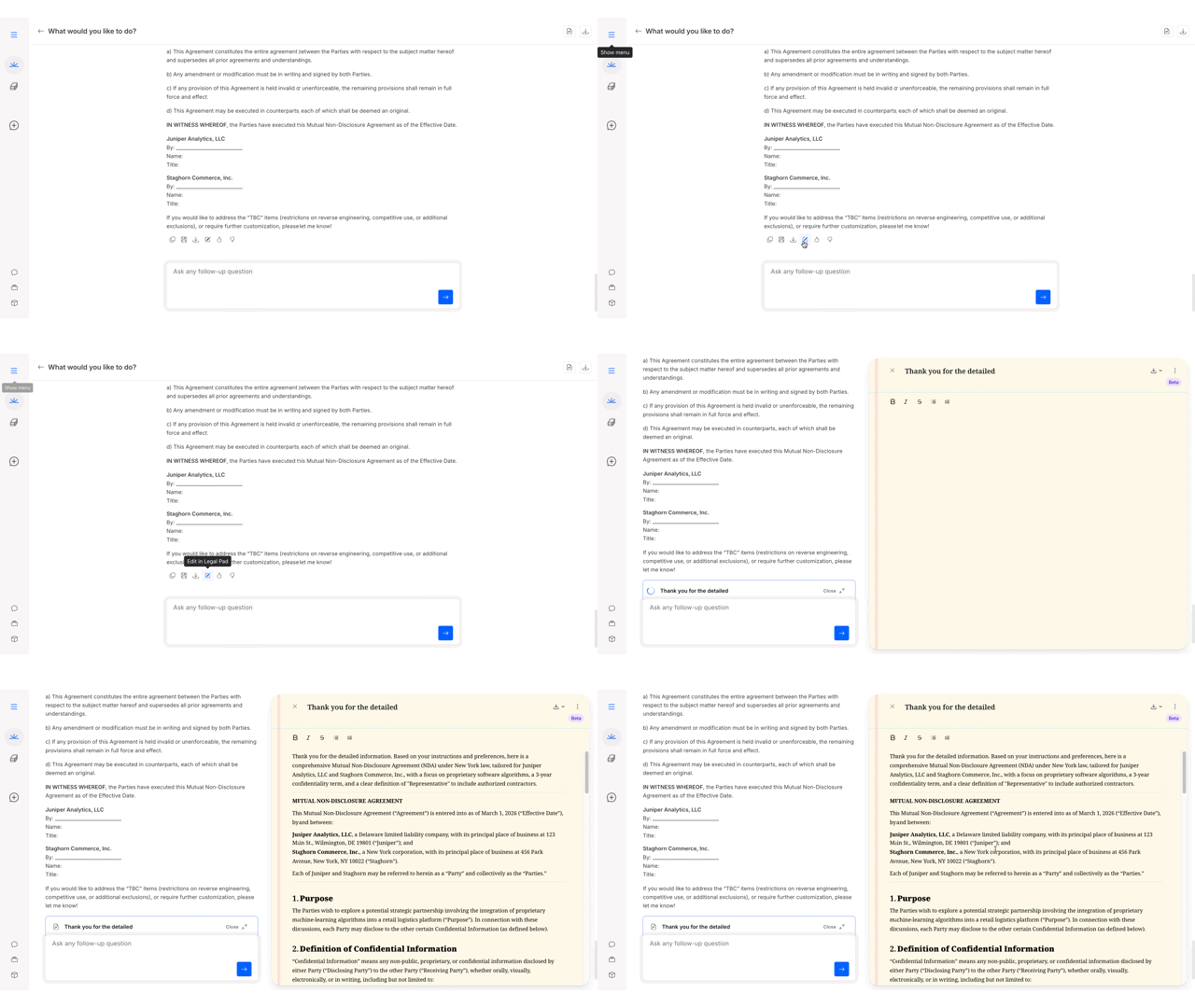
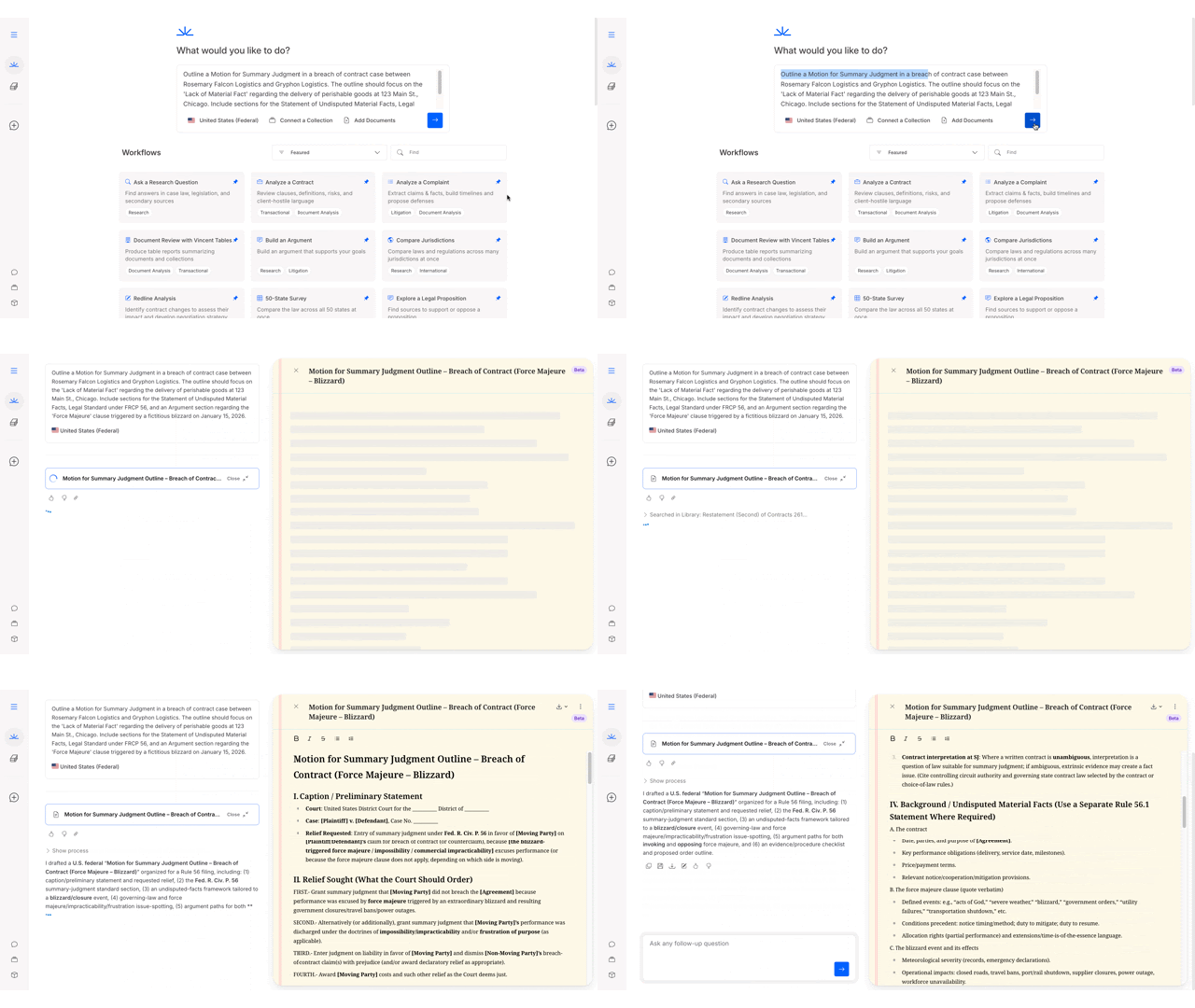
  1. Automatic Detection: If you ask Vincent to "draft," "outline," "sketch," or "write" a document, Vincent will automatically open Legal Pad and begin writing the response there instead of in the chat window.

Simply ask Vincent to "write," "outline," or "draft". Vincent will automatically open Legal Pad and start building your document right where you need it.
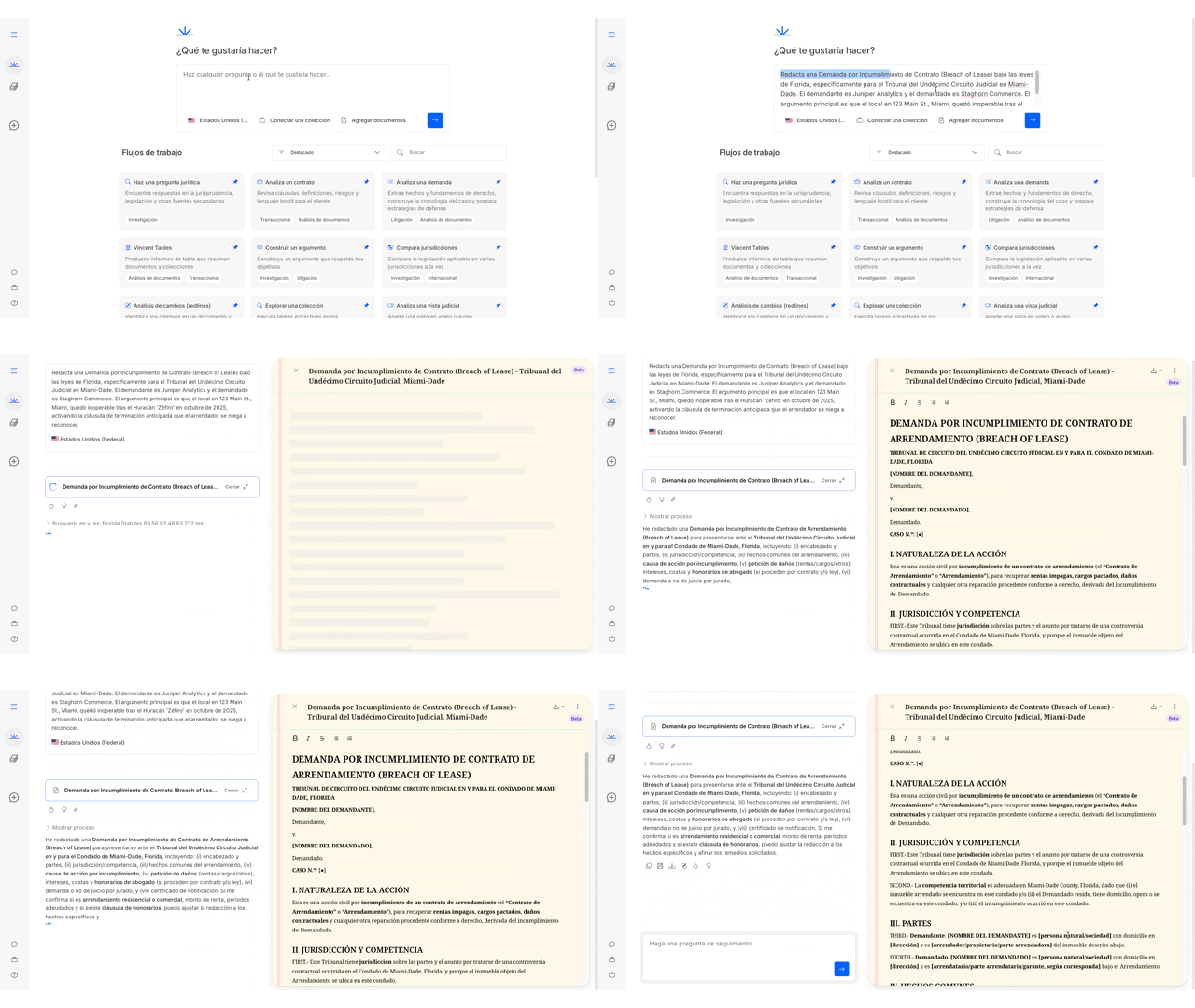
  1. Manual Selection: Beneath most Vincent chat responses, you will see an Edit in Legal Pad button. Clicking this moves that specific output into the drafting surface for further refinement.

Simply select the Edit in Legal Pad button beneath any Vincent response to move your output into a dedicated workspace.
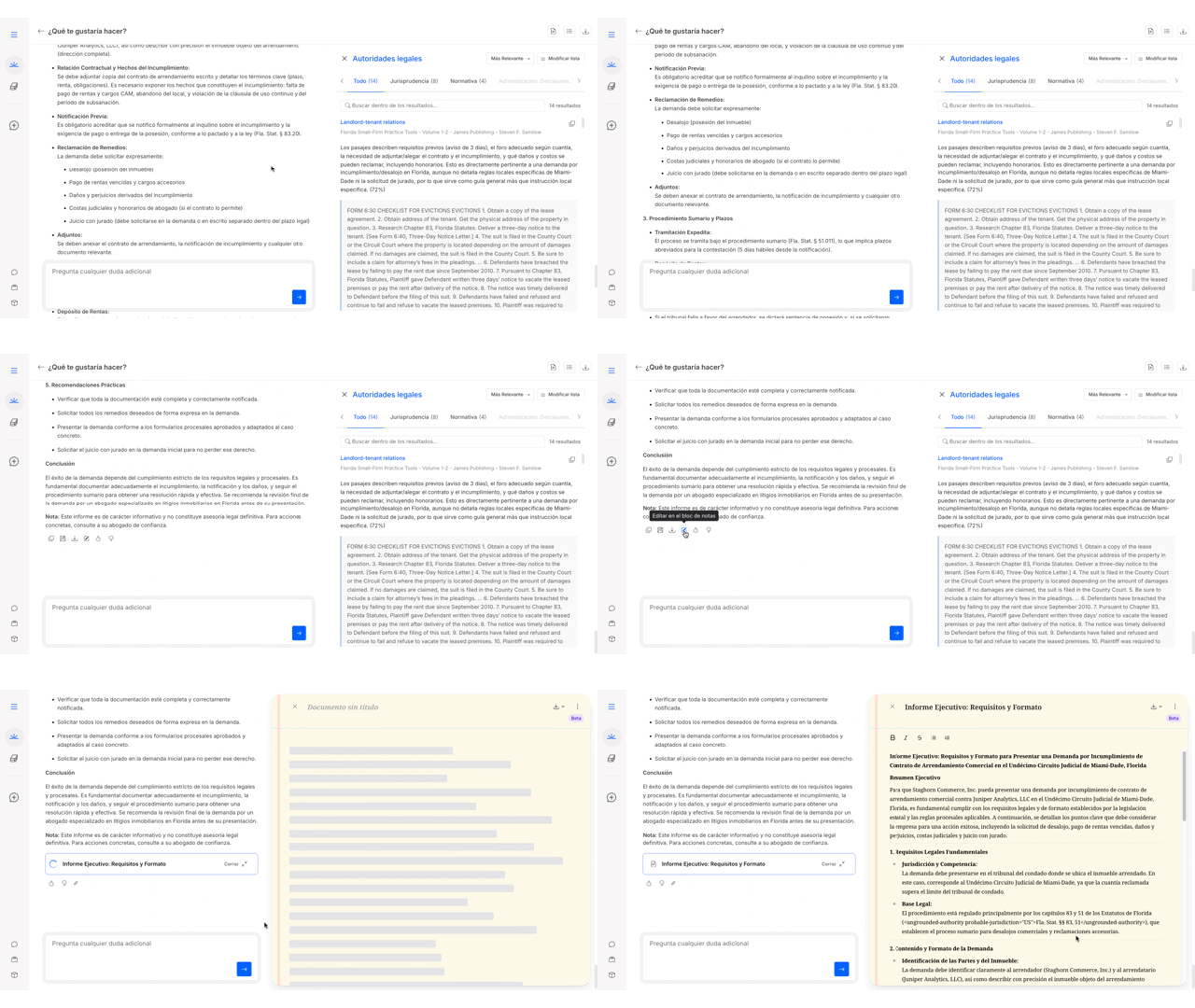
Editing and Refining Your Draft

Legal Pad allows you to collaborate with Vincent to refine your document using two methods:

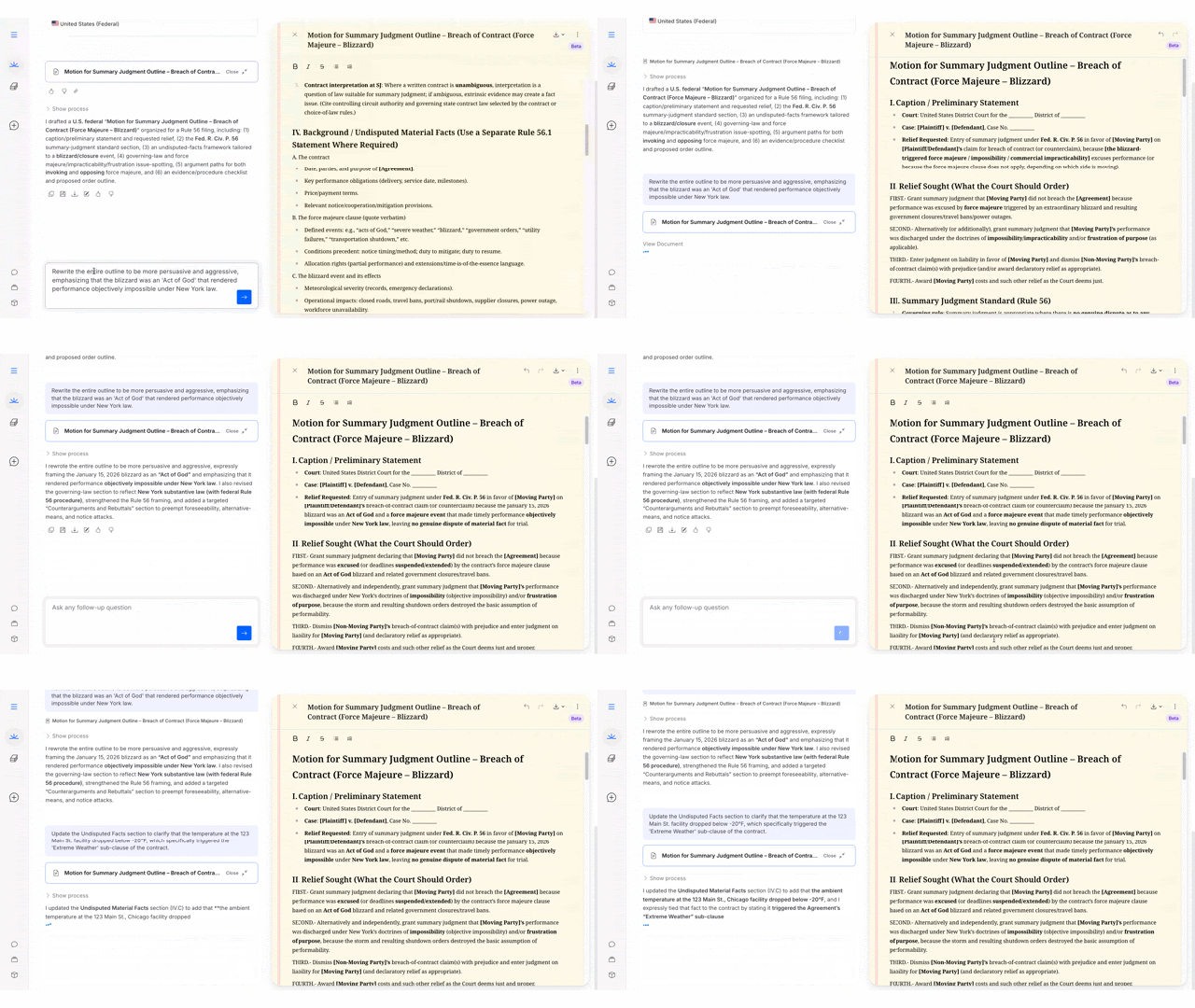
1. Conversational Edits (AI-Assisted)

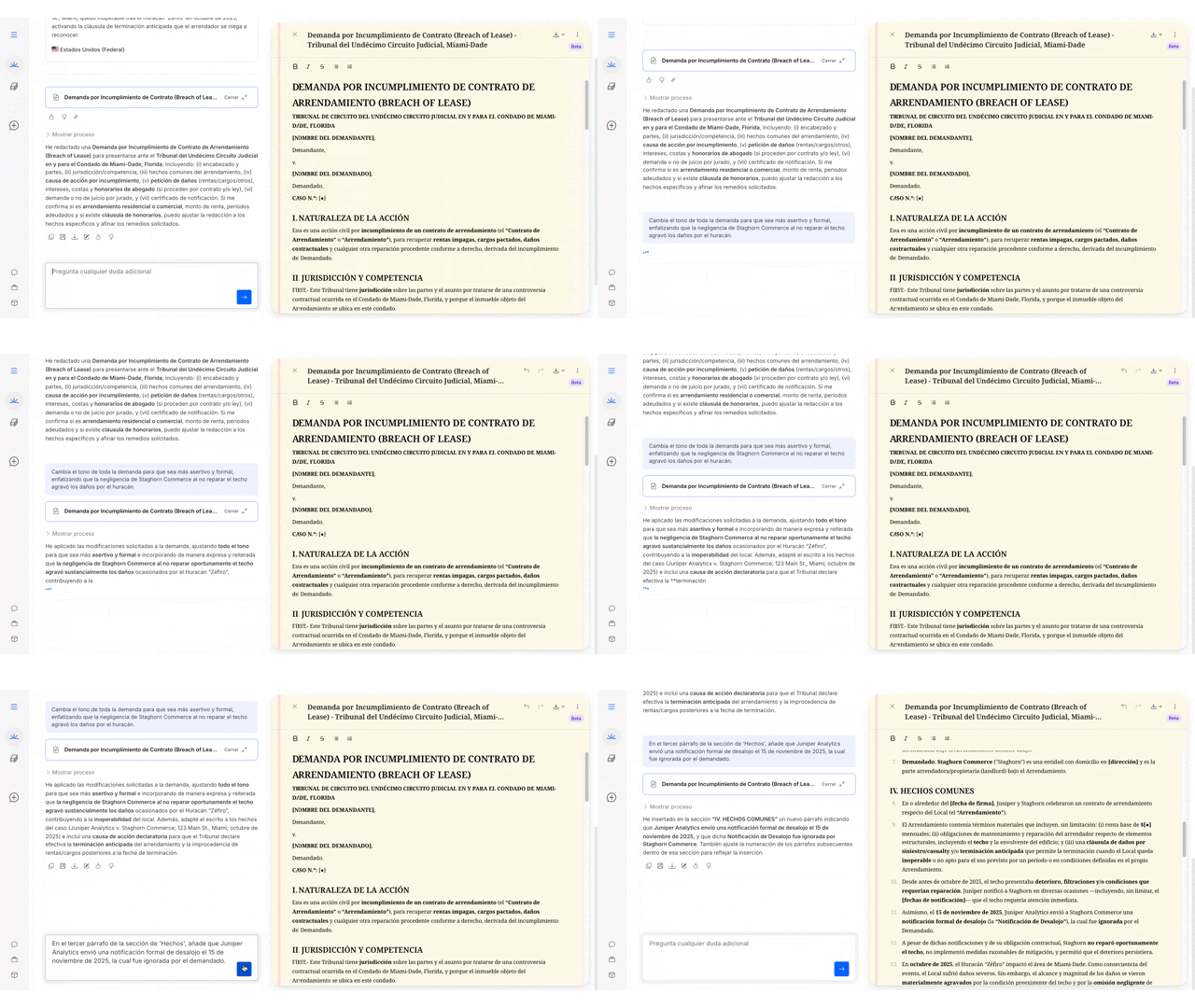
You can ask Vincent to make changes to the document through the chat.

  • Global Changes: Ask for broad adjustments like "Make the tone more persuasive" or "Shorten this document."

  • Targeted Changes: Be specific to preserve the rest of the text. For example: "Revise the third paragraph to include the argument about the statute of limitations."

Ask Vincent for broad tonal shifts or target specific paragraphs to update your draft without changing the rest of your text.
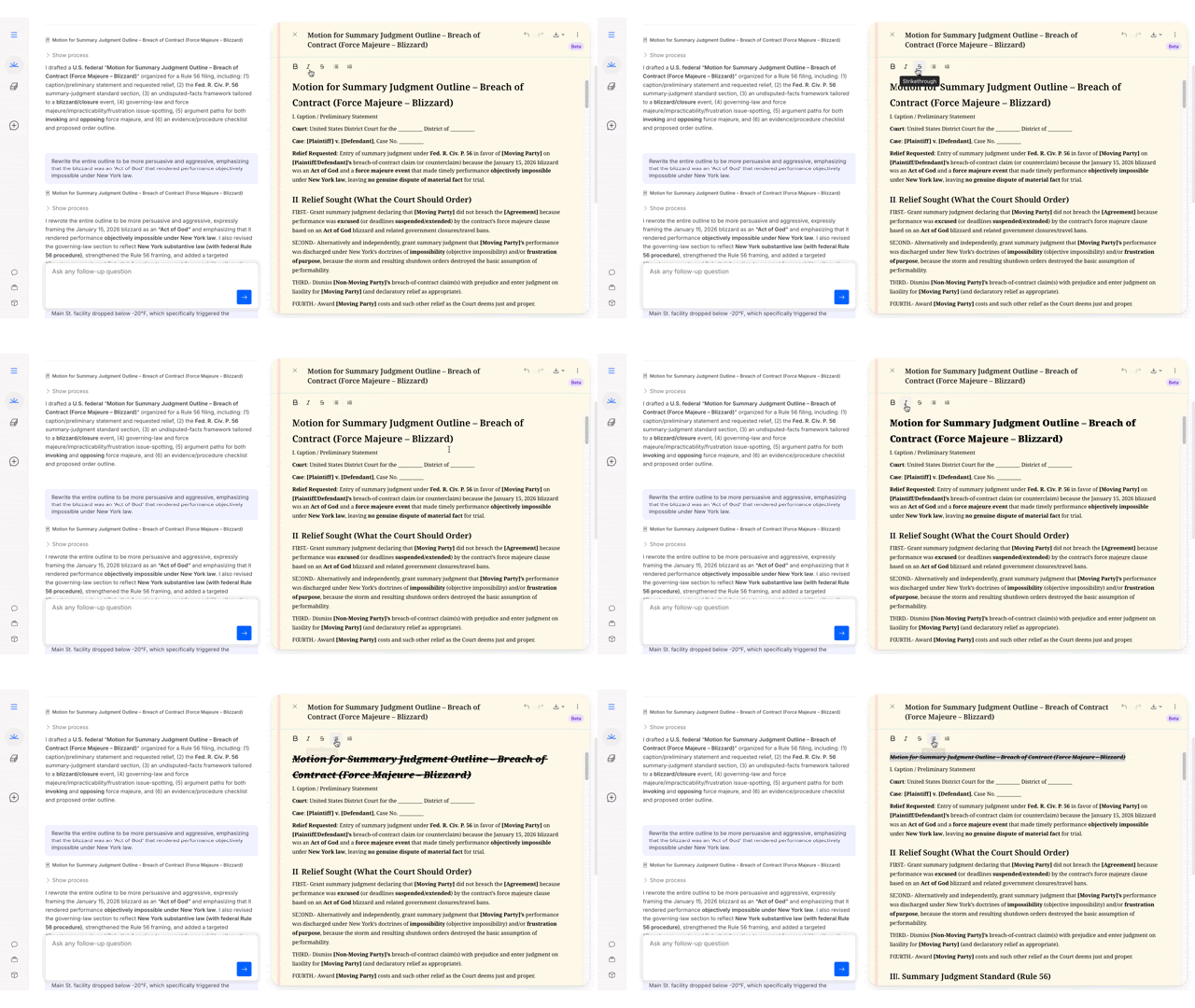
2. Manual Edits

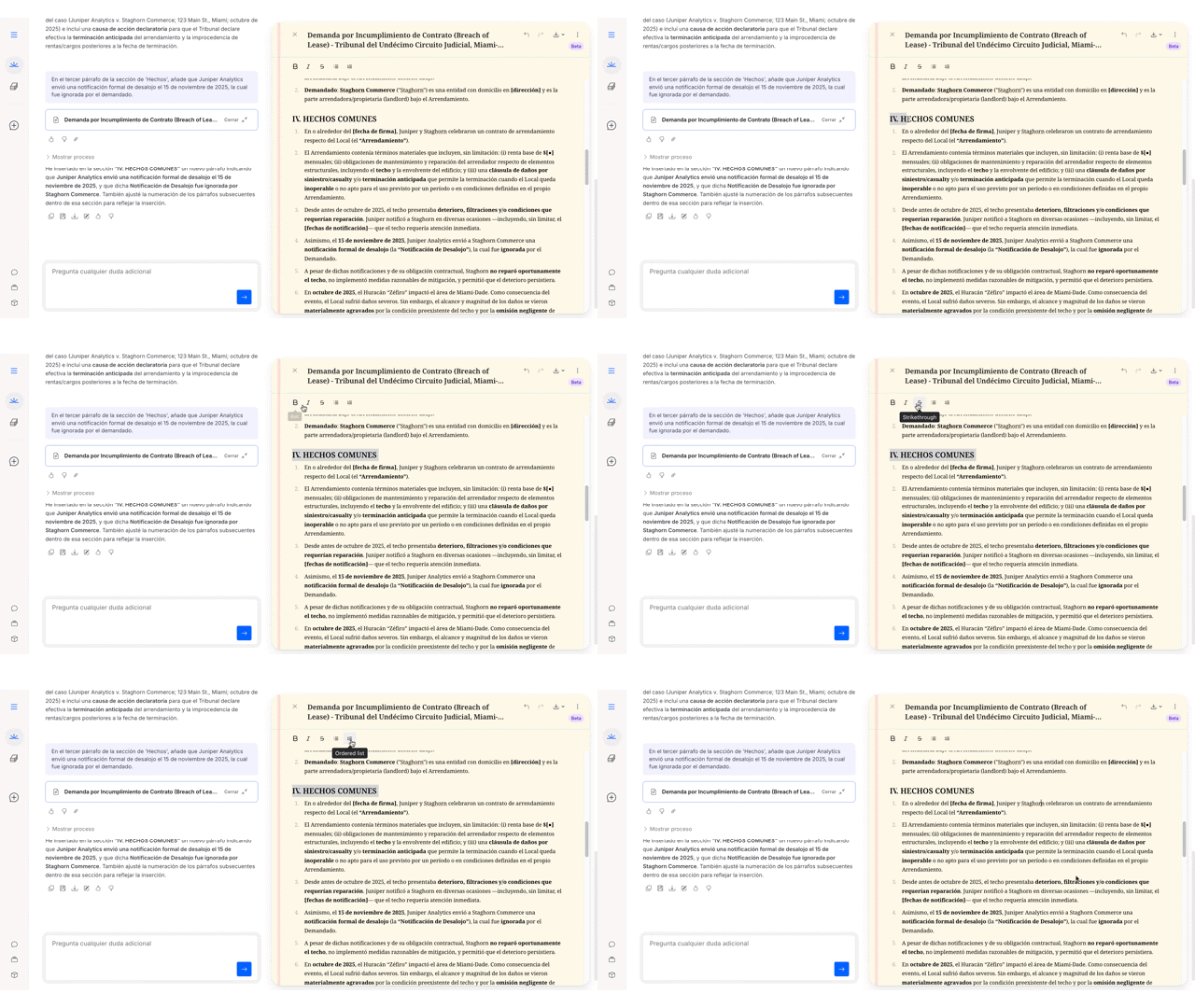
You can click directly into the Legal Pad to type, delete, or rearrange text just as you would in a notepad. Legal Pad supports Markdown formatting, allowing you to use:

  • Bold and Italics

  • Headings and Lists (Bulleted or Numbered)

  • Simple tables

Click anywhere to type, edit, or rearrange text manually. Use Markdown to add bolding, headings, and tables for a structured, professional draft.
Managing Versions

Drafting is an iterative process. Legal Pad tracks your history to ensure you never lose a good idea.

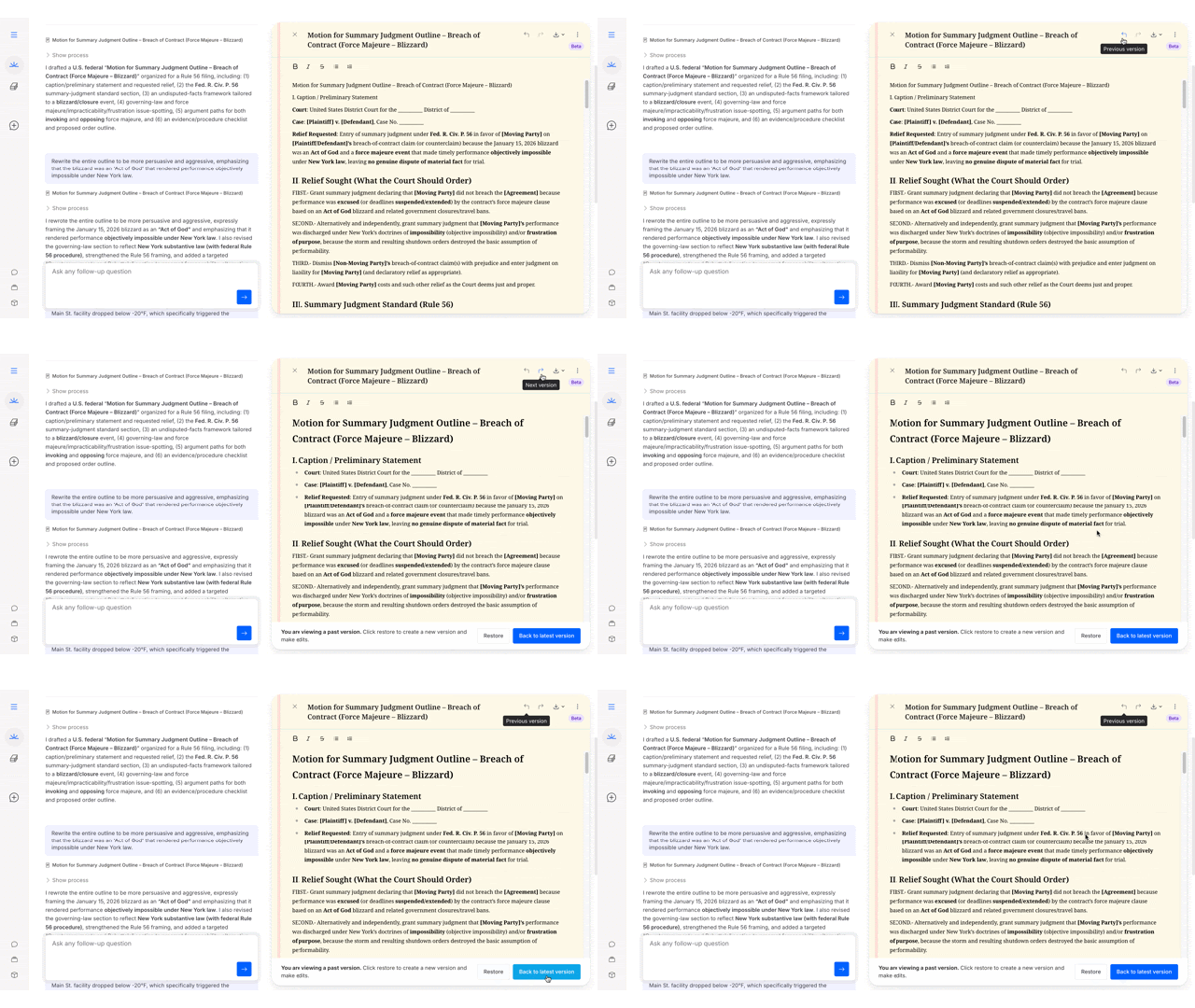
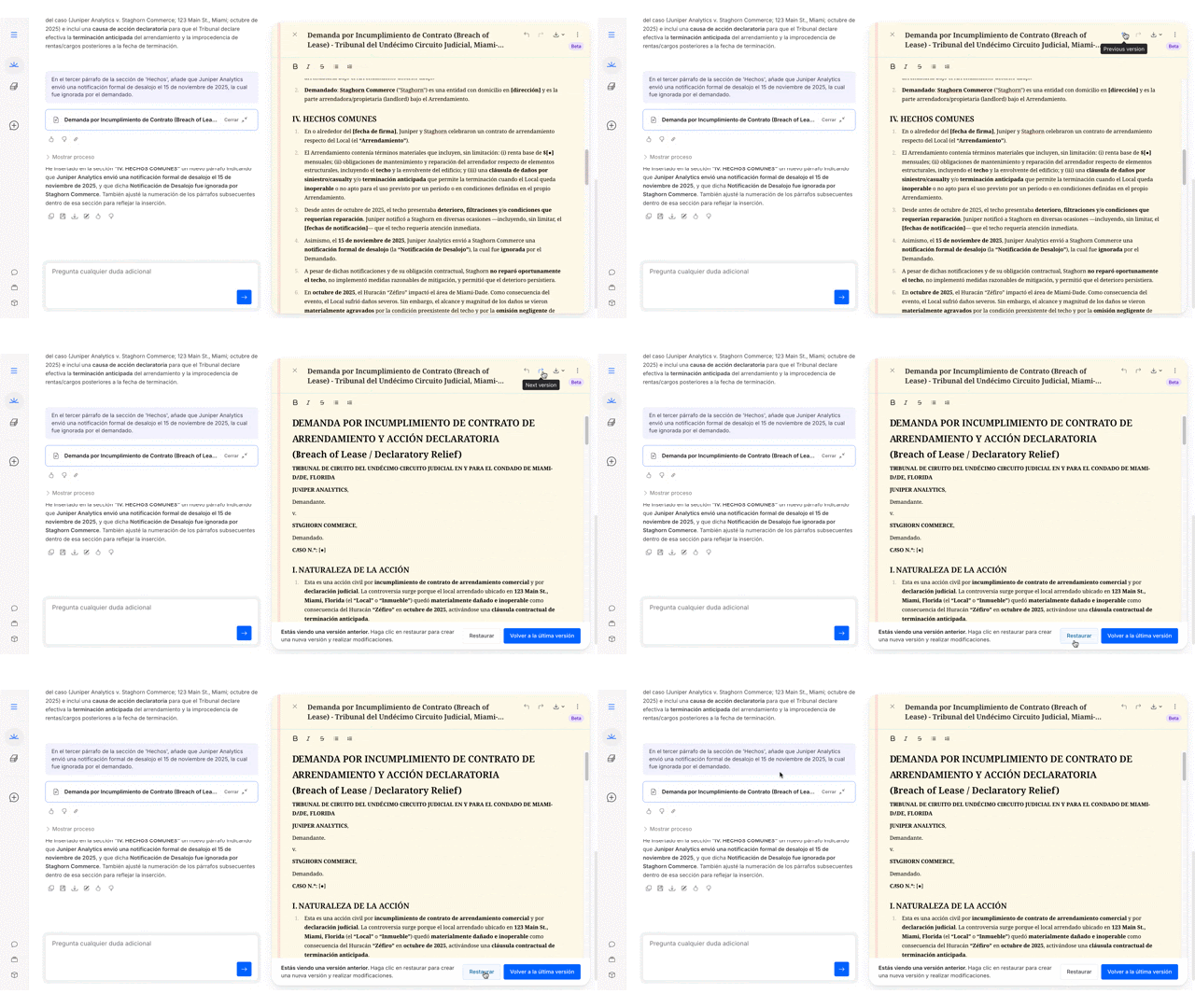
  • New Versions: A new version is created every time Vincent applies a change.

  • Undo/Redo: Use the arrows at the top of the pad to navigate between versions.

  • Restore: If you prefer an older version, you can select Restore to revert the document to that state.

Legal Pad automatically tracks every change, letting you undo, redo, or restore previous versions so you never lose a great idea.
Exporting Your Work

Legal Pad is designed to get you to a "first draft" quickly. When you are ready for final formatting, styling, and filing, you can export your work.

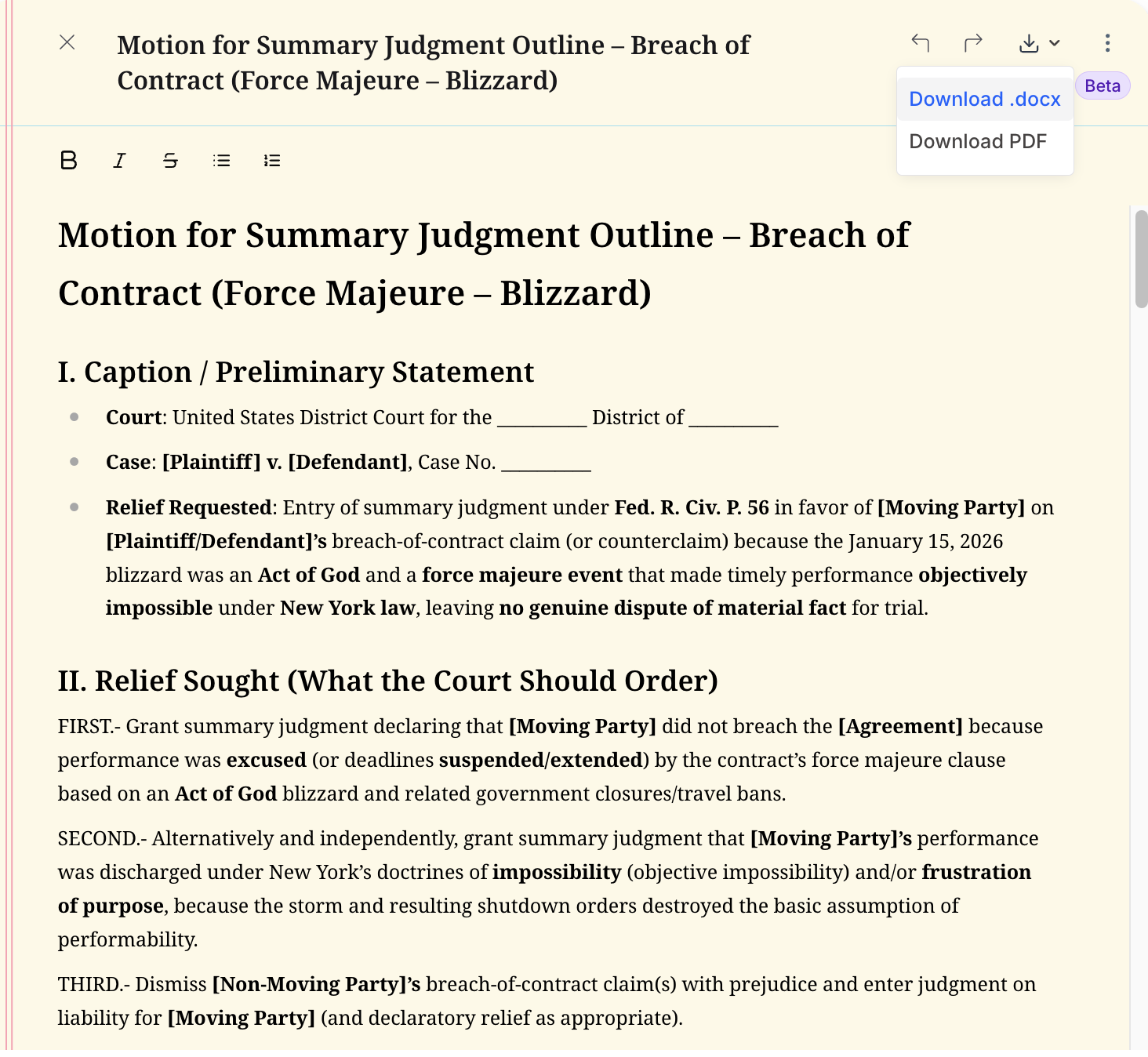
  • Click the Export menu (three dots) in the top right of the Legal Pad.

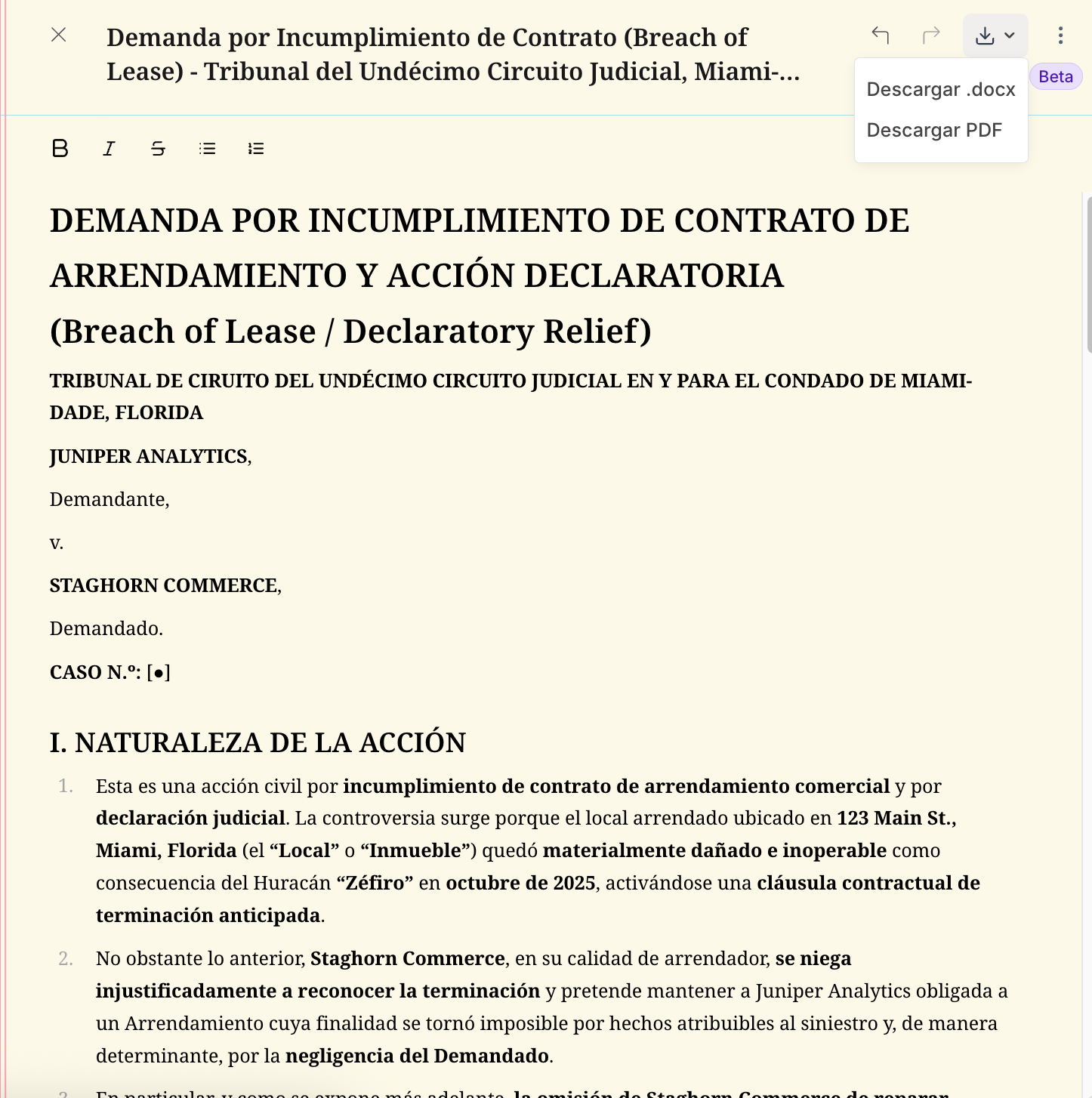
  • Download: Save as a .docx (Word) or .pdf file.

  • Copy: Copy the text to your clipboard to paste into an email or other tool.

circle-info

Note: Core formatting (headings, bolding) is preserved upon export, but you will need to apply your firm's specific templates and styles in your word processor.

Export your work as a .docx or PDF, or simply copy it to your clipboard. Legal Pad preserves your formatting so you can move seamlessly to Word or email.
Best Practices & Pro Tips

  • Use it for "Bones," not "Polish": Legal Pad excels at outlines, strategy memos, client emails, and rough drafts of motions. Do not use it for highly complex formatting like tables of authorities or court-ready filings; save that for Microsoft Word.

  • Verify Your Citations: While Legal Pad may include links to authorities from the vLex library, it is a drafting tool, not a deep research tool. Always verify citations independently before finalizing your document.

What's Your Next Step?

Last updated

Was this helpful?