> For the complete documentation index, see [llms.txt](https://support.vlex.com/llms.txt). Markdown versions of documentation pages are available by appending `.md` to page URLs; this page is available as [Markdown](https://support.vlex.com/vincent-by-vlex/vincent/review-playbooks/running-a-review-playbook.md).

# Running a Review Playbook

Run a Review Playbook against a contract, read the graded findings with Vincent's reasoning, and apply the redlines you want as tracked changes.

#### Summary

A Review Playbook grades a contract term by term against the positions your organization has defined. Vincent sorts its findings into Unacceptable, Acceptable and Preferred, explains the reasoning behind every grade, and proposes redlines for the terms that fall short. Run it in the Vincent [add-in for Microsoft Word](/vincent-by-vlex/vincent/getting-started-with-vincent/get-started-with-vincent-in-microsoft-word.md), to have those redlines applied to your document as tracked changes.

#### Why This is Important

A contract review usually produces a list of problems and leaves the drafting to you. Running a Review Playbook produces something closer to finished work: the grade, the reasoning behind it, and the redline, in the document where you were going to do the work anyway.

Two things matter about how it is designed. Vincent shows its reasoning for every grade, so you can disagree with the assessment before accepting any edit. And every proposed change stays a proposal until you apply it, and arrives as a tracked change you can still reject. That is what makes the output reviewable rather than something to be trusted blindly.

#### Before You Begin

* **Open the document in Word.** Vincent runs the Review against the active document.
* **Know which Review you need.** If your firm has Reviews for both sides of a document type, confirm which side you act for on this matter.
* **Set the add-in to Tracked Changes.** Vincent implements revisions as Word-native redlines you can accept or reject individually. See [Get Started with Vincent in Microsoft Word](/vincent-by-vlex/vincent/getting-started-with-vincent/get-started-with-vincent-in-microsoft-word.md).

{% hint style="info" %}
**Two places to run a playbook.** In the web app, a playbook run returns the analysis: the graded terms, the counts and Vincent's reasoning. It does not edit your document. To have the proposed changes applied to your document as tracked redlines, run the playbook in the Clio for Word add-in.
{% endhint %}

**Step 1: Ask for the Review**

Natural language is the only way to launch a review today. There is no button and no slash command.

**Your request has to ask for both a review and a playbook.** The two words do not need to be adjacent or in any particular order, and naming one of your saved playbooks also counts. A request that asks only for a review gets an ordinary review instead, "review" means a dozen things in a legal context, and triggering on that word alone produced too many false positives.

| Runs the playbook                                      | Gives an ordinary review instead                       |
| ------------------------------------------------------ | ------------------------------------------------------ |
| Run our review playbook against this contract.         | Review this contract and tell me what I should change. |
| Review this against my playbook for NDAs.              | Analyze this document.                                 |
| Run our NDA playbook over this and tell me what's off. | Check this agreement and flag anything unusual.        |
| Playbook review of this contract.                      | Mark this up.                                          |

**Step 2: Confirm Which Playbook Vincent Picked**

* If you named a playbook, Vincent uses that one.
* Otherwise it infers the contract type from the document and picks the best match, announcing the choice in one short line.
* If several could fit, it asks one short question listing the available playbooks. Where two cover the same agreement type, it prefers the one whose represented party matches the side you are acting for.
* If your firm has no playbook that fits, Vincent says so in one line and answers as an ordinary review. It will not invent positions or send you off to build one first.

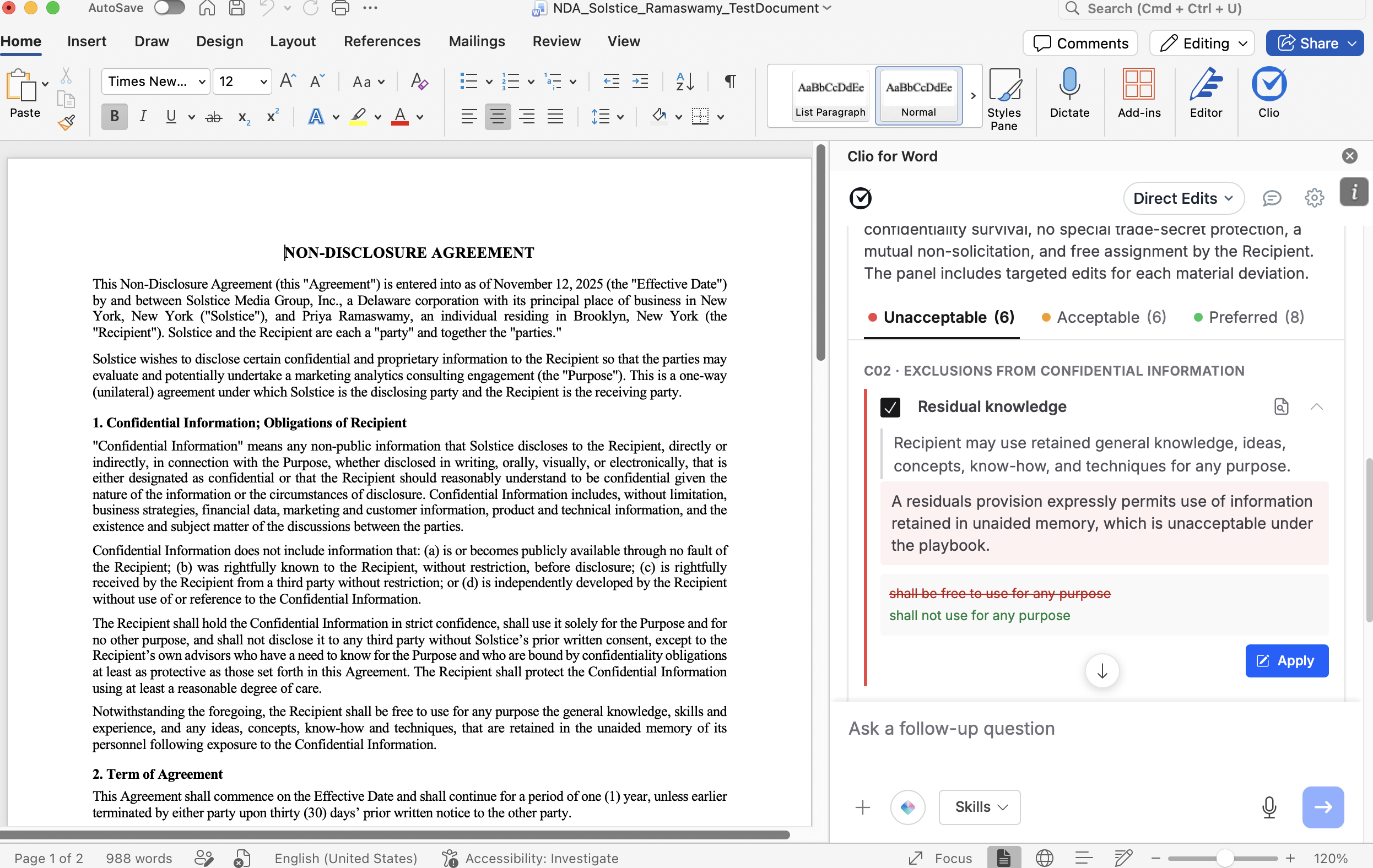
**Step 3: Read the Results Panel**

**The header** carries the playbook name, a count such as "28 terms analyzed", "Reviewing for:" followed by the represented party, worth a glance to confirm you ran the right side, and a short written summary from Vincent.

**The three tabs** render worst-first as Unacceptable, Acceptable and Preferred, each with a count in brackets. The panel opens on the worst tab that has anything in it. Within a tab, findings are grouped by clause under a heading such as "C07 · Term and Survival".

| Tab              | What to do with it                                                                                |
| ---------------- | ------------------------------------------------------------------------------------------------- |
| **Unacceptable** | Usually the main focus. These are the terms that fall below what you will accept.                 |
| **Acceptable**   | Often the interesting ones: the terms worth weighing rather than the terms worth fighting.        |
| **Preferred**    | Normally no action needed. Useful as confirmation, and for jumping to the clause in the document. |

<figure><img src="https://1556743161-files.gitbook.io/~/files/v0/b/gitbook-x-prod.appspot.com/o/spaces%2F-MS8Dq_iqEIflAmbaOkI-887967055%2Fuploads%2F3tGyHTjjrH6NcxrE3s8f%2FScreenshot%202026-09-21%20at%204.04.21%E2%80%AFPM.png?alt=media&amp;token=c46ca233-2dd5-4452-8d31-a7e983408d2c" alt=""><figcaption><p>Results arrive grouped by position, with the party the Review favors named at the top of the panel.</p></figcaption></figure>

**Working through a finding.** Click the term name or the chevron to expand it. You get Vincent's reasoning for the grade and, where it proposes a change, the redline shown as a two-line before and after. Click the locate icon to scroll to and select that clause in the document. Preferred findings carry no redline, so they have no Apply action.

<figure><img src="https://1556743161-files.gitbook.io/~/files/v0/b/gitbook-x-prod.appspot.com/o/spaces%2F-MS8Dq_iqEIflAmbaOkI-887967055%2Fuploads%2FRffhjNyrOLh3JEJzBFHE%2FScreenshot%202026-09-21%20at%204.05.39%E2%80%AFPM.png?alt=media&amp;token=517a3790-fc33-4e01-94b8-901d09144e81" alt=""><figcaption><p>Every match comes with Vincent's reasoning, so you can disagree with the assessment before you act on it.</p></figcaption></figure>

**Step 4: Apply Tracked Changes**

When a review completes, every finding that can be applied is **pre-selected**, so the default is to apply everything. Narrow it with the per-row checkboxes or the Select all control in the footer. The footer shows how many are selected and carries the primary button, **Apply tracked changes**. You can also apply a single finding from the Apply button inside its expanded row.

<figure><img src="https://1556743161-files.gitbook.io/~/files/v0/b/gitbook-x-prod.appspot.com/o/spaces%2F-MS8Dq_iqEIflAmbaOkI-887967055%2Fuploads%2Fb9GffcmUIwdKtpaNLhv0%2FSelected%20positions%20come%20back%20as%20Word-native%20tracked%20changes%2C%20ready%20to%20accept%2C%20reject%2C%20or%20edit%20further..gif?alt=media&amp;token=4edbafd7-6f71-4e80-925f-0750dce66ba9" alt=""><figcaption><p>Selected positions come back as Word-native tracked changes, ready to accept, reject, or edit further.</p></figcaption></figure>

{% hint style="info" %}
**How tracked changes are handled.** Vincent turns change tracking on for the batch, applies the redlines, then restores whatever tracking setting you had before. The changes stay in the document as tracked changes for you to accept or reject normally. One bad redline will not block the rest, each is attempted independently and reported back individually.
{% endhint %}

#### Best Practices & Pro Tips

* **Work the Acceptable group before the Unacceptable one.** Unacceptable terms are the obvious redlines and they will still be there in five minutes. The Acceptable group is where the judgment lives: those are the terms you could live with but might trade, and deciding which to raise is the part of the review a junior lawyer cannot do alone. Deal with them while your attention is fresh.
* **Treat a surprising result as a finding about your Review, not just about the document.** If a term you consider standard comes back Unacceptable, the threshold in your Review is probably too tight. Note it and refine the Review in the web app afterward, so the correction carries to every future document instead of being re-decided each time.

### Related Articles

* [Document Review with Vincent Tables](/vincent-by-vlex/vincent/core-workflows/tabular-review.md)
* [Accessing Training, Videos, and Webinars](/vincent-by-vlex/vincent/training-and-resources-hub/accessing-training-videos-and-webinars.md)

**What's Your Next Step?**

| **New to Vincent?**                                                                                                                                                                                        | **Already a Vincent Customer?**                                                                                                                            |
| ---------------------------------------------------------------------------------------------------------------------------------------------------------------------------------------------------------- | ---------------------------------------------------------------------------------------------------------------------------------------------------------- |
| [See how Vincent can transform your practice. **Request a personalized demo**.](https://vlex.com/book-a-demo?utm_source=website\&utm_medium=organic\&utm_campaign=web_trial_homepage\&campaign_id=4270741) | [If you still have questions or need help with a specific feature, our team is here to assist. **Contact our Support team**.](https://vlex.com/contact-us) |