> For the complete documentation index, see [llms.txt](https://support.vlex.com/llms.txt). Markdown versions of documentation pages are available by appending `.md` to page URLs; this page is available as [Markdown](https://support.vlex.com/vincent-by-vlex/vincent/using-the-vincent-mobile-app/getting-started-with-the-vincent-mobile-app.md).
# Getting Started with the Vincent Mobile App
Learn how to install and use the Vincent mobile app. Discover how to access our legal AI on iOS and Android to research and analyze documents on the go.
### Summary
Learn how to install and use the **Vincent mobile app**. This guide explains how to access our **legal AI app** so you can conduct research, analyze documents, and draft content with **Vincent on the go**.
### Why This is Important
Legal work doesn't stop when you leave your desk. Whether you are in court, traveling, or between meetings, the Vincent mobile app ensures you always have your intelligent legal assistant with you. It provides a mobile-optimized experience for fast, secure access to Vincent's core capabilities wherever you are.
### Step-by-Step Guide
#### Step 1: Install the Application
The Vincent mobile app is available for both iOS and Android devices.
1. Open the **Apple App Store** or **Google Play Store** on your mobile device.
2. Search for **"Vincent"** or **"vLex Vincent"**.
3. Download and install the application.
#### Step 2: Log In
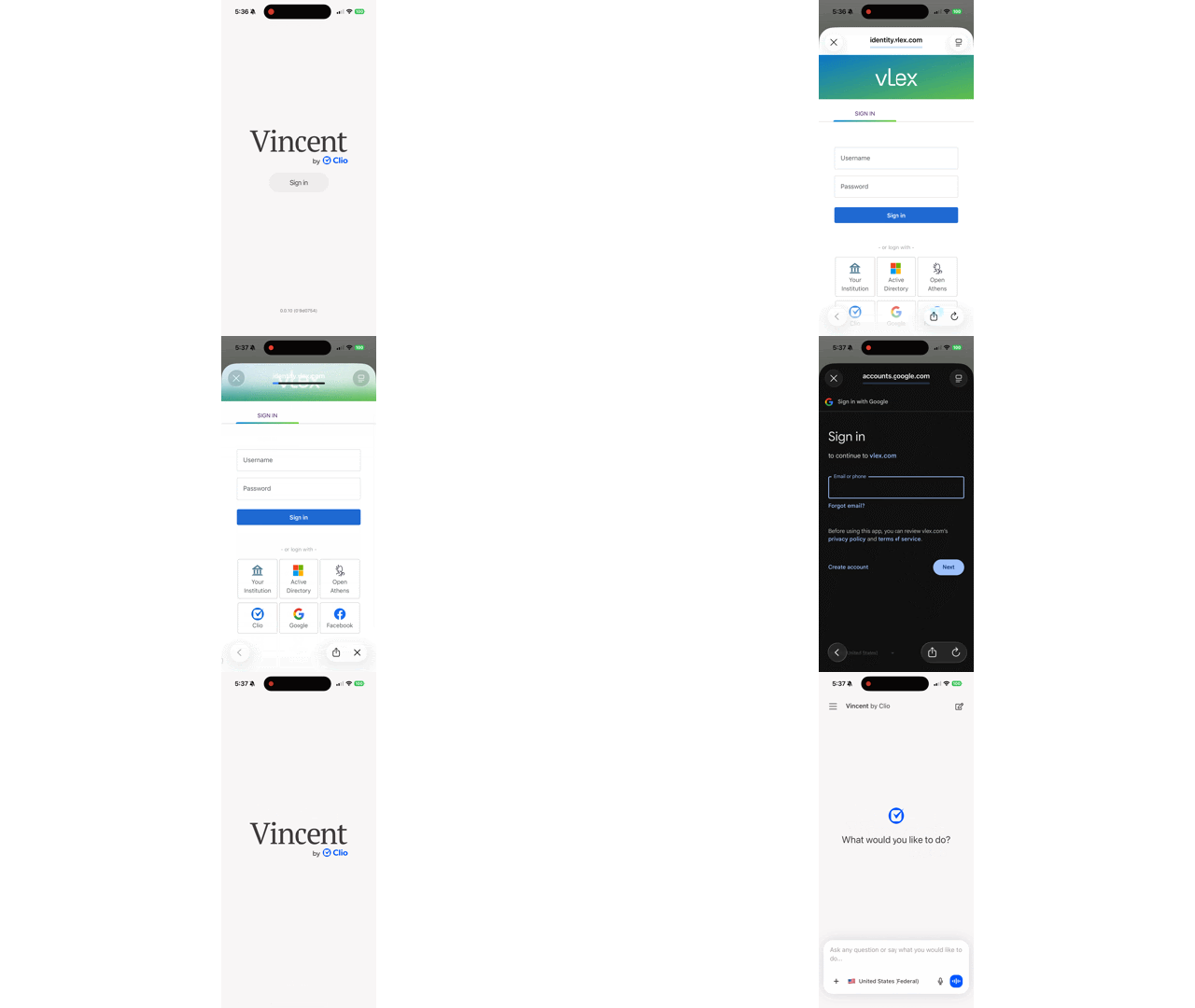
1. Open the Vincent app.
2. Tap **Sign in**.
3. *(If prompted)* Allow the necessary permissions for the app to function correctly.
4. Enter the email address and password associated with your **vLex account**, or select your preferred authentication method.
5. Tap **Sign in**.
Sign in securely using your existing vLex credentials.
#### Step 3: Navigating the Mobile Interface
The mobile interface is built for agility. Here is how to find your way around:
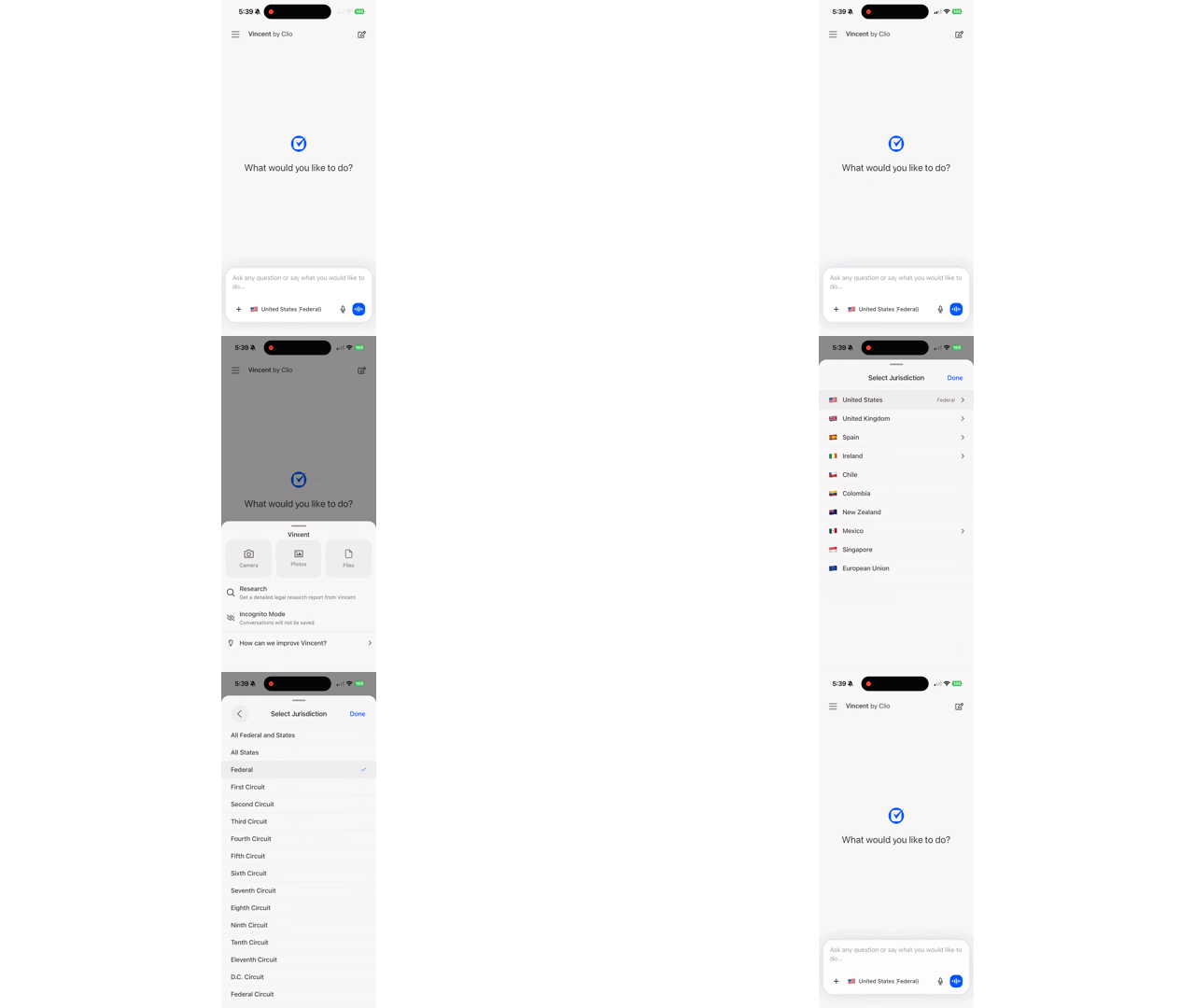
* **Start a New Conversation:** From your home screen, tap the **create icon** (a page and pencil) in the top right corner. This opens the prompt text box where you can type your request.
* **Access Previous Conversations:** Tap the **hamburger menu** (three horizontal lines) in the top left corner. This opens a panel listing your past conversations, allowing you to pick up right where you left off. Each conversation in your history shows the same status indicator you see on desktop, so you can check whether a long-running analysis has finished from your phone. See Understanding Conversation Statuses.
* **Access the Actions Panel:** Tap the **`+` (plus) icon** next to the prompt box. This powerful menu allows you to:
* Access your camera to take a picture of a document for upload.
* Upload existing photos or files from your phone.
* Start an "Incognito" session (where the conversation is not saved to your history).
* **Change Jurisdiction:** Tap the jurisdiction listed above the text box to change it for your current query.
Navigate the main screen to start conversations, access your history, upload files, and change your jurisdiction.
{% hint style="info" %}
**Workflow Pro Tip:** On the mobile app, you won't see the grid of "Workflow" buttons like on the web version. Instead, simply **describe what you want to achieve** in the text box. For example, instead of clicking a "Build an Argument" button, type: *"Build an argument against a plaintiff who failed to mitigate damages in this breach of contract matter."* Vincent's agentic AI will automatically handle the rest.
{% endhint %}
### Related Articles
* [Analyzing a Contract](/vincent-by-vlex/vincent/core-workflows/analyze-a-contract.md)
* [Integrating Your Firm's Data with Vincent](/vincent-by-vlex/vincent/core-workflows/integrating-your-firms-data-with-vincent.md)
**What's Your Next Step?**
| **New to Vincent?** | **Already a Vincent Customer?** |
| ---------------------------------------------------------------------------------------------------------------------------------------------------------------------------------------------------------- | ---------------------------------------------------------------------------------------------------------------------------------------------------------- |
| [See how Vincent can transform your practice. **Request a personalized demo**.](https://vlex.com/book-a-demo?utm_source=website\&utm_medium=organic\&utm_campaign=web_trial_homepage\&campaign_id=4270741) | [If you still have questions or need help with a specific feature, our team is here to assist. **Contact our Support team**.](https://vlex.com/contact-us) |