# How to Upload and Analyze Your Own Documents

### Summary

Integrate your personal work with vLex Library by connecting your cloud storage and uploading **Your own documents**. This allows you to use vLex's powerful search and analysis tools, including Vincent, on your private files.

### Why This is Important

Uploading your own documents transforms vLex Library into a centralized knowledge hub. It allows you to run a single search across both our **global legal research platform** and your own work product, creating a seamless and powerful research workflow.

### How to Connect and Upload Your Documents

#### Option 1: From the Homepage

1. Locate the **vLex Cloud** card on your **Homepage** and click **Get started**.
2. Follow the on-screen instructions to select and connect your **Dropbox**, **Box**, **OneDrive**, or **Google Drive** account.

#### Option 2: From Your Account Settings

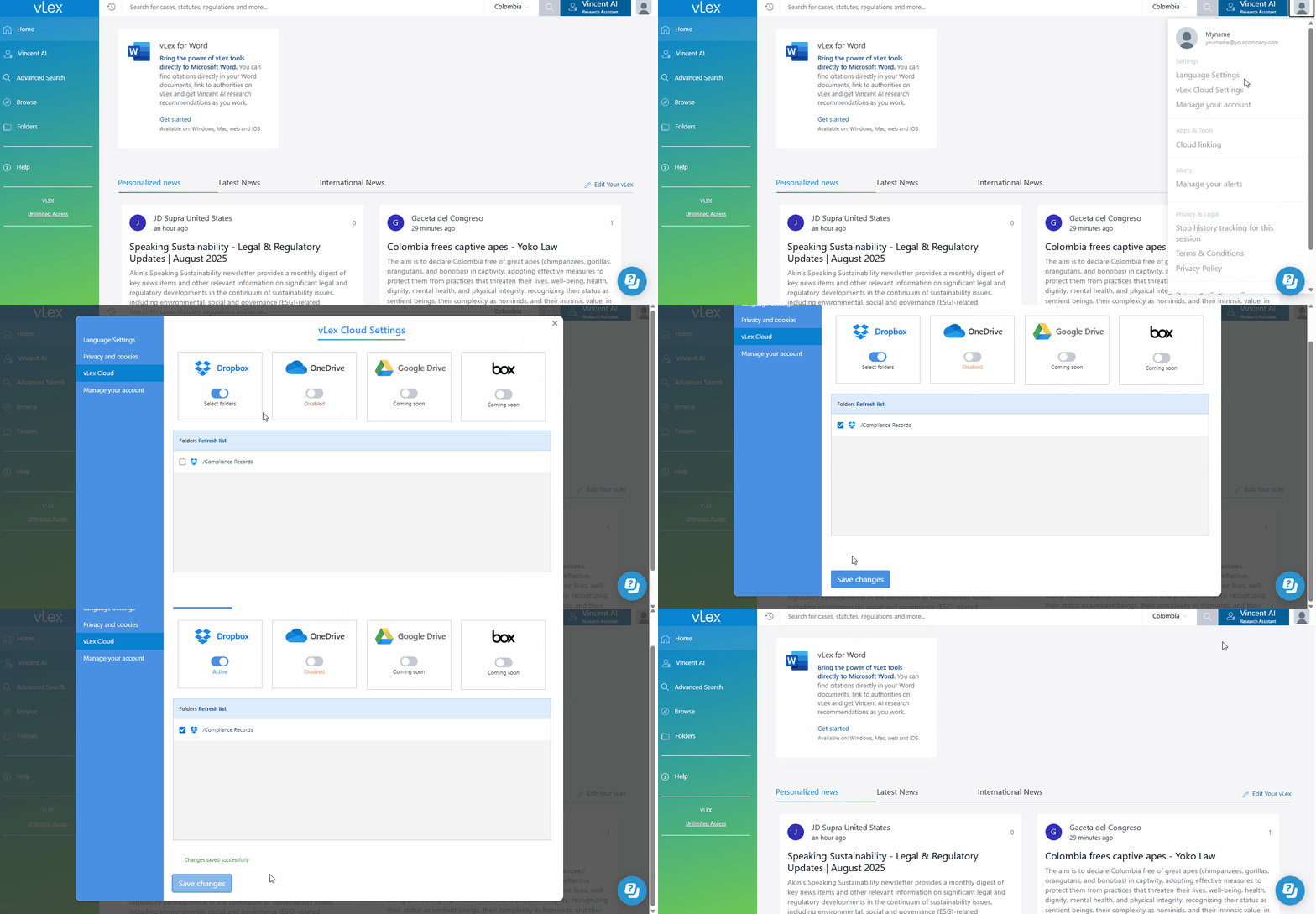
1. Click the **person icon** in the top-right corner of the screen.
2. Select **vLex Cloud settings** from the dropdown menu.
3. Click **Connect** next to your preferred cloud storage service and follow the prompts to authorize the connection.
4. Your documents will be securely synced to vLex Library.

{% tabs %}
{% tab title="English Interface" %}

<figure><img src="/files/bAk0dLSjoKLfUKVeY429" alt=""><figcaption><p>Connect your preferred storage service from Account Settings to keep all your documents securely synced with vLex Library.</p></figcaption></figure>
{% endtab %}

{% tab title="Interfaz en Español" %}

<figure><img src="/files/UZ31bxRzpHj9zpnHZC8Z" alt=""><figcaption><p>Conecta tu servicio de almacenamiento preferido desde Configuración de la cuenta para mantener todos tus documentos sincronizados de forma segura con vLex Library.</p></figcaption></figure>
{% endtab %}
{% endtabs %}

{% hint style="danger" %}
**Your Documents are Private:** The documents you upload are secure and private. Only you, and any users you explicitly authorize, can access the documents you sync via vLex Cloud.
{% endhint %}

### How to Search Your Documents

Once your documents are synced, you can search them just like any other content.

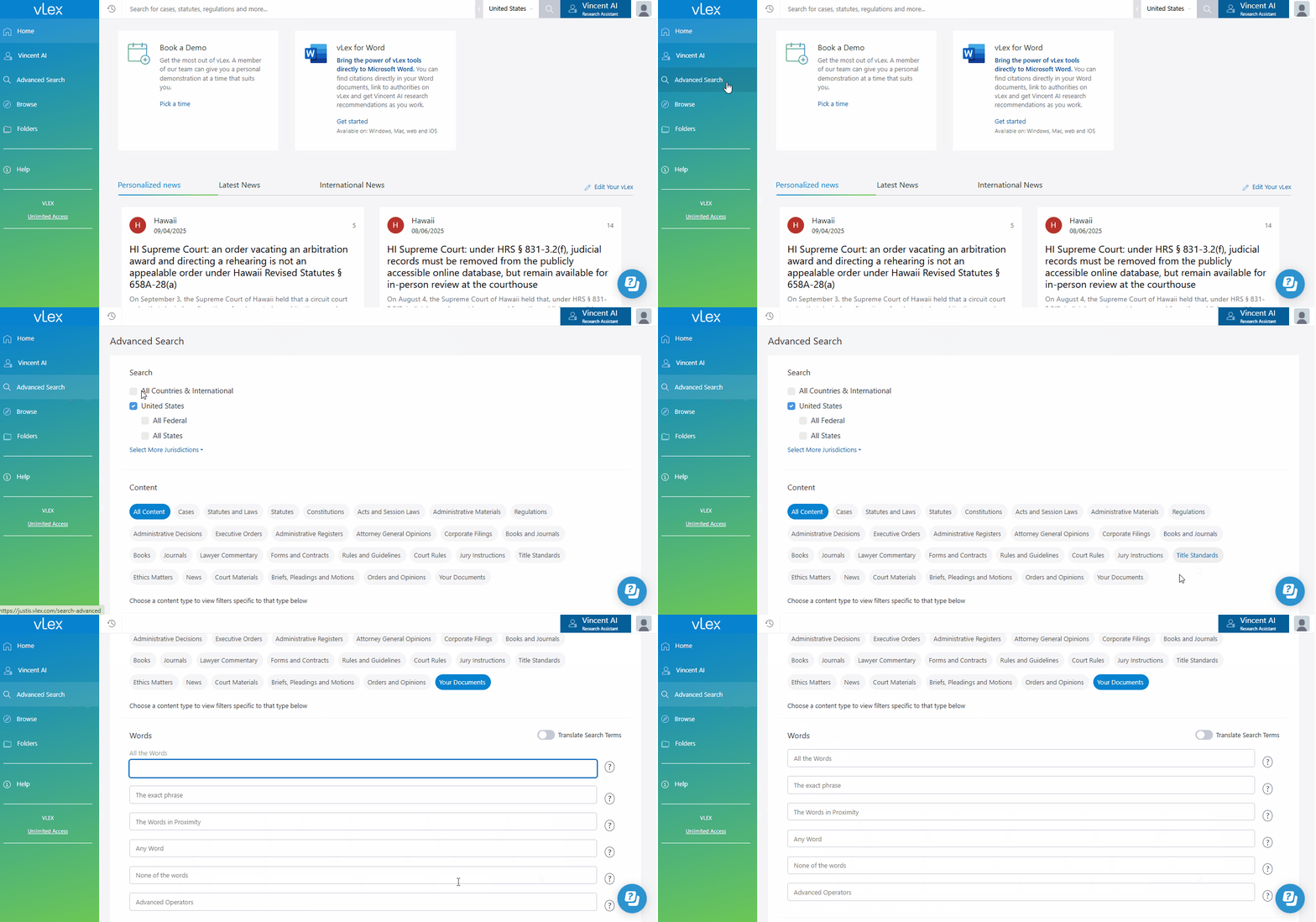
* **Advanced Search:** Select **Your own documents** from the list of content types to search exclusively within your files.
* **General Search:** After any search, your documents will appear as a filterable **Content type** on the left side of the results page. You can easily include or exclude them from your results.

{% tabs %}
{% tab title="English Interface" %}

<figure><img src="/files/xPAMMSFAE7zVHfXcCKJr" alt=""><figcaption><p>Easily include your personal documents in any search by using the content type filter.</p></figcaption></figure>
{% endtab %}

{% tab title="Interfaz en Español" %}

<figure><img src="/files/YhMMRogP8qsxd47E8Hhk" alt=""><figcaption></figcaption></figure>
{% endtab %}
{% endtabs %}

### Best Practices & Pro Tips

* **Analyze with Vincent:** Open one of your uploaded documents and use Vincent to [find related authorities](https://www.notion.so/Find-Related-Documents-25e055887c538087adbfeaae1a83e20b?pvs=21) from the vLex Library database that you may have missed.

### Related Articles

* [What is vLex Cloud?](/vlex-library/vlex-library-home/workflows-and-productivity-tools/what-is-vlex-cloud.md)
* [How to Create a New vLex Account](/vlex-library/vlex-library-home/account-and-admin-management/how-to-create-a-new-vlex-account.md)
* [How to Manage Your vLex Subscription](/vlex-library/vlex-library-home/account-and-admin-management/how-to-manage-your-vlex-subscription.md)

**What's Your Next Step?**

| **New to** vLex Library **?**                                                                                                                                                                                   | **Already a** vLex Library **Customer?**                                                                                                                   |
| --------------------------------------------------------------------------------------------------------------------------------------------------------------------------------------------------------------- | ---------------------------------------------------------------------------------------------------------------------------------------------------------- |
| [See how vLex Library can transform your practice. **Request a personalized demo**.](https://vlex.com/book-a-demo?utm_source=website\&utm_medium=organic\&utm_campaign=web_trial_homepage\&campaign_id=4270741) | [If you still have questions or need help with a specific feature, our team is here to assist. **Contact our Support team**.](https://vlex.com/contact-us) |


---

# Agent Instructions: Querying This Documentation

If you need additional information that is not directly available in this page, you can query the documentation dynamically by asking a question.

Perform an HTTP GET request on the current page URL with the `ask` query parameter:

```
GET https://support.vlex.com/vlex-library/vlex-library-home/content-and-document-types/how-to-upload-and-analyze-your-own-documents.md?ask=<question>
```

The question should be specific, self-contained, and written in natural language.
The response will contain a direct answer to the question and relevant excerpts and sources from the documentation.

Use this mechanism when the answer is not explicitly present in the current page, you need clarification or additional context, or you want to retrieve related documentation sections.