# How to Use Advanced Search for Precision Queries

### Summary

Use **Advanced Search** to construct complex queries with multiple filters, ensuring you find highly relevant results in your **vlex legal research**. This tool allows you to specify jurisdictions, content types, and precise word combinations.

### Why This is Important

Advanced Search moves beyond simple keyword searching, giving you the control to eliminate irrelevant results and pinpoint exact documents. This precision saves significant time and ensures your research is both comprehensive and accurate, which is critical for building a strong legal argument.

### How to Perform an Advanced Search

Follow these steps to build a precise query.

#### 1. Access Advanced Search

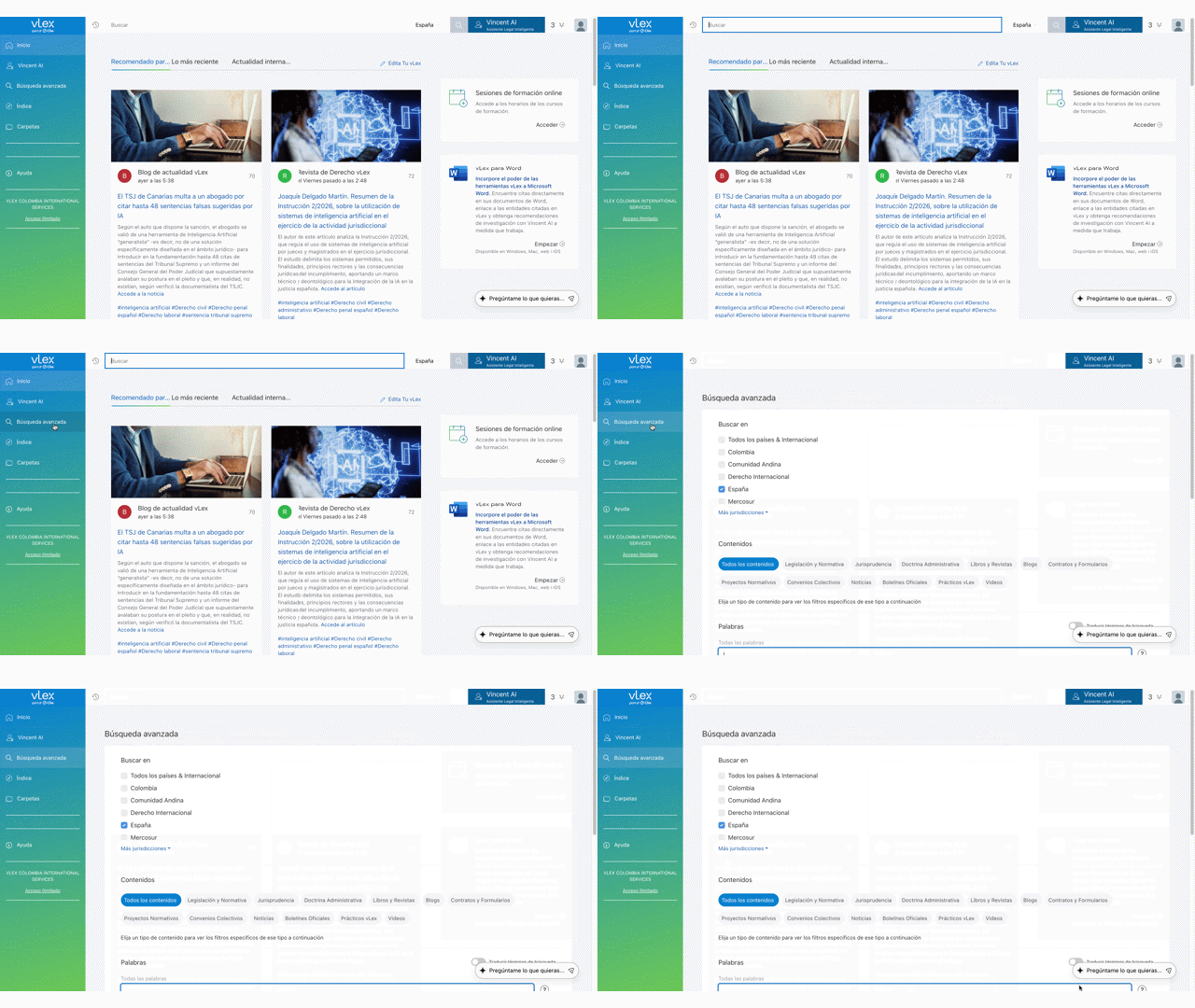
Select **Advanced Search** from the main menu on the left side of your screen. When the menu is minimized, look for the magnifying glass icon.

{% tabs %}
{% tab title="English Interface" %}

<figure><img src="https://1556743161-files.gitbook.io/~/files/v0/b/gitbook-x-prod.appspot.com/o/spaces%2F-MS8Dq_iqEIflAmbaOkI-887967055%2Fuploads%2FNLllcOfgbbRCJp4gEVRo%2FFind%20Advanced%20Search%20in%20the%20main%20navigation%20menu..gif?alt=media&#x26;token=32a23210-9000-4fa3-a4a1-49ab225376de" alt=""><figcaption><p><em>Find Advanced Search in the main navigation menu.</em></p></figcaption></figure>
{% endtab %}

{% tab title="Interfaz en Español" %}

<figure><img src="https://1556743161-files.gitbook.io/~/files/v0/b/gitbook-x-prod.appspot.com/o/spaces%2F-MS8Dq_iqEIflAmbaOkI-887967055%2Fuploads%2Fd1j4RwSa9AtaUAcQYWDK%2FEncuentre%20Bu%CC%81squeda%20Avanzada%20en%20el%20menu%CC%81%20de%20navegacio%CC%81n%20principal..gif?alt=media&#x26;token=c6c22546-06a9-429c-80e4-6dd34e388265" alt=""><figcaption><p>Encuentre Búsqueda Avanzada en el menú de navegación principal.</p></figcaption></figure>
{% endtab %}
{% endtabs %}

#### 2. Set Your Scope: Jurisdiction and Content

Before entering keywords, define where and what you want to search.

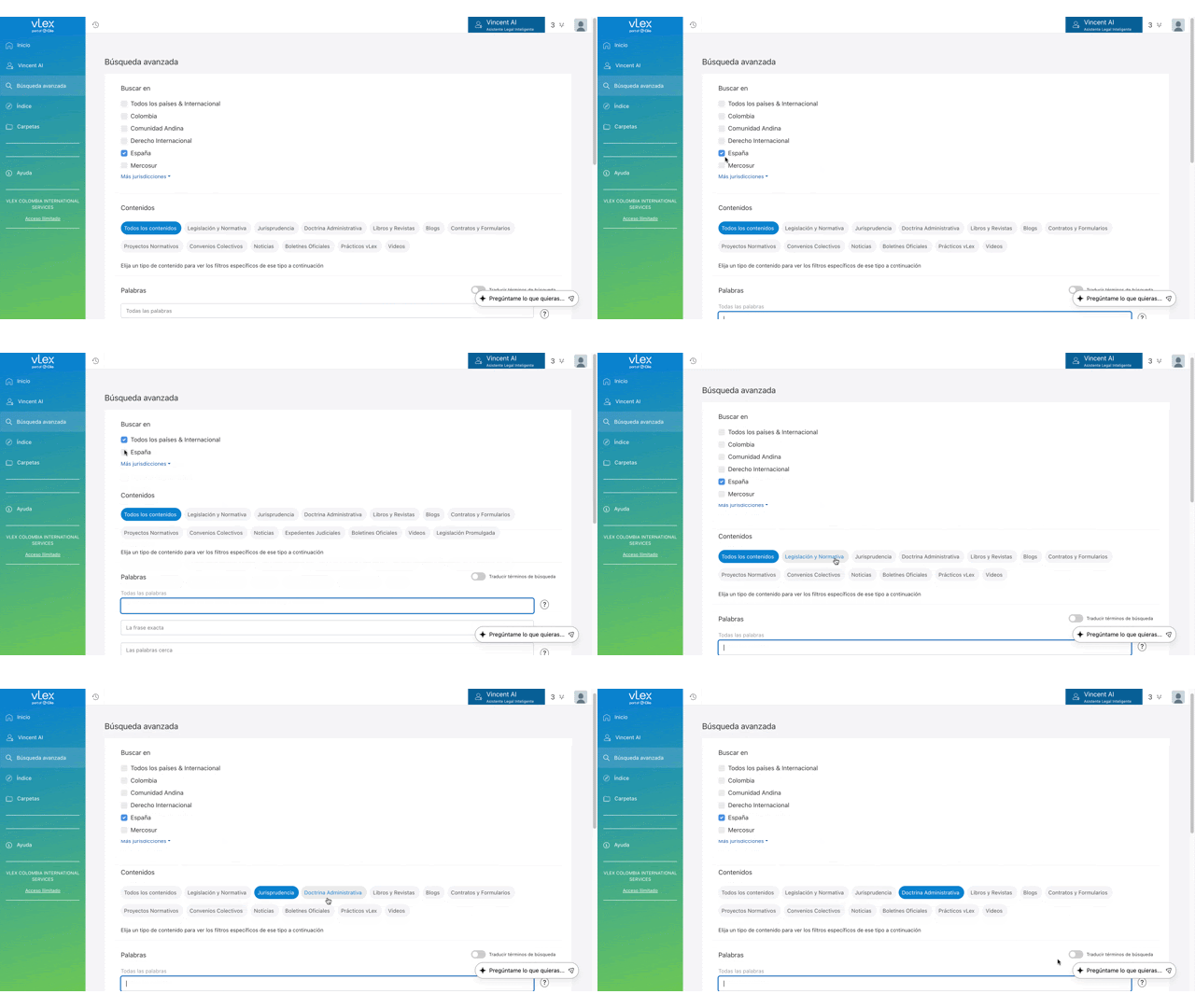
* **Jurisdiction(s):** Your default jurisdiction is pre-selected. You can add more jurisdictions or choose **Select All Countries** for a global search.
* **Content:** The search is pre-set to **All content**. Click this to narrow your search to specific document types like **Case law**, **Legislation**, or **Books and journals**.

{% tabs %}
{% tab title="English Interface" %}

<figure><img src="https://1556743161-files.gitbook.io/~/files/v0/b/gitbook-x-prod.appspot.com/o/spaces%2F-MS8Dq_iqEIflAmbaOkI-887967055%2Fuploads%2F1Fxwx3UCoCNAO0UMnEwn%2FDefine%20the%20scope%20of%20your%20search%20by%20selecting%20jurisdictions%20and%20content%20types%20first..gif?alt=media&#x26;token=2756e1a9-3a93-4ebe-8ff9-584f5e8e74bd" alt=""><figcaption><p><em>Define the scope of your search by selecting jurisdictions and content types first.</em></p></figcaption></figure>
{% endtab %}

{% tab title="Interfaz en Español" %}

<figure><img src="https://1556743161-files.gitbook.io/~/files/v0/b/gitbook-x-prod.appspot.com/o/spaces%2F-MS8Dq_iqEIflAmbaOkI-887967055%2Fuploads%2FcXfwZuV2YwO8x71JZjyW%2FDefina%20el%20alcance%20de%20su%20bu%CC%81squeda%20seleccionando%20primero%20jurisdicciones%20y%20tipos%20de%20contenido..gif?alt=media&#x26;token=79e363d9-cc7d-47eb-9861-68f0462da4df" alt=""><figcaption><p>Defina el alcance de su búsqueda seleccionando primero jurisdicciones y tipos de contenido.</p></figcaption></figure>
{% endtab %}
{% endtabs %}

#### 3. Enter Your Search Terms

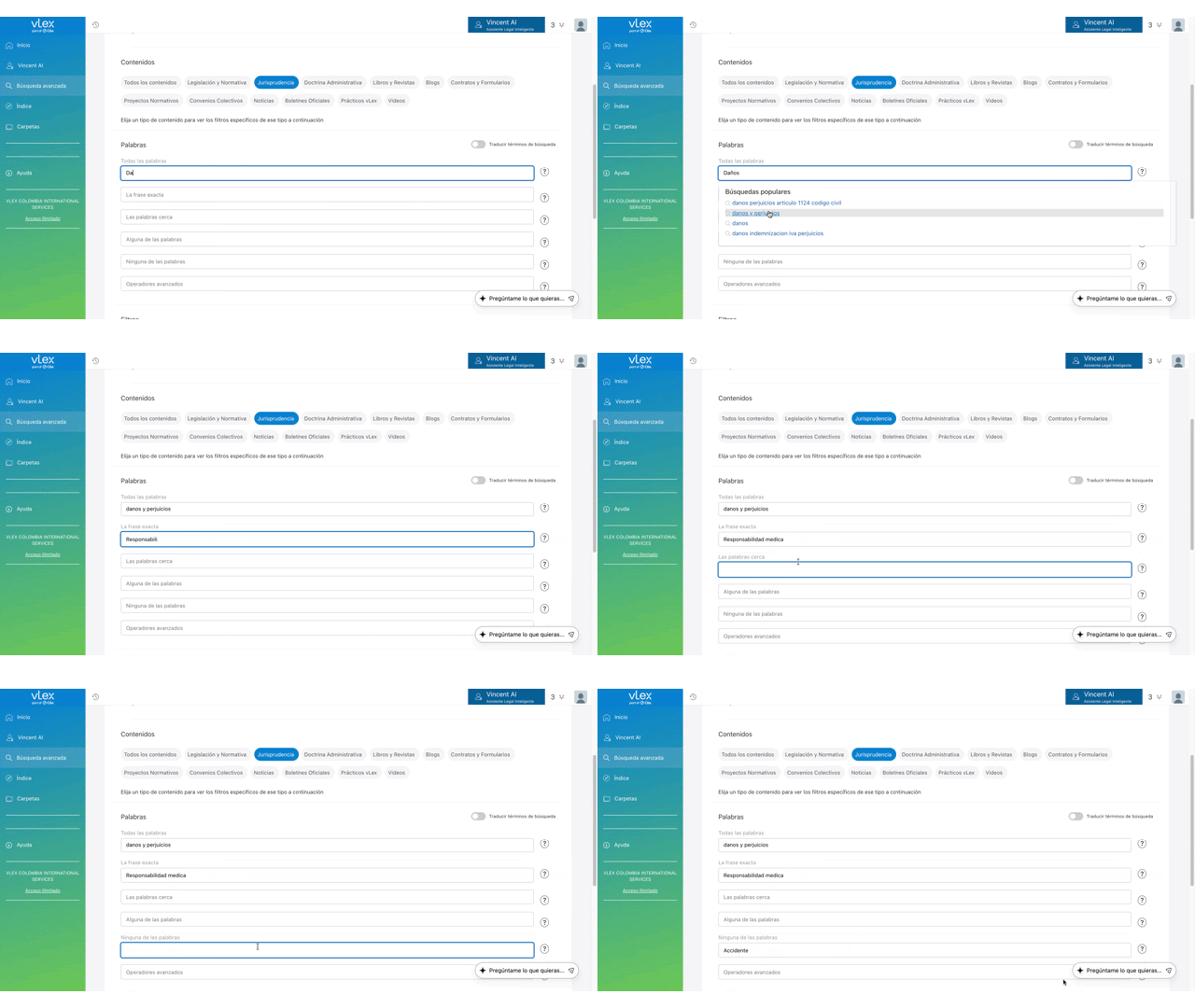
Use the **Words** search fields to construct your query. You do not need to use every field.

* **All the words:** Finds documents containing all the words you enter, in any order.
* **The exact phrase:** Finds documents containing the exact phrase you type.
* **The words in proximity:** Finds documents where the words you enter appear near each other.
* **Any word:** Finds documents containing at least one of the words you enter.
* **None of the words:** Excludes any document containing the words you type here.
* **Advanced operators:** A dedicated field for building a search string with Boolean operators like `AND`, `OR`, and `NOT`.

{% tabs %}
{% tab title="English Interface" %}

<figure><img src="https://1556743161-files.gitbook.io/~/files/v0/b/gitbook-x-prod.appspot.com/o/spaces%2F-MS8Dq_iqEIflAmbaOkI-887967055%2Fuploads%2FCqmdzSag3y3aUFKLsNbw%2FCombine%20different%20word%20fields%20to%20build%20a%20highly%20specific%20query..gif?alt=media&#x26;token=8e245b37-be21-46ff-b009-6997219e6c83" alt=""><figcaption><p><em>Combine different word fields to build a highly specific query.</em></p></figcaption></figure>
{% endtab %}

{% tab title="Interfaz en Español" %}

<figure><img src="https://1556743161-files.gitbook.io/~/files/v0/b/gitbook-x-prod.appspot.com/o/spaces%2F-MS8Dq_iqEIflAmbaOkI-887967055%2Fuploads%2FPD3gmBwtjb8ZhdLBomqa%2FCombine%20diferentes%20campos%20de%20palabras%20para%20construir%20una%20consulta%20altamente%20especi%CC%81fica..gif?alt=media&#x26;token=60302d53-fc1e-4838-bade-88e6a1c23d2a" alt=""><figcaption><p>Combine diferentes campos de palabras para construir una consulta altamente específica.</p></figcaption></figure>
{% endtab %}
{% endtabs %}

#### 4. Run Your Search or Create an Alert

Once your query is built, click the **Search** button to see your results. If you want to monitor this search for new documents in the future, click **Save as an alert** instead.

### Best Practices & Pro Tips

* **Use Content-Specific Filters:** After selecting a **Content** type (e.g., Case law), additional filter options may appear below the word fields, allowing you to search by court, judge, or citation.
* **Refine on the Results Page:** If your initial results are still too broad, use the filters on the left side of the results page to narrow them down further.
* **Start Broad, Then Narrow:** Begin with a few key terms in the **All the words** field. If you get too many results, return to Advanced Search and add more specific criteria.

### Related Articles

* [Using Boolean Operators to Refine Your Search](https://support.vlex.com/vlex-library/vlex-library-home/getting-started/using-boolean-operators-to-refine-your-search)
* [How to Navigate and Filter the Search Results Page](https://support.vlex.com/vlex-library/vlex-library-home/getting-started/how-to-navigate-and-filter-the-search-results-page)
* [How to Browse in vLex Library](https://support.vlex.com/vlex-library/vlex-library-home/getting-started/how-to-browse-in-vlex-library)

**What's Your Next Step?**

| **New to** vLex Library **?**                                                                                                                                                                                   | **Already a** vLex Library **Customer?**                                                                                                                   |
| --------------------------------------------------------------------------------------------------------------------------------------------------------------------------------------------------------------- | ---------------------------------------------------------------------------------------------------------------------------------------------------------- |
| [See how vLex Library can transform your practice. **Request a personalized demo**.](https://vlex.com/book-a-demo?utm_source=website\&utm_medium=organic\&utm_campaign=web_trial_homepage\&campaign_id=4270741) | [If you still have questions or need help with a specific feature, our team is here to assist. **Contact our Support team**.](https://vlex.com/contact-us) |


---

# Agent Instructions: Querying This Documentation

If you need additional information that is not directly available in this page, you can query the documentation dynamically by asking a question.

Perform an HTTP GET request on the current page URL with the `ask` query parameter:

```
GET https://support.vlex.com/vlex-library/vlex-library-home/getting-started/how-to-use-advanced-search-for-precision-queries.md?ask=<question>
```

The question should be specific, self-contained, and written in natural language.
The response will contain a direct answer to the question and relevant excerpts and sources from the documentation.

Use this mechanism when the answer is not explicitly present in the current page, you need clarification or additional context, or you want to retrieve related documentation sections.