> For the complete documentation index, see [llms.txt](https://support.vlex.com/llms.txt). Markdown versions of documentation pages are available by appending `.md` to page URLs; this page is available as [Markdown](https://support.vlex.com/vlex-library/vlex-library-home/getting-started/set-up-clio-identity-to-sign-in-to-vlex.md).

# Set Up Clio Identity to Sign In to vLex

Clio Identity adds two-step verification and single sign-on to your vLex account. This guide covers how to activate it, how to sign in afterwards, and how to fix the most common error.

{% hint style="warning" %}
**This setup does not apply to every user.** Clio Identity is being enabled progressively, by account segment. If you do not see the setup banner when you open vLex, your account is not included yet and you do not need to do anything: your username and password continue to work as normal.
{% endhint %}

### Why This is Important

Once you activate Clio Identity, you no longer manage separate credentials for vLex and for the rest of the Clio/Vincent products: one verified identity signs you in to all of them. The additional verification step protects the account against unauthorised access, which matters when the matter at hand holds client information covered by professional confidentiality.

{% hint style="warning" %}
**Multi-factor authentication (MFA) becomes mandatory on 21 October 2026.** Until then you can postpone setting it up with **Continue to Clio**. After that date, it is a required step.
{% endhint %}

#### Before you start

Have the following to hand:

* Access to the inbox for the email address linked to your vLex account.
* A mobile phone with an authenticator app installed (Google Authenticator, 1Password or another compatible app).
* About five minutes without interruptions. The process cannot be left half-finished.

#### How to activate Clio Identity

**Step 1: Start setup from the banner**

**1. Sign in to vLex with your usual username and password**

A banner appears at the top of the screen inviting you to set up Clio Identity.

<figure><img src="https://1556743161-files.gitbook.io/~/files/v0/b/gitbook-x-prod.appspot.com/o/spaces%2F-MS8Dq_iqEIflAmbaOkI-887967055%2Fuploads%2FfIVfbXXg2epmWBxxQHsW%2Fimage12.png?alt=media&amp;token=cbfe61af-6b5e-405a-b222-6d2a982393b5" alt=""><figcaption><p>Clio Identity setup banner at the top of the vLex home screen.</p></figcaption></figure>

**2. Click Configurar Clio Identity ahora (Set up Clio Identity now)**

The activation page opens.

**3. Click Envíame el correo de activación (Send me the activation email)**

vLex sends a verification email to the address linked to your account.

<figure><img src="https://1556743161-files.gitbook.io/~/files/v0/b/gitbook-x-prod.appspot.com/o/spaces%2F-MS8Dq_iqEIflAmbaOkI-887967055%2Fuploads%2F9t9u4ki1AlqUOPkWJw1C%2Fimage5.png?alt=media&amp;token=031c7437-444c-4962-a064-ceec02ecd66d" alt=""><figcaption><p>Clio Identity activation page with the button that sends the verification email.</p></figcaption></figure>

**Step 2: Verify your email and create your Clio Identity account**

**1. Open the invitation email**

It arrives with the subject **Te han invitado a vLex y Clio** and shows **Clio Billing** as the sender. If you cannot find it, check your junk folder: the sender name is what makes some filters classify it there.

<figure><img src="https://1556743161-files.gitbook.io/~/files/v0/b/gitbook-x-prod.appspot.com/o/spaces%2F-MS8Dq_iqEIflAmbaOkI-887967055%2Fuploads%2F4fng1G8M29nxrp4cvJjD%2Fimage6.png?alt=media&amp;token=30d5e573-f257-4b3f-ba33-aac167f52325" alt=""><figcaption><p>Invitation email with the subject "Te han invitado a vLex y Clio" and the Activar cuenta button.</p></figcaption></figure>

**2. Click Activar cuenta (Activate account)**

The account creation form opens.

**3. Complete the form**

Enter your first name, last name and a password, then confirm it. If the legal name on your ID document differs from the name shown on the form, tick the corresponding checkbox and enter it.

{% hint style="info" %}
**About the password.** Clio will not accept a password reused from another service, or one that can be guessed from your firm's name. A phrase longer than eight characters works better than a single word with symbols in it.
{% endhint %}

<figure><img src="https://1556743161-files.gitbook.io/~/files/v0/b/gitbook-x-prod.appspot.com/o/spaces%2F-MS8Dq_iqEIflAmbaOkI-887967055%2Fuploads%2FpyPlksy7Tpya3H62AWnr%2Fimage3.png?alt=media&amp;token=8dea73dd-1a1a-456c-a1b1-78dbf974c959" alt=""><figcaption><p>The "Set up your account" form with the first name, last name and password fields.</p></figcaption></figure>

**4. Click Continue**

You go straight to the vLex home screen. Your Clio Identity account is now created.

**Step 3: How to sign in from now on**

{% hint style="danger" %}
**Your vLex username and password stop working.** Once the account is active, if you sign out and come back, the username and password fields return an error. This is the point at which most users assume something is broken. Nothing is broken: from activation onwards you must always sign in with **Sign in with Clio**.
{% endhint %}

On the sign-in screen, ignore the username and password fields and click **Sign in with Clio**.

<figure><img src="https://1556743161-files.gitbook.io/~/files/v0/b/gitbook-x-prod.appspot.com/o/spaces%2F-MS8Dq_iqEIflAmbaOkI-887967055%2Fuploads%2FfaS7ZrjXpAgGd0hcFQWN%2Fimage8.png?alt=media&amp;token=946ef646-f383-4ce8-b153-d218703b681a" alt=""><figcaption><p>The vLex sign-in screen. The Sign in with Clio button replaces the username and password fields.</p></figcaption></figure>

What happens next depends on the device you sign in from:

* **The same computer and browser where you set up the account:** you go straight into vLex.
* **A different computer or browser:** you are asked for the Clio Identity credentials you have just created.

**Step 4: Set up multi-factor authentication (MFA)**

After entering your Clio Identity credentials you see a screen with two options: **Continue to Clio**, to go in and postpone setup, or **Set up MFA**, to configure it now.

<figure><img src="https://1556743161-files.gitbook.io/~/files/v0/b/gitbook-x-prod.appspot.com/o/spaces%2F-MS8Dq_iqEIflAmbaOkI-887967055%2Fuploads%2Faw4KmcTm2hd9D3uqaBkS%2Fimage1.png?alt=media&amp;token=0e3fac1e-1bc4-474b-8a27-7f4d72b8b9d8" alt=""><figcaption><p>Notice that MFA becomes mandatory on 21 October 2026, with the Continue to Clio and Set up MFA options.</p></figcaption></figure>

If you choose **Set up MFA**:

**1. Verify your legal name**

Enter your name exactly as it appears on your ID document. Clio uses it only to verify your identity if you ever lose access to the account; it is not shown on your profile.

<figure><img src="https://1556743161-files.gitbook.io/~/files/v0/b/gitbook-x-prod.appspot.com/o/spaces%2F-MS8Dq_iqEIflAmbaOkI-887967055%2Fuploads%2FcsMoPNoZecsNLS96vJQP%2Fimage11.png?alt=media&amp;token=2d229432-77c0-4736-bef2-8f027ccc26e2" alt=""><figcaption><p>The legal name verification form.</p></figcaption></figure>

**2. Select the verification method**

The only method available is an **authenticator app**. There is no option to receive the code by SMS or email. Any compatible app works: Google Authenticator, 1Password or another.

<figure><img src="https://1556743161-files.gitbook.io/~/files/v0/b/gitbook-x-prod.appspot.com/o/spaces%2F-MS8Dq_iqEIflAmbaOkI-887967055%2Fuploads%2FwQPzIVezlZNtDSqFRiCA%2Fimage9.png?alt=media&amp;token=46c1c990-45d9-4ad6-ac09-1bf9c3ce0aa5" alt=""><figcaption><p>MFA method selection, with the authenticator app as the only option.</p></figcaption></figure>

**3. Scan the QR code with your authenticator app**

**4. Enter the six-digit code the app generates**

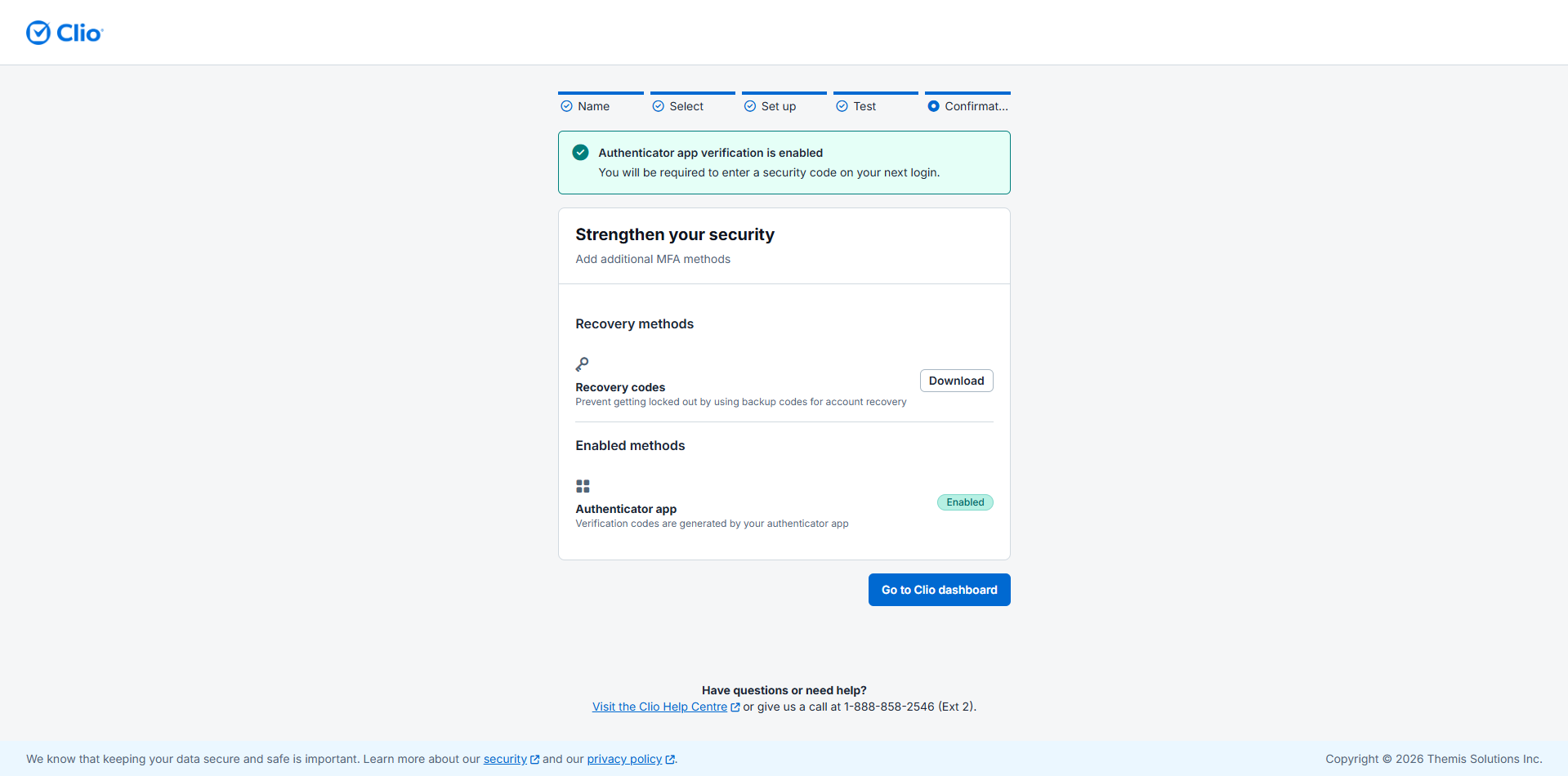
**5. Download your recovery codes**

On the confirmation screen, click **Download** under **Recovery codes** before you continue. They are the only way to regain access if you lose your phone.

<figure><img src="https://1556743161-files.gitbook.io/~/files/v0/b/gitbook-x-prod.appspot.com/o/spaces%2F-MS8Dq_iqEIflAmbaOkI-887967055%2Fuploads%2F8xhgV9fNjI1jA45jLzBn%2Fimage10.png?alt=media&amp;token=33ec7f47-8ab5-478b-a8b8-729109e5d2fe" alt=""><figcaption><p>Confirmation screen with the authenticator app enabled and the recovery codes download.</p></figcaption></figure>

**6. Click Go to Clio dashboard**

You enter vLex. Setup is complete.

**Step 5: Later sign-ins**

On subsequent sign-ins you are asked for the code from your authenticator app. You can tick **Don't ask for login code for 30 days** so you do not have to enter it every time during that period.

<figure><img src="https://1556743161-files.gitbook.io/~/files/v0/b/gitbook-x-prod.appspot.com/o/spaces%2F-MS8Dq_iqEIflAmbaOkI-887967055%2Fuploads%2FGPDrfd4TchaGWdqZbyJy%2Fimage2.png?alt=media&amp;token=7eee0be3-9619-4e40-a1f3-2938eb0c9c7c" alt=""><figcaption><p>The "Don't ask for login code for 30 days" checkbox on the verification screen.</p></figcaption></figure>

#### Common issues

**Signing in with a username and password returns an error**

This is the expected result after activating Clio Identity, not a fault. Use **Sign in with Clio**. If you cannot remember your Clio Identity password, reset it from that same screen.

**The activation email has not arrived**

Check your junk folder and look for the subject **Te han invitado a vLex y Clio**. The sender shows as **Clio Billing** rather than vLex, and that is the usual reason it gets filtered. If it still does not appear, request it again from the banner in vLex.

**I cannot see the Clio Identity banner**

Your account is not part of the rollout yet. You do not need to do anything: keep signing in with your username and password.

**A device that used to let me straight in is now asking for credentials**

This is the expected behaviour. The Clio Identity session is recognised per browser and per device, so a new one will always ask for credentials.

**I have lost the phone with the authenticator app**

Use one of the recovery codes you downloaded. If you did not download them, there is no way to regain access on your own: you will need to contact support for identity verification, and that is where the legal name you registered is used.

#### Best practices and recommendations

* **Store your recovery codes in the firm's password manager, not on your computer desktop.** The scenario that generates the most tickets is not setup, it is a phone lost six months later with no codes to hand. If your firm already uses a corporate password manager, put them there the moment you download them.
* **Do not tick "Don't ask for login code for 30 days" on shared machines.** On a meeting-room or library computer, that checkbox leaves the account reachable for a month by anyone who uses the device.
* **If your firm has several vLex users, coordinate activation with whoever administers the account.** Activating as a group and telling the team about the switch to **Sign in with Clio** avoids the wave of tickets that arrives when each user discovers the error on their own.

#### **Have a question or need further assistance?**

* Phone: +34 932 722 685
* Email: <soporte@vlex.com> or <support@vlex.com>

You can also write to us through the [support contact form.](https://latam.vlex.com/contact-us)

### Related Articles

* [How to Reset or Change Your Password](/vlex-library/vlex-library-home/account-and-admin-management/how-to-reset-or-change-your-password.md)
* [How to Navigate and Filter the Search Results Page](/vlex-library/vlex-library-home/getting-started/how-to-navigate-and-filter-the-search-results-page.md)
* [Navigating the Document Viewer in vLex Library](/vlex-library/vlex-library-home/getting-started/navigating-the-document-viewer-in-vlex-library.md)

**What's Your Next Step?**

| **New to vLex Library ?**                                                                                                                                                                                                                                                                                                                                                                                                                                                     | **Already a vLex Library Customer?**                                                                                                                       |
| ----------------------------------------------------------------------------------------------------------------------------------------------------------------------------------------------------------------------------------------------------------------------------------------------------------------------------------------------------------------------------------------------------------------------------------------------------------------------------- | ---------------------------------------------------------------------------------------------------------------------------------------------------------- |
| [See how vLex Library can transform your practice. ](https://vlex.com/book-a-demo?utm_source=website\&utm_medium=organic\&utm_campaign=web_trial_homepage\&campaign_id=4270741)[**Request a personalized demo**](https://vlex.com/book-a-demo?utm_source=website\&utm_medium=organic\&utm_campaign=web_trial_homepage\&campaign_id=4270741)[**.**](https://vlex.com/book-a-demo?utm_source=website\&utm_medium=organic\&utm_campaign=web_trial_homepage\&campaign_id=4270741) | [If you still have questions or need help with a specific feature, our team is here to assist. **Contact our Support team**.](https://vlex.com/contact-us) |