> For the complete documentation index, see [llms.txt](https://support.vlex.com/llms.txt). Markdown versions of documentation pages are available by appending `.md` to page URLs; this page is available as [Markdown](https://support.vlex.com/docket-alarm/docket-alarm-home/getting-started/navigating-the-dashboard.md).
# Navigating the Dashboard
Learn the layout of the Docket Alarm dashboard, including the search bar, alert management, and analytics menus.
### Summary
Get familiar with the Docket Alarm interface. This guide explains the main navigation areas: the Search Bar, the Left Sidebar for tools and analytics, and the User Menu.
### Why This is Important
The Dashboard is your command center. Whether you are looking for a specific case, setting up a client alert, or running a judge analytics report, everything starts here. Understanding the layout will help you navigate between research and tracking tasks efficiently.
#### 1. The Search Bar (Center Screen)
The most prominent feature of the dashboard is the Search Bar. It is designed for flexibility, allowing you to enter simple keywords or build complex queries.
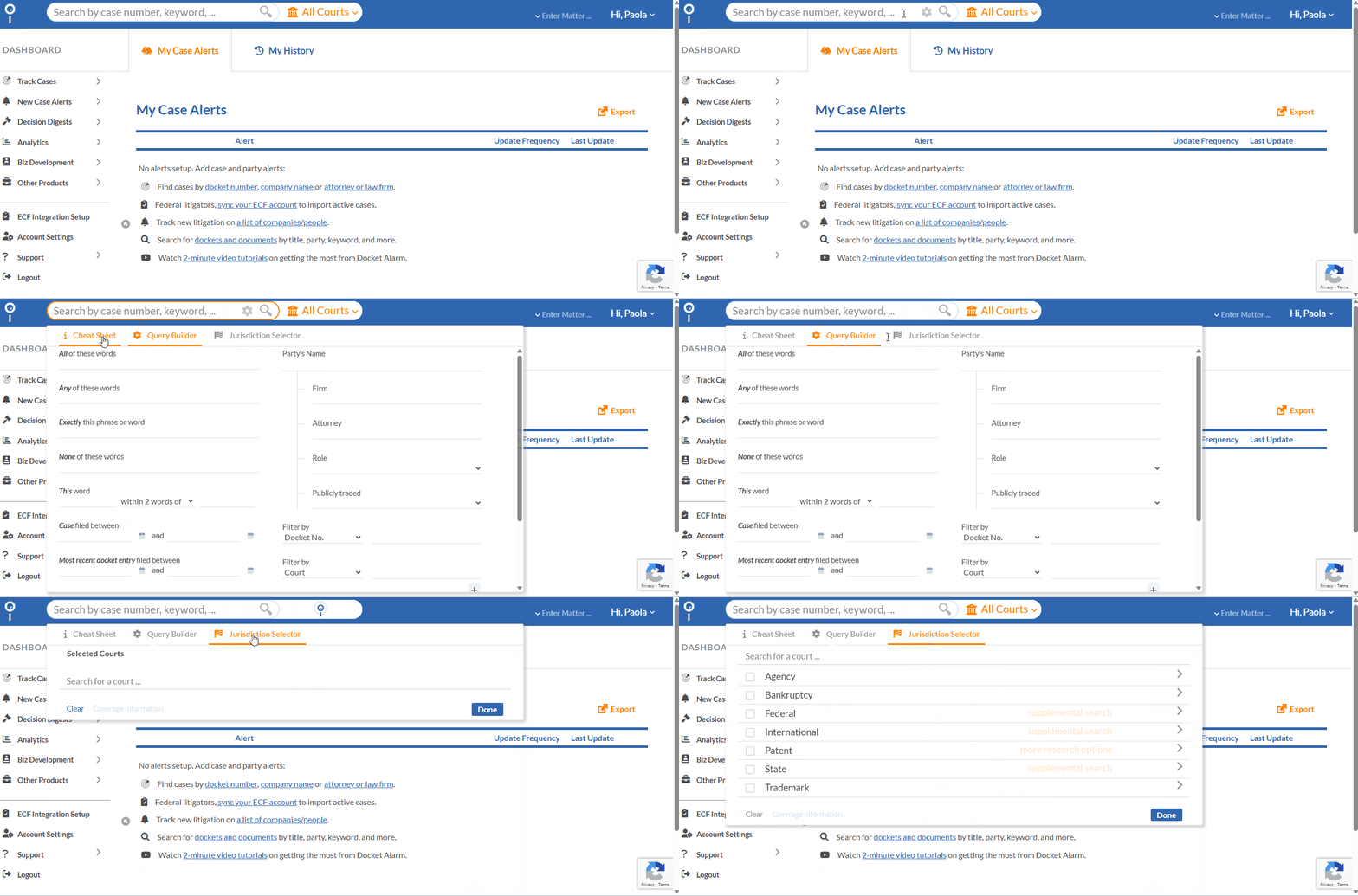
When you click into the Search Bar, three key options appear:
* **Cheat Sheet (Left):** A quick reference guide for Boolean connectors (e.g., `AND`, `OR`, `w/5`) and field codes.
* **Query Builder (Center):** A visual tool to help you construct advanced searches without memorizing codes.
* **Jurisdiction Selector (Right):** Labeled as "All Courts" by default. Click this to limit your search to specific federal or state courts.
The Search Bar is your gateway to millions of legal records.
#### 2. The Left Sidebar (Main Navigation)
The menu on the left side of the screen is your primary navigation tool. It is organized into functional areas:
* **Dashboard:** Returns you to the main search screen.
* **Track Cases:** Quickly set-up docket tracks by docket number or party name.
* **New Case Alerts:** Configure monitors to catch new litigation against specific clients or parties *before* you are served.
* **Decision Digests:** Access curated summaries of recent legal decisions.
* **Analytics:** Expand this menu to access the data intelligence tools:
* **Federal Motion Analytics:** For motion outcome predictions.
* **Easy Analytics:** For general profiles on parties, judges, firms and attorneys.
* **Analytics Workbench:** For custom cross-jurisdictional reports.
* **Biz Development:** Tools specifically designed for competitive intelligence and client acquisition.
* **Other Products:** Access to API documentation and other vLex/Docket Alarm integrations.
* **ECF Integration Setup:** A shortcut to link your PACER credentials. Doing this is critical for receiving real-time alerts and reducing document fees.
* **Account Settings:** Manage your password and default matter settings.
* **Support:** Quickly access contact information for our technical support team and access the quick start guide.
* **Logout:** Securely sign out of your session.
Use the sidebar to switch between Tracking and Analytics tools.
#### 3. User Menu (Top Right)
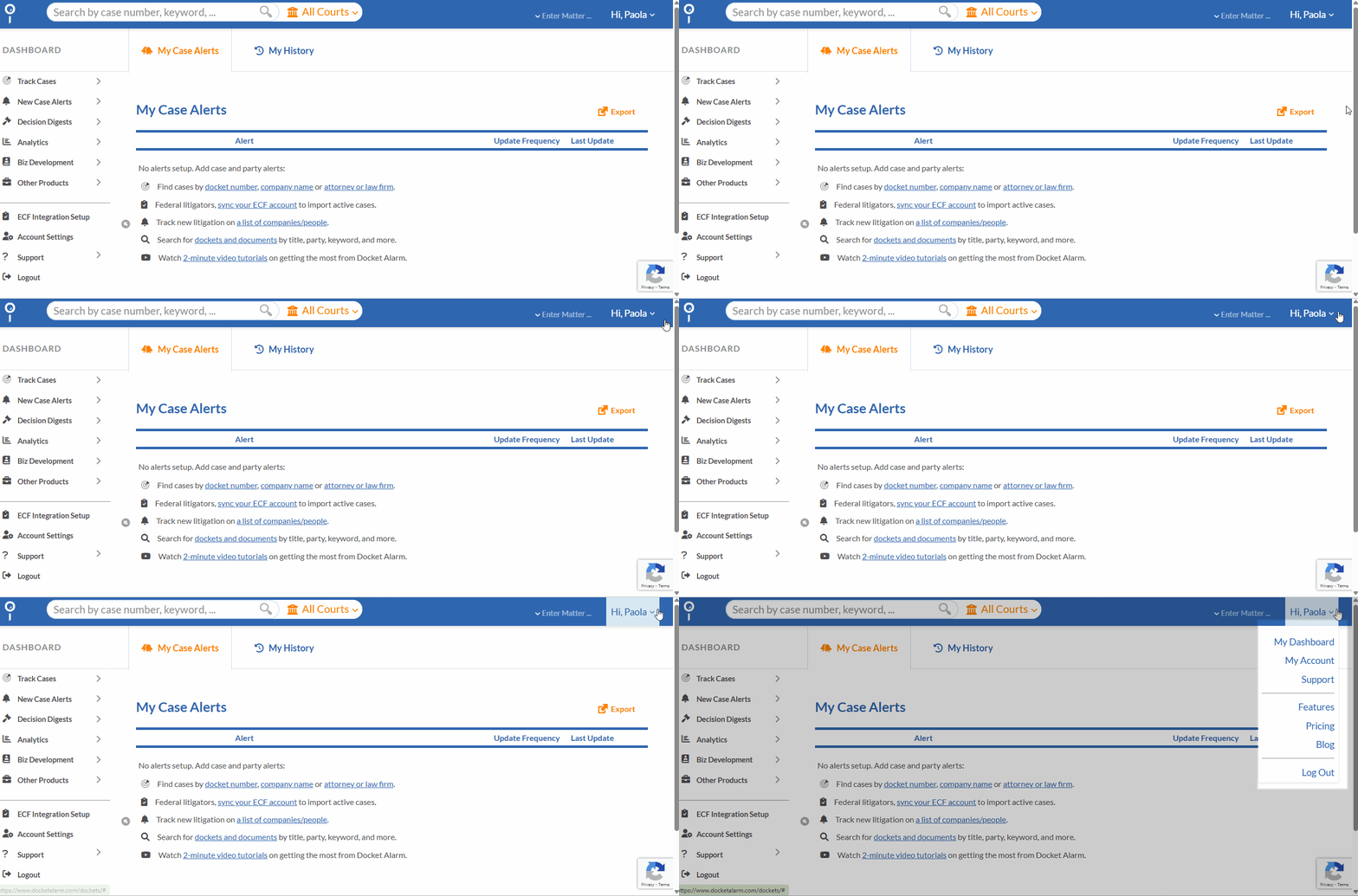
In the top right corner, clicking your profile icon or name opens the User Menu. This provides quick access to account management and resources:
* **My Dashboard:** Instantly returns you to the main search screen.
* **My Account:** The central hub for your personal settings. Go here to:
* Update your password.
* **Input ECF/PACER credentials** (under the "ECF" tab).
* Manage **Client Matter Codes** for billing.
* **Support:** Direct access to the help center and contact information.
* **Features & Pricing:** Review current plan details or explore new features.
* **Blog:** Read the latest updates and legal analysis from the Docket Alarm team.
* **Log Out:** Securely sign out of your session.
Use this menu to access your Account Settings
#### 4. Recent Activity
Below the search bar, you may see a "My History" or "Recent Activity" section. This allows you to quickly jump back into the last few dockets you viewed without having to search for them again.
{% hint style="info" %}
**Pro Tip:** You can always return to this Dashboard by clicking the **Docket Alarm logo** in the top-left corner of the screen from any page within the application.
{% endhint %}
#### Related Articles
* [How to Search for a Case](/docket-alarm/docket-alarm-home/search-and-discovery/how-to-search-for-a-case.md)
* [System Coverage Guide](/docket-alarm/docket-alarm-home/getting-started/system-coverage-guide.md)
#### Need more help?
If you cannot find a specific feature on your dashboard, please check your subscription plan settings or contact Support.
**What's Your Next Step?**
| **New to** vLex Library **?** | **Already a** vLex Library **Customer?** |
| --------------------------------------------------------------------------------------------------------------------------------------------------------------------------------------------------------------- | ---------------------------------------------------------------------------------------------------------------------------------------------------------- |
| [See how vLex Library can transform your practice. **Request a personalized demo**.](https://vlex.com/book-a-demo?utm_source=website\&utm_medium=organic\&utm_campaign=web_trial_homepage\&campaign_id=4270741) | [If you still have questions or need help with a specific feature, our team is here to assist. **Contact our Support team**.](https://vlex.com/contact-us) |