Configuring User Input and File Handling in a Workflow

Learn how to create and configure new tasks with various action types for your workflows in Vincent Studio.

Summary

This guide covers the technical configuration of your workflow's second step. You will learn how to set up the Workflow Input to define how users start your workflow and how to select the correct File Handling method for accurate document processing.

Why This is Important

These settings directly impact both the user experience and the technical accuracy of your workflow. A clear and logical input method makes your tool intuitive and easy to use, while the correct file handling preprocessor ensures the AI receives clean, properly formatted data, leading to more reliable results.

Configuring Workflow Input

This section defines the very first interaction your colleagues will have with your workflow. You must choose one of two starting points.

Option A: Start with a File (For Document-Centric Workflows)

Choose this option when the primary purpose of your workflow is to process a document that the user uploads, such as a contract, a complaint, or a deposition transcript.

When you select Start with a File, you will configure the following:

  • Instructions: The main guidance that appears above the upload area. (e.g., Please upload the Non-Disclosure Agreement (NDA) you wish to analyze.)

  • Instruction Details: Secondary guidance, often appearing as placeholder text, to provide more context. (e.g., For the most accurate analysis, please upload the complete and final version of the document.)

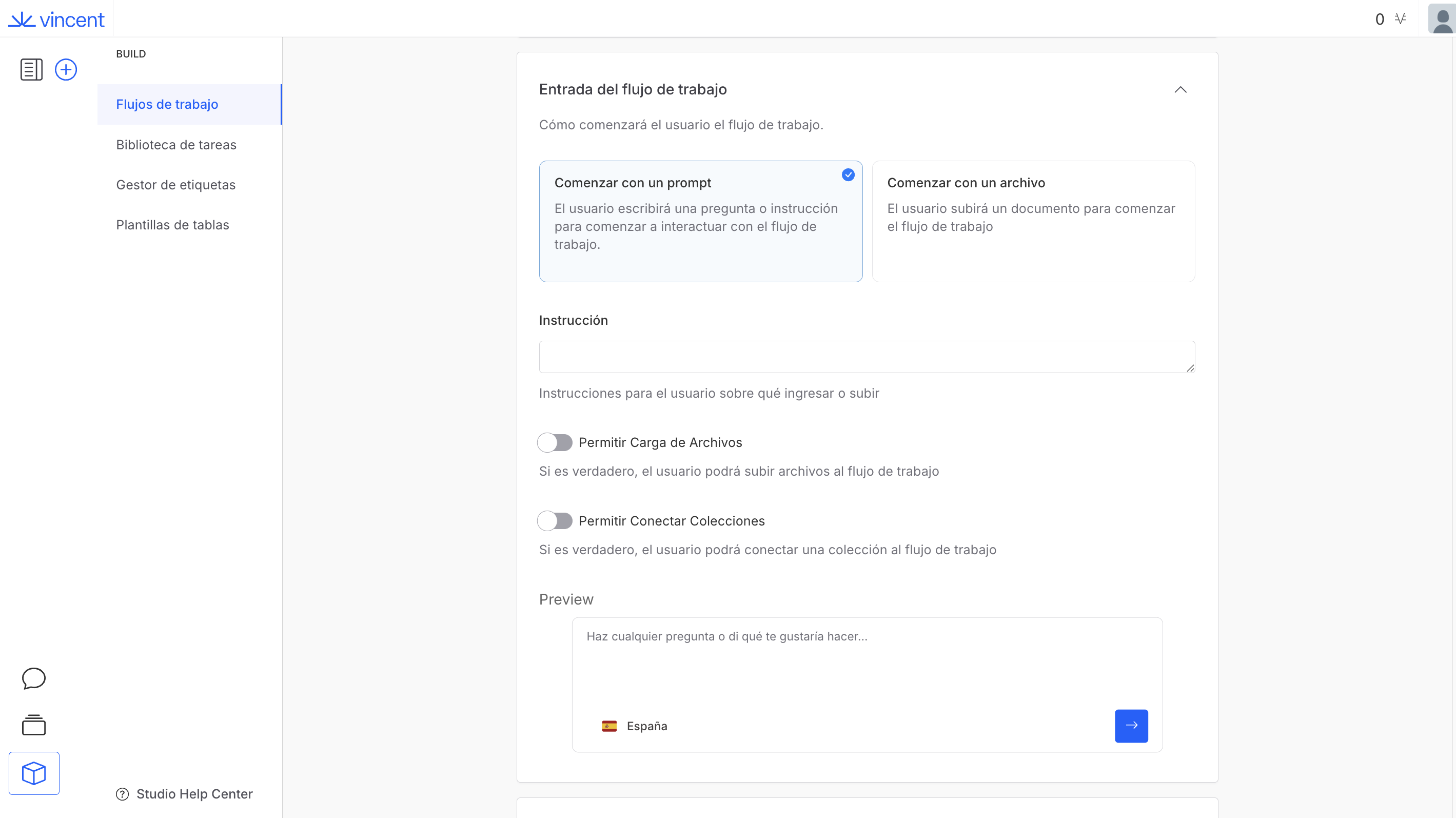
Option B: Start with a Prompt (For Query-Centric Workflows)

Choose this option when you want the user to begin by asking a question or giving an instruction. This is ideal for workflows that generate content or answer questions based on user input.

When you select Start with a Prompt, you will configure the following:

  • Instructions: Placeholder text in the user's text box to guide them on what to write. (e.g., Describe the purpose of the email you need to draft and the key points to include.)

  • Allow file upload (Toggle): Turn this ON to give the user the option to upload a supporting document along with their prompt.

  • Allow collection connection (Toggle): Turn this ON to allow users to connect a Knowledge Collection to the workflow for broader context.

Define the starting point: choose the very first interaction your colleagues will have with your workflow.
Configuring File Handling

This section only appears if you selected Start with a File in the Workflow Input step.

This is a crucial technical step where you tell Vincent how it should read the documents your users upload. Choosing the correct Document Preprocessor is essential for accurate analysis.

Preprocessor
What It Does
When to Use It

Text Extractor

Extracts the raw, plain text from documents, ignoring complex formatting.

The best choice for over 90% of workflows. Use for any task that analyzes the core legal language of a document.

Text Extractor (with Redlines)

Extracts all text and captures any tracked changes (additions/deletions).

For workflows that analyze negotiated drafts to summarize changes or compare versions.

Text Extractor (With Image Descriptions)

Extracts text and also generates AI descriptions of any images or charts.

For workflows that must understand visual evidence, like expert or accident reports.

Text Extractor (Formatted)

Attempts to preserve the original formatting (headings, tables, bold text).

When the document's structure is as important as its content, like converting a brief to another format.

Form Elements Extractor

Specifically identifies and extracts fillable fields from PDF forms.

For workflows designed to automatically fill out forms like court filings or client intake sheets.

Best Practices & Pro Tips

  • Match the Input to the Goal: The choice between Start with a File and Start with a Prompt is simple. If your goal is to analyze something that already exists, use a file. If your goal is to create something new from an idea, use a prompt.

  • Write for a New Colleague: When writing the Instructions and Instruction Details, use the "New Colleague Test." Ask yourself: "If someone brand new to the team saw this, would they know exactly what to do without asking any questions?" If the answer is no, simplify your text.

  • When in Doubt, Use Text Extractor: For the vast majority of legal document analysis, the standard Text Extractor is your most reliable and efficient choice. Only select a more specialized preprocessor, like Text Extractor (with Redlines), if your workflow has a specific technical need, such as analyzing tracked changes in a negotiated draft.

Ready to see how Vincent Studio can transform your firm's efficiency?

Contact our sales team for a personalized demo today.

What's Your Next Step?

Last updated

Was this helpful?