Understanding Action Types in Vincent Studio

Learn what each Action Type in Vincent Studio does. Our guide explains Prompt with Context, Compare Documents, and more to help you build better workflows.

Summary

This is a reference guide for the Action Types available in the Vincent Studio task builder. Use this guide to understand what each Action Type does and to select the correct one for your specific goal, from analyzing documents to extracting chronologies.

Why This is Important

Choosing the correct Action Type is the most critical technical decision you will make when creating a task. It fundamentally changes how the AI processes information and executes your prompt. Selecting the right tool for the job is the key to building reliable, accurate, and powerful custom legal workflows.

Action Type vs. Prompt: What's the Difference? Think of it this way:

  • The Action Type is the method or tool you give the AI (e.g., a magnifying glass, a pair of scissors).

  • The Prompt is the instruction you give the AI on how to use that tool (e.g., "Use the magnifying glass to find all the names").

Action Type is the tool. Prompt is the instruction. Together, they guide Studio.
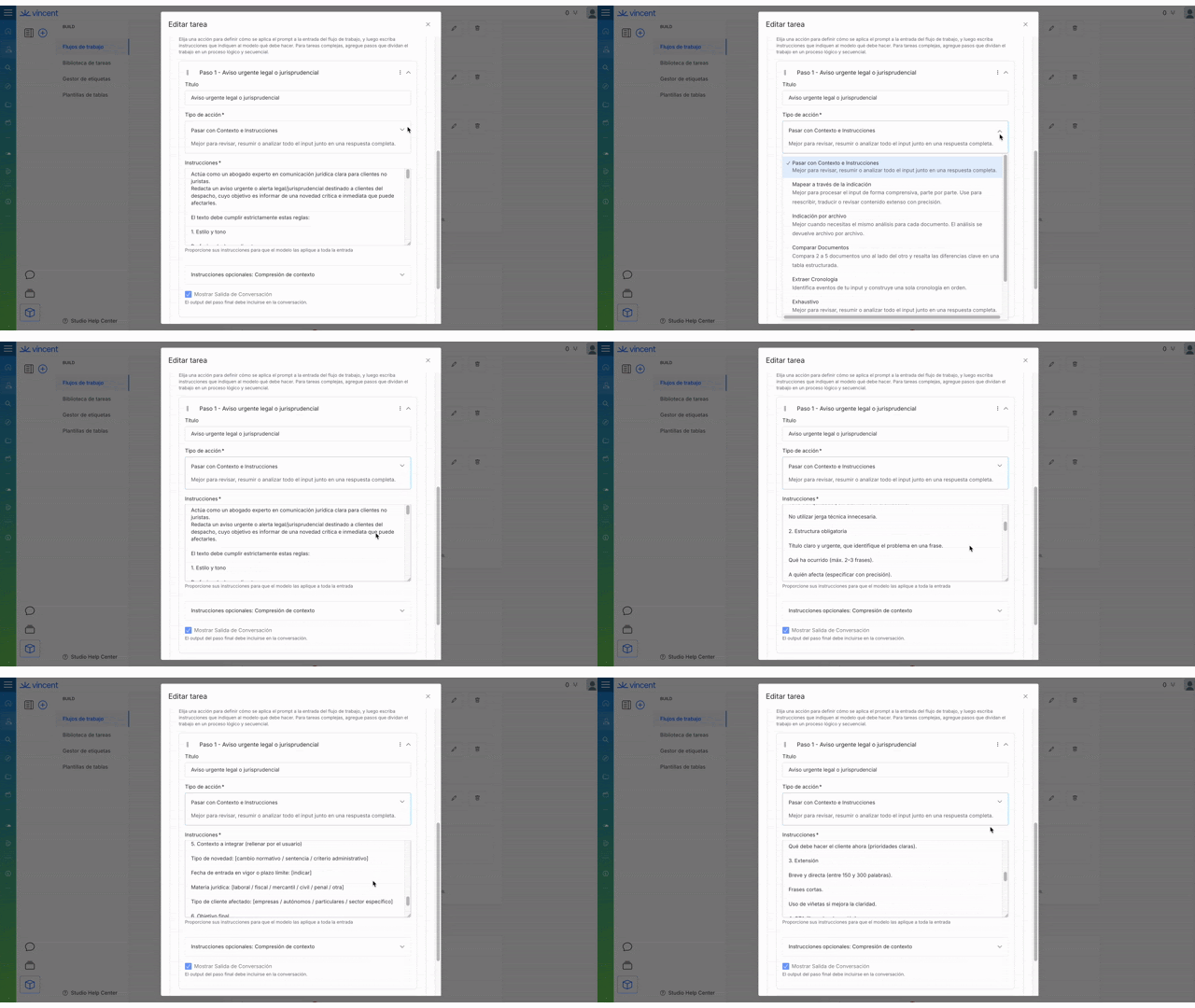
Guide to Action Types

The following table provides a clear definition and a practical example for each of the key Action Types available in the task builder.

Action Type
What It Does
Best For (Example Use Case)

Prompt with Context

Analyzes all available information (uploaded files, workflow assets, conversation history) together to produce a single, comprehensive response.

This is your default, most versatile option. Perfect for summarizing a document, performing a risk analysis, or drafting a response based on multiple sources.

Prompt per File

Runs the exact same prompt separately on each file that a user uploads. It returns a distinct, individual analysis for each document.

Batch processing. For example, a user uploads five witness statements, and you need a separate summary for each one.

Prompt by Sections

Divides a document into logical sections or themes and runs your prompt on each one.

Analyzing long, structured documents where you need a specific answer per section, such as reviewing each chapter of an expert report.

Chunk and Transform

Breaks very long documents into smaller, manageable chunks, applies your prompt to each chunk, and then fuses the results.

Precisely rewriting, translating, or reviewing very long documents (e.g., a 200-page transcript) where you need to maintain high detail throughout.

Compare Documents

Compares 2 to 5 documents side-by-side and highlights the key differences in a structured table.

Analyzing negotiated drafts. It is specifically optimized to find additions, deletions, and changes between different versions of a contract.

Extract Chronology

Scans one or more documents to identify all events, dates, and actions, then organizes them into a single, chronological timeline.

Litigation and case management. Perfect for building a timeline of events from a complaint, emails, and other discovery documents.

Clarification Question

Pauses the workflow and asks the user for a specific piece of information that is required before the next step can run.

Interactive workflows. For example, after identifying a contract's governing law, you could ask the user, "Is this the expected jurisdiction? (Yes/No)".

Best Practices & Pro Tips

  • When in Doubt, Start with Prompt with Context: For the majority of standard legal analysis tasks (reviewing, summarizing, explaining), Prompt with Context is the most powerful and appropriate choice. Start here unless you have a specific need for a different tool.

  • Combine Action Types for Powerful Workflows: A truly advanced workflow might use multiple tasks with different Action Types. For example, an Immediate Task could use Extract Chronology to build a timeline, and a Suggested Task could then use Prompt with Context to analyze that timeline for inconsistencies.

Ready to Build?

Now that you understand the tools available, you're ready to build more powerful and precise tasks.

Contact our sales team for a personalized demo today.

What's Your Next Step?

Last updated

Was this helpful?