Integrating your Firm's Data with Vincent

You can integrate your firm's documents with Vincent. Use the self-service Collections feature to upload and analyze your own custom datasets.

Summary

Learn how to create, organize, and share document collections in Vincent AI. This guide covers the new visibility settings, how to view your collections list, and how to manage permissions and analysis for existing collections.

Why This is Important

Collections allow you to group related documents, such as case files, evidence, or contracts, into a single workspace for analysis. By configuring the Visibility settings, you can securely collaborate with your entire organization or keep sensitive matters private to authorized individuals only.

How to Create a New Collection

The "Matter Collections" feature has been streamlined into a unified Collections system. Follow these steps to create a new workspace:

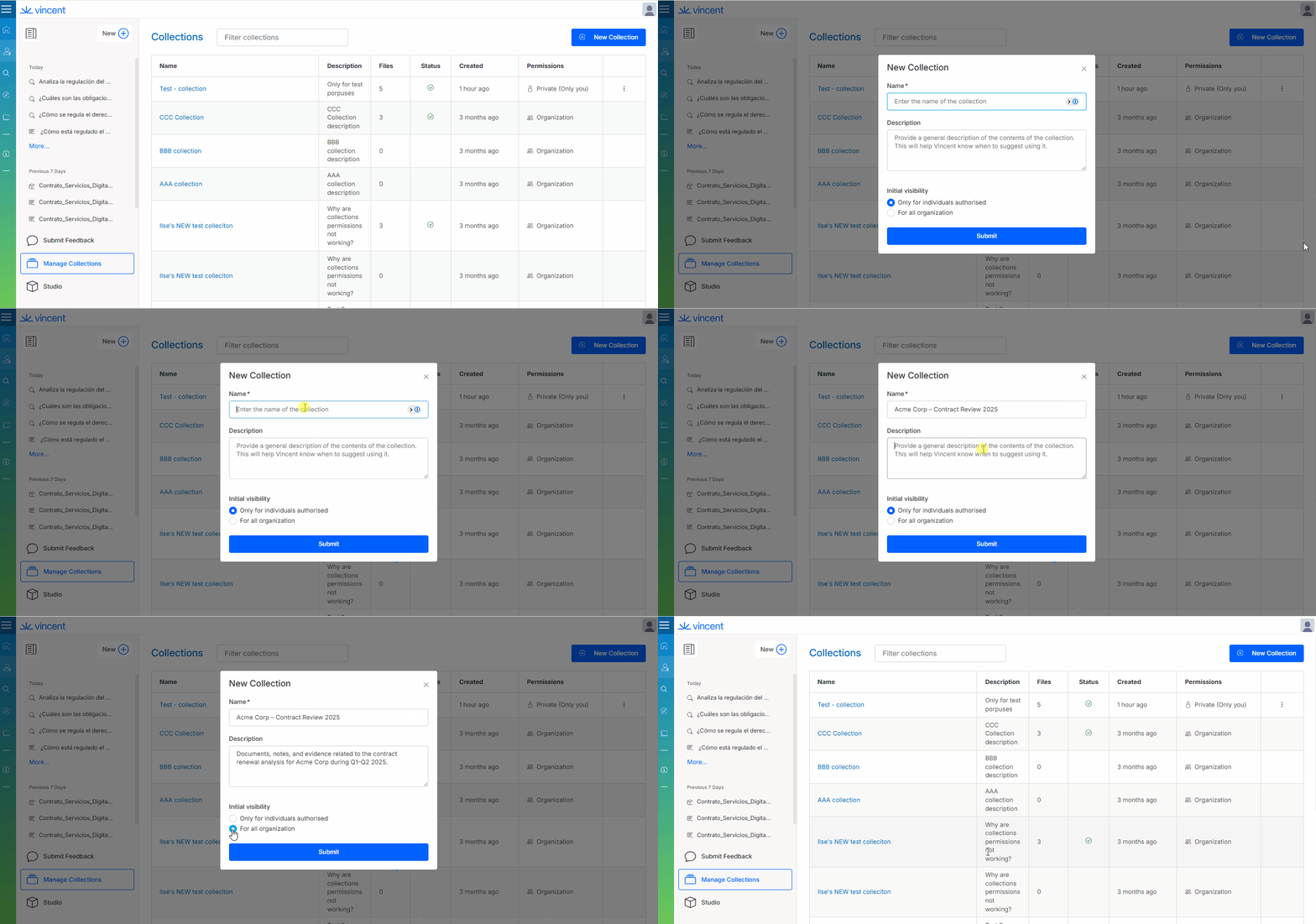
  1. Navigate to the Collections tab in the main menu.

  2. Click on the New Collection button.

  3. Fill in the required details in the pop-up window:

    • Name: Give your collection a clear, descriptive title (e.g., "Smith vs. Jones - Evidence").

    • Description: Add a brief summary of the collection's contents or purpose.

    • Initial Visibility: Choose who can access this collection:

      • Only for individual authorized: The collection is private. Only you and specific users you manually invite can see it.

      • For all organization: The collection is public to your team. Anyone in your organization's account can view and access it.

  4. Click Submit to finish.

Create your workspace in seconds: go to Collections, click New Collection, add the details, set visibility, and you’re ready to go.
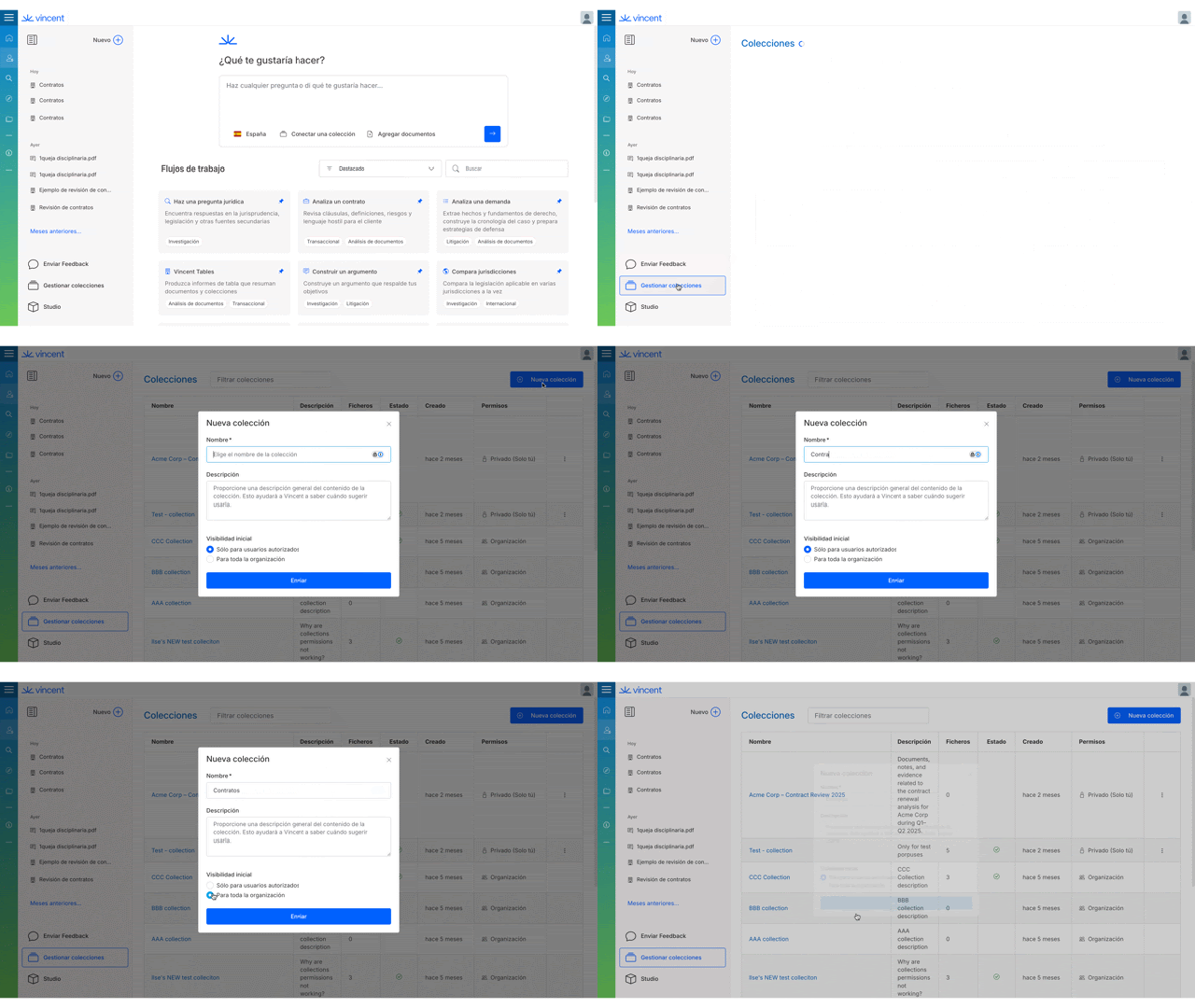
Note: You can always change the visibility settings later if your collaboration needs change.

Viewing Your Collections List

Once created, your collections are displayed in a comprehensive table designed for quick management. The columns include:

  • Name: The title of the collection.

  • Description: The summary you provided.

  • Files: The number of documents currently stored in the collection.

  • Status: Shows if the collection is ready or if Vincent is currently processing documents.

  • Created: The date the collection was established.

  • Permissions: Indicates whether the collection is Private (Authorized users only) or Organization-wide.

Get a quick overview of all your collections, name, description, files, status, creation date, and permissions in one organized table.

Managing Existing Collections

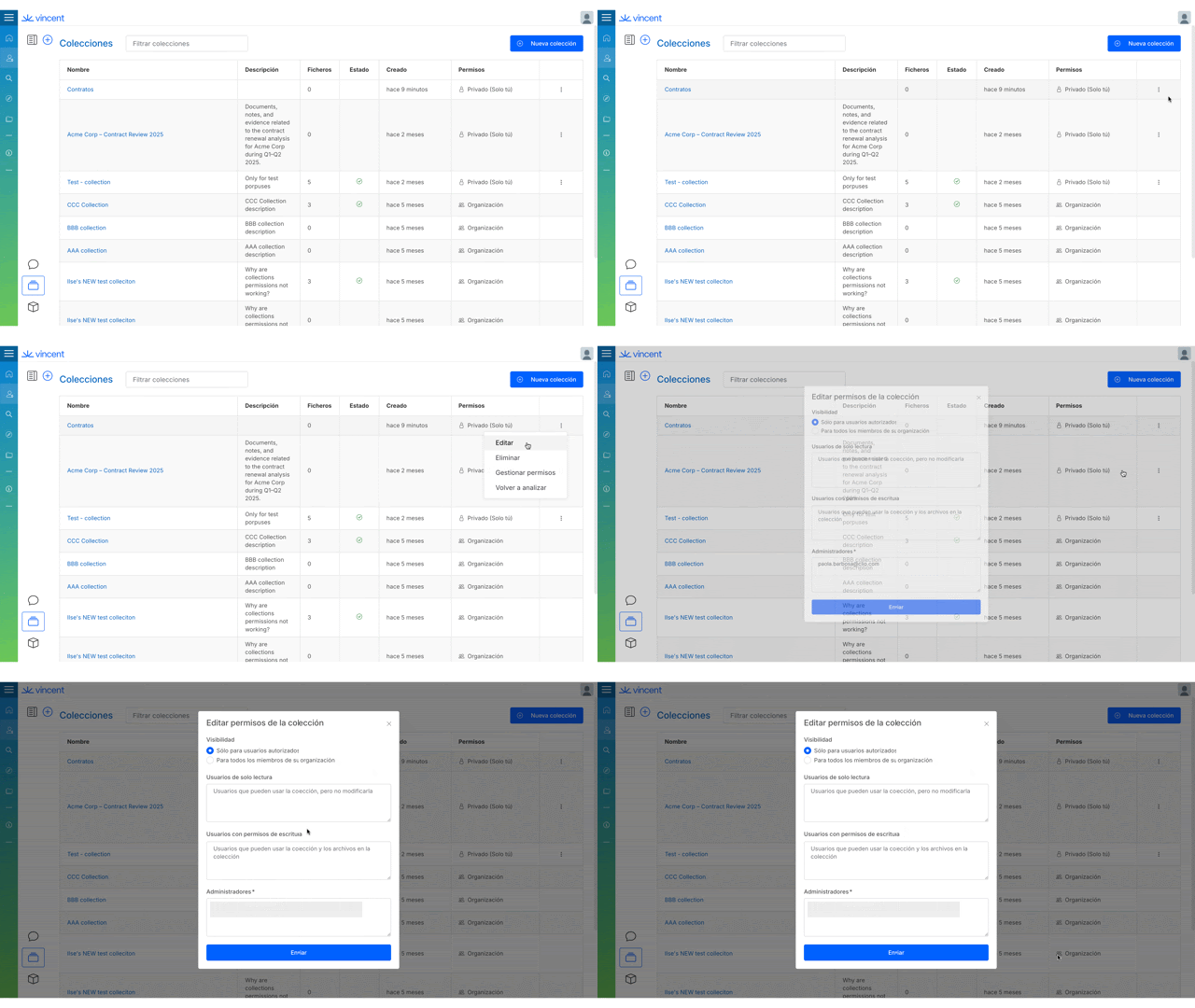
You can manage any collection you have created or have admin rights to. Locate the collection in the list and click the three dots icon (⋮) on the far right to open the action menu:

  • Edit: Update the Name or Description of the collection.

  • Delete: Permanently remove the collection and its association with the documents.

  • Manage Permissions: Change the visibility settings (e.g., switch from Private to Organization-wide) or add/remove specific authorized users.

  • Re-analyze: Force Vincent AI to re-process the documents in the collection. This is useful if you have added new files or if there has been an update to the AI model.

Easily manage your collection's content and sharing permissions.
Starting Your Analysis

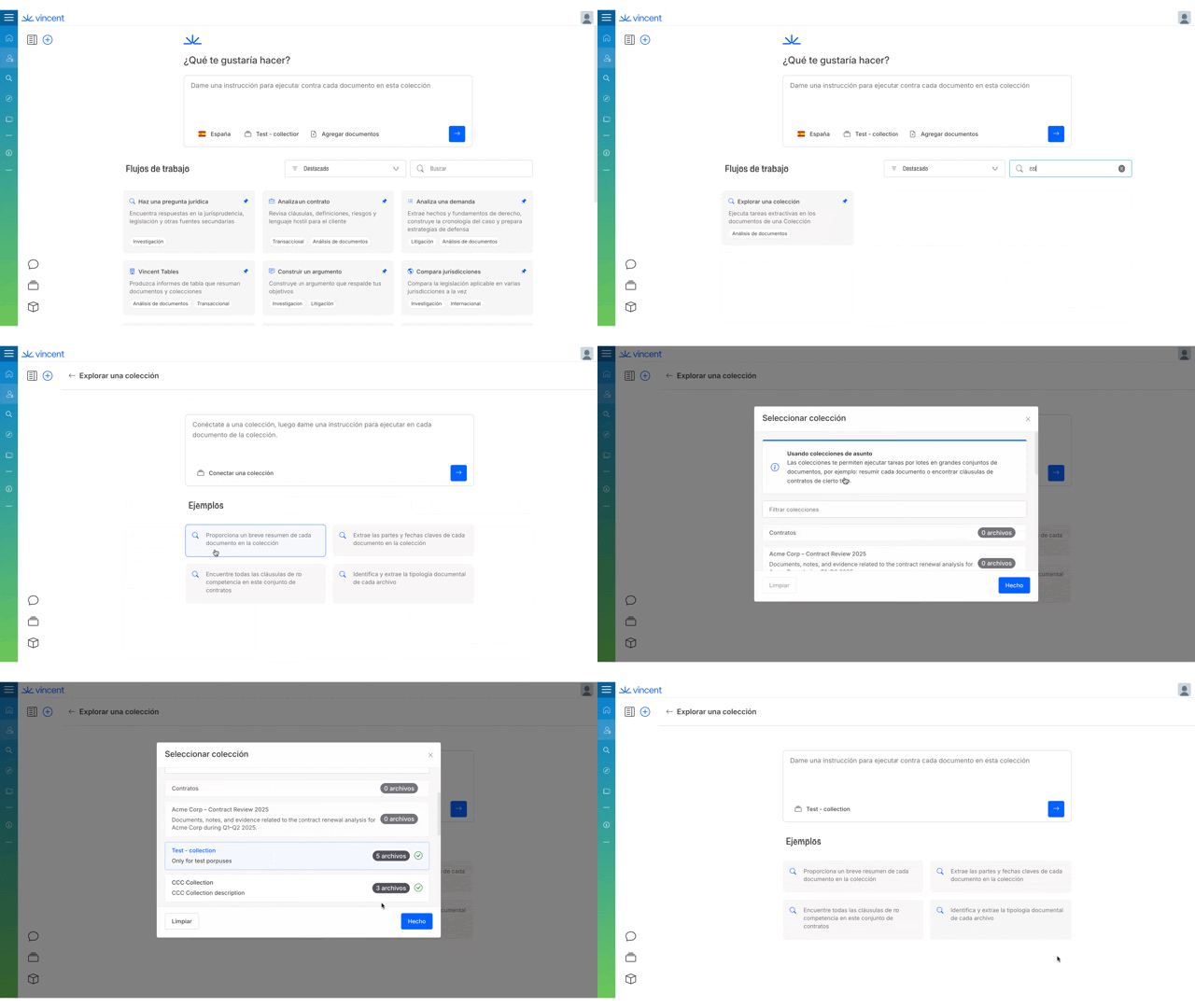
To begin working with your data, navigate to the Vincent AI landing page. You will see two primary options to interact with collections:

Connect a Collection: Select this option if you want to create a new workspace or link new documents to an existing analysis.

Start your analysis by selecting ‘Connect a Collection’.
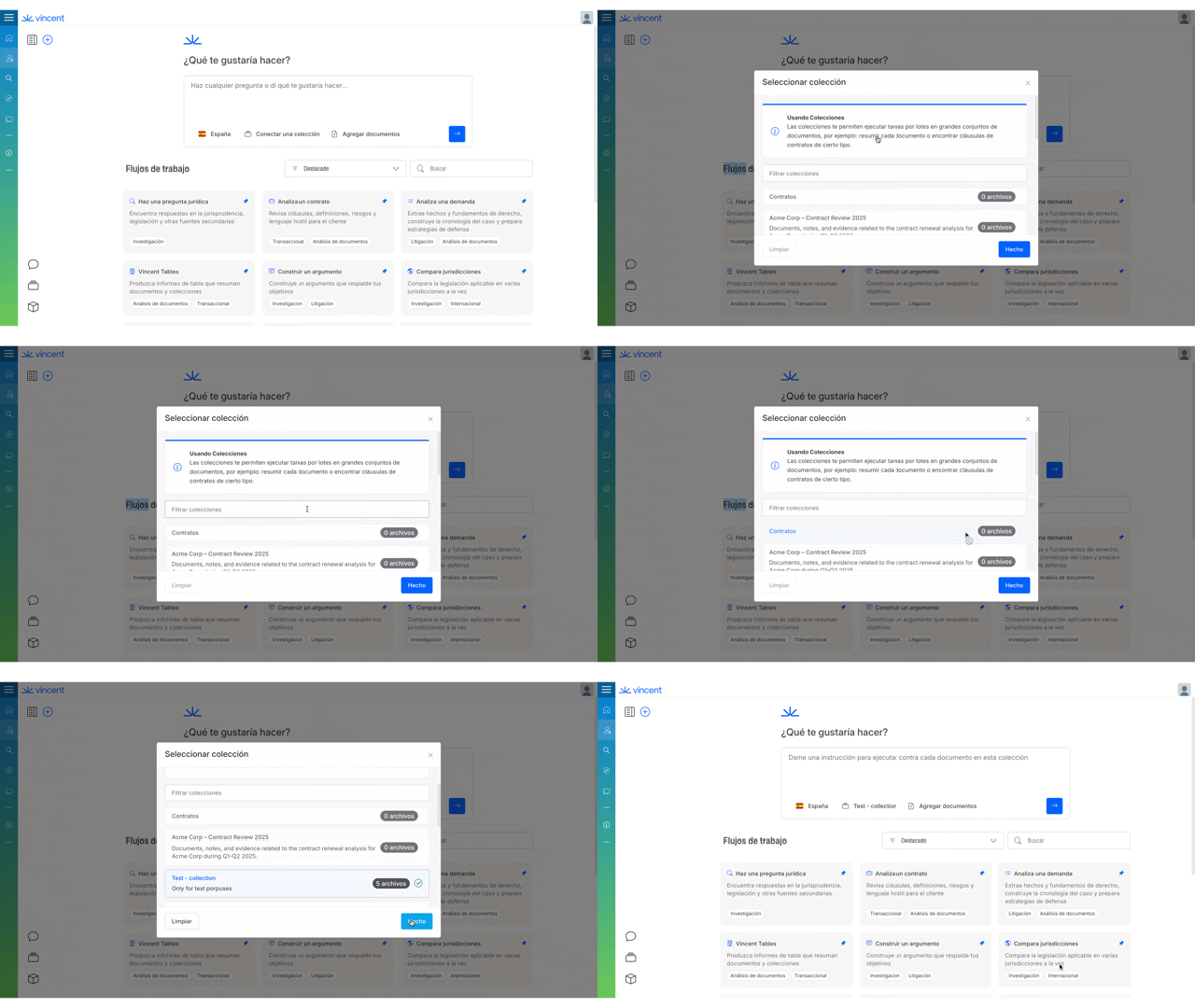
Explore a Collection: Select this option to view and analyze a collection that has already been created.

From the Vincent landing page, select ‘Explore a Collection’.
Best Practices & Pro Tips

  • Naming Conventions: Use a consistent naming convention (e.g., [Client Name] - [Case Type] - [Year]) to make searching for collections easier as your list grows.

  • Privacy First: When in doubt, start with "Only for individual authorized". You can always open up access to the rest of the organization later, but starting private ensures sensitive data remains secure.

  • Advanced Integrations with vLex Labs: For enterprise clients with more complex needs, our vLex Labs team can assist with advanced data integrations. This service is ideal for:

    • Content published on public websites relevant to your use cases (web scraping).

    • Content included in third-party services via API.

If you are interested in these advanced services, please contact your Account Manager to discuss your specific requirements.

Relevant Video Content

What's Your Next Step?

Last updated

Was this helpful?