# How to Organize Your Research with Folders, Notes, and Highlights

### Summary

Organize your **vlex legal research** efficiently using **Folders**, **Notes**, and **Highlights**. These tools allow you to save, manage, and annotate documents, turning your findings into a structured and reusable knowledge base.

### Why This is Important

Effective organization is the key to a productive **AI legal workflow automation**. By structuring your work, you can easily return to important documents, recall key insights, and build upon previous research, saving valuable time on every new project.

### How to Manage Your Research

#### Using Folders to Group Documents

**Folders** are the best way to group documents by case, client, or topic.

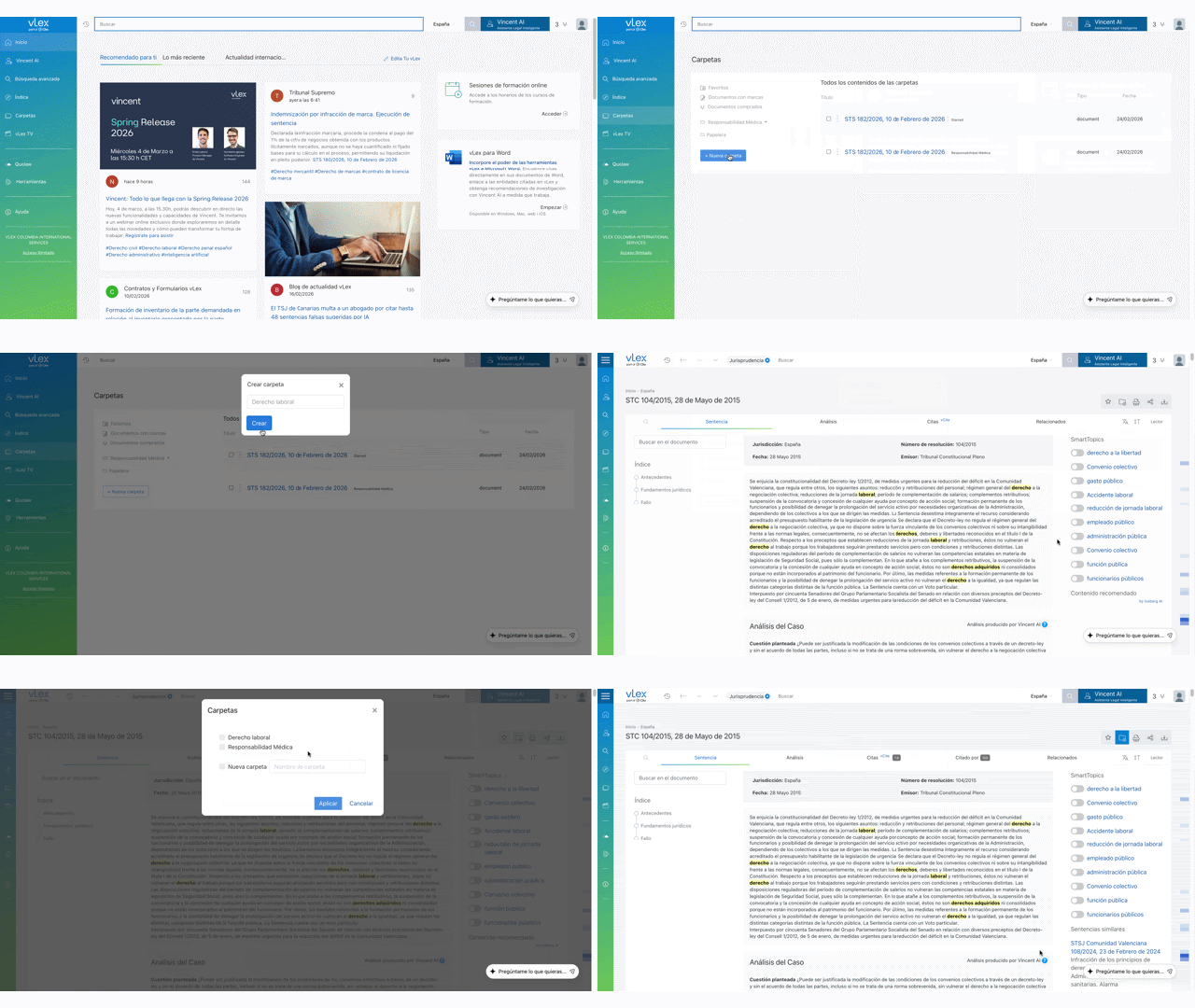
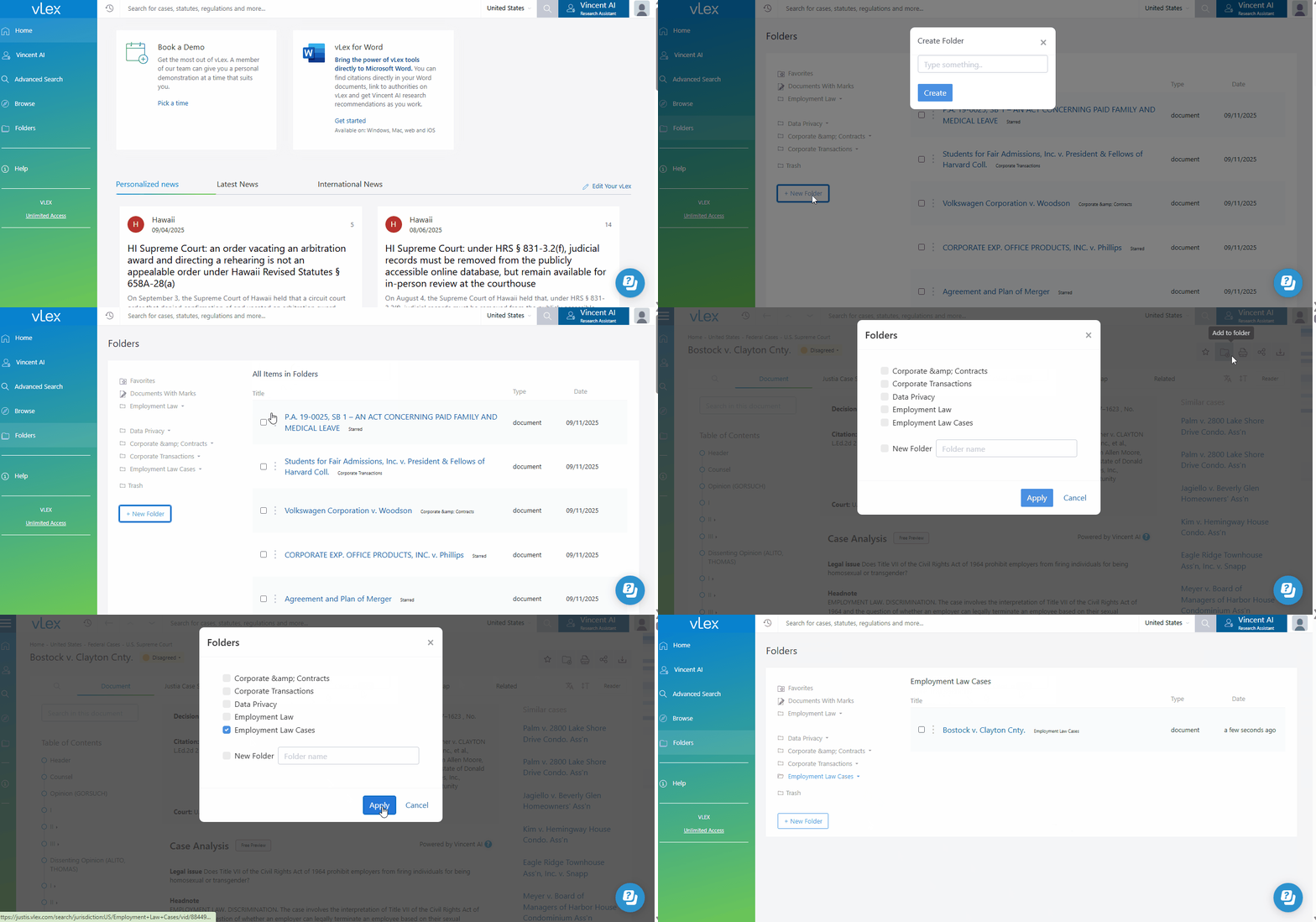
1. From the main menu, select **Folders**.
2. Click **New folder** at the bottom to create a folder. Use the drop-down arrow next to any folder to create subfolders, rename, or delete.
3. To add a document, click the **Add to folder** icon from the results page or the document viewer.

{% tabs %}
{% tab title="English Interface" %}

<figure><img src="https://1556743161-files.gitbook.io/~/files/v0/b/gitbook-x-prod.appspot.com/o/spaces%2F-MS8Dq_iqEIflAmbaOkI-887967055%2Fuploads%2FdL3CO2pADYjlbN3iQwEh%2FCreate%20folders%20and%20subfolders%20to%20keep%20your%20research%20organized%20by%20project..gif?alt=media&#x26;token=55714ded-7ba4-4550-9249-ee0284d780b9" alt=""><figcaption><p>Create folders and subfolders to keep your research organized by project.</p></figcaption></figure>
{% endtab %}

{% tab title="Interfaz en Español" %}

<figure><img src="https://1556743161-files.gitbook.io/~/files/v0/b/gitbook-x-prod.appspot.com/o/spaces%2F-MS8Dq_iqEIflAmbaOkI-887967055%2Fuploads%2F2s4jz4BHRvD44XNzwGUW%2FCrea%20carpetas%20y%20subcarpetas%20para%20mantener%20tu%20investigacio%CC%81n%20organizada%20por%20proyecto..gif?alt=media&#x26;token=7decec3f-e7ab-4392-ade6-56b9f90b9e18" alt=""><figcaption></figcaption></figure>
{% endtab %}
{% endtabs %}

#### Using Notes and Highlights to Annotate Documents

Add your own insights directly onto documents.

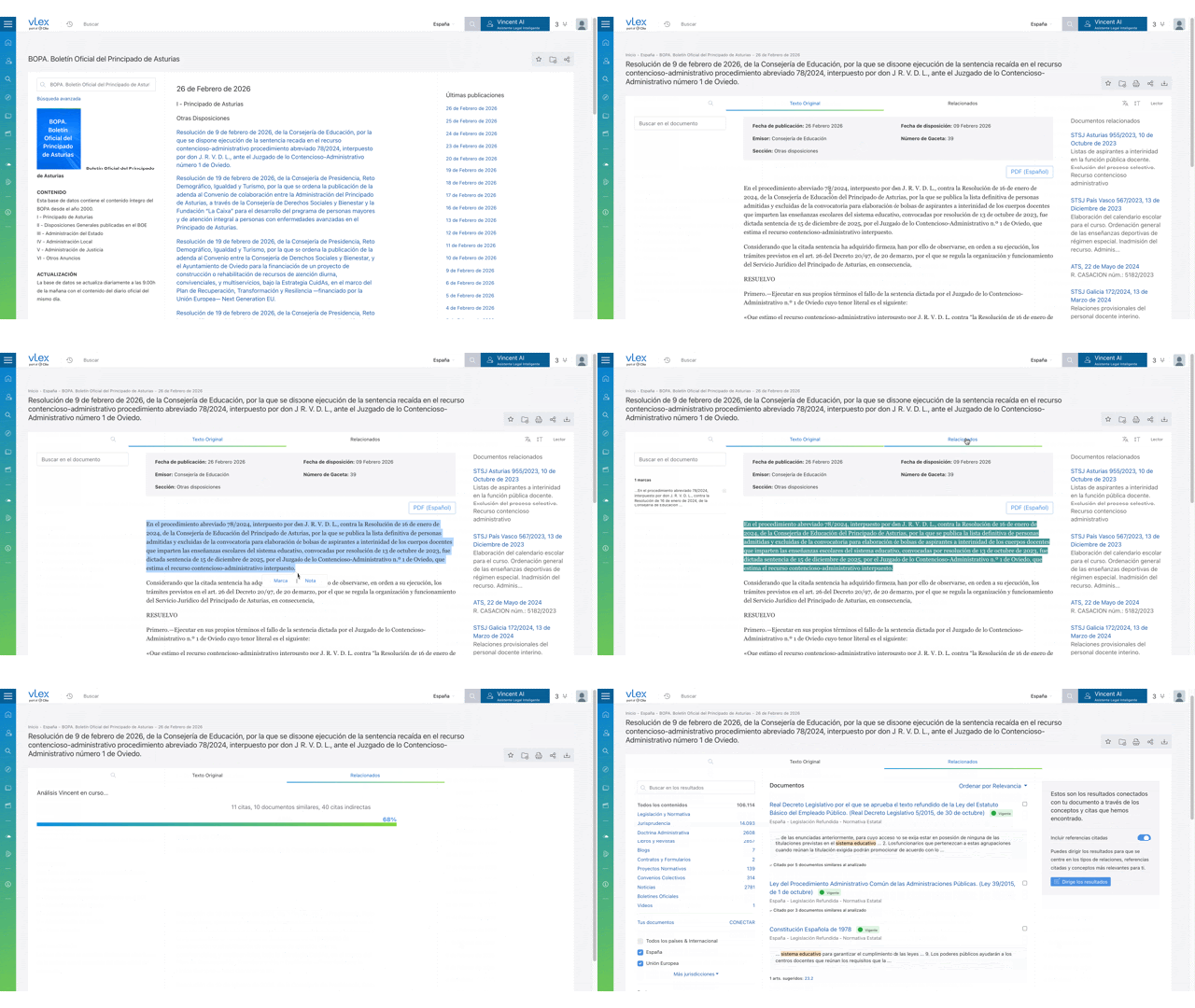
1. While viewing a document, select any passage of text with your cursor.
2. A small menu will appear. Choose **Highlight** to mark the text in green or **Note** to attach a comment.
3. Your annotations are saved automatically and can be viewed on the left side of the document.

{% tabs %}
{% tab title="English Interface" %}

<figure><img src="https://1556743161-files.gitbook.io/~/files/v0/b/gitbook-x-prod.appspot.com/o/spaces%2F-MS8Dq_iqEIflAmbaOkI-887967055%2Fuploads%2FsTo3seEWyxct14A6FY0i%2FHighlight%20key%20text%20or%20add%20personal%20notes%20directly%20in%20your%20documents%20(1).gif?alt=media&#x26;token=671a0190-9c62-4b1a-9e01-c87ebb6a0b8b" alt=""><figcaption><p>Highlight key text or add personal notes directly in your documents</p></figcaption></figure>
{% endtab %}

{% tab title="Interfaz en Español" %}

<figure><img src="https://1556743161-files.gitbook.io/~/files/v0/b/gitbook-x-prod.appspot.com/o/spaces%2F-MS8Dq_iqEIflAmbaOkI-887967055%2Fuploads%2FdJSPkwJb3dtyibamaZkJ%2FAbre%20cualquier%20entrada%20de%20un%20Diario%20Oficial%20y%20utiliza%20las%20herramientas%20de%20vLex%20para%20an%CC%83adir%20notas%2C%20resaltar%20y%20dejar%20que%20Vincent%20sugiera%20documentos%20relacionados..gif?alt=media&#x26;token=58e82d51-091f-41a7-86aa-367433849312" alt=""><figcaption><p>Resalta texto clave o añade notas personales directamente en tus documentos.</p></figcaption></figure>
{% endtab %}
{% endtabs %}

{% hint style="danger" %}
**Your Annotations are Private:** Notes and highlights you create are only visible to you. They will not appear if you share the document, but you can choose to include them when printing.&#x20;
{% endhint %}

### Best Practices & Pro Tips

* **Find Your Annotated Documents:** To see a list of all documents you have marked up, go to **Folders** and select the **Documents with marks** view.
* **Save Key Documents as Favorites:** For documents you refer to constantly, click the **Save as favourite** (star) icon in the document viewer for quick access from the top of your Folders page.

### Relevant Video Content

{% embed url="<https://vimeo.com/917899610?share=copy>" %}

### Related Articles

* [Workflows & Productivity Tools](https://support.vlex.com/vlex-library/vlex-library-home/workflows-and-productivity-tools)
* [Understanding and Using vLex Credits](https://support.vlex.com/vlex-library/vlex-library-home/workflows-and-productivity-tools/understanding-and-using-vlex-credits)
* [Pro Tip: How to Improve Your Search Results](https://support.vlex.com/vlex-library/vlex-library-home/workflows-and-productivity-tools/pro-tip-how-to-improve-your-search-results)

**What's Your Next Step?**

| **New to** vLex Library **?**                                                                                                                                                                                   | **Already a** vLex Library **Customer?**                                                                                                                   |
| --------------------------------------------------------------------------------------------------------------------------------------------------------------------------------------------------------------- | ---------------------------------------------------------------------------------------------------------------------------------------------------------- |
| [See how vLex Library can transform your practice. **Request a personalized demo**.](https://vlex.com/book-a-demo?utm_source=website\&utm_medium=organic\&utm_campaign=web_trial_homepage\&campaign_id=4270741) | [If you still have questions or need help with a specific feature, our team is here to assist. **Contact our Support team**.](https://vlex.com/contact-us) |