# Workflow: How to Create a Research Plan in vLex Library

### Summary

Structure your legal research by creating a workflow using vLex Library's organizational tools. This process involves using **Folders** to organize your findings and reference manager integrations to manage your citations.

### Why This is Important

A structured research plan prevents wasted effort and ensures you don't miss key documents. By organizing your work from the start, you create a reusable knowledge base for your project, making the brief-writing process faster and more efficient.

### A Step-by-Step Research Workflow

#### Step 1: Create a Project Folder

Before you begin searching, create a dedicated folder for your project.

1. Go to **Folders** from the main menu.
2. Click **New folder** and give it a name (e.g., the client or matter name).
3. Create subfolders for different aspects of your research (e.g., "Key Case Law," "Relevant Statutes," "Opposing Arguments").

#### Step 2: Run Your Searches and Save Documents

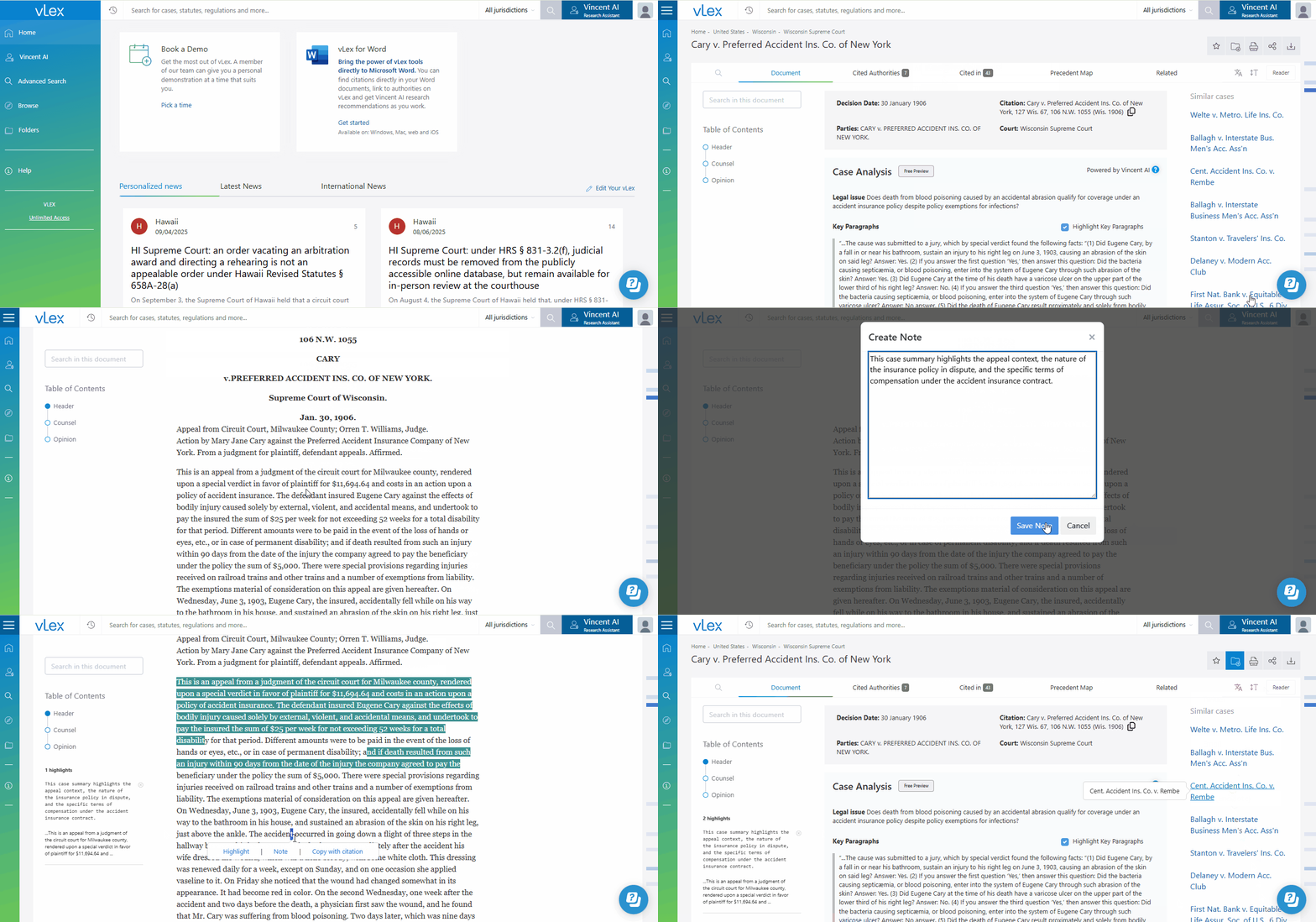
As you conduct your research, save relevant documents directly to your project folders.

1. From the results page or the document viewer, select the documents you want to save.
2. Click the **Add to folder** icon and choose the appropriate folder or subfolder.

{% tabs %}
{% tab title="English Interface" %}

<figure><img src="/files/G82UUDgEPrTkt1hUDKZI" alt=""><figcaption><p>Save documents to your structured folders as you find them to keep your research organized.</p></figcaption></figure>
{% endtab %}

{% tab title="Interfaz en Español" %}

<figure><img src="/files/EvZcSGgfxZX3434U6pet" alt=""><figcaption><p>Guarda los documentos en tus carpetas estructuradas a medida que los encuentres para mantener tu investigación organizada.</p></figcaption></figure>
{% endtab %}
{% endtabs %}

#### Step 3: Annotate as You Go

As you read, use **Notes and Highlights** to capture your thoughts and mark important passages. This turns passive reading into active analysis and makes it easier to recall key points later.

#### Step 4: Export Citations (for academic or formal writing)

If you are writing a formal brief or academic paper, export citations as you find them.

1. Click the **Share** icon in the document viewer.
2. Select your preferred reference manager (**RefWorks** or **RIS (EndNote)**) to export the citation data.

{% hint style="info" %}
**Keep a Master Reference List:** For complex projects, consider creating a simple text document with links to your most-cited authorities. You can get a direct link to any document by clicking **Share** and copying the **Link to page**.&#x20;
{% endhint %}

### Best Practices & Pro Tips

* **Use Your History:** If you forget to save a document, don't worry. Go to your **History** (clock icon) to find a list of all recently viewed documents and add them to your folders from there.

### Related Articles

* [How to Organize Your Research with Folders, Notes, and Highlights](/vlex-library/vlex-library-home/workflows-and-productivity-tools/how-to-organize-your-research-with-folders-notes-and-highlights.md)
* [Accessing and Managing Your Search History](/vlex-library/vlex-library-home/getting-started/accessing-and-managing-your-search-history.md)
* [Understanding vLex Library Integrations](/vlex-library/vlex-library-home/workflows-and-productivity-tools/understanding-vlex-library-integrations.md)

**What's Your Next Step?**

| **New to** vLex Library **?**                                                                                                                                                                                   | **Already a** vLex Library **Customer?**                                                                                                                   |
| --------------------------------------------------------------------------------------------------------------------------------------------------------------------------------------------------------------- | ---------------------------------------------------------------------------------------------------------------------------------------------------------- |
| [See how vLex Library can transform your practice. **Request a personalized demo**.](https://vlex.com/book-a-demo?utm_source=website\&utm_medium=organic\&utm_campaign=web_trial_homepage\&campaign_id=4270741) | [If you still have questions or need help with a specific feature, our team is here to assist. **Contact our Support team**.](https://vlex.com/contact-us) |


---

# Agent Instructions: Querying This Documentation

If you need additional information that is not directly available in this page, you can query the documentation dynamically by asking a question.

Perform an HTTP GET request on the current page URL with the `ask` query parameter:

```
GET https://support.vlex.com/vlex-library/vlex-library-home/workflows-and-productivity-tools/workflow-how-to-create-a-research-plan-in-vlex-library.md?ask=<question>
```

The question should be specific, self-contained, and written in natural language.
The response will contain a direct answer to the question and relevant excerpts and sources from the documentation.

Use this mechanism when the answer is not explicitly present in the current page, you need clarification or additional context, or you want to retrieve related documentation sections.
